

Short answer
Before you start
- A Stream Deck (Mini, 15-key or 32-key)
- An Elgato account to download plugins from the Marketplace
- OBS Studio 27 or newer (Elgato requires it) with your scenes created and clearly named
- Optional: Discord audio separated from desktop audio, so you can mute it on its own
Bring your setup to a 24/7 AI Streamer Coach
Ask Streamer Coach →Get personalized feedback to fix streaming issues and plan your next content.
Step by step
- 01
Install the Stream Deck app
Nicole Rojas · YouTube · 0:30 ↗Bought a Stream Deck and it's just sitting there, switched off, judging you? Let's fix that. Go to Elgato's website, pick your product (Stream Deck Mini, 15-key or 32-key) and download the installer. Run it, choose where to install and click Install. At the end, tick Launch Stream Deck and click Finish.
What you should see: The Stream Deck app opens with a picture of your model and its empty keys.
- 02
Get the OBS Studio plugin
Nicole Rojas · YouTube · 1:02 ↗In the app, open the Marketplace and search for OBS. The first result is OBS Studio by Elgato. Click Get. If you don't have an Elgato account, it asks you to create one or sign in. When it's done the app reopens, and the action list now includes everything the plugin adds: scenes, Audio Mixer, record, stream and source visibility. Elgato requires Stream Deck 5.3 or newer and OBS Studio 27 or newer.
What you should see: An OBS Studio section with all its actions appears in the action column on the right.
- 03
Pick the scenes that get a key
Nicole Rojas · YouTube · 2:00 ↗Go with your four or five main ones. Mine are Starting, Just Chatting, Game, Be Right Back (for when you have to run off or need the bathroom, which happens to me a lot) and See You Next Time, which also buys you time to raid.
What you should see: The OBS Scenes panel lists your four or five main scenes.
- 04
Put each scene on a key
Nicole Rojas · YouTube · 2:45 ↗Drag the Scene action onto a key and choose the scene. Leave the title blank and it uses the scene name. Repeat for each one and test them with OBS open.
What you should see: Press Just Chatting on the Stream Deck and OBS switches to it.
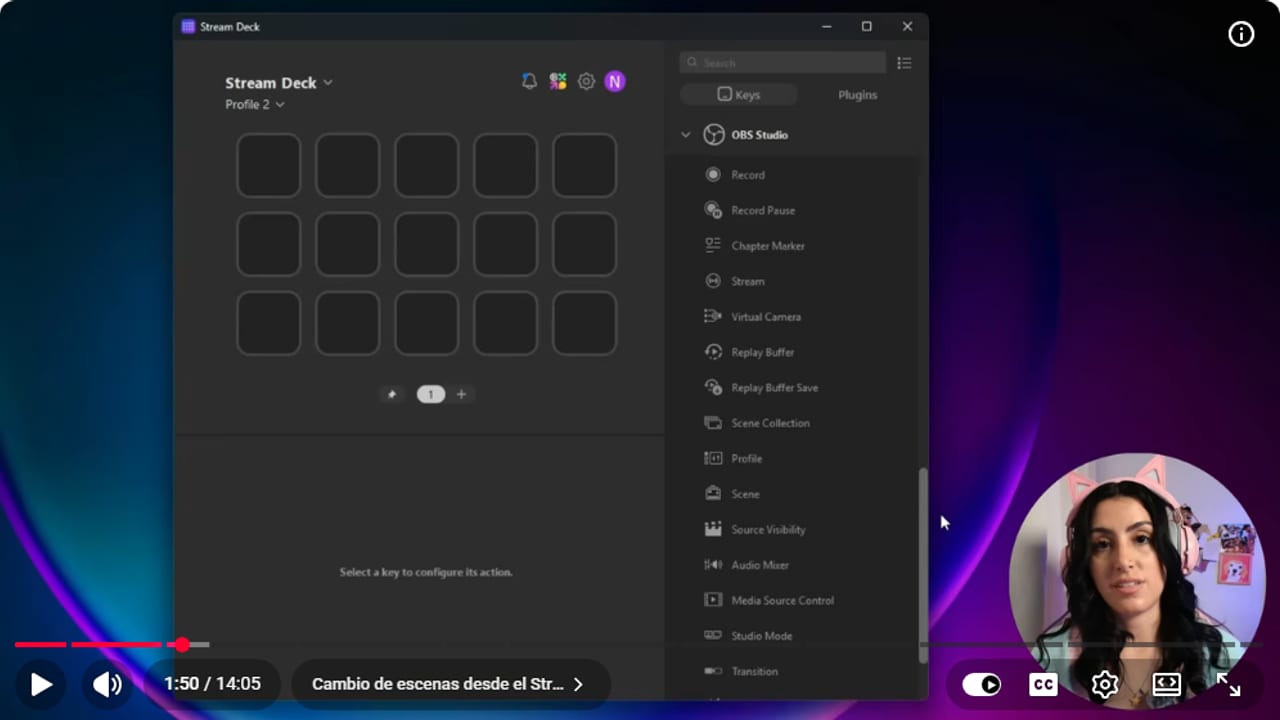
OBS actions are dragged onto keys and connected to specific scenes. YouTube · 1:51 ↗ - 05
Add keys to mute your mic and Discord
Nicole Rojas · YouTube · 3:05 ↗Drag Audio Mixer onto a key, leave the mode on Mute and pick your microphone as the source. You can mute with one press, while you hold the key, or in push to talk mode, where your mic only works while the key is held. Make a second key the same way with Discord as the source. If Discord isn't in the list, your audio isn't separated yet, and the only option will be Desktop Audio, which mutes your game too.
What you should see: With the OBS Audio Mixer in view, press the mic key and its meter turns red and stops moving when you talk.
- 06
Set Record and Stream to long press
Nicole Rojas · YouTube · 4:39 ↗Drag Record onto a key and set it to Long Press, so it only fires when you hold it down. Do the same for Stream. Hit Record by accident while switching scenes and suddenly you're recording and your PC is melting. Happens to me constantly. You can also park them in a corner, away from the scene keys. Elgato notes that Long Press needs the key held for 5 seconds.
What you should see: A quick tap on Record does nothing, and holding it brings up the red recording dot in OBS.
- 07
Build a multi action to start your stream
Nicole Rojas · YouTube · 5:00 ↗Multi Action does what it says: several things in one press. Drag it onto a key, name it something like Start, and add Stream, Record, the Starting scene and Audio Mixer set to mute your mic. If you don't record your streams, drop Record. A tip from this guide, not the video: before using it live, try it on a local recording and watch it back.
What you should see: Back on the Start key view you see the four actions in order, and pressing it opens OBS on Starting with your mic muted.
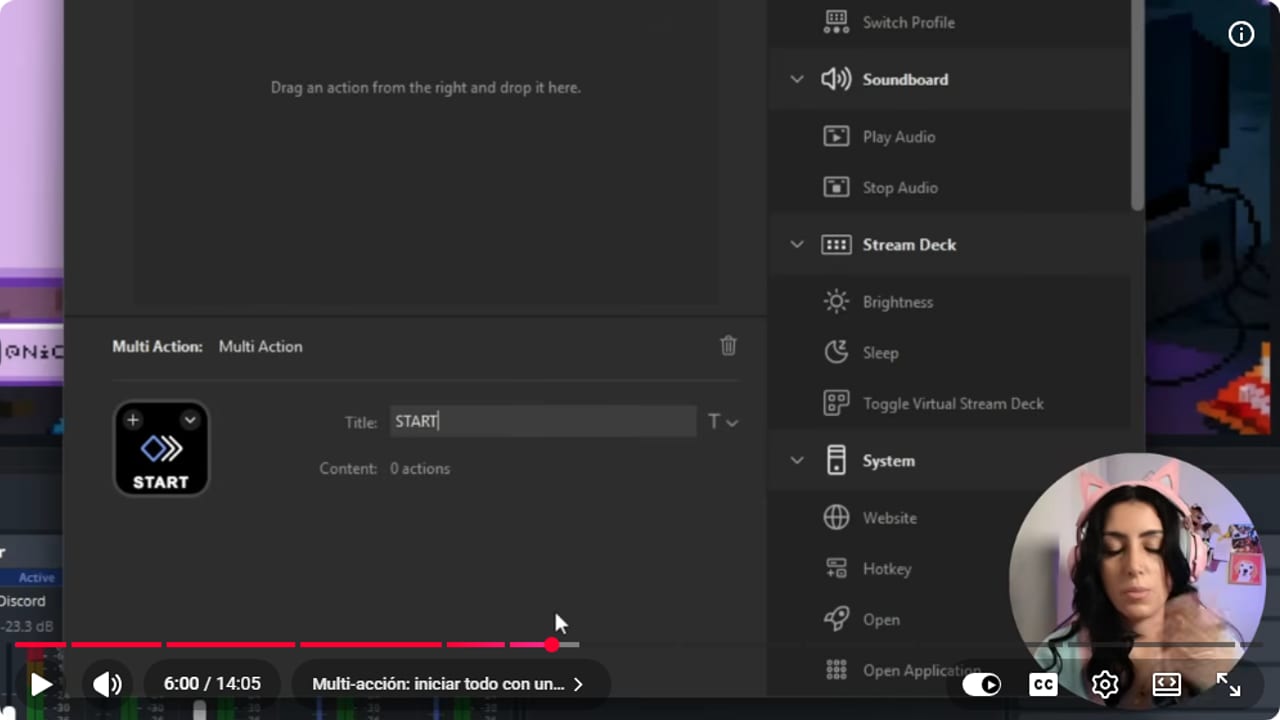
Multi Action runs a sequence of controls from one key. YouTube · 6:01 ↗ - 08
Add a key to hide your camera
Nicole Rojas · YouTube · 7:14 ↗Drag Source Visibility onto a key, pick your game scene and your camera source. It hides the camera for a moment without touching the rest of the scene, handy if it's covering something in the game or something comes up at home. It works for any source, like a desktop capture during a reaction stream.
What you should see: The camera key hides it and brings it back, and nothing else in the scene moves.
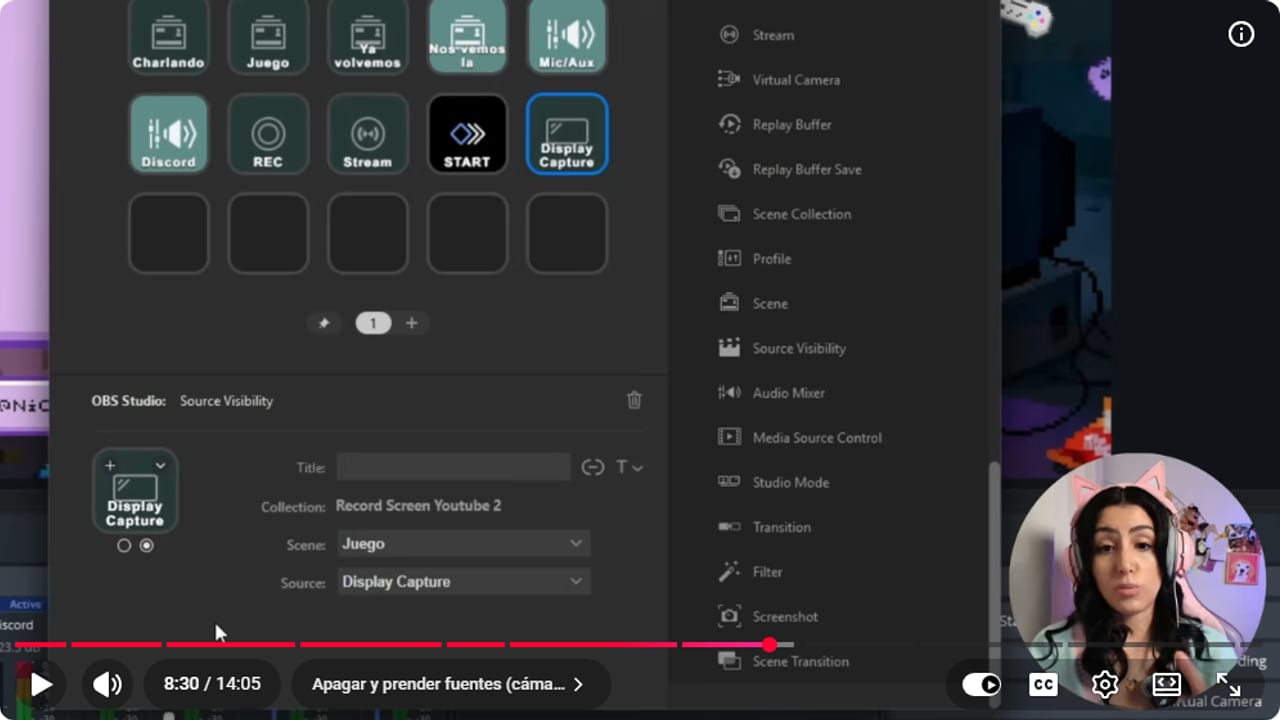
Source Visibility shows or hides a selected source without changing the whole scene. YouTube · 8:31 ↗ - 09
Add the Twitch plugin for clips and Shield Mode
Nicole Rojas · YouTube · 8:46 ↗Search the Marketplace for Twitch and get the one by Elgato. Connect your account and its actions show up. My favorite is Create Clip: when something funny happens and nobody's clipping, one key does it, and the clips are ready for TikTok or Instagram later. It also has ads, Shield Mode for when chat goes off the rails or bots turn up, and slow mode.
What you should see: Press Create Clip and a new clip is created on your channel.
- 10
Add Spotify and put play in your multi action
Nicole Rojas · YouTube · 10:20 ↗Search Spotify in the Marketplace and click Get. You can make keys for play and pause, next track or previous track. To start the stream with music, open your Start multi action, click the actions arrow and add Play. One warning: Spotify's terms are for personal, non-commercial use, so it isn't music to play on a public stream. In the video Nicole recommends an NCS playlist inside Spotify and crediting it in the description. For your stream, pick copyright-free sources like NCS under its usage policy (ncs.io/usage-policy), which asks you to credit the artist and track in the stream description.
What you should see: Press Start and, along with the scene change, your Spotify playlist starts playing.
- 11
Arrange the keys so they make sense to you
Nicole Rojas · YouTube · 11:50 ↗My top row is scenes. The second is audio: mute Discord, mute mic, music and its volume. Then Start, camera off, Shield Mode, emote-only chat and Clips. The + button lets you make subfolders, and up top you can create separate profiles, say one for streams with friends on Discord. If you're in the mood, the + also has icon packs, most of them free. And that's it, your Stream Deck is no longer decoration.
What you should see: Your Stream Deck shows scenes on the top row and audio on the second, each key with its icon or title.
If something does not work
- A key says Waiting for OBS or does nothing
- Open OBS before pressing the key. The OBS Tools menu should list Elgato Stream Deck, which means the plugin is connected. If it's missing, reinstall OBS Studio from the Marketplace and check you meet what Elgato requires: Stream Deck 5.3 or newer and OBS Studio 27 or newer.
- The Discord key can't find a Discord source
- Discord doesn't have its own audio track yet, so it's lumped into Desktop Audio. Muting that kills your game sound as well. Separate Discord's audio in OBS first, then pick that source on the key.
- You started recording by accident mid-stream
- A classic, and your PC hates it. Switch Record and Stream to Long Press, or move them to a corner away from your scene keys.
- The multi action stops halfway
- Test each action alone on its own key to see which one fails. Usually a scene got renamed in OBS or Spotify isn't open. Only add back the actions that work on their own.
- It mutes the wrong source
- Edit the key and choose the exact source by name. If two sources have similar names, rename them in OBS and reassign the key with the mixer open so you can see which meter reacts.
Test before you go live
- OBS lists Elgato Stream Deck under Tools.
- Every main scene has its own key and responds.
- Mic and Discord mute from separate keys.
- Record and Stream need a long press.
- You tried the multi action before going live.
- No more twisting around in your chair to switch scenes.
Cómo configurar tu Stream Deck con OBS
Watch the full tutorial (in Spanish) ↗Common questions
Does this work for any Stream Deck?
Yes. These steps work on the Stream Deck Mini, the 15-key and the 32-key. On the Mini you'll need fewer keys or some subfolders.
Do I need a Stream Deck for any of this?
No. OBS has keyboard shortcuts for scenes and audio, so you can control the basics without buying the hardware.
Can one key start both stream and recording?
Yes, with Multi Action. A tip from this guide: test it on a local recording first so you know the scene and mic mute land correctly before you go live.
Can I mute Discord without separating audio?
Yes, with the official Discord plugin, which has mute, volume control, channel mute and more. Search Discord in the Marketplace to get it.
Can I use YouTube Music instead of Spotify?
There are YouTube Music plugins, but they're unofficial. To keep your PC safe, I stick with the Spotify one here. If you try another, be careful where you download it from. And if the goal is music on your stream, use copyright-free music rather than a music streaming app.
What should I set up first?
Scenes and mic mute, since they're the easiest to test. The Twitch and Spotify plugins and the pretty icons can wait, tempting as they are.

