

Short answer
Before you start
- A free Canva account
- The free overlay kit, or your own template you're allowed to use
- OBS installed with your camera already set up
- Optional: a PNG in the shape you want for your camera
Bring your setup to a 24/7 AI Streamer Coach
Ask Streamer Coach →Get personalized feedback to fix streaming issues and plan your next content.
Step by step
- 01
Grab the free template
Nicole, OBS overlays ↗Making your stream look good is a lot easier than it seems. We'll use the free overlay kit I made: request it with your email from the download link on my Instagram and you'll get a PDF (very pink, you'll see). Scroll to the visual preview of the overlay and template kit and click the Canva link. That opens your own copy of the overlay, ready to edit.
What you should see: Canva opens the design with all five kit screens, ready for editing.
- 02
Customize each screen in Canva
Nicole, OBS overlays ↗The kit includes Starting Soon, Playing, Just Chatting, Be Right Back and See You Next Time. On each one, replace Username with yours, drop your logo or channel profile picture into the photo circle, and add the YouTube, Instagram or TikTok accounts you want to promote. Leave the chat and countdown areas empty, since tools like StreamElements fill them later.
What you should see: All five screens show your username, logo and socials instead of the sample text.
- 03
Download the overlays as PNG
Nicole, OBS overlays ↗Click Share, then Download, and pick PNG, since these overlays are static. With Canva Pro, tick transparent background and you're done. Free Canva can't do that, which is why the design has green patches where your camera and game go. Don't worry, OBS gets rid of the green.
What you should see: Your downloads folder has one PNG per screen, with green filling the camera and game openings.
- 04
Create one scene per overlay
Nicole, OBS overlays ↗In the OBS Scenes panel, click + and add whatever's missing. If you already have Game and Just Chatting, add Starting Soon, Be Right Back and See You Next Time. Clear names keep each overlay in its own scene, separate from your gameplay sources.
What you should see: The Scenes panel lists Game, Just Chatting, Starting Soon, Be Right Back and See You Next Time.
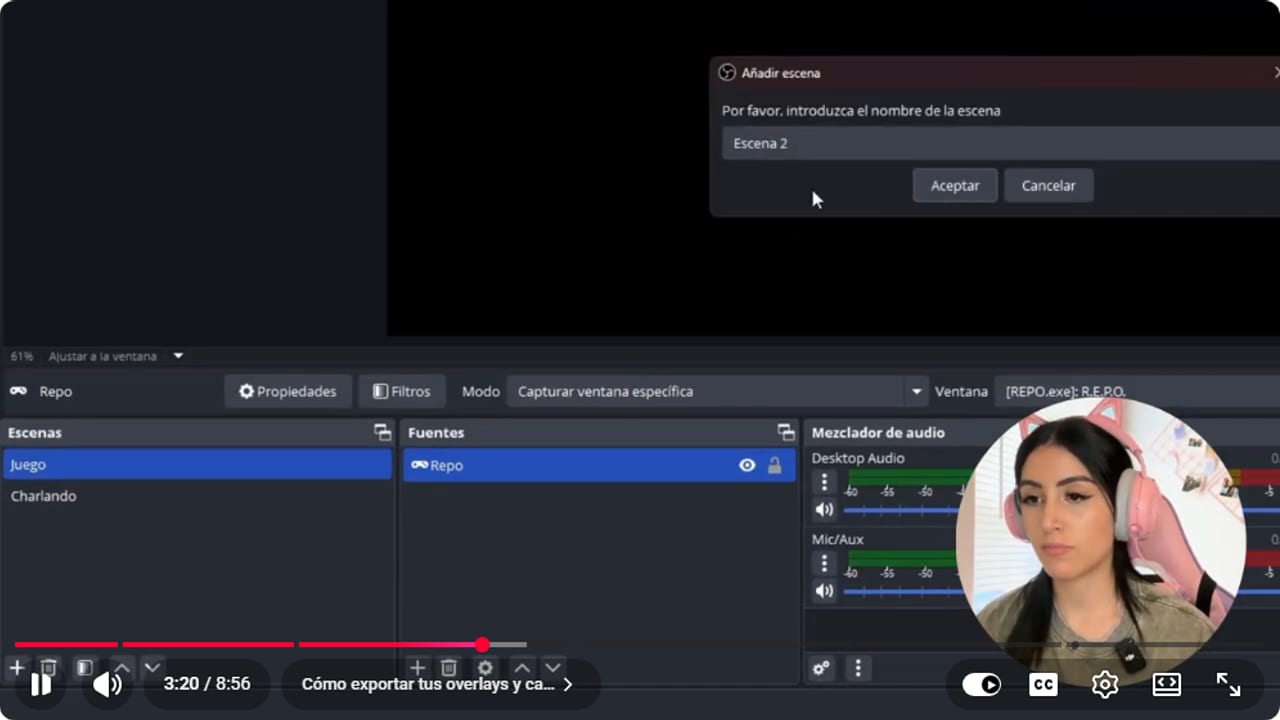
A clearly named scene keeps the overlay separate from gameplay sources. YouTube · 3:20 ↗ - 05
Add your camera and the overlay to the game scene
Nicole, OBS overlays ↗In the Game scene, click + under Sources and add a Video Capture Device for your webcam. I'm leaving mine as is, and yes, I'll buy a proper curtain one day. Click + again and choose Image, because the overlay is static. If it were animated, you'd use Media Source. Name it, click Browse, pick the game PNG and confirm. Everything turns green and you'll wonder why you bothered. Hang on, we're fixing it now.
What you should see: The game overlay appears in the scene, with green covering the camera opening.
- 06
Key out the green and shape your camera
Nicole, OBS overlays ↗In the video Nicole does this in two rounds. First (4:07), right-click the overlay source, choose Filters, click + and add the color filter. Choose a custom color and use Pick Screen Color to click the overlay's green. If a thin green edge is left, nudge Similarity and Smoothness up a little. Then (5:11), for a shaped camera, create a new source, say shaped camera, using your existing Video Capture Device. In its Filters, add Image Mask/Blend, click Browse and pick the PNG in the shape you want. Then fit it inside the overlay's opening.
What you should see: Where there was green you now see your camera, cut to the shape of your PNG.
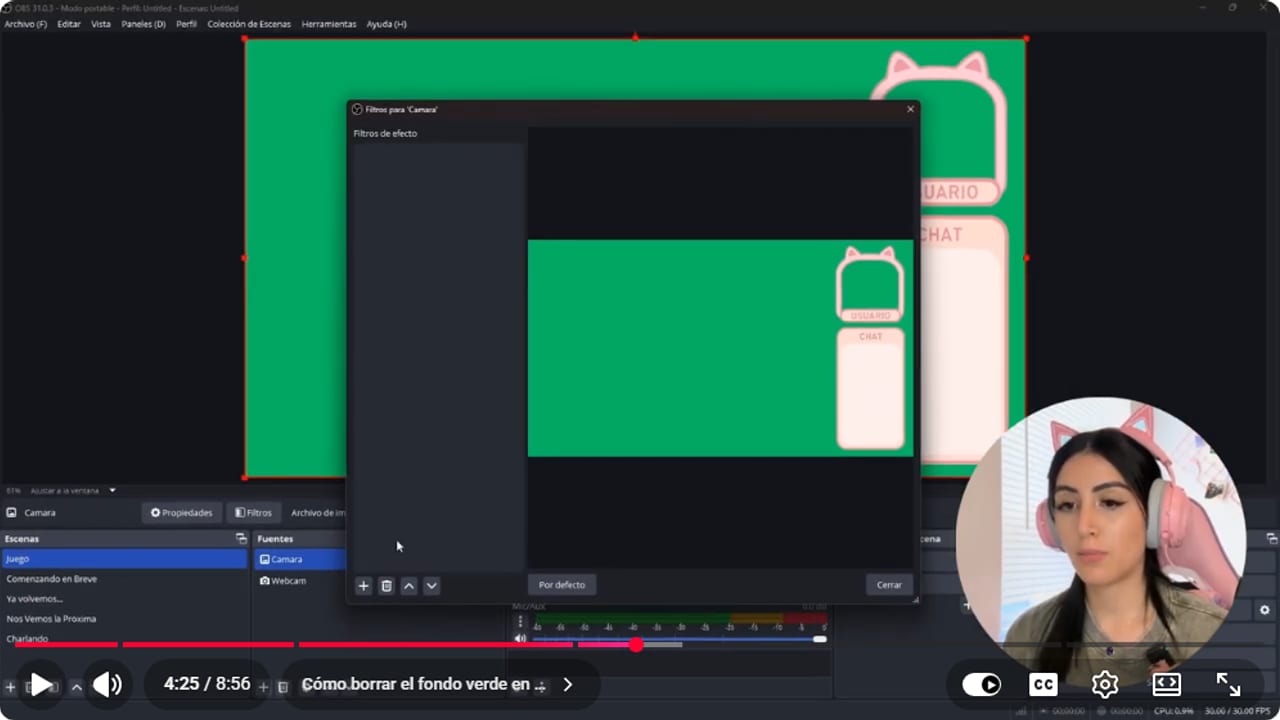
The green background is ready to be removed with the color filter. YouTube · 4:26 ↗ 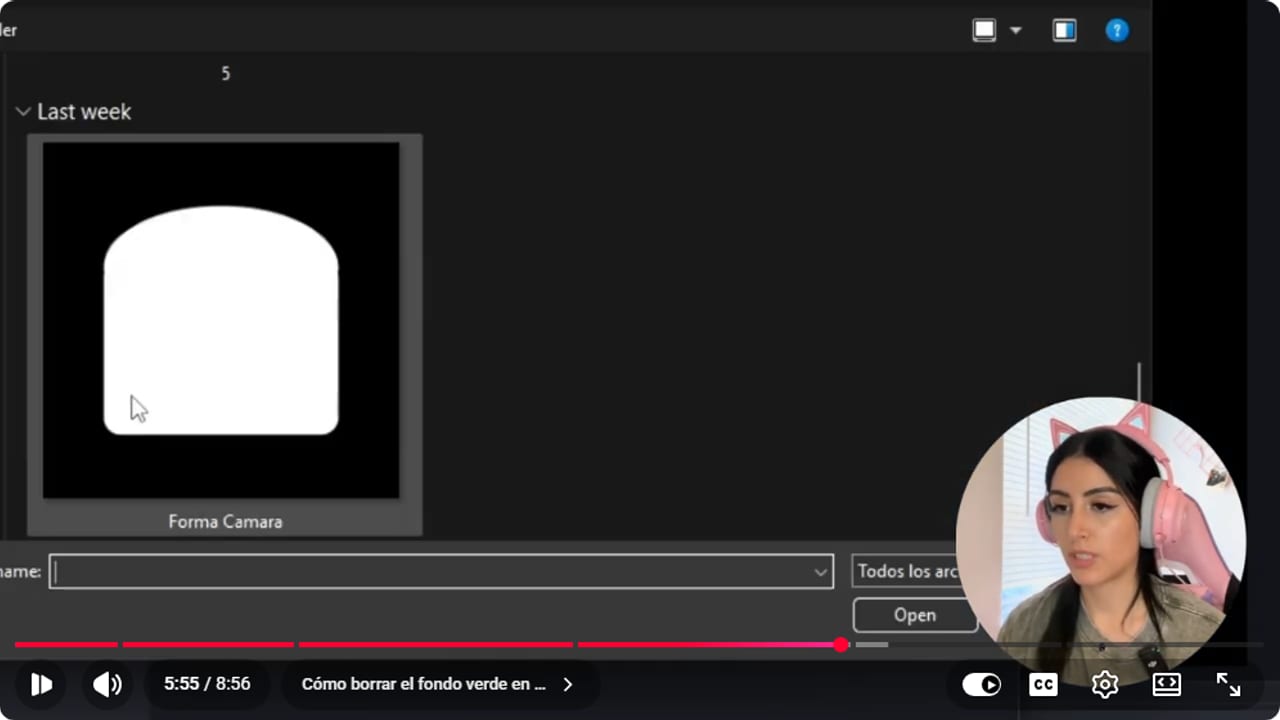
The mask defines the camera shape without changing the original file. YouTube · 5:55 ↗ - 07
Order your sources and add game capture
Nicole, OBS overlays ↗If your camera vanishes or gets covered, it's the source order. In Sources, drag the camera above or below the overlay until it shows properly. Don't forget to add Game Capture with + as well, so your gameplay fills the big opening.
What you should see: The Game scene shows the overlay, your camera in its frame and gameplay in the middle.
- 08
Repeat for Starting Soon, Be Right Back and See You Next Time
Nicole, OBS overlays ↗In each of those scenes, click +, choose Image, browse to the matching PNG and confirm. If an overlay is animated, use Media Source and tick Loop, or the animation plays once and disappears. If one has green, you know the drill: the color filter.
What you should see: Clicking each scene shows its overlay full screen with no green left over.
- 09
Build the Just Chatting scene
Nicole, OBS overlays ↗In Just Chatting, add the PNG as an Image and key out the green. Then add your webcam as a Video Capture Device, send it behind the overlay in Sources and adjust it until it lines up with the frame.
What you should see: Just Chatting shows your camera inside the frame, your username, and the chat area to one side.
- 10
Record a test before going live
Official OBS Quick Start Guide ↗OBS recommends running a test for a few minutes before you go live. The rest is a tip from this guide, not in the video: make a short recording that goes through every scene, with you moving in front of the camera and the game running. Watch it back and check the overlay doesn't cover the minimap, subtitles or health bar, and that no green edges are left. And that's it, all five scenes have their overlay and your stream looks great.
What you should see: In the recording, every scene is complete, with no green edges and no game info hidden by the overlay.
If something does not work
- The whole overlay looks green in OBS
- That's expected if you downloaded it with free Canva. Add a color filter to the overlay source and pick the green with Pick Screen Color. With Canva Pro you can also re-download it with a transparent background.
- A green edge is left around the camera or text
- Raise the filter's Similarity and Smoothness a little at a time while watching the preview. Push too far and parts of the design start disappearing, so go slowly.
- Your camera disappears when you add the overlay
- It's the source order. In the Sources panel, drag the camera to the right side of the overlay and check its eye icon is on.
- An animated overlay shows up, then vanishes
- It was added as a Media Source without Loop. Double-click the source, tick Loop and click OK.
- The overlay covers game information
- Hide the overlay for a moment and see which part of the game interface went missing. Move the game capture or simplify the design in Canva before you crop the gameplay.
Test before you go live
- You asked someone to watch your test and tell you if everything is readable.
- You saved the PNGs in a fixed folder, so OBS doesn't lose the path.
- Your Canva design is still saved in case a social handle changes.
- You ran the test with the game open, not just an empty scene.
- You know which scene to switch off first if the overlay covers something in the game.
- Your stream looks sharp. The curtain is a separate project.
Cómo configurar overlays en OBS con una plantilla gratis
Watch the full tutorial (in Spanish) ↗Common questions
Do I need Canva Pro?
No. With free Canva you download the PNG with a green background and remove it in OBS with a color filter. Canva Pro just saves you that step, since it exports with a transparent background.
Image or Media Source?
Image for static overlays, like the PNGs in this kit. Media Source for animated ones, and tick Loop when you do.
Can I use a JPG as an overlay?
Better not. JPGs don't keep transparency, so they cover everything underneath. Use a PNG, either transparent or with green to key out in OBS.
How do I fill the chat and countdown spaces?
Those areas are meant for tools like StreamElements, which give you on-screen chat, alerts and timers as browser sources. For the countdown you can also use a free OBS plugin.
Does every scene need an overlay?
No. A game scene already carries plenty of information. An overlay earns its place when it organizes the screen or shows your socials, and it's dead weight when it's just a pretty border sitting on the minimap.


