TWITCHRAIDS
What is a Twitch raid and how to raid on Twitch
Twitch host mode is gone and raids took its place. How to raid with /raid or the dashboard, who can raid you, and how to shut down a hate raid fast.

Short answer
Before you start
- A Twitch account you stream from
- The name of a channel that's live right now
- A computer for your incoming raid settings, since those are managed on the web
- Optional: one or two mods you trust, in case an ugly raid shows up
Bring your setup to a 24/7 AI Streamer Coach
Ask Streamer Coach →Get personalized feedback to fix streaming issues and plan your next content.
Step by step
- 01
Forget /host, raids are the tool now
Twitch Help: How to Use Suggested Channels ↗You typed /host and Twitch acted like it never heard of it. Fair enough, because it hasn't existed since October 3, 2022. That day Twitch dropped the /host and /unhost commands and the Host Channel quick action. Autohost became Suggested Channels, which only shows while you're offline. Here's the key difference. Hosting played another stream inside your channel and kept your viewers in your chat. A raid moves everyone in your chat over to the other channel, where they can actually talk to that streamer live.
What you should see: Typing /raid and a channel name in your chat opens the raid window with its countdown.
- 02
Pick a channel with the Raid Browser
Twitch Help: How to Use Raids ↗No one in mind? Open the Raid Browser with the Raid Channel quick action in your Creator Dashboard, or type /raidbrowser in chat. Each channel shows its name, title, category, viewer count and uptime. The filters do the heavy lifting: Same Category, Following, Raided You (channels that raided you in the last 30 days) and Similar Size (channels with similar or smaller viewership than yours). You can preview a stream before you commit. The Raid Browser isn't in the Twitch mobile app.
What you should see: A window opens with live channels, filter tabs along the top and a thumbnail for each stream.
- 03
Start the raid with /raid
Twitch Help: How to Use Raids ↗When your stream is wrapping up, type /raid and the channel name, like /raid TwitchPresents. A pop-up at the top of chat counts who's joining and starts a countdown. Viewers can opt out. After 10 seconds, or once everyone's ready, click Raid Now. If you don't click anything, the raid starts on its own when the purple bar runs out. Changed your mind? Type /unraid before the countdown ends. You can start raids from your phone too.
What you should see: The raid pop-up sits above your chat with a participant count and a purple bar shrinking.
- 04
Save the raid for the end of your stream
Twitch Help: How to Use Raids ↗Twitch says raids work best at the end of your broadcast. Raid mid-stream and your current viewers get sent away, but anyone who opens your page afterwards still sees your stream. When the raid lands, the other channel's chat gets a message with the number of raiders. One nice detail: neither you nor your viewers see pre-roll ads when you arrive through a raid.
What you should see: Your player jumps to the other channel and its chat shows the raid notice with how many people came with you.
- 05
Find the raid setting in your dashboard
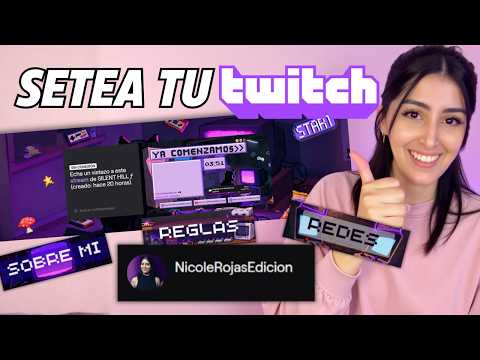
Nicole Rojas | YouTube | 9:09 ↗Now the other direction: who gets to raid you. In my Twitch setup tutorial I go to the Creator Dashboard, open Settings, then Stream. Right after the clip options there's the raid setting, which lets other streamers bring their viewers to your stream. You can allow it now and fine-tune it later, which is exactly what the next step does. My video is in Spanish, so the menus on screen are in Spanish too.
What you should see: Under Settings, Stream, you see the raids section just below the clip options.
- 06
Decide who's allowed to raid you
Twitch Help: How to Use Raids ↗Your incoming raid settings give you three filters. A viewer range: the raiding channel has to have that many viewers at the moment it picks you. A minimum account age, in days. And optional groups, such as My teammates. Tick more than one group and a raid only has to match one of them. To accept every raid, leave the groups unticked, set the minimum to 1, leave the maximum on No max and drop account age to 0. Only the channel owner can see and edit these, and Twitch suggests keeping your choices to yourself.
What you should see: After saving, your viewer range and account age limit show in the incoming raids section.
- 07
Protect yourself from hate raids
Twitch Help: How to Use Raids ↗Raids are meant to be friendly, but sometimes a crowd shows up just to cause trouble. You have four tools. First, the Stop Raids for 1 Hour quick action blocks every incoming raid for up to an hour, even mid-stream. You have to add it to Stream Manager first, with raids enabled in your settings, so set it up before you need it. Second, chat modes under the cog at the bottom right of chat: Emotes-Only, Followers-Only (with a minimum follow time), Slow Mode, or Subscribers-Only if you're an Affiliate or Partner. Third, under that same cog, go to Tasks, then Review Recent Raids, and click Report or Ban on the raiding channel. A banned channel can't raid you again. Fourth, your mods can time out or ban raiders one by one, and AutoMod can filter the rest.
What you should see: Review Recent Raids lists the raid with Report and Ban buttons next to it.
- 08
Welcome raiders and pay it forward
Twitch Help: How to Use Raids ↗When someone raids you, Twitch suggests thanking the streamer and the raiders, then introducing yourself briefly and saying what your channel's about. With a bit of luck some of them stick around or follow you. No guarantees, though. To return the favor, use the Raided You filter in the Raid Browser next time you're live. To recommend someone without sending your viewers away, type /shoutout and their name, and chat gets a follow button for them. For your offline page, add them to Suggested Channels. And that's it. You can raid, take raids, and close the door on anyone who came to wreck the place.
What you should see: After /shoutout, your chat shows the recommended channel with a follow button.
If something does not work
- /host doesn't do anything
- Host mode was removed on October 3, 2022, and no amount of retyping will bring it back. Use /raid with a channel name to send your viewers over, or /shoutout to recommend someone while you stay live.
- A notice says you can't raid a channel
- That channel's incoming raid settings leave you out, by viewer count, account age or group. You also can't raid a channel that has blocked yours. Pick someone else from the Raid Browser.
- The Raid Browser is missing on your phone
- It isn't in the Twitch mobile app. You can still start a raid from your phone by typing /raid and the channel name. For filters and previews, use Twitch on a computer.
- A raid arrives full of hateful messages
- Switch on Followers-Only or Emotes-Only from the chat cog to stop the flood right away. Then open Tasks, Review Recent Raids, and report or ban the raiding channel. The Stop Raids for 1 Hour quick action, if you added it to Stream Manager beforehand, buys you an hour of peace, which some nights is all you're asking for.
- Your buttons have different names than this guide
- This guide uses the labels from Twitch's English help center, and your screen may not match word for word depending on your language setting. Look for the raid icon in your dashboard, or just use /raid, which is the same command in any language.
Test before you go live
- You have two or three friendly channels in mind to raid when you finish.
- You tried /raid on a live channel and watched the countdown appear.
- Your incoming raid settings are set the way you want, checked on the web.
- The Stop Raids for 1 Hour quick action is in your Stream Manager.
- Your mods know where Review Recent Raids lives.
- You've got a short intro ready for your first incoming raid. No pressure, just a little style.
Mega tutorial: configurá tu cuenta de Twitch desde cero
Related video from Nicole (in Spanish) ↗Common questions
What is a raid on Twitch?
It sends everyone connected to your chat to another streamer's channel, usually at the end of your stream. Twitch describes it as a way to network with other broadcasters and share audiences.
Can non-affiliates raid?
Yes. Twitch's help center says any creator can raid, regardless of Affiliate or Partner status. The only catch is that the channel you pick has to allow your raid in its settings.
What's the difference between hosting and raiding?
Hosting embedded another channel's stream on your page and kept your viewers in your chat. A raid moves everyone to the other channel, where they can chat with that streamer live. Hosting no longer exists, so raids are the option today.
Is raiding worth it with only a few viewers?
Yes. Twitch's help center doesn't set a viewer minimum for raiding, and the other channel sees the raid notice in its chat. One catch: each channel can limit which raids it accepts by viewer count, so if a raid won't go through, pick another channel. Twitch points out that raiding a smaller streamer might just make their day, and it's an easy way for other streamers to find out you exist.
Can I cancel a raid after starting it?
Yes, while the countdown is running. Click Cancel in the raid pop-up or type /unraid in chat. Once the purple bar runs out, the raid goes ahead on its own.
Do raiders see ads when they arrive?
They don't get pre-roll ads on arrival. Some viewers can still catch a mid-roll if one is already playing on that channel when they join.


