

Short answer
Before you start
- Your Twitch account
- A free nightbot.tv account
- Your chat rules, even if it's three lines
- A second Twitch account or a trusted mod to test messages
Bring your setup to a 24/7 AI Streamer Coach
Ask Streamer Coach →Get personalized feedback to fix streaming issues and plan your next content.
Step by step
- 01
Connect Nightbot and get it into your channel
Official Nightbot setup ↗You're mid-game, trying not to die, and you're also supposed to catch bots and spam in chat. Not happening. That's Nightbot's job. Go to nightbot.tv, sign in with Twitch and review the permissions. Then click Join Channel and make Nightbot a moderator as the prompt tells you. Check that it shows up in your chat's user list.
What you should see: Nightbot is in your chat's user list with the moderator badge.
- 02
Create your first command, like !discord
Nicole, custom commands ↗In the dashboard, open Commands and click New Command. Name it discord and set the reply to something like Join my Discord, with the full link. Whenever someone types !discord, that's what Nightbot sends. User level decides who can use it, everyone or mods only. Under advanced settings, add a cooldown so nobody floods chat with it, plus an alias if you want one. Click Create.
What you should see: You type !discord in chat and Nightbot replies with your message and link.
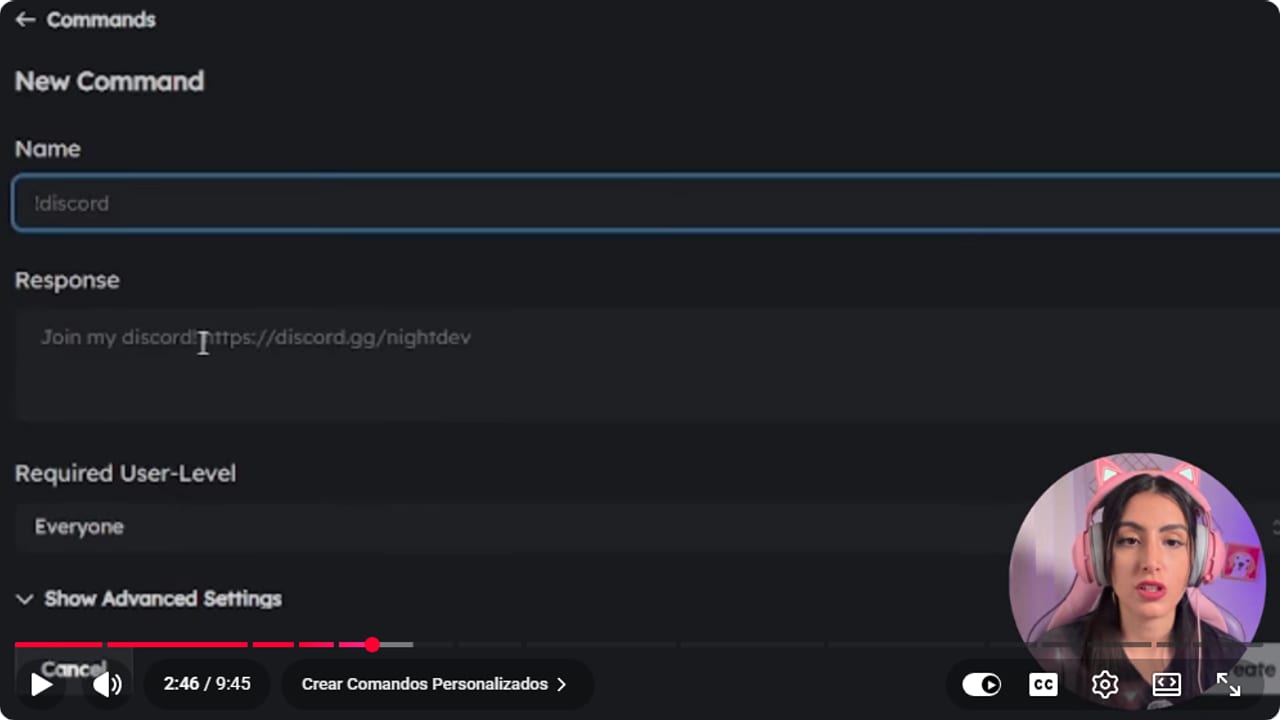
The command combines its response, permissions, and cooldown. YouTube · 2:47 ↗ - 03
Check the default commands
Nicole, default commands ↗Commands also has a Default list, the ones that come preset: filters, marker, poll, game and others, and Nicole also mentions songs, title and winner. The list is hard to make out in the video, so check your own. Click the pencil on any of them to get the same settings as your own commands. Guide tip, not from the video: turn off what you won't use and keep the sensitive ones, like !filters, for mods only. Fewer active commands, fewer surprises on stream.
What you should see: The Default list shows only the commands you plan to use as enabled, each with its user level.
- 04
Tune the spam filters one by one
Official Spam Protection documentation ↗Spam Protection has a filter for each thing: blacklisted words, excess caps, emotes, links, symbols and repeated messages. Each has its own Settings, where you pick the timeout length, the message the person gets and who's exempt, like your mods. Start lenient. I switched off caps and emotes because they don't bother me and my friends spam emotes constantly. Links stayed on.
What you should see: Each filter has its own toggle and settings, with the links filter switched on.
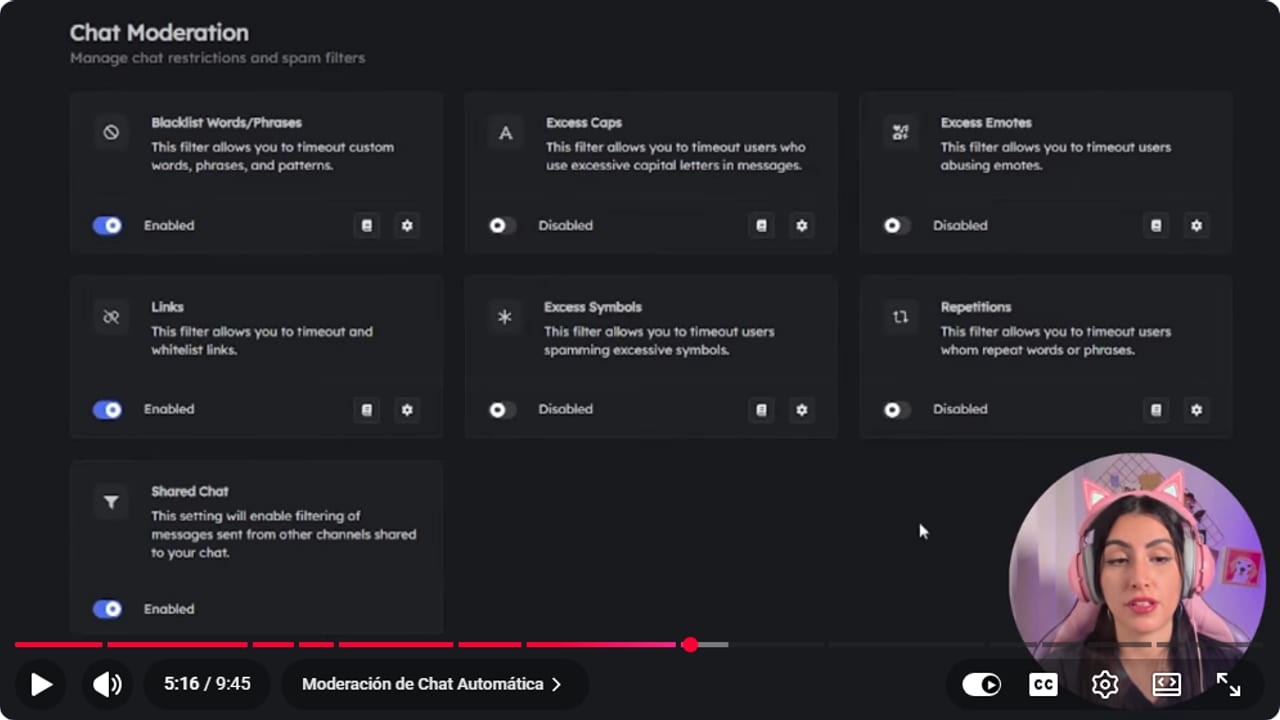
Each spam type has separate controls. YouTube · 5:17 ↗ - 05
Let good links through without opening the floodgates
Official link filter documentation ↗This step comes from Nightbot's documentation, not from the video. In the links filter settings, build a whitelist of domains you use often, like your Linktree or Discord. For a one-off, a mod can type !permit plus the username: that person can post links for a short time (the docs example uses 60 seconds), as long as !filters is enabled. Test one whitelisted link and one from outside.
What you should see: The whitelisted link stays in chat and the outside one vanishes with your warning message.
- 06
Set up well-spaced timers for your socials
Nicole, timers ↗Open Timers and click New Timer. Name it something like my socials and paste your links or Discord as the message. Interval sets how many minutes of stream pass between posts, and advanced settings set how many chat lines are needed first. I run one asking for help reaching Affiliate every 10 minutes, my Linktree every 15 and my community every 30, on streams of about 3 hours. If you're new and chat is quiet, skip the 5-minute timer or it'll just be Nightbot talking to itself.
What you should see: The timer shows in the list with its interval and posts in chat once your minutes and line count are met.
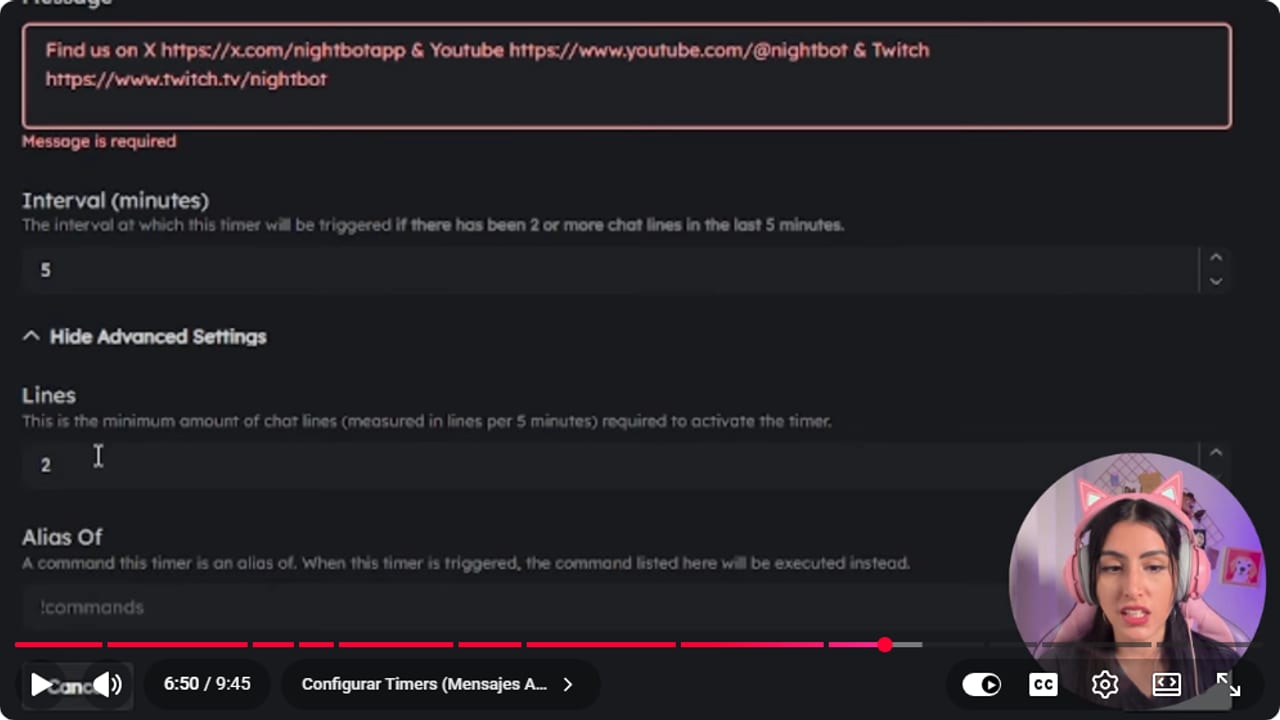
The activity requirement stops automated messages in a quiet chat. YouTube · 6:51 ↗ - 07
Test the filters and read the Logs
Nicole, Nightbot logs ↗A test the guide suggests, not the video: from your second account, send a message in caps, a repeated message, a link and a blocked word. Then open Logs, which Nicole says keeps what was said in your chat for the last 7 days. You'll find your test messages there and see whether anything got blocked that shouldn't have. If it punished normal chat, loosen that filter. Mine was timing people out for sending lots of emojis and stickers, so I had to fix it. Logs only go back 7 days, so check them often.
What you should see: Your test messages are in Logs, and you can tell which ones got through and which didn't.
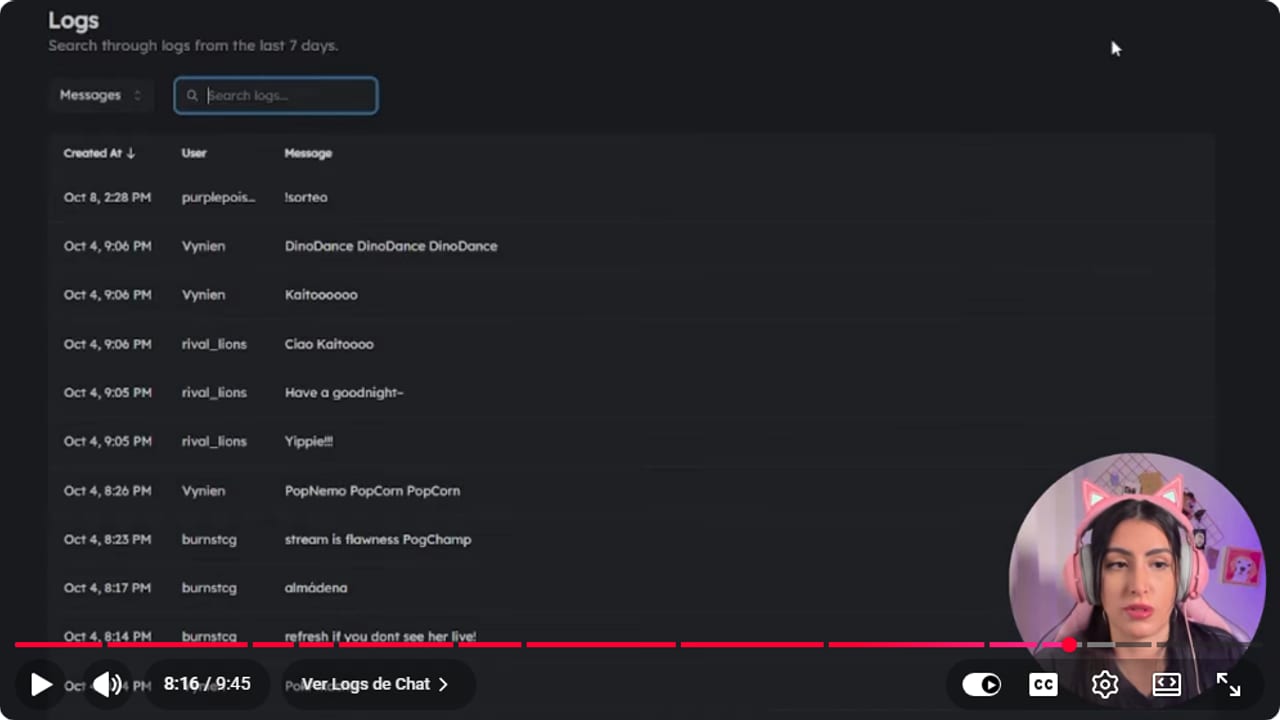
The log reveals false positives after the broadcast. YouTube · 8:17 ↗ - 08
Write timeout messages that explain the rule
Nicole, filter messages ↗Each filter has its own timeout message, the one the person receives. In the video the example says stop spamming, and you edit it in Settings. Guide tip, not from the video: replace it with one short line that says what happened and what to do, for example: No links please. Ask a mod if you want to share something. Don't argue through the bot, and leave the borderline cases to a human.
What you should see: When a test message trips a filter, chat shows your new message instead of the generic one.
- 09
Optional: run a keyword giveaway
Nicole, giveaways ↗In Giveaways, choose how people enter: active chatters, a keyword or a random number. With Keyword, pick who can join (viewers, regulars, subscribers, VIPs or mods), set the word, say giveaway, and, if you like, the unique winners option, which Nicole presents as the one for having a single winner (Nightbot's docs don't describe it, so try it out). Click Done and everyone who types the word is added automatically. When you're ready, click Pick winner, then reroll or close.
What you should see: Names pop into the entry list as people type the word, and Nightbot announces the winner in chat.
- 10
Turn off Song Requests
Nicole, song requests ↗Song Requests lets chat pick the music, which sounds fun until copyright shows up. Plenty of songs are protected, and you can lose the VOD or even get your channel taken down. Open Song Requests, click the three dots and choose disable.
What you should see: Song Requests shows as disabled and the song command stops answering in chat.
- 11
Review it all after every stream
Official Nightbot setup ↗After you stream, go through Logs, the commands people used and the messages that got punished. Note false positives, new domains for the whitelist and commands nobody touched. Change one filter at a time and test it before the next stream. And that's it, chat moderates itself and you get to just play.
What you should see: Every change you made matches a case in Logs, and a fresh test message behaves the way you expected.
If something does not work
- You type a command and Nightbot doesn't answer
- Check that Nightbot joined through Join Channel and is a moderator. Then make sure the command is enabled and your user level is allowed to use it. If you just used it, wait out the cooldown.
- Nightbot times out perfectly normal messages
- Find the message in Logs and check Spam Protection for the filter that could have caught it. Raise that filter's limit, shorten the timeout or add your regulars as Regulars. Mine was blocking people for sending lots of emojis and stickers, and I had to fix it.
- Chat looks like a group chat where only the bot talks
- Your timers are too frequent for the size of your chat. Raise the interval, require more chat lines in advanced settings and switch off messages that repeat the same info.
- A mod can't use !permit
- The !filters command has to be enabled and the mod needs the user level it requires. Test from chat first, and only give dashboard access if they'll actually need it.
- Someone entered the giveaway twice or isn't showing up
- Check who you allowed to enter, because if you picked subscribers only, nobody else gets in. For repeat entries, look at the keyword's antispam settings: per Nightbot's docs, they can make someone ineligible for repeating the keyword. If you change the keyword, everyone's eligibility resets.
Test before you go live
- Nightbot is a mod and answers a test command.
- Commands have a cooldown and the right user level.
- An outside link gets removed and a whitelisted one stays.
- Timers post less often than your chat actually talks.
- Song Requests is switched off.
- You can dodge monsters now without checking chat every two seconds.
Cómo configurar Nightbot en Twitch: moderador automático gratis
Watch the full tutorial (in Spanish) ↗Common questions
Is Nightbot free?
Yes. Moderation, commands, timers and giveaways are all free. It works with YouTube as well as Twitch.
Does Nightbot replace a human moderator?
No. It enforces repeatable rules, like links or blocked words. You still need a person to read context, stop coordinated harassment and handle appeals.
How do I allow a single link?
With !filters enabled, a mod types !permit and the username, and that person can post links for a short time (the docs example uses 60 seconds). Keep a short whitelist in the links filter for the domains you use all the time.
What are Regulars?
They're people who are always in your chat and get extra privileges without being mods, like access to certain commands. Add them under Regulars with New Regular and their Twitch username.
Should I turn on Song Requests?
I wouldn't. Lots of songs are copyrighted and you can lose your VOD or your channel. Your chat will survive without being the DJ, promise.
How often should timers run?
It depends on how busy your chat is. If you're starting out, space them at 10, 15 or 30 minutes depending on the message, and require a few chat lines between posts so the bot isn't talking to itself.


