

Short answer
Before you start
- A Twitch account, no Affiliate status needed
- Chrome or another supported browser, plus OBS
- A tested camera and microphone
- A list of who you'll invite, before you share any links
Bring your setup to a 24/7 AI Streamer Coach
Ask Streamer Coach →Get personalized feedback to fix streaming issues and plan your next content.
Step by step
- 01
Open Stream Together
Official Stream Together help ↗If you've ever run a collab over Discord, you know the drill: too many audio channels and nobody knows which camera is live. I tried it with my group of friends and it was a mess. Stream Together is Twitch's official way to do it, and it's free. Go to your profile, open the Creator Dashboard and find Stream Together in the menu. Click to start it. According to Twitch's help page, you don't need any monetization status to use it.
What you should see: Twitch shows a notice that it may record video and audio for safety, with a button to begin.
- 02
Pick your microphone, camera and screen
Nicole, permissions and devices ↗Read the notice and click to begin. Your browser asks for microphone access: allow it this time and choose the mic you stream with. Then pick your camera. To share your screen, you can send a Chrome tab, a window or the whole screen, with or without its audio. It looks a lot like a video call, with chat on the side and the participant list.
What you should see: Backstage opens with your chosen microphone in settings and your picture in the preview.
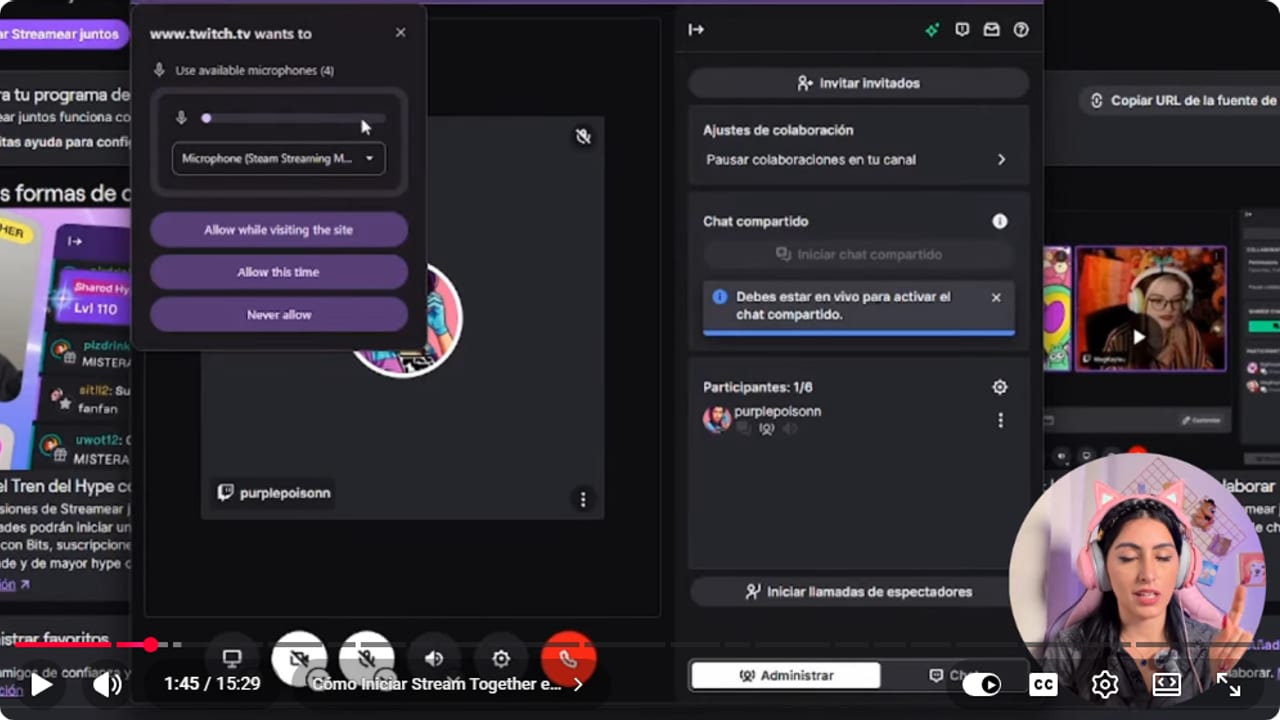
The browser requests access and shows the selected microphone before the call is used. YouTube · 1:46 ↗ - 03
Invite by name or private link
Official Stream Together help ↗Nicole doesn't show this in the video. It comes from Twitch's help page. Click the invite guests button, search for the person by name and send the invite, or copy the invite link and send it privately. If the link leaks, regenerate it. Twitch says anyone blocked or banned by you or by anyone in the call can't get in through that link. In the video Nicole says the call participants can be you plus five more. Twitch's help page gives no number, so check it on your own screen.
What you should see: The people you invited show up in the backstage participant list.
- 04
Bring the cameras into OBS
Nicole, browser sources ↗In Stream Together, open Settings and the browser sources section. You'll see one URL for the group, with everyone in it, and one per guest. Twitch warns you not to share them. Copy the group one. In OBS, create a new scene, for example Streaming together, click the plus, choose Browser, name it group cams and paste the URL. Nicole makes sure the source is 1920 by 1080, then right-clicks and chooses Transform, Fit to screen (8:43). Twitch's help page says that is the default size and recommends entering 800 by 600 manually. If you want to handle each person separately, at 12:17 Nicole repeats the same steps with each guest's URL in sources named Guest 1, Guest 2 and so on.
What you should see: The group cams source shows your guests with their names inside a single frame in OBS.
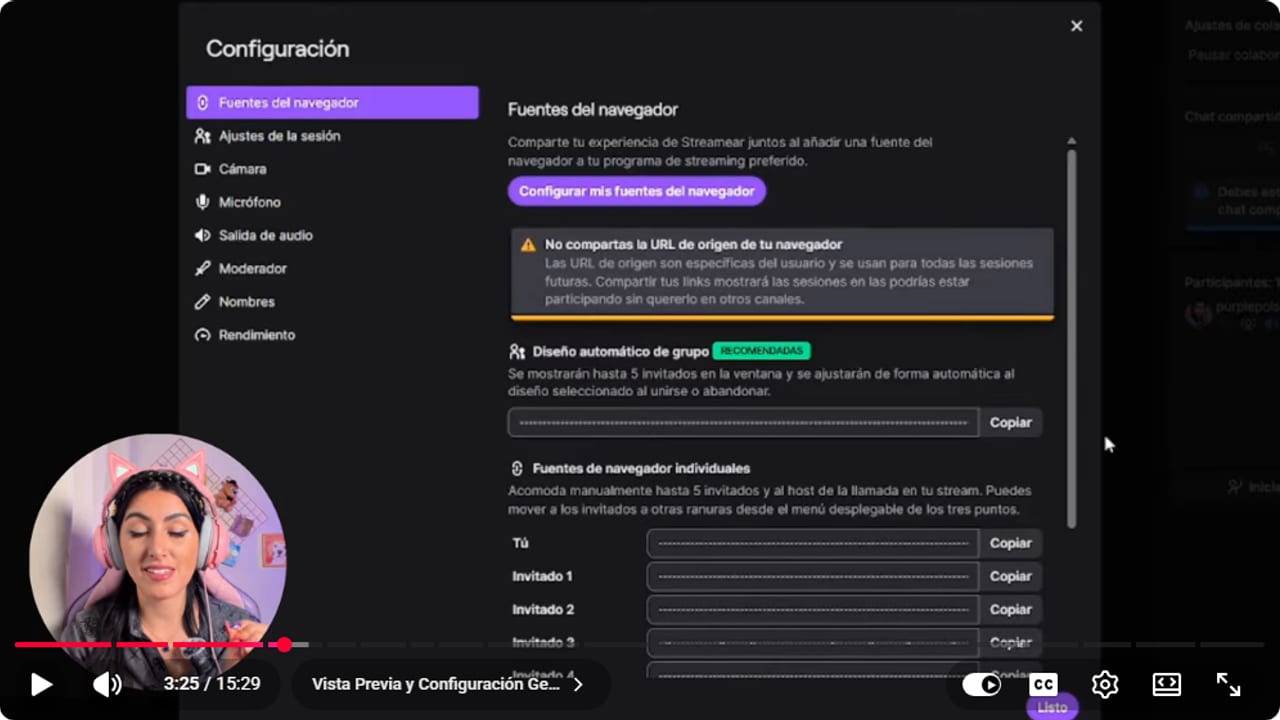
The screen offers one group link and separate guest links, with a warning not to share them. YouTube · 3:26 ↗ 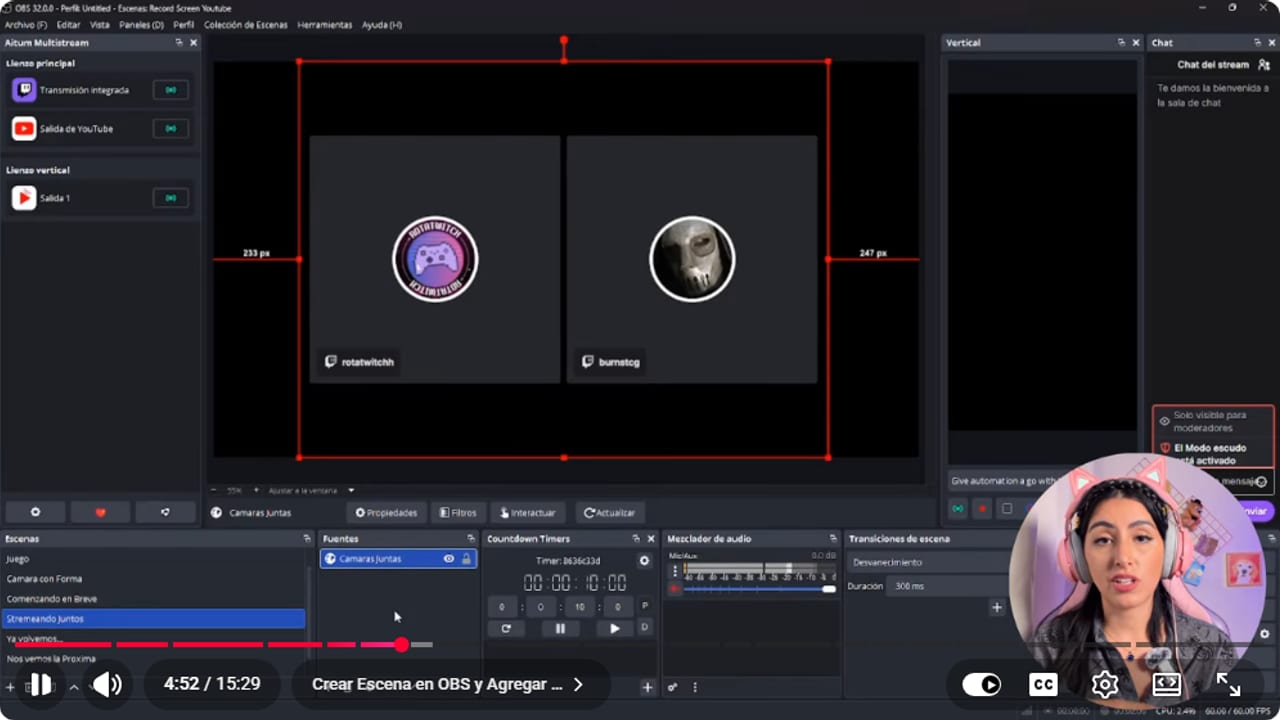
The group layout places both guests inside one OBS browser source. YouTube · 4:52 ↗ - 05
Run the audio through OBS
Nicole, audio through OBS ↗In the OBS Browser source, tick the option to control audio via OBS and click OK. Your OBS filters don't apply inside Stream Together, so in Stream Together's microphone settings turn on noise suppression and echo cancellation, and check how you sound (9:44). Under audio output, Nicole chooses to control sound from the streaming software so she can handle her audio and filters from OBS (10:15). Watch for echo: Twitch's help page recommends Desktop Audio Capture as the default, and warns that with control via streaming software the audio still comes through desktop audio. If you use that option, don't capture the call there too.
What you should see: The OBS audio mixer shows group cams with its own volume control.
- 06
Add your camera with the OBS Virtual Camera
Nicole, one camera in two apps ↗In Stream Together you can pick the layout, with cameras on top, at the bottom or to one side, and whether to include your own camera. The catch is that Windows often won't let two programs use the same webcam. The fix is OBS's virtual camera. In OBS, go to Controls, click the gear next to Start Virtual Camera, set the output type to Scene and pick the scene with your camera. Start the virtual camera. Back in Stream Together, choose OBS Virtual Camera as your camera, allow it this time and include your camera.
What you should see: Your camera appears in Stream Together through OBS Virtual Camera.
- 07
Set up mods, names and performance
Nicole, moderators and performance ↗In Settings, decide whether guests show on stream automatically and whether they can share their screen. With auto-show off, you get a preview of who's about to join. Under moderators, choose the mods who'll help with incoming calls. Under names, keep usernames on the video and set their size and position. Under performance, lower the maximum quality if your internet is weak and the collab starts lagging.
What you should see: Usernames appear over each camera in the OBS source.
- 08
Test everything with your friends first
Nicole, preparing before live ↗Start Stream Together a day or an hour before the collab, with everyone in, and sort out audio and cameras without the rush. Nicole shows it with nobody watching: until you start the call for viewers, you're all backstage. That way nobody has to fix things at the moment you go live.
What you should see: Backstage shows everyone in and nothing is visible on your channel yet.
- 09
Have an emergency exit ready
Nicole, the emergency exit ↗Let strangers in and someone may say something that gets your channel banned. Decide beforehand who removes a guest: you or your mods. Each participant answers for their own conduct, but according to Twitch's help page you have to condemn the behavior and remove the guest from the call. If you do, you aren't penalized for what that person does. Nicole puts it this way: if you react in time, Twitch sees the rule-breaker is your collaborator and not you. If you're not expecting anyone, go to Stream Manager, Collaborations, collaboration settings, and limit invites to your favorites or pause collaborations on your channel. Regenerate links if they showed up in a screenshot. And that's it, Stream Together means no more Discord, Zoom or sketchy apps.
What you should see: When you remove someone from the call, their camera disappears from the OBS source right away.
If something does not work
- Stream Together can't see your camera
- If OBS is already using it, Windows won't share it with another program. Start the OBS virtual camera with the output type set to Scene, then pick OBS Virtual Camera in Stream Together.
- Your camera shows up mirrored
- Of course it's backwards, queen. In OBS, grab a corner of the virtual camera source, hold Shift and drag it across to the opposite side until it's the right way round.
- Voices echo or play twice
- Audio is coming in two ways, through desktop capture and through the Browser source. Per Twitch's help page, go to Settings, audio output and pick Desktop Audio Capture, the default and recommended option. If you'd rather keep control via streaming software like Nicole, the audio still comes through desktop audio, so make sure you aren't capturing the call there as well.
- Your mic sounds noisy in the call
- OBS filters don't reach Stream Together. In Stream Together's microphone settings, turn on noise suppression and echo cancellation, then check how you sound before you start.
- A browser source URL leaked
- Open the browser sources section and regenerate the links. Then replace the URL in every OBS source that used the old ones.
- Someone freezes or their quality drops
- Lower the maximum quality under performance and ask them to close anything eating their bandwidth. If they don't recover, take their source out of the scene and switch to the layout for fewer people.
Test before you go live
- Your friends know when to join backstage and which link to use.
- Only you and your mods have the browser source URLs.
- Each voice goes through the OBS mixer exactly once.
- You have the invite link handy in case someone drops and needs to rejoin.
- Someone is ready to remove a guest if needed.
- If you're not expecting anyone, collaborations are set to favorites or paused.
Cómo streamear con tus amigos en Twitch con Stream Together
Watch the full tutorial (in Spanish) ↗Common questions
Do I need Affiliate status to use Stream Together?
No. Twitch's current help page says it's available to Twitch accounts regardless of monetization status. It's free and built in.
How many people can join the call?
Twitch's help page gives no number. In the video Nicole says the participants can be you plus five more, so confirm it on your own screen. With many cameras, it's worth building an overlay for that number, so there's no awkward empty gap.
Can I invite someone who doesn't stream?
Yes. According to Twitch's help page, a guest can join from twitch.tv in a browser or from the Twitch mobile app without streaming. If their account isn't Affiliate or Partner, they need to add a verified phone number. They still need a tested camera and mic.
Do my OBS filters apply to my mic in Stream Together?
No, OBS filters only work inside OBS. Turn on noise suppression and echo cancellation in Stream Together's own microphone settings.
How do I stop random people from inviting me?
In Stream Manager, Collaborations, collaboration settings, allow invites from your favorites only. If you don't want any, pause collaborations on your channel. Sometimes the best guest is the one who never got in.
Does Shared Chat turn on by itself?
No. According to Twitch's Shared Chat help page (help.twitch.tv/s/article/shared-chat), it starts off and only the host decides whether it's turned on. Guests can leave Shared Chat without leaving the call, and removing someone from the call also removes them from the chat. Moderation is joint, so agree on who moderates. Nicole doesn't cover this in the video.


