

Short answer
Before you start
- A Twitch Affiliate or Partner account with the subscribe button enabled (without one you can still set a follower goal)
- The Creator Dashboard open on your computer
- OBS Studio with a scene for testing
- A clear reason for the goal, with no odd promises attached
Bring your setup to a 24/7 AI Streamer Coach
Ask Streamer Coach →Get personalized feedback to fix streaming issues and plan your next content.
Step by step
- 01
Check that you can create sub goals
Nicole Rojas | YouTube | 0:31 ↗To use Twitch's sub counter you need to be an Affiliate or Partner, because without that you don't have a subscribe button yet. If you're not an affiliate yet, I said in the video that you can still use this option: go to Shortcuts, Manage Goals and do the same thing, but with a follower goal. Twitch's help confirms that anyone can create follower goals and that the other goal types are for Affiliates and Partners only. This guide creates a Total Subs goal, which Twitch keeps separate from Plus Program goals.
What you should see: Your channel shows the Subscribe button when you open it from another account.
- 02
Check your subs and sub points
Nicole Rojas | YouTube | 1:03 ↗Open Creator Dashboard, Stream Manager. Your subscribers and sub points show at the top. In the video I explained that the Plus Program needs 100 points for a 60/40 split and 300 for 70/30. That is Twitch's standard rule, held for three consecutive months. Since 1 June 2025, in 18 Latin American countries it takes 50 for 60/40 and 200 for 70/30: Argentina, Bolivia, Brazil, Chile, Colombia, Costa Rica, Dominican Republic, Ecuador, Guatemala, Honduras, Mexico, Panama, Peru, Puerto Rico, Paraguay, El Salvador, Uruguay and Venezuela. Check Twitch's Plus Program page to see which applies to you. Careful, the sub points you see there are not Plus Points. According to Twitch's help, sub points include Prime and gifted subs, while Plus Points only count paid recurring subs. You can see your real progress in Creator Dashboard, Earnings Analytics, Plus Program panel.
What you should see: Your current subscriber count and sub points appear at the top of Stream Manager.
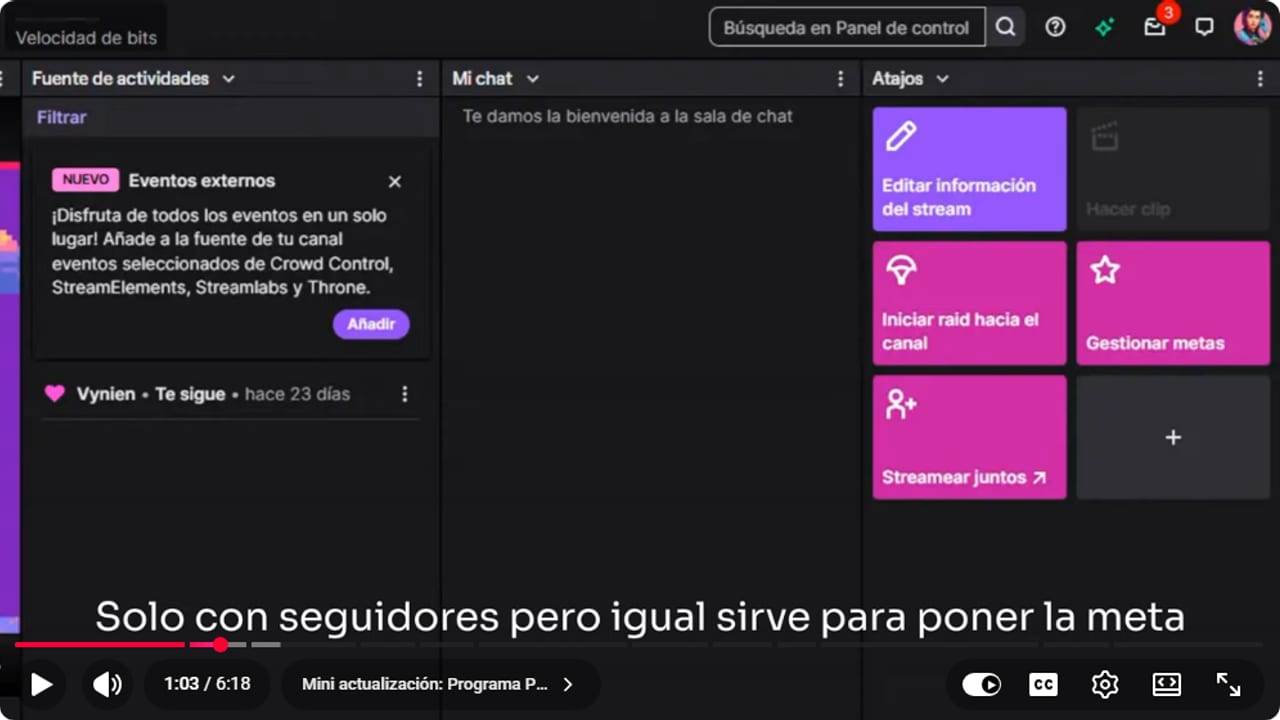
The video shows a historical goal. Check current labels and rules in your dashboard. YouTube · 1:04 ↗ - 03
Open Manage Goals
Nicole Rojas | YouTube | 2:06 ↗In Stream Manager, go to Quick Actions and Manage Goals. According to Twitch's help, if Manage Goals isn't there you add it with the plus button, and as the creator or an editor you can also type /goal in chat. At the top you'll see the goal types: followers, subscriptions, Bits and Plus Program. Pick Total Subs.
What you should see: The goal editor opens with the available goal types along the top.
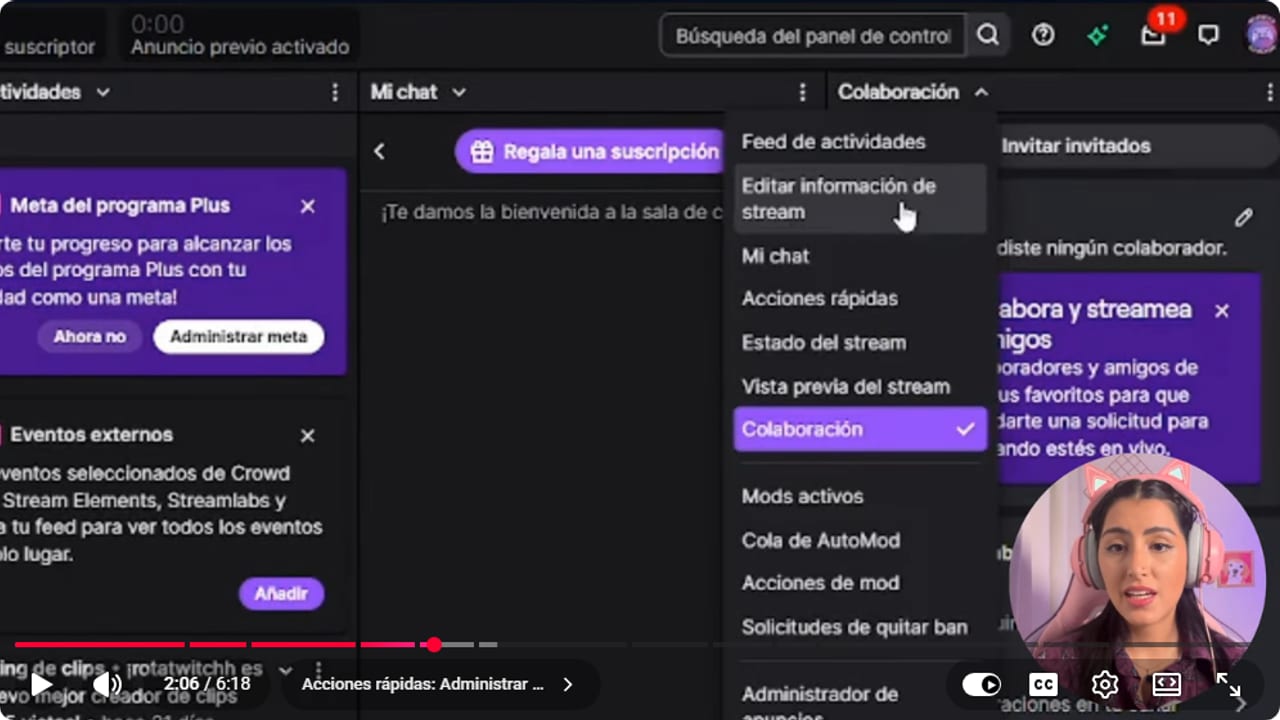
Manage Goals opens the editor from the Creator Dashboard. YouTube · 2:07 ↗ - 04
Pick a target people can reach
Nicole Rojas | YouTube | 2:36 ↗Twitch suggests a realistic number based on your channel. If you're new, it may even recommend a goal of one, so your first subscriber feels special. A goal of 100 when you have zero excites nobody. Being at 8 with 2 to go until 10 gets people on board. Write a short description.
What you should see: The editor shows Twitch's recommended goal next to the number you typed.
- 05
Style the bar and double-check before starting
Nicole Rojas | YouTube | 3:06 ↗Further down, you can let the goal level up automatically when it's reached and set up goal alerts. Under the progress bar, choose a color. There aren't many options, there really should be more, but pick the one closest to your channel. Before you start it, check the amount and description carefully. Twitch's help says an active goal can't be edited: if you get it wrong, you have to end it and create another, and the old one's progress is lost.
What you should see: The preview shows the bar in your color with your description and target, for example 0 to 10.
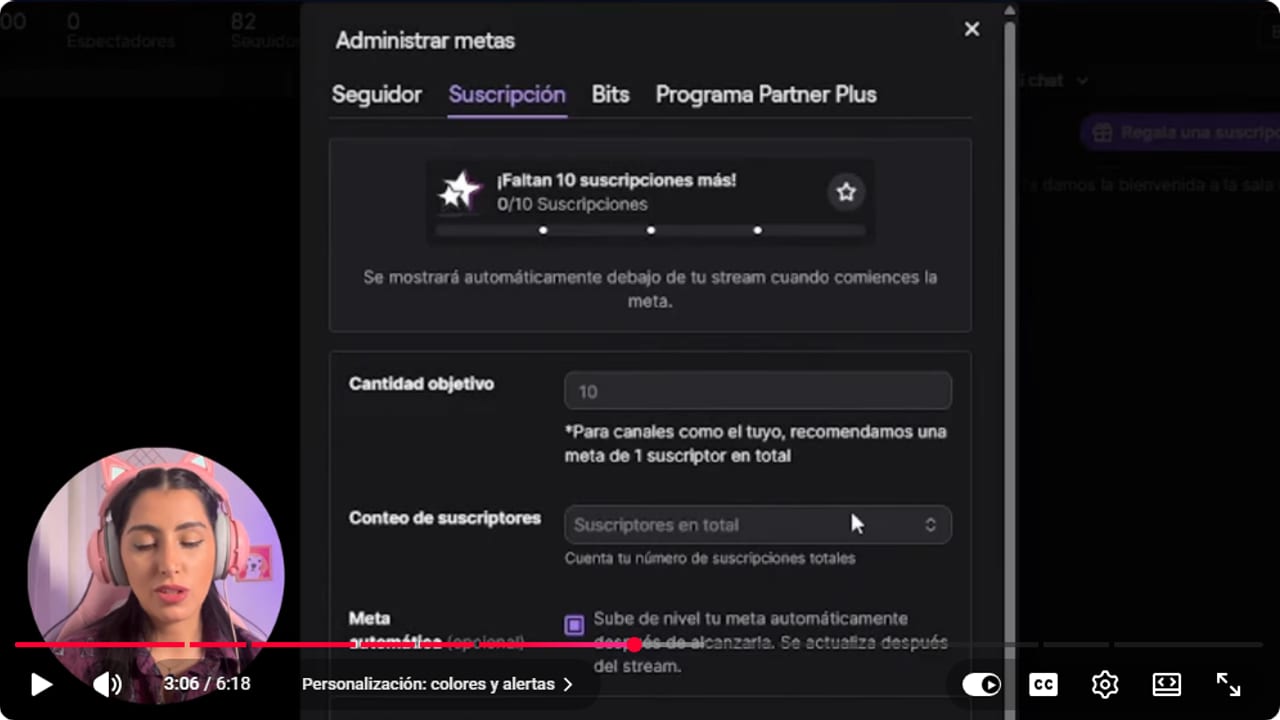
The target and context are checked before the bar is published. YouTube · 3:07 ↗ - 06
Copy the browser source URL
Nicole Rojas | YouTube | 3:36 ↗At the very bottom there's a Browser option for adding the goal as an overlay with a browser source. Copy that URL. According to Twitch's help, the preview is 370 by 40, it suggests 740 by 80 as a larger example, and Plus Program goals don't offer this URL while sub goals do. Treat the link as private and don't paste it in chat.
What you should see: The browser source URL appears under the preview, ready to copy.
- 07
Add it to OBS as a Browser Source
Nicole Rojas | YouTube | 4:08 ↗In OBS, go to Sources, click the plus and choose Browser. Name it sub goal, leave Local file unticked and paste the URL. OBS starts at 800 by 600, which doesn't suit a thin bar. In the video I first typed the numbers the wrong way round, 100 wide by 500 tall, it looked awful, and I ended up at 500 wide by 100 tall. Twitch's help suggests 740 by 80. What matters is that the bar doesn't look stretched.
What you should see: The goal bar appears in the OBS preview with normal proportions.
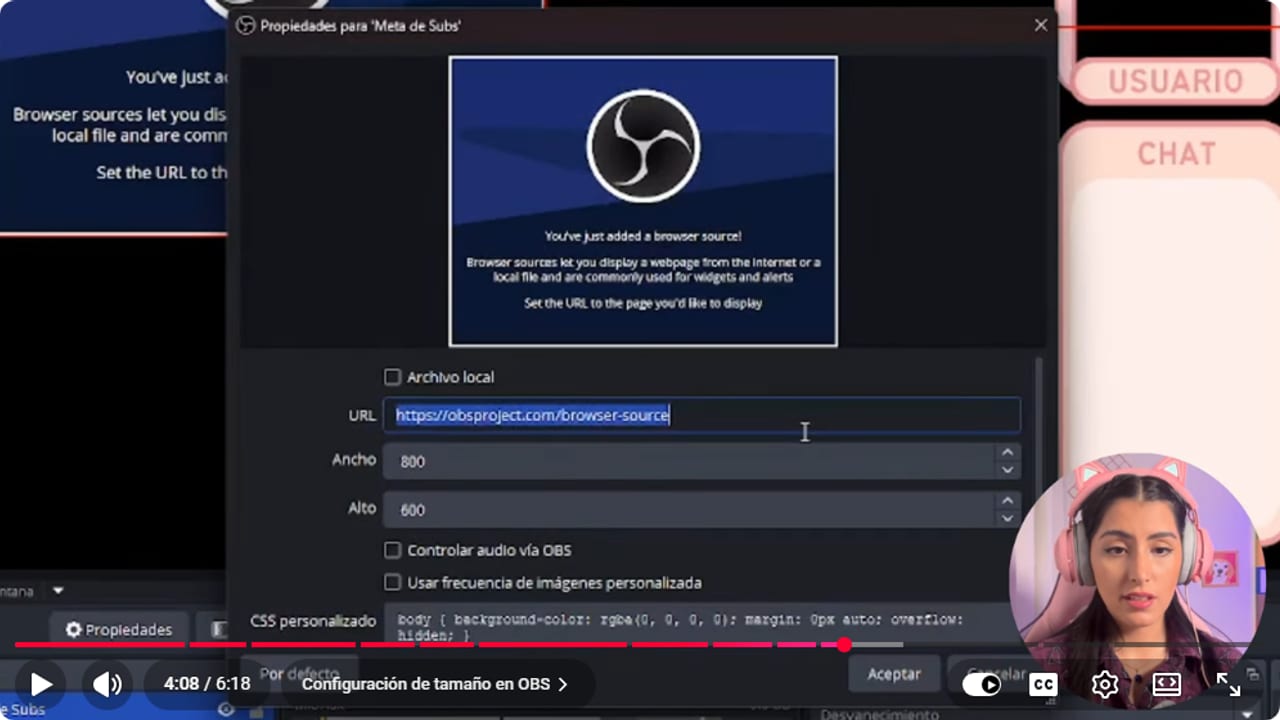
The goal URL is loaded into Browser Source and tested in a safe scene. YouTube · 4:08 ↗ - 08
Put it where people can see it
Nicole Rojas | YouTube | 4:38 ↗Place the bar somewhere viewers will notice, so they get excited and want to chip in, without covering your camera or the game HUD. Make sure it isn't cropped, because whatever's cut off won't show. If you want a nice frame for it, I have free, copyright-free overlays in Canva.
What you should see: With the game on screen, the full bar is visible and clear of your camera and the HUD.
- 09
Click Update Goal
Nicole Rojas | YouTube | 5:08 ↗Go back to Twitch and, every time you finish editing, click Update Goal. If you skip it, the goal won't show in OBS. When it loads, Twitch shows a goal loaded successfully message. According to Twitch's help, the browser source shows your most recently created goal, so if you create another one later, check OBS. And remember a follower goal is always available, even if you're not an affiliate. And that's it: every new sub fills the bar a little more, and your community pushes with you to get there.
What you should see: Twitch shows a goal loaded successfully message and OBS switches to the bar with your target.
If something does not work
- The bar doesn't show up in OBS
- First, go back to Twitch and click Update Goal, it's the most common miss. Then check that you pasted the full URL, Local file is unticked, and the source is visible and above the others. If it still won't appear, refresh the source's cache.
- The bar looks stretched or squashed
- OBS's default size doesn't suit it. Change the width and height in the source settings, for example to 740 by 80, instead of dragging it with the mouse.
- The goal has the wrong number or text
- An active goal can't be edited. End it, create a new one with the right values and click Update Goal. The 100 or 300 points from the video are Plus Points for the Plus Program, and they are not a requirement for creating a goal.
- Someone subscribed and the bar didn't move
- Check your channel to see whether Twitch recorded the sub. If the channel changed but OBS didn't, give it a few seconds since it updates in near real time, then refresh the source. If neither changed, check which goal is active.
- The text on the bar gets cut off
- Widen the source or shorten the goal description. A few words read better mid-stream anyway.
Test before you go live
- The goal is a Total Subs goal, not a Plus Program goal.
- The target sits close to your current count.
- You checked the description and amount before starting, since they can't be edited later.
- You clicked Update Goal after your last change.
- The goal URL doesn't appear in any screenshot or in chat.
- The bar shows in every scene where you want it.
Cómo configurar metas de suscriptores en Twitch
Watch the full tutorial (in Spanish) ↗Common questions
Do I need 100 or 300 sub points to create a goal?
No. Those numbers are the Plus Points the Plus Program asks for the 60/40 and 70/30 splits: 100 and 300 under the standard rule, and 50 and 200 in 18 Latin American countries since 1 June 2025. For this goal you only need to be an Affiliate or Partner, pick Total Subs and a number based on what you already have.
Can I edit a goal that's already active?
No. Twitch says you have to end it and create a new one to change the description or amount. Ending an unfinished goal wipes its progress, so check everything before you start it.
What target should I set?
One close to where you are now. Twitch suggests a realistic number, and for a brand-new channel that can be just one. A goal that looks reachable gets more people involved than a huge one.
Can I show several goals in OBS?
The browser source shows your most recently created goal, so one link displays the latest one. Start with a single goal so chat knows what they're pushing for.
Is the goal URL public?
Don't share it. Treat it as part of your setup and only use it inside OBS.
Does a goal guarantee subscribers?
No. The bar makes the target visible and motivates your community, but it isn't magic. A progress bar won't pay your rent, though it does show chat how to back you.

