

Short answer
Before you start
- A Twitch account with access to the Creator Dashboard
- OBS connected to your Twitch account, with at least one scene
- A GIF, image or sound you have permission to use (optional, Twitch has its own library)
Bring your setup to a 24/7 AI Streamer Coach
Ask Streamer Coach →Get personalized feedback to fix streaming issues and plan your next content.
Step by step
- 01
Open Alerts in the Creator Dashboard
Twitch Alerts setup, reviewed October 9, 2026 ↗Click your profile picture, open the Creator Dashboard, and in the left menu go to Alerts. Alerts for new followers, subscriptions, gift subs, Bits and raids come ready to go, and Twitch's guide confirms you can also create your own named alert set. All of it is free. In the video Nicole says it works with OBS, Streamlabs and Twitch Studio, but Twitch Studio is no longer an option: Twitch announced it would stop supporting it after May 30, 2024 (blog.twitch.tv). Use OBS, Streamlabs Desktop or another streaming program where you can add the URL as a browser source.
What you should see: The editor opens on the New Follower alert, with the list of available events beside it.
- 02
Add the Browser source in OBS
Nicole Rojas · YouTube · 1:01 ↗In OBS, first open Settings, Stream, and make sure it's connected to your Twitch account. Then, in a scene, click the plus, choose Browser and name it Twitch. Back in Twitch, at the very bottom of the editor there's a browser source URL. Copy it, paste it into OBS, leave the options as they are. Twitch recommends using the same width and height as the editor. Click OK and move that source above all the others so the alert never ends up hidden.
What you should see: A red box appears in the OBS preview, marking where your alerts will play.
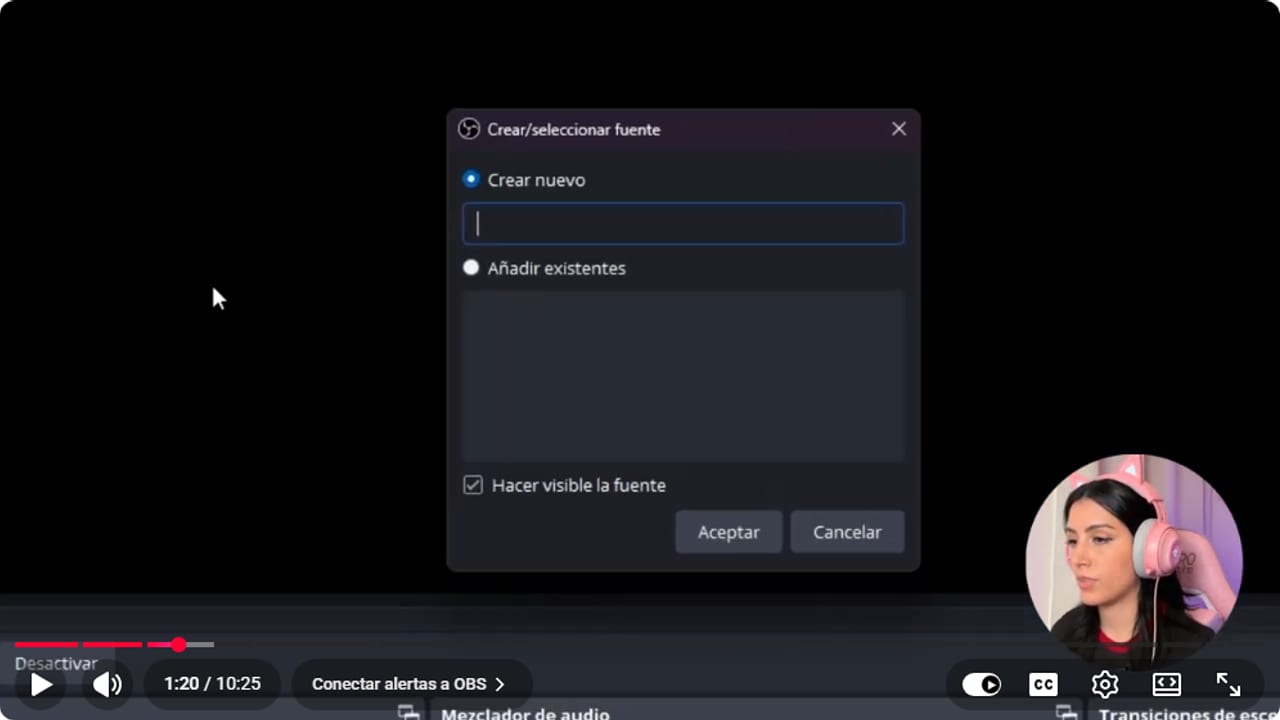
Twitch generates a Browser Source that you add to the matching OBS scene. YouTube · 1:21 ↗ - 03
Send a test alert
Nicole Rojas · YouTube · 1:33 ↗Go back to the Twitch dashboard and click Send Test Alert with OBS open on that scene. If you want alerts in more than one scene, you'll need to copy and paste the source into each one. A source in one scene doesn't magically show up in another.
What you should see: The test alert plays once inside the box, in the scene you have open in OBS.
- 04
Customize animation, layout, text and voice
Nicole Rojas · YouTube · 2:03 ↗General settings shows the variant name, the alert condition and the duration, which works best matched to your GIF's length. Below that, pick an animation: fade in, fold, slide in any direction or zoom. If your GIF sits next to your webcam, having it slide out from above or below the cam looks great. In Layout, place the text relative to the image and leave the background at zero, since it fills the whole box. In Text and voice, write the message, something like just joined the crew, and pick the font and colors. Text-to-speech can read messages aloud: choose the language, voice, volume and a delay so you can read it first. Keep it short, because long ones can glitch.
What you should see: The editor preview shows your message in your font and colors over the alert image.
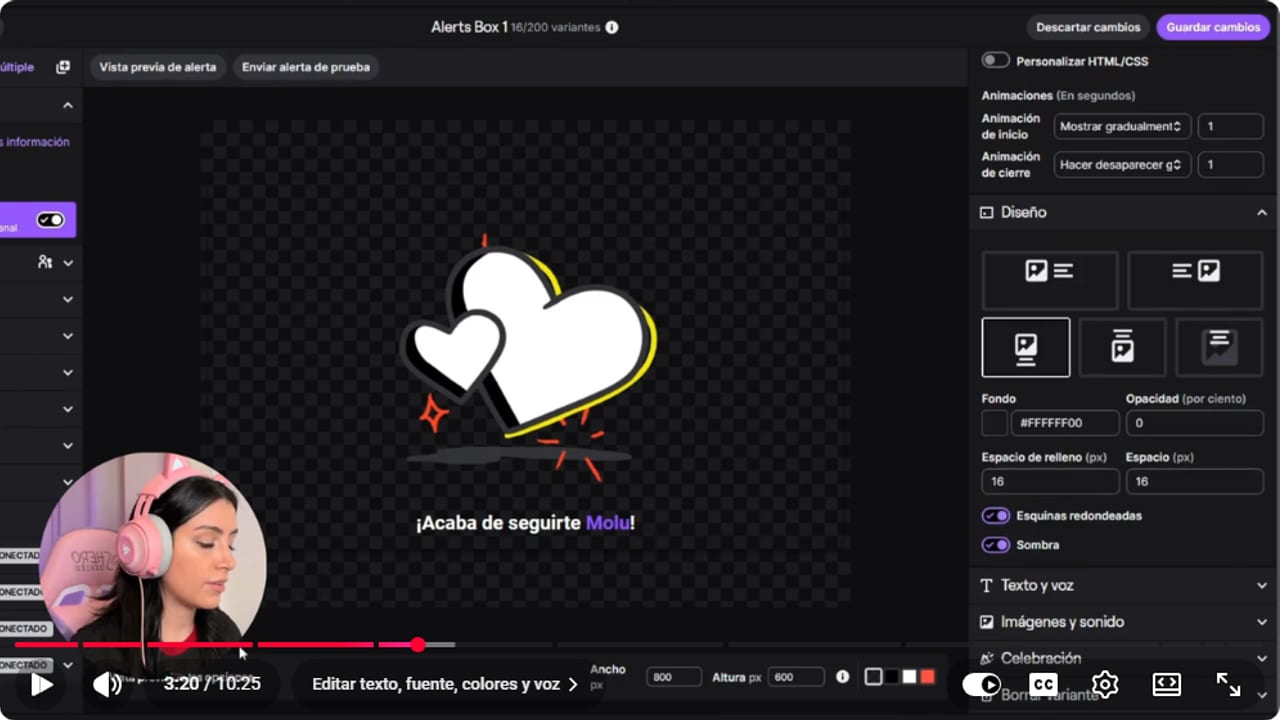
The editor shows animation, text, and design controls before you save. YouTube · 3:20 ↗ - 05
Upload your image and sound
Nicole Rojas · YouTube · 4:35 ↗In Images and sound, click Upload file to use your own GIF or image. If you don't have one, Twitch has a library with subscription, Halloween and Day of the Dead options. If you want something original, teaming up with an artist who's just starting out is a nice collab too. Scale sets how big it looks. Sound works the same way: upload a copyright-free one or pick from the library, then set the volume.
What you should see: In the preview, the alert shows your GIF at the size you picked and plays the new audio.
- 06
Create a 100-Bit variant
Nicole Rojas · YouTube · 6:09 ↗Variants let you show a different alert when something specific happens. Go to Bits and click New Variant. In General settings, give it a name, like 100 Bits, dreaming is free. Under the Bits feature, choose Cheering, and under the alert condition choose exact number of Bits cheered and type 100. Everything else works like before: animation, layout, text, voice, image and sound.
What you should see: The 100-Bit variant shows up in the Bits list next to the original alert.
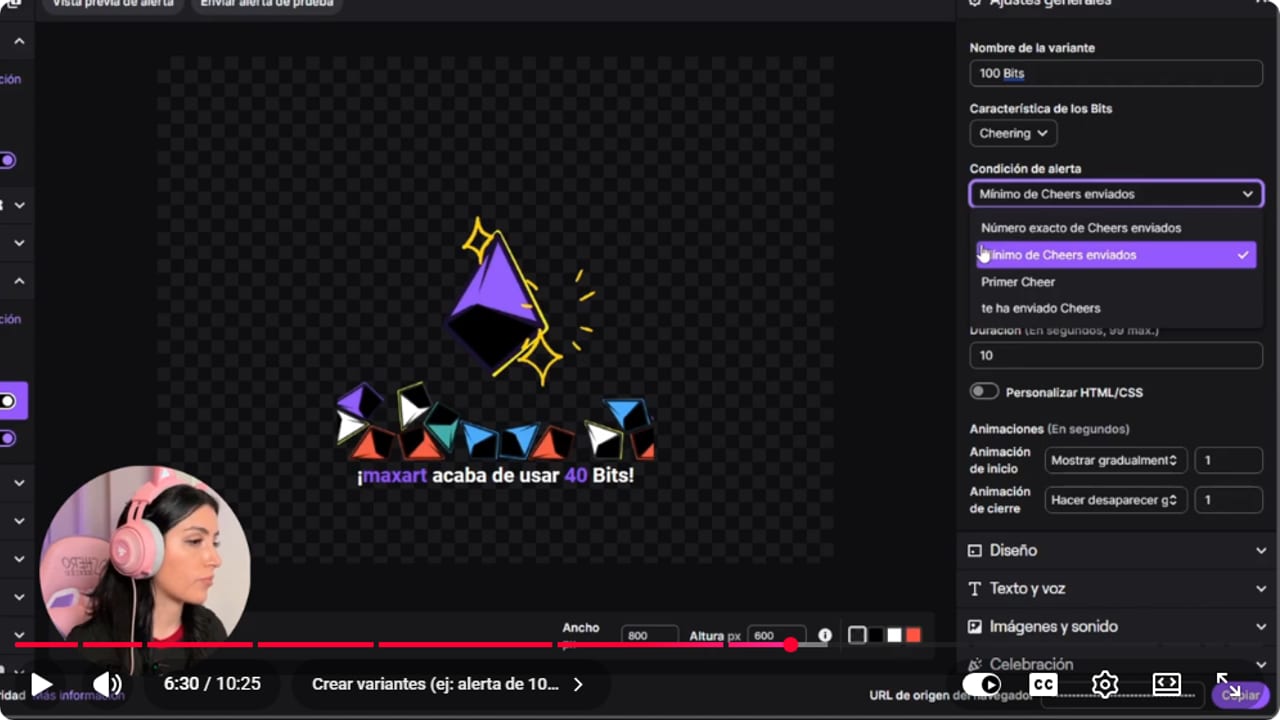
Variants let the visual change when a specific condition is met. YouTube · 6:31 ↗ - 07
Order the variants and save
Nicole Rojas · YouTube · 7:09 ↗Variants run by priority, so drag the 100-Bit one to the top. Otherwise, when someone cheers 100 Bits, the regular alert plays. Click Save Changes. Raids work the same way, with conditions like raid completed or number of raiders. Conditions change from event to event, but layout, text and images are always set up the same way. Credit to Twitch, they made this one easy.
What you should see: The 100-Bit variant sits at the top of the Bits list, above the regular alert.
- 08
Add celebrations to your goals
Nicole Rojas · YouTube · 8:39 ↗Hype Trains and creator goals are edited here too, no extra software needed. Open creator goals, for example Goal started, and turn on Celebration at the bottom. Choose fireworks, flamethrowers or an emote rain, and whether it plays over the screen, over chat or across your viewers' whole screen. Relax, it won't wreck your recording: viewers see the full animation on Twitch, and OBS plays only the emote or image you picked. Save them for goals that mean something, like hitting 10 subscribers, because every sub counts. And that's it, full alerts with no outside tools.
What you should see: When you send the test alert, the emote rain plays in full on Twitch and OBS shows only the emote.
If something does not work
- Alerts don't show up in OBS
- Check under Settings, Stream that OBS is connected to your Twitch account. Then make sure the Browser source is in the scene you're using, visible and above the other sources. If it still won't play, copy the browser source URL again and send a test.
- The alert plays in one scene but not another
- Each scene needs its own copy of the Browser source. Copy and paste it into every scene where you want alerts, then test each one.
- Someone cheers 100 Bits and the regular alert plays
- Your 100-Bit variant is lower in the list. Variants run by priority, so move it to the top and click Save Changes.
- The text-to-speech voice glitches or is hard to understand
- Shorten the message and lower the voice volume a little if it clashes with the alert sound. The delay gives you time to read the message first, in case someone wrote something you don't want read aloud.
- The alert is cropped or tiny
- Match the OBS source width and height to the Twitch editor. Then check the image position and Scale in the editor.
Test before you go live
- OBS is connected to your Twitch account under Settings, Stream.
- Every scene that needs alerts has the Twitch source at the top.
- Each alert's text is readable before it disappears.
- Alert sounds don't cover your voice or the game.
- Special variants sit first in their list.
- Celebrations are only on the goals you care about.
Cómo setear las alertas nativas de Twitch, con animaciones
Watch the full tutorial (in Spanish) ↗Common questions
Can I use Twitch alerts without being an Affiliate?
Yes. Twitch's current FAQ says you can use alerts for events like new followers and raids without being an Affiliate or Partner. Sub and Bits alerts kick in once your channel has those features.
Do I need StreamElements or another alert service?
No. The built-in alerts are part of Twitch, they're free, and they work with OBS, Streamlabs Desktop and other programs that accept a browser source. A third-party service is optional.
If I change something in the editor, do I paste the URL into OBS again?
No. Twitch says the saved alert set updates through the browser source on its own. You only copy the URL again if the source or scene is set up wrong.
Do the alerts work if I stream from my phone?
No. Twitch's FAQ says these alerts don't work when you go live straight from the iOS or Android app. To use them, stream from your computer with OBS or Streamlabs Desktop.
How do I get a voice to read messages aloud?
In Text and voice, turn on text-to-speech, then pick the language and a voice. There are several, so go with the one you like best or the one that makes you laugh. Set the volume and a delay so you can read the message first.
Continue with one of these guides


TWITCHSOUND ALERTS