

Short answer
Before you start
- OBS 30 or later, per the plugin's current documentation
- The free Ashmanix Countdown Timer plugin, from its official repository
- Your Starting Soon scene and the scene you want to switch to next
- Optional: your overlay's font and colors, so the timer matches
Bring your setup to a 24/7 AI Streamer Coach
Ask Streamer Coach →Get personalized feedback to fix streaming issues and plan your next content.
Step by step
- 01
Download the plugin from the official repository
Official OBS Countdown Timer releases ↗You've got a Starting Soon screen and no countdown on it. Not great, because while you sit there in silence, half your viewers are already scrolling TikTok. Open the official Ashmanix Countdown Timer repository on GitHub and go to Releases. In the video, Nicole picks the Windows x64 Installer, the .exe, and says she doesn't know how to install the ZIP version. That was true when she recorded. Since version 2.1.0, new releases no longer ship a Windows installer: the file to download is the Windows x64 ZIP (macOS has a .pkg and Linux a .deb). Take the one for your system from the official page, not from files re-uploaded on other sites. Guide tip: the README asks for OBS 30 or later, so check your version.
What you should see: Your downloads folder has the Windows x64 ZIP (or the macOS .pkg or Linux .deb for your system).
- 02
Copy the plugin into the OBS folder with OBS closed
2.1.0 release notes on GitHub ↗Close OBS completely before you start. Extract the ZIP and copy the entire plugin folder into C:\ProgramData\obs-studio\plugins, which is what the 2.1.0 release notes ask for. If you had an older version installed with the Windows installer, delete those files first, because they interfere with the new one. Then open OBS. In the video (1:33), Nicole uses the old installer: Windows warns it's an unknown app, she clicks Run anyway, follows the steps and insists on having OBS closed. She also reminds you that you always download at your own risk.
What you should see: Countdown Timer is listed in the OBS Docks menu.
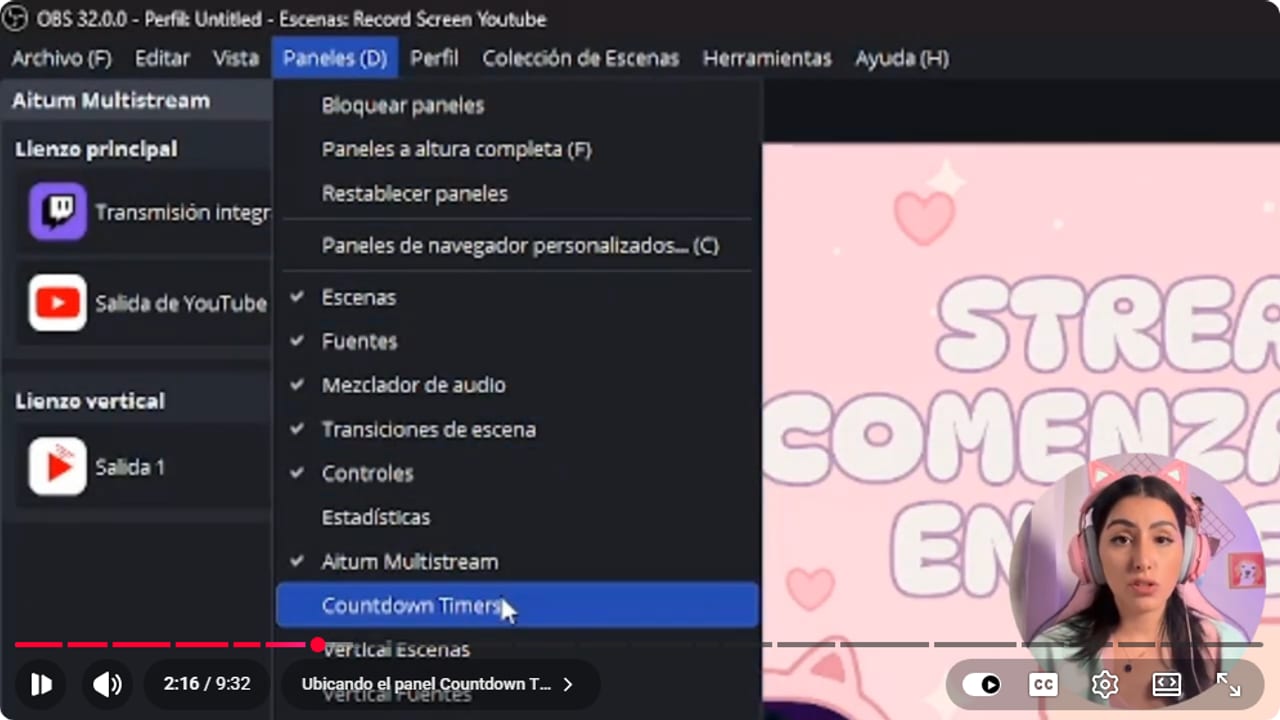
The plugin appears in the Docks menu after OBS restarts. YouTube · 2:16 ↗ - 03
Create the text source for the timer
Nicole, text source ↗In your Starting Soon scene, go to Sources, click + and choose Text (GDI+). Pick Create new, name it countdown or timer and click OK. The properties window opens. Click OK again for now, we'll do the design later.
What you should see: A source called countdown shows in the Sources list of your Starting Soon scene.
- 04
Link the dock to your text and start it
Nicole, linking the source ↗Open the Countdown Timer dock and click the gear icon. Under General, set Source to your countdown text. There are two timer types. P lets you enter days, hours, minutes and seconds and counts down from there. D lets you pick a date and time and counts down to that moment. To start, enter 5 minutes under P and press Play.
What you should see: The number appears in your scene and drops by one every second.
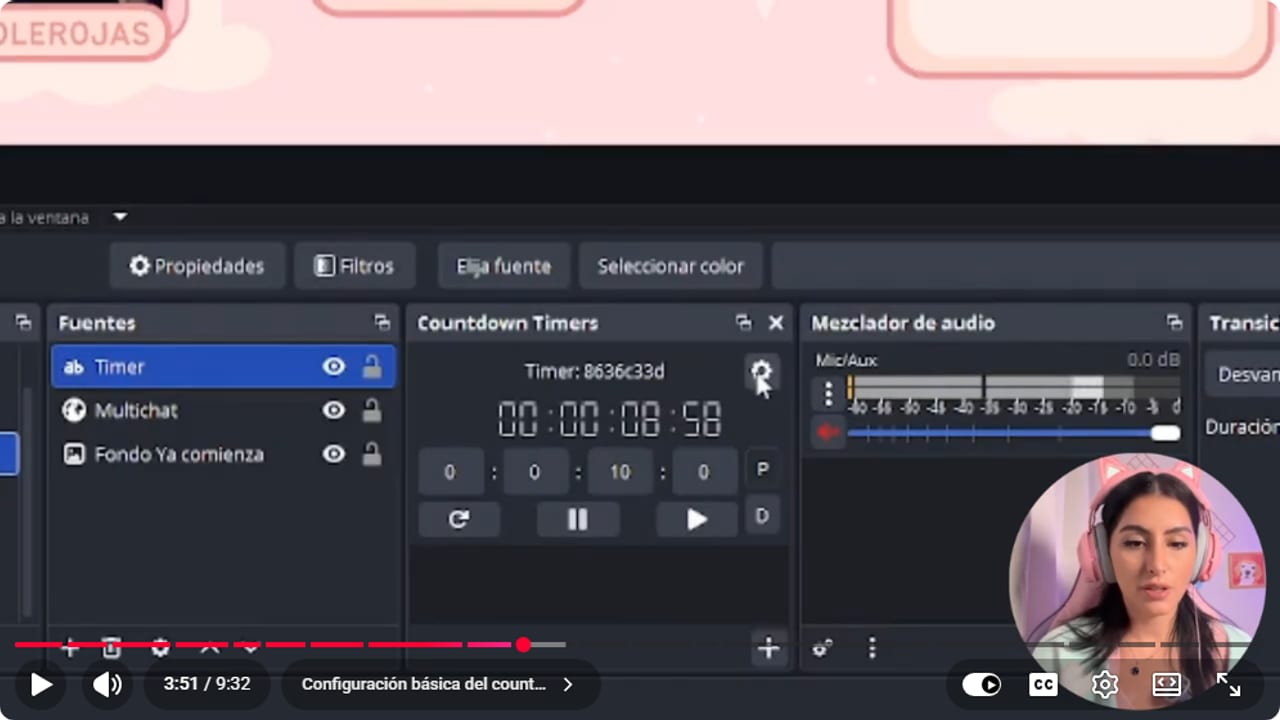
The source name connects the dock to the visible text. YouTube · 3:52 ↗ - 05
Decide what happens at zero
Nicole, final message and scene ↗In the gear settings there's an option to start the timer automatically when your stream starts. That's the easiest way. Message sets what appears when it ends, so if you're counting down to a game launch, something like Silent Hill is out. Scene picks where OBS goes when it finishes. I'd start on Just Chatting for a few minutes: if people are in chat, talk a bit, and if not, say hi for the YouTube upload later. Careful with auto-switching, though. If you're away from your desk, the stream starts anyway. A guide tip, not from the video: test with 10 seconds so you're not waiting around after each change.
What you should see: At zero, OBS switches to the scene you chose on its own, or the timer shows your message.
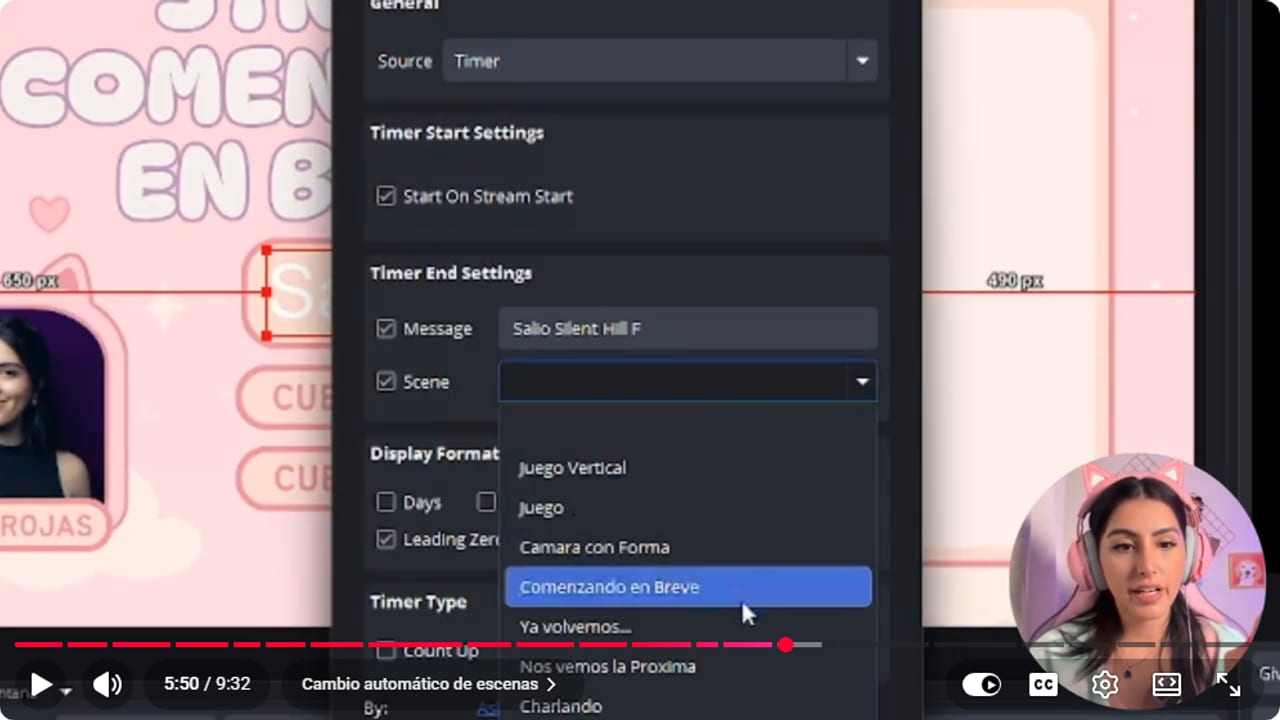
The chosen scene opens when the countdown reaches zero. YouTube · 5:51 ↗ - 06
Pick the format and the font
Nicole, format and design ↗Display format controls which units show: days, hours, minutes or seconds. I only show minutes, because I don't think people wait more than 10 minutes in a chat, and I'd say not even 3. Days and hours are for things like a 2-day stream. There's also Count up, which counts upward to the number you set. Then double-click the countdown source to change the font, which defaults to Arial and matches nothing. Pick one close to your overlay and bump the size, I use 26. If you can't see a thing, go to Color and pick your design color, with opacity or a gradient if you like.
What you should see: The timer reads clearly over your overlay, in your font and color.
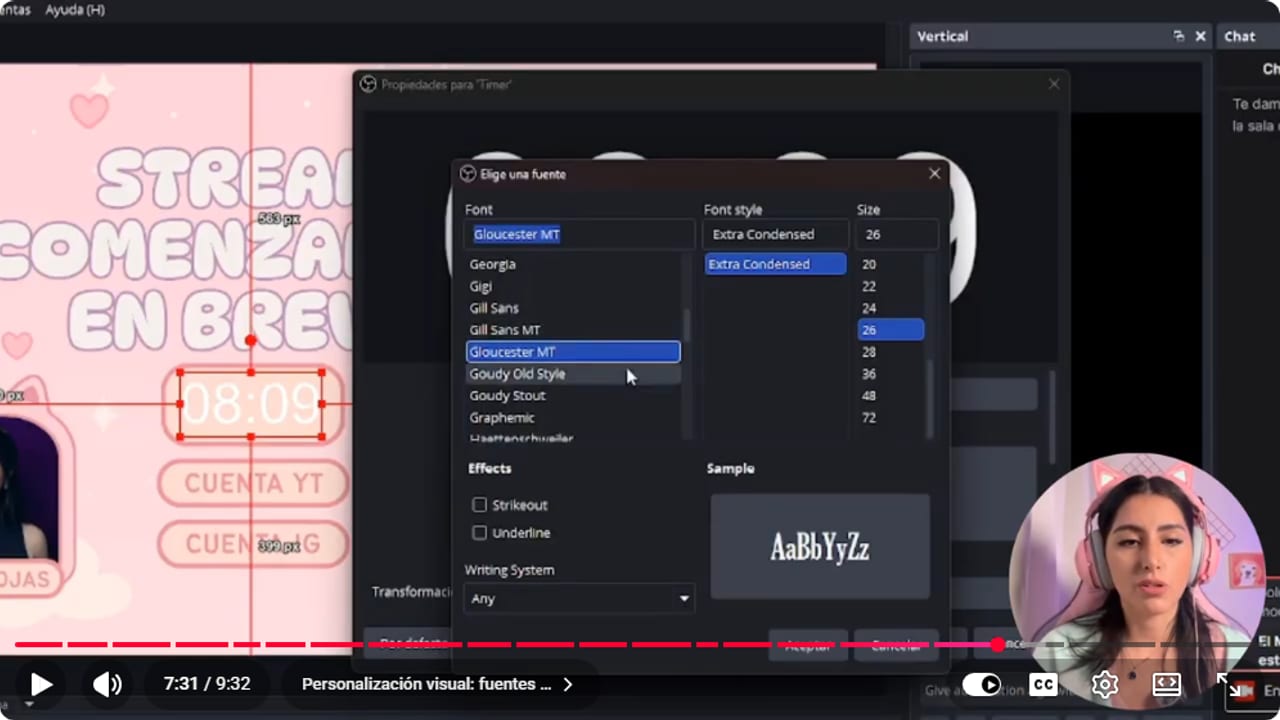
The text source controls size and readability over the overlay. YouTube · 7:32 ↗ - 07
Set the alignment and outline
Nicole, alignment and outline ↗In the same text properties, choose the alignment: center, left or right, depending on how your overlay is laid out. If your design uses outlined lettering, turn on Outline and set its color and thickness. The more you customize it, the more it looks like part of your design.
What you should see: The timer lines up with the rest of your overlay text and, with outline on, a colored edge shows around the numbers.
- 08
Keep a plan B without the plugin
Official OBS Studio overview ↗Duplicate your Starting Soon scene with static text, like Starting in 5 minutes, and assign a hotkey to your main scene under Settings, Hotkeys. If an OBS update breaks the plugin, you still start on time without fixing anything live.
What you should see: You have a backup scene with static text, and pressing the hotkey jumps OBS to your main scene.
- 09
Use it every time you go live
Nicole, using the countdown ↗Before each stream, check the timer is in your Starting Soon scene with the time you want. That way people know exactly when you're starting and they stick around in chat. And that's it, your countdown timer works and looks good, and you didn't have to sell your soul to some sketchy app. No excuses now.
What you should see: When you go live, the Starting Soon scene shows the timer counting down from the time you set.
If something does not work
- Countdown Timer isn't in the Docks menu
- Check that the whole plugin folder sits inside C:\ProgramData\obs-studio\plugins, that OBS was closed when you copied it, and that you're on OBS 30 or later. If you're coming from a version installed with the old installer, delete those files first.
- You use OBS Portable and no plugin shows up
- This happened to me: none of these widgets appeared in OBS Portable. Install the plugin on a regular OBS install, or test with that version instead.
- You press Play and the text doesn't change
- In the gear settings, under General, make sure Source is exactly your countdown text. If two sources share that name, rename one and select it again.
- The timer is there but you can't see it
- It's nearly always the color, like black text on a dark background. Change the color or opacity in the text properties, and make sure the source sits above your overlay in the Sources list.
- It switched to the wrong scene, or started without you
- Pick the scene again in the gear settings and test with 10 seconds (a guide tip). If an auto-start makes you nervous, turn off the scene switch and change scenes yourself when you're ready.
Test before you go live
- The timer starts on its own when you go live, or you know when to press Play.
- It shows only minutes (or just the units you really need).
- The end message or scene switch works in a 10 second test.
- It's readable in the small OBS preview.
- Your static backup scene is ready in case the plugin breaks.
- Fewer people wander off to TikTok while you get ready.
Cómo agregar un countdown timer a tu stream con un plugin gratis
Watch the full tutorial (in Spanish) ↗Common questions
Is the plugin free?
Yes, Ashmanix Countdown Timer is free and comes from its official GitHub repository. You don't need any paid software for the timer.
Can it count down to a specific date and time?
Yes, the D type lets you pick a day and time and counts down to it. Good for Christmas, New Year, your birthday or a game launch. Make sure your computer's date, time and time zone are right.
How long should the countdown be?
I only use minutes. I don't think people wait more than 10 minutes in a chat, and I'd say not even 3, but you can set it up your own way. Attention spans are now shorter than my dignity during a jumpscare.
Can I run several timers?
Yes, the plugin supports multiple timers. Give each text source a clear name and test them one at a time.
Do I have to switch scenes automatically?
No. You can show a message at zero and switch scenes yourself. Auto-switching is handy, but if you're away from your desk the stream starts anyway.
Can I use my own font?
If your overlay's font is installed on your computer, it should appear in the text source's font list. I haven't tried every font, so check it before you go live.


