

Short answer
Before you start
- A Windows PC, where Streamer.bot runs
- OBS 28 or later, which has WebSocket built in
- Your Twitch account (Kick works too, through Streamer.bot's website integration)
- An MP3 sound for the effect, from a site like MyInstants
- Unique names for your scenes, sources and filters
Bring your setup to a 24/7 AI Streamer Coach
Ask Streamer Coach →Get personalized feedback to fix streaming issues and plan your next content.
Step by step
- 01
Download Streamer.bot and open it
Official Streamer.bot installation ↗Want your stream to react to chat on its own, with a sound and a camera filter when someone redeems points? That's what Streamer.bot does, and it's free and runs on your PC. Go to its website, click Download and grab Streamer.bot. Extract the ZIP to a local folder that isn't synced to the cloud and open Streamer.bot.exe. The docs advise against running it as administrator. The first time, Windows may warn you it's an unknown file, because it isn't a Microsoft-verified app. Lots of streamers use it, but you always download at your own risk.
What you should see: Streamer.bot opens on its home screen, with Platforms in the left-hand menu.
- 02
Connect Twitch as your Broadcaster account
Official Streamer.bot Twitch documentation ↗Under Platforms, open Twitch and then Accounts. You'll see Broadcaster Account, your main streaming account, and Bot Account, which is optional and only matters if you want automated messages to come from a different account, the way Nightbot does. Click Login under Broadcaster and authorize in the Twitch window. At the top you'll see the status: a green dot means connected, a red dot means logged in but not connected. If you use Kick, follow the next step.
What you should see: The top of the page says 1 of 1 connected and your account has a green dot next to it.
- 03
If you use Kick, connect it the way today's docs say
Official Streamer.bot Kick guide ↗In the video, Nicole says Kick isn't fully implemented yet: she connects the Broadcaster and the bot account, sees a yellow status (not completely connected) and fixes it by logging out of Broadcaster, closing Streamer.bot completely and logging in again. Today the official Streamer.bot docs for Kick ask for something different and don't mention a bot account. First, sign in to Streamer.bot (bottom left) to link the Website Integration. Then go to Platforms, Kick, click Login under Broadcaster Account and accept every permission Kick asks for. Next, on the Streamer.bot website, open Account Settings, Connections and connect Kick with the same account. It should say Connected as, followed by your Kick username. If you connected recently, restart Streamer.bot.
What you should see: On the Streamer.bot website, Kick shows Connected as with your username, and under Platforms, Kick the Broadcaster account shows as connected.
- 04
Connect OBS through WebSocket
Nicole, connecting OBS ↗WebSocket sounds like a developer thing. Don't panic, you've got this. In OBS, go to Tools, WebSocket Server Settings, and tick Enable WebSocket server. Leave the port at 4455, click Show Connect Info, copy the password and click Apply. In Streamer.bot, go to Stream Apps, OBS Studio, right-click and choose Add. Name it OBS, set the version to 5, keep the host as it is, use the same port and paste the password. Tick Auto connect on startup and Reconnect on disconnect, set Retry interval to 10 and click OK.
What you should see: OBS shows as Connected, with your current scene and the list of available scenes underneath.
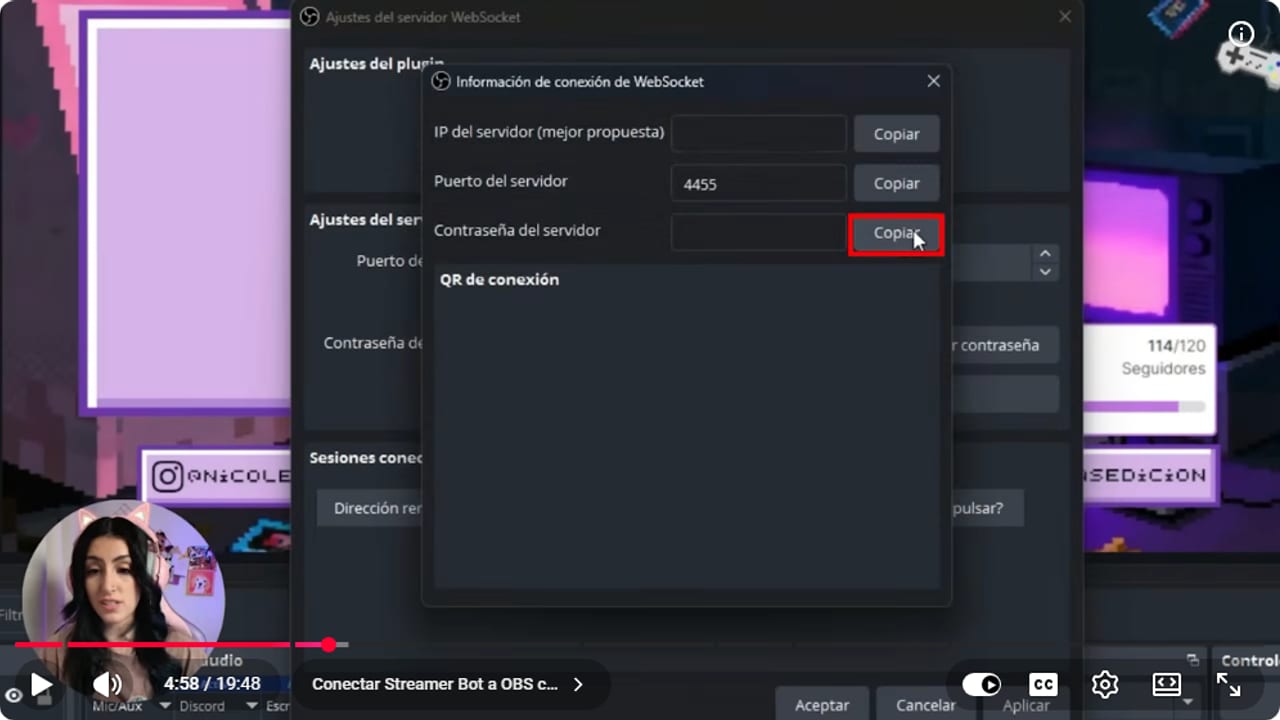
Port and password must match the connection created in Streamer.bot. YouTube · 4:58 ↗ - 05
Get your head around action, trigger and sub-action
Nicole, action structure ↗In the left menu, open Actions & Queues, then Actions. Three words matter here. The action is the recipe, and it has a name, like Discord. The trigger is when it runs: a chat command, a number of minutes, a channel point redemption or an OBS event. The sub-action is what it does: send a message, play a sound, switch on a filter. One action can have several triggers and several sub-actions.
What you should see: When you select an action, the Triggers panel sits on the right with Sub-Actions below it.
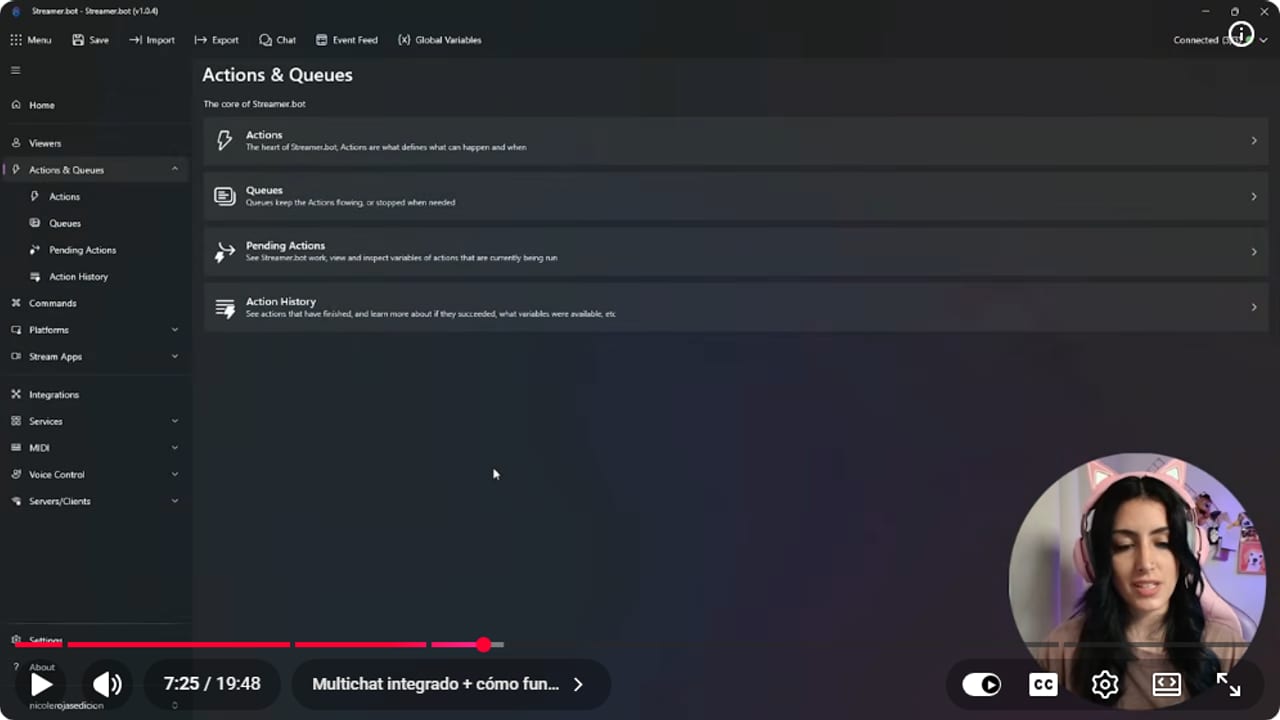
The trigger starts the action and its sub-actions run in order. YouTube · 7:26 ↗ - 06
Build your first command: !discord
Nicole, Discord command ↗In Actions, right-click, choose Add and call it Discord. Under Sub-Actions, right-click, Add, Twitch, Chat, Send Message to Channel. Write your line, like Join the Discord, paste the link and choose whether your account or the bot account replies. Then under Triggers, right-click, Add, Core, Commands, Command Triggered, and click Create Command. Name it Discord and set the command to !discord. You can also restrict it to mods, subscribers or VIPs right there.
What you should see: You type !discord in Streamer.bot's Chat tab and the reply with your link appears.
- 07
Build the effect: sound plus black and white camera
Nicole, points and effects ↗Get the sound first. Search MyInstants for one, a fart noise works, no judgment, and download it as an MP3. In OBS, click your camera, then Filters, + and Color Correction. Drag saturation all the way down so it goes black and white, and rename the filter black and white. In Streamer.bot, create a new action with that name and give it four sub-actions. Play Sound, pointing at your MP3, at whatever volume suits you (I use 50). Set Source Filter State, under OBS Studio, Sources, with your scene, your camera, the black and white filter and the state Visible. A Delay of 5000, which is 5 seconds. Then a second Set Source Filter State, identical but set to Hidden.
What you should see: The black and white action lists four sub-actions in order: sound, filter visible, 5000 delay, filter hidden.
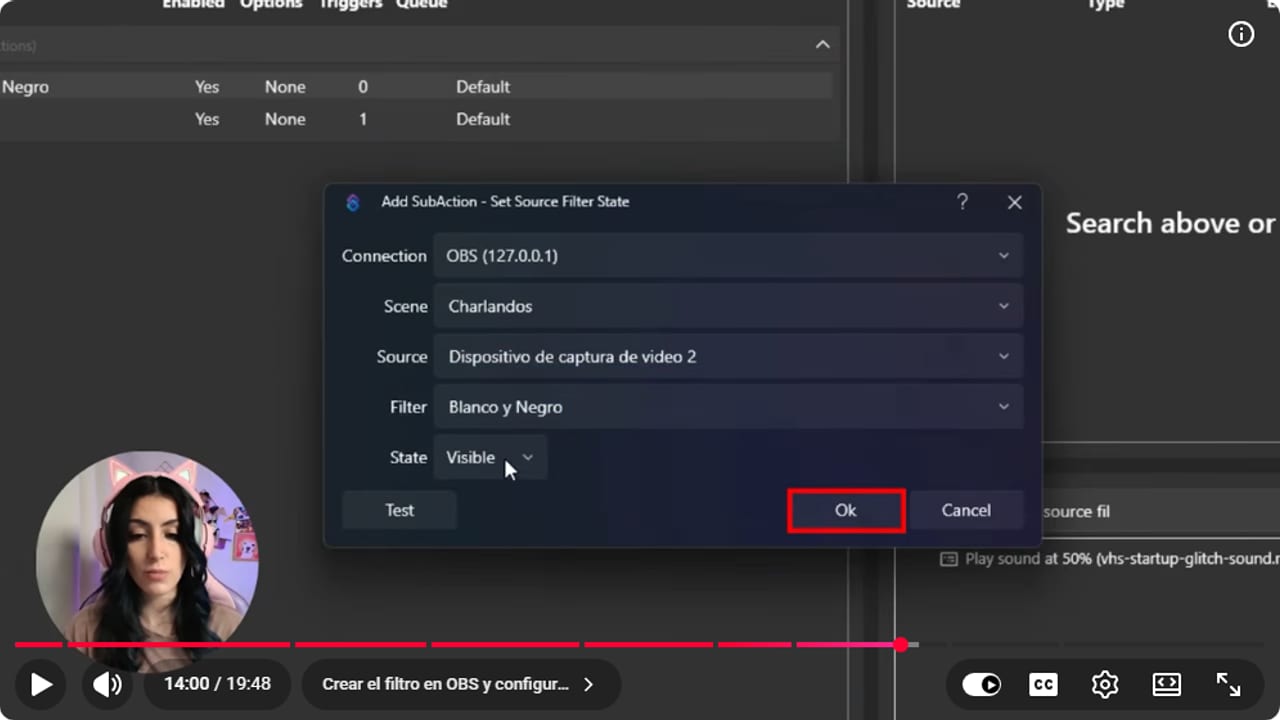
The sub-action selects the connection, scene, source, filter, and state before the test. YouTube · 14:01 ↗ - 08
Create the channel point reward in Streamer.bot
Nicole, rewards from Streamer.bot ↗Golden rule from Nicole's video: create rewards inside Streamer.bot. She says it can see rewards you made on Twitch but can't change them. The current Streamer.bot docs put them under Platforms, Twitch, Channel Point Rewards (right-click and Add) and recommend recreating existing ones there, so your bot becomes the owner. In the video, the route is from the black and white action: Triggers, Add, Twitch, Channel Reward, Reward Redemption, and click Create Reward. Give it a name, an optional description and a cost, say 100 points. Set how many times it can be redeemed per stream, how many per user, and the cooldown in seconds. Tick Enabled and click Create.
What you should see: The new reward appears in the action's trigger list, showing its cost and marked as enabled.
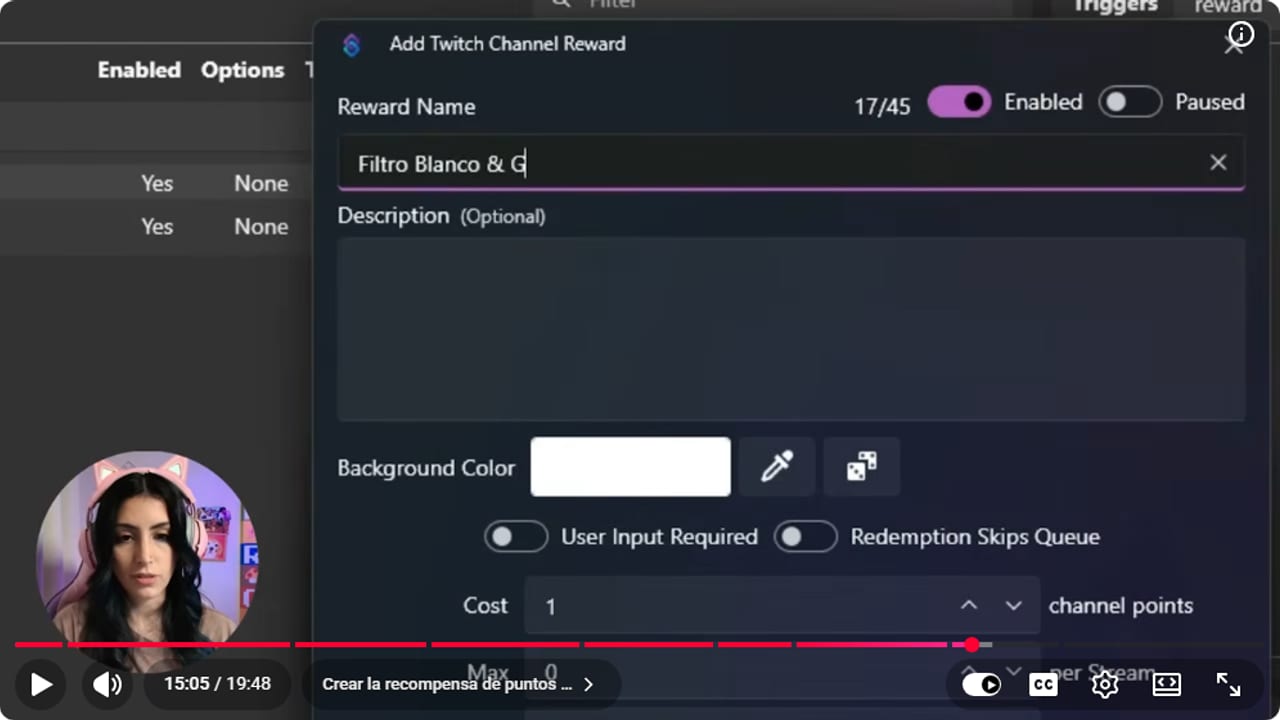
Cost, maximums, and cooldown contain the effect frequency. YouTube · 15:06 ↗ - 09
Test the redemption from Twitch
Nicole, testing the reward ↗Open Twitch's Stream Manager, go to your channel points and redeem black and white. The sub-actions run in order: the sound plays, the filter switches on, it waits 5 seconds and switches off. Want a different order or a longer effect? Move the sub-actions around or change the delay. When you're done testing, make sure the filter is off so you start the stream with a normal camera.
What you should see: Your camera goes black and white with the sound, then back to color 5 seconds later.
- 10
Add a timer so your Discord posts itself
Nicole, timers ↗In the Discord action, go to Triggers, Add, Core, Timed Actions, and click Create Timer. Call it Discord, set the interval to 10 minutes and tick repeat. Your link now lands in chat every 10 minutes without anyone typing a thing.
What you should see: The Discord timer shows under Timed Actions with a 10 minute interval, and the link posts in chat when it fires.
- 11
Switch scenes with a chat command
Nicole, switching scenes ↗Handy if you don't own a Stream Deck or your streaming PC sits somewhere else. Create an action, say gaming scene, with the sub-action Set Active Scene pointing at your game scene. For the trigger, use a command like !scene gaming and limit it to you or your mods. If something happens mid-game, you or a mod can switch scenes fast.
What you should see: You type the command in chat and OBS jumps to the scene you picked.
- 12
Export what works before you add more
Streamer.bot import and export ↗This step is the guide's advice, not the video's. Before you add more, click Export on the top bar, right-click your actions and choose Add to Export, give the export a name and click Export to File. Then note which scene, source and filter each one depends on. Add one automation at a time, and check what happens when you close and reopen OBS and Streamer.bot. And that's it, your stream now reacts to chat by itself.
What you should see: Your export file is saved, and after restarting both apps OBS shows as Connected again.
If something does not work
- Streamer.bot won't connect to OBS
- Check that you clicked Apply in OBS after enabling the server, and that both apps are open. Confirm version 5, port 4455 and the same password on both sides. If it still won't connect, right-click OBS under Stream Apps and force the connection.
- Your Kick account stays yellow
- In the video, yellow on Kick means the account isn't completely connected. Green is connected, and on Twitch a red dot means logged in but not connected. Today the official docs ask you to be signed in to Streamer.bot (bottom left), log in the Broadcaster account under Platforms, Kick, link the same account on the Streamer.bot website (Account Settings, Connections) and restart Streamer.bot. If it stays yellow, try what Nicole shows: log out of Broadcaster, close Streamer.bot completely and log in again. Yes, it's a bit of a dance.
- The filter fires but there's no sound
- The sound plays through the audio output OBS is set to use, and if that's routed through your game capture you may not hear it where you expect. Check which audio output OBS uses and test again until you hear it.
- Your camera is stuck in black and white forever
- The action is missing its last sub-action, or that one is set to Visible instead of Hidden. Add the second Set Source Filter State, set to Hidden, after the delay. In the meantime, switch the filter off by hand with the eye icon in OBS.
- You can't edit a reward you made on Twitch
- In the video, Nicole says Streamer.bot sees rewards created on Twitch but can't change them. Recreate that reward inside Streamer.bot with Create Reward, then delete the Twitch one so you don't end up with two.
- The command replies twice
- Look for duplicate triggers using the same command in other actions. Also check that only one account, yours or the bot, sends the message.
Test before you go live
- Twitch and OBS both show green when you open Streamer.bot.
- !discord replies once, from the account you chose.
- The reward has a cost, limits and a cooldown.
- The camera returns to color on its own after every redemption.
- The effect sound reaches your stream, checked in a test recording.
- Chat can now turn you black and white. Use responsibly.
Cómo configurar Streamer.bot desde cero: comandos, puntos y efectos en OBS
Watch the full tutorial (in Spanish) ↗Common questions
Is Streamer.bot free?
Yes, it's free and runs on your own PC. I find it a lot more powerful than the Streamlabs or StreamElements chatbots.
Do I need a separate bot account?
No, it's optional. Your Broadcaster account receives events and can send replies. A bot account is only useful if you want automated messages to show a different name.
Do I need to install obs-websocket?
Not on OBS 28 or later, which ships with WebSocket version 5. You just enable the server under Tools. Check your OBS version before installing any old plugin.
Can Streamer.bot work as a multichat?
Yes. The Chat tab shows every connected platform's chat live, along with events, and you can send one message to all of them. It's a good fallback when Casterlabs or BotRix are giving you grief.
What else can it do?
It can switch scenes by voice once you turn on Voice Control, show and hide OBS sources for a moment, react to donations when connected to StreamElements or Streamlabs under Integrations, and post in your Discord when you go live. It also includes a free Stream Deck that opens in your phone's browser, and you can share that link with your mods.
How do I stop chat from spamming an effect?
In the video, the reward comes with a cost, a per-stream maximum, a per-user maximum and a cooldown in seconds. Use them to curb abuse. Guide tip: always end the action by putting the source back the way it was.


