

Short answer
Before you start
- A free Canva account
- Your logo and channel colors
- OBS Studio with at least two scenes to test with
Bring your setup to a 24/7 AI Streamer Coach
Ask Streamer Coach →Get personalized feedback to fix streaming issues and plan your next content.
Step by step
- 01
Create a 1920 by 1080 design in Canva
Nicole Rojas | YouTube | 0:31 ↗Want your stream to look polished but don't have money for fancy transitions? Same. The cheapest ones online start at around 20 dollars, which we clearly don't have. Create a free Canva account, click Create and search for 1920 by 1080. You'll also find it under Social media, YouTube, YouTube intro, which uses that size. Canva shows you ready-made templates, and tweaking one is fine, but here we're building from scratch.
What you should see: A blank 1920 by 1080 canvas opens with a single page at the bottom.
- 02
Plan the transition as three pages
Nicole Rojas | YouTube | 1:02 ↗The transition is built from three pages. Page one holds all your elements. On page two those elements move and your logo appears. Page three is where everything disappears and hands over to the next scene. You'll build them one by one in the next steps.
What you should see: You know what goes on each of the three pages: elements, logo and empty page.
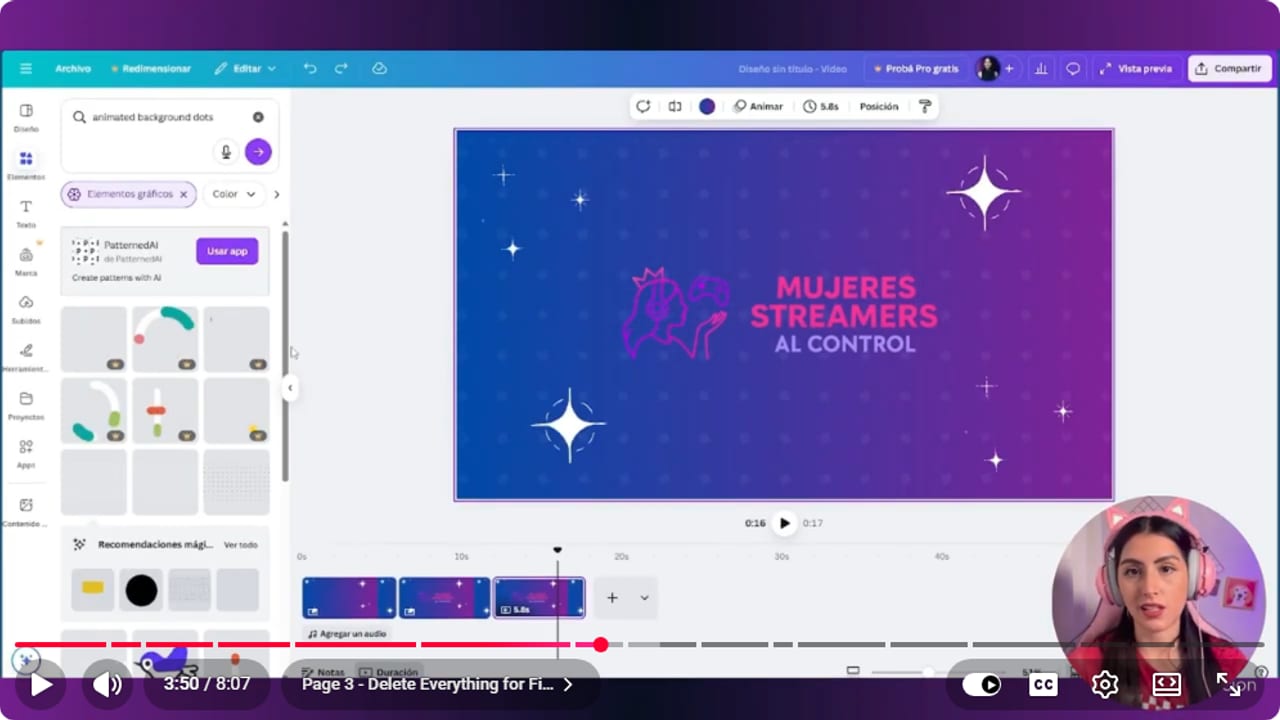
The page thumbnails separate entrance, coverage, and exit so the change has a clear point. YouTube · 3:51 ↗ - 03
Design page one with a background and stickers
Nicole Rojas | YouTube | 1:33 ↗Start with a background that fits your palette: a gradient, a solid color, or black, which goes with everything. Mine is purple and pink. Then open Elements, search for sticker and add whatever you like, such as little stars. I kept it quick so it's easy to follow. That's page one.
What you should see: Page one has your background and your stickers.
- 04
Duplicate the page and add your logo and an animated background
Nicole Rojas | YouTube | 2:33 ↗Duplicate page one. The idea of duplicating instead of creating all three pages up front is that the elements stay in exactly the same place, so the transition looks clean. On the copy add your logo plus something animated in the background, like galaxies, light rays or dots, with the opacity turned way down so it stays subtle. Duplicate that page too, and on the last one delete everything except the background.
What you should see: Page two shows your logo over a soft animated background, and page three shows only the background.
- 05
Animate and apply to all pages
Nicole Rojas | YouTube | 4:04 ↗Select the first page and click Animate. You can animate element by element or the whole page. I go with the simplest one, where everything slides out. Then click Apply to all pages and press play to preview it. You'll notice it drags on far too long, which we fix next.
What you should see: All three thumbnails show the animation icon, and pressing play shows elements moving in and out.
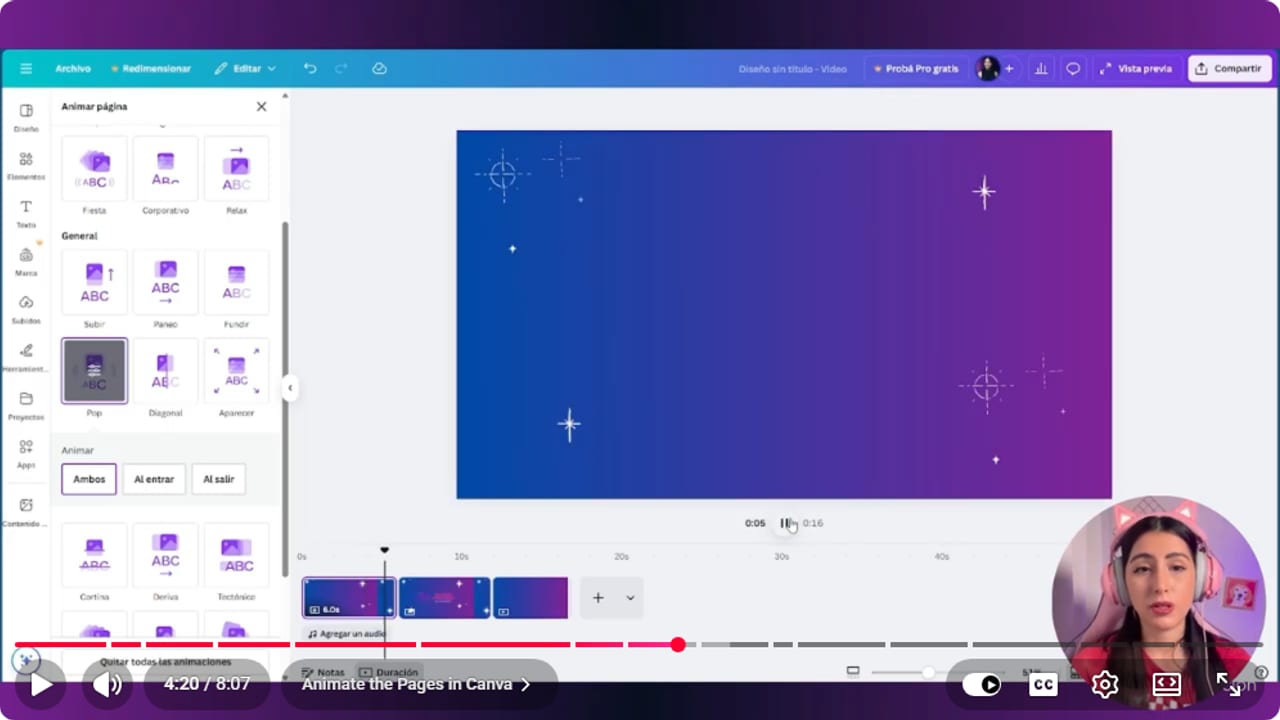
The animation is applied across the pages and checked before export. YouTube · 4:21 ↗ - 06
Set the timings and aim for 2 seconds
Nicole Rojas | YouTube | 4:36 ↗Each page starts with several seconds of duration, six in the video. Click the timing on each one and change it: 0.5 on the first, 1.5 on the middle one and 0.5 on the last. That adds up to 2.5 seconds. I want the transition to run no longer than 2 seconds and I recommend aiming for 2, so you can trim a page, for example 0.5, 1 and 0.5. When I tested it, the ending felt a bit long. If you don't like the background, keep it identical on all three pages: duplicate a page, delete everything on it and drag it to the front, so you don't redo anything.
What you should see: Each thumbnail shows its new duration (0.5, 1.5 and 0.5) and the full preview runs about 2.5 seconds.
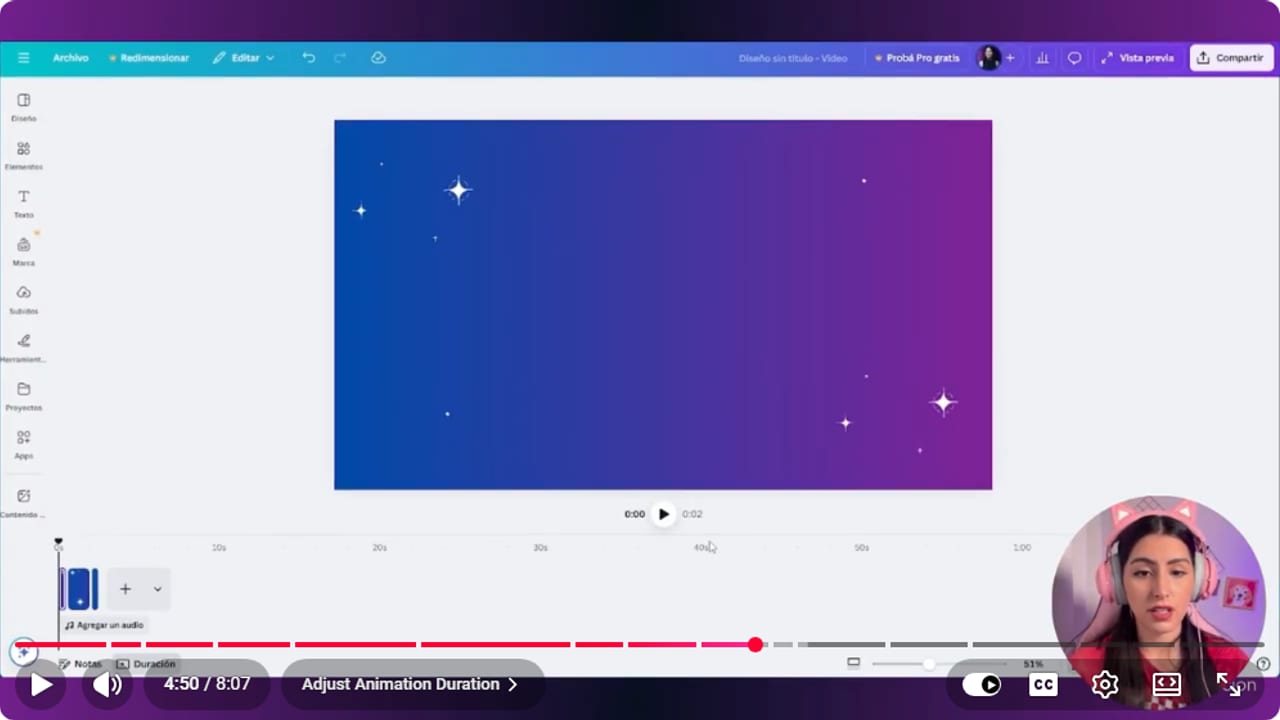
The timing control keeps the transition coverage brief. YouTube · 4:51 ↗ - 07
Download it as MP4 and give it a clear name
Nicole Rojas | YouTube | 5:37 ↗Go to Share, Download, and choose MP4 at 1080p with all three pages. Canva Free downloads MP4 at 1080p by default, so don't change the quality: if you do, Canva Free shows an upgrade prompt. If your design includes paid elements, Canva Free asks you to Pay and download, so pick free stickers and animations. Once it's downloaded, rename the file to something you'll recognize, like Twitch transition. I said YouTube by mistake while explaining that: mine was for Twitch, so I'm renaming it Twitch transition. Guide tip, not from the video: if you like, move it out of Downloads into a permanent folder so the transition doesn't break the day you clean that folder out.
What you should see: Your renamed MP4 plays the full transition when you open it.
- 08
Create the Stinger transition in OBS
Nicole Rojas | YouTube | 6:07 ↗In OBS, go to Scene Transitions and click +. Choose Stinger and name it, say Twitch transition. Under Video File, browse to the MP4 in the folder where you downloaded it, normally Downloads. Leave Transition Point Type on Time and set Transition Point to 1000, which is roughly what's needed for the switch to look clear, in milliseconds. Leave everything else as it is and click OK.
What you should see: Twitch transition now appears as an option in the OBS transitions menu.
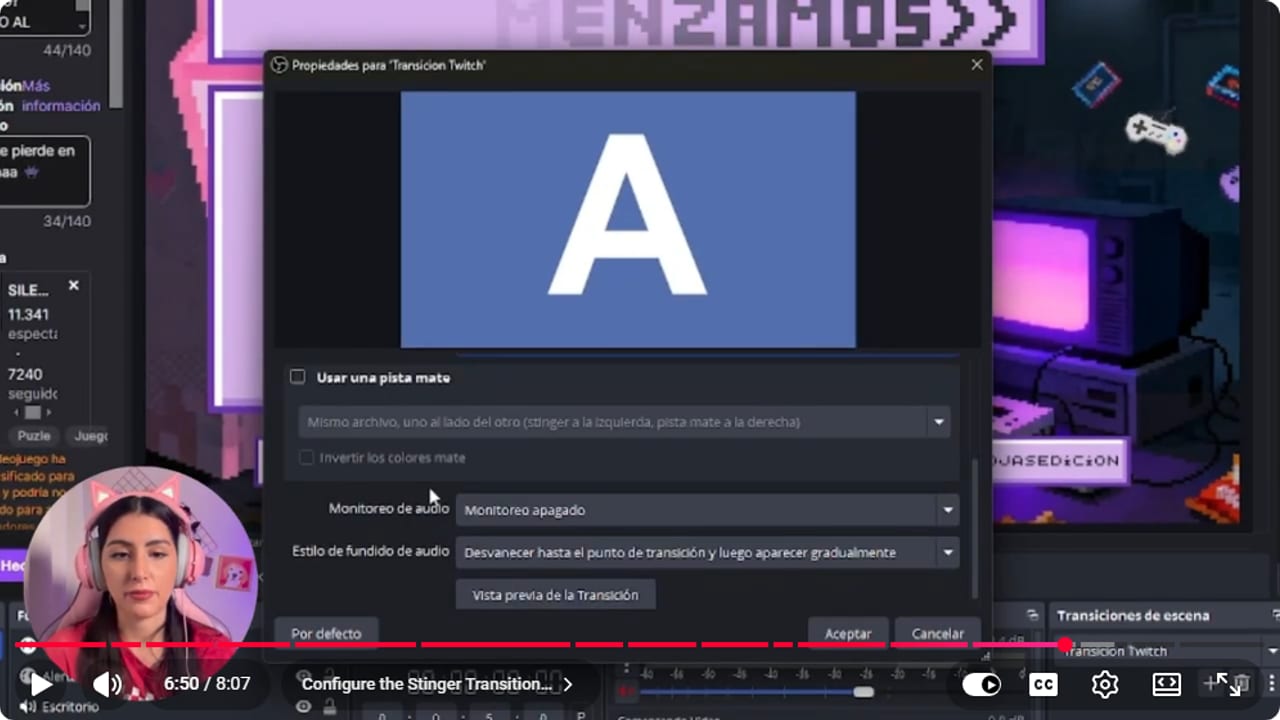
OBS loads the video and lets you check the transition point from the properties dialog. YouTube · 6:51 ↗ - 09
Test it in Studio Mode
Nicole Rojas | YouTube | 6:38 ↗Turn on Studio Mode, put one scene in Preview, like Just Chatting, and another in Program. In the transitions dropdown, pick yours instead of Fade and click Transition. Guide tip, not from the video: if you catch a flash of the new scene before the video covers it, raise the transition point a little and try again.
What you should see: Clicking Transition plays your video, and the scene switches while the video covers the screen.
- 10
Tweak the ending if it drags
Nicole Rojas | YouTube | 7:09 ↗Watch it with the new scene. I thought the ending felt a bit long, so I might do it with fewer seconds, for example aiming for 2, to make it snappier. If you feel the same, go back to Canva, shorten the last page and download it again. Guide tip: download it under the same name so OBS keeps finding it. And that's it, you've got a transition made your way and with your look, and you didn't pay anyone for it. No excuses now.
What you should see: After the tweak, the transition feels snappy and the new scene appears right as the video ends.
If something does not work
- You see the new scene before the video covers it
- The transition point is too early. Raise it gradually from 1000 and test in Studio Mode (a guide adjustment, not from the video). Two scenes in very different colors, one light and one dark, make the cut easy to spot.
- Elements jump around between pages
- You probably built the pages separately instead of duplicating them. Duplicate page one and edit the copy so everything stays in exactly the same place.
- The transition takes forever
- Canva gives every page several seconds by default. Set the timings to 0.5, 1.5 and 0.5, or trim a page to aim for 2 seconds, and drop any animation that isn't pulling its weight. Your viewers didn't come for the stars.
- OBS won't load the video
- Open the MP4 in a media player to confirm it plays, and check it's still in the same folder. If you moved or renamed it, select it again under Video File.
- The background changes color mid-transition
- The gradient isn't identical on all three pages. In grid view, duplicate the page with the right background, delete everything on it and drag it to the front.
Test before you go live
- Your transition runs about 2 seconds and the ending doesn't feel long.
- The logo and background match your overlay and palette.
- The MP4 lives in a folder you won't clean out.
- Your transition is selected in OBS instead of Fade.
- No flash of the new scene shows up early.
- You've got your own transition and still have those 20 dollars.
Cómo hacer transiciones profesionales en Canva gratis y usarlas en OBS
Watch the full tutorial (in Spanish) ↗Common questions
Do I need Canva Pro?
No. In the video I build everything on free Canva, from the canvas to the 1080p MP4, and mention that Canva Pro exists too. One catch: if your design includes paid elements, Canva Free asks you to Pay and download, so pick free stickers and animations.
How long should a stinger transition be?
Aim for 2 seconds. Using 0.5, 1.5 and 0.5 seconds on the three pages adds up to 2.5, so you can trim a page, for example 0.5, 1 and 0.5. Anything longer feels like a pause, and nobody wants that on every scene change.
Does it need a transparent background?
No. Extra context from the guide, not from the video: Canva's MP4 has no transparency, so the video covers the whole screen while it plays, which is why the design fills the frame. Since OBS 27.0 there is also a Track Matte mode that uses a mask to decide which scene shows.
What should I set the transition point to?
In the video I use 1000 milliseconds, roughly what's needed for the switch to look clear. Test it in Studio Mode. If you see a flash of the new scene, raise it a little at a time (a guide tip, not from the video) until the cut hides behind the video.
Can I have more than one transition?
Yes, make as many as you like and load them in OBS under different names. Trying out different designs is half the fun.


