KICKPROFILE
How to customize your Kick channel: banner size, avatar, bio and emotes
Kick sizes: banner at least 1200 x 134, offline 1920 x 1080, avatar and emotes. Plus bio, socials and panels so your channel stops looking like a bot.


Short answer
Before you start
- A Kick channel that already exists. If it isn't connected to OBS yet, start with the guide to streaming on Kick from scratch.
- Your photo or a logo, cropped square
- Canva or Pixlr E (both have free versions) for the banner and emotes
- Optional: two-factor authentication turned on in Kick, if you want to change your username
- Optional: ChatGPT or Claude, if writing a bio feels like homework
Bring your setup to a 24/7 AI Streamer Coach
Ask Streamer Coach →Get personalized feedback to fix streaming issues and plan your next content.
Step by step
- 01
Open Settings and Profile on Kick
Nicole Rojas | YouTube | 0:24 ↗You just opened your channel and it still has the default avatar, no banner and no bio. Not great. Right now people could mistake you for a bot. Go to Kick, click your picture in the top right and open Creator Dashboard. From there, go to Settings and then Profile. Almost everything in this guide gets edited from this screen.
What you should see: You see the Profile preview section with your avatar and an Edit avatar button, and the Channel banner section below it.
- 02
Upload a properly square avatar
Nicole Rojas | YouTube | 0:43 ↗Click Edit avatar. Kick wants a square JPEG or PNG between 128 x 128 and 3000 x 3000 pixels, up to 4 MB. Make sure the image really is square. If it's even slightly stretched, Kick distorts it and it looks off (it happened to me). Click Upload from local device, pick your photo or an image that represents your channel, and click Confirm. If you've got nothing yet, Kick offers some avatars underneath.
What you should see: Your new picture shows up in a circle in the Profile preview, with nothing stretched.
- 03
Upload the channel banner: at least 1200 x 134
Nicole Rojas | YouTube | 1:16 ↗The banner is the first thing people see when they land on your channel. Click Update banner image. You'll get Kick's suggested banners plus an Upload from local device button. Kick asks for at least 1200 x 134 pixels and under 4 MB. I design mine at 1280 x 700, which clears that easily. Upload it and click Save. Kick shows it as a wide strip, so check the preview and make sure your name isn't cut off.
What you should see: The Channel banner section shows your image as a wide strip, with the minimum size note (1200×134px) under the button.
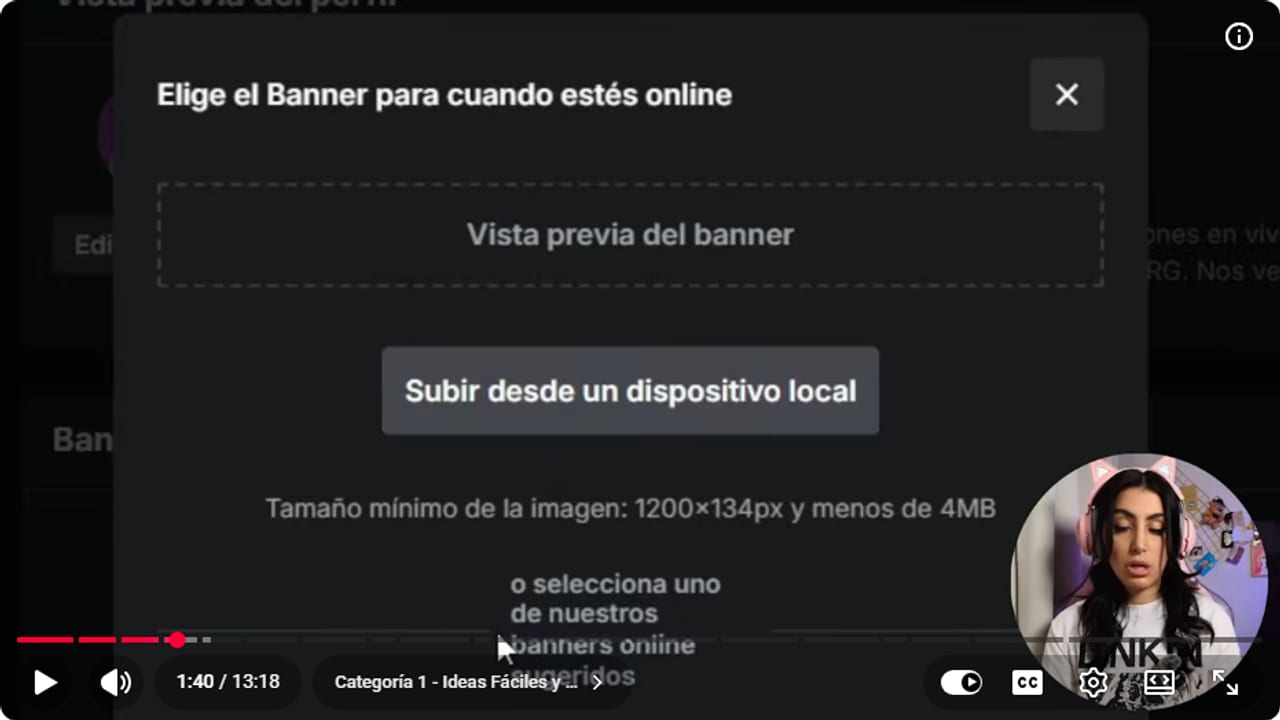
Look at the line under the button: the channel banner needs at least 1200 x 134 pixels and under 4 MB. YouTube · 1:40 ↗ - 04
No banner yet? Make one in Canva or Pixlr
Nicole Rojas | YouTube | 1:38 ↗In Canva, go to Create, Custom size, and enter 1280 x 700. Search the templates for banner (the gaming ones work well), then swap the background, your name and the colors, and put your socials where it says subscribe. Download it as a PNG from Share. If you'd rather start from scratch, grab a free background from Pexels (I searched for neon) and edit it in Pixlr E, the free version: Create new, 1280 x 700, drag the image in and choose Add to current. Heads up, free Pixlr only lets you save 3 times a day. For a full design system with colors and fonts, see the Canva guide for Twitch and Kick channel graphics.
What you should see: You have a 1280 x 700 PNG or JPG on your computer with your name and socials on it.
- 05
Upload the offline banner at 1920 x 1080
Nicole Rojas | YouTube | 3:45 ↗The offline banner shows when you're not live and there are no saved broadcasts, and also for two minutes after your stream ends. Click Update banner image in that section. Kick asks for 1080p at 16:9, JPEG or PNG, under 4 MB, which means 1920 x 1080. Since it's bigger, you can fit more on it, like Stream's over plus your next day and time, so anyone who drops by knows when to come back. Upload it and click Save.
What you should see: The offline banner section shows your 16:9 image instead of the empty box.
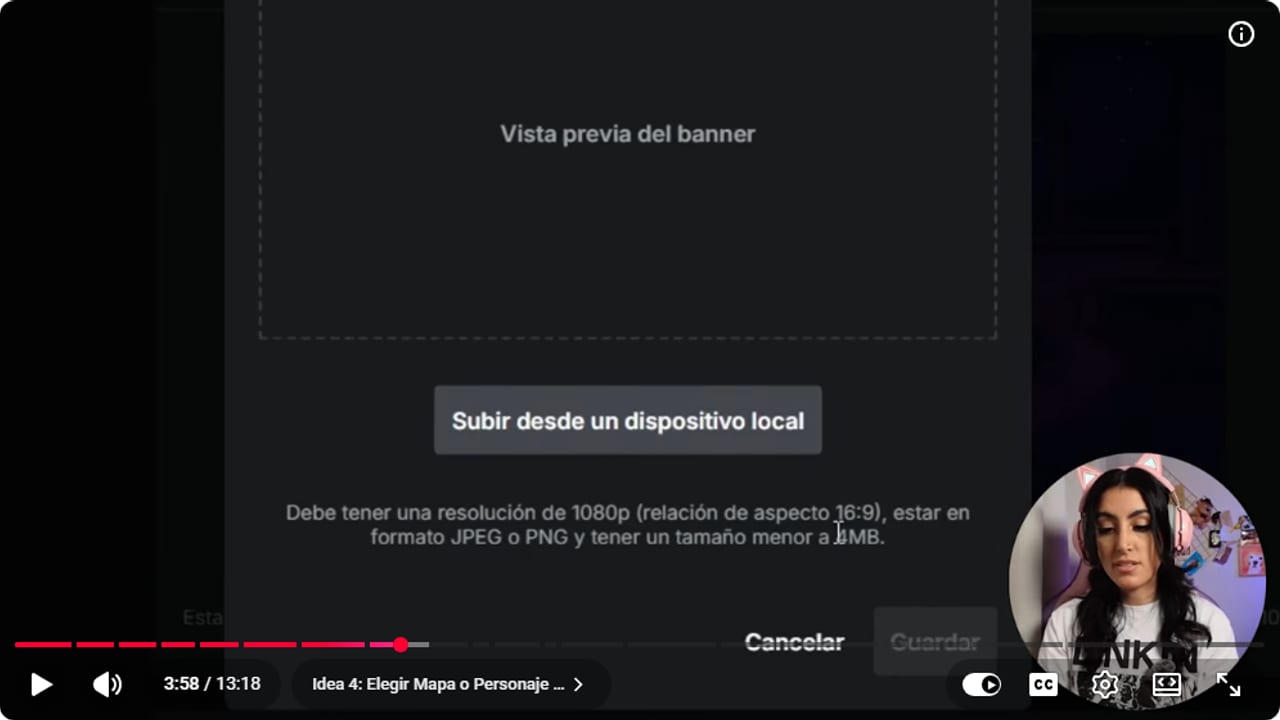
The offline banner is 1080p at 16:9, which means 1920 x 1080, as a JPEG or PNG under 4 MB. YouTube · 3:59 ↗ - 06
Check your username
Nicole Rojas | YouTube | 4:37 ↗Further down, under Basic details, you'll find your username, your email and your bio. If you're recording or live, be careful here, because this section shows your email. To change your username, Kick requires two-factor authentication, and it only lets you change it every 60 days. My tip: use the same name you use everywhere else, same as your photo, so people can find you easily.
What you should see: Basic details shows the username you want, matching your other socials.
- 07
Write your bio, with AI if you get stuck
Nicole Rojas | YouTube | 5:03 ↗Your bio sits under your stream and tells people what your channel is about. Include your name, what you play, your schedule, what you're aiming for and a bit of personality. If you're stuck, ask ChatGPT or Claude with something like: Write a 500 character Kick bio. I stream (your game genre) on (your days). My style is (fun, serious or competitive). Add a touch of humor, my goal is to build a community. Replace the parts in brackets, edit the result until it sounds like you, and click Save changes.
What you should see: The Profile preview shows your new bio under your name.
- 08
Add your socials by username, not by link
Nicole Rojas | YouTube | 7:00 ↗Scroll a bit more and Kick lets you add Instagram, X, Facebook, YouTube, Discord and TikTok. The key thing: each field takes only your username on that platform, not the full link. Fill in the ones you use and save.
What you should see: The Profile preview shows an icon for each social with your username next to it.
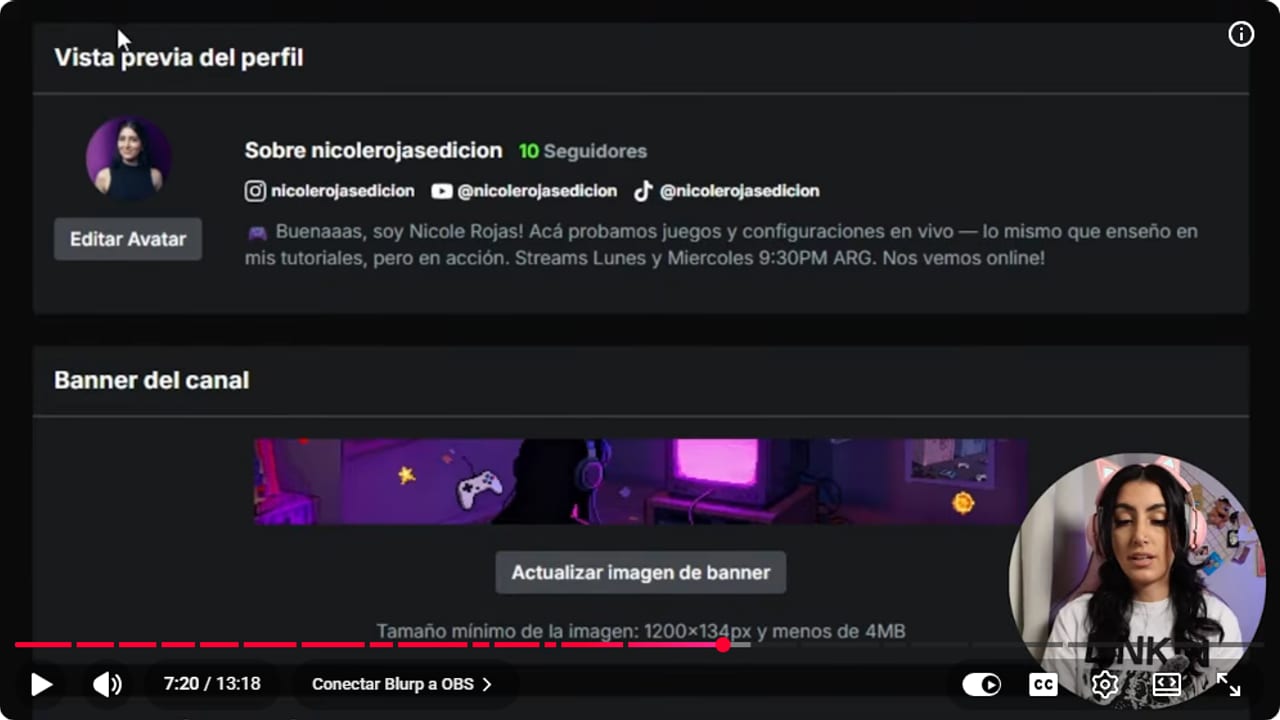
This is how socials look when you enter just the username: the icon plus your handle, right above the bio. YouTube · 7:21 ↗ - 09
Upload emotes: 60 free slots, no Affiliate needed
Nicole Rojas | YouTube | 7:41 ↗Emotes are the little images your chat uses to talk to you. Go to Creator Dashboard, Channel, Community, then the Emotes tab. Kick gives you 60 channel emote slots without asking you to be an affiliate. Click +, type a name and upload a square PNG or GIF up to 500 x 500 pixels and 1 MB. If your image isn't square, build it on a 500 x 500 canvas in Canva or Pixlr (I grabbed screenshots of myself pulling weird faces in my videos). Click Save. Watch the name: your chat has to type it exactly the same way, capital letters included.
What you should see: The emote shows up under Channel emotes with a review icon next to it, and the count of free slots goes down.
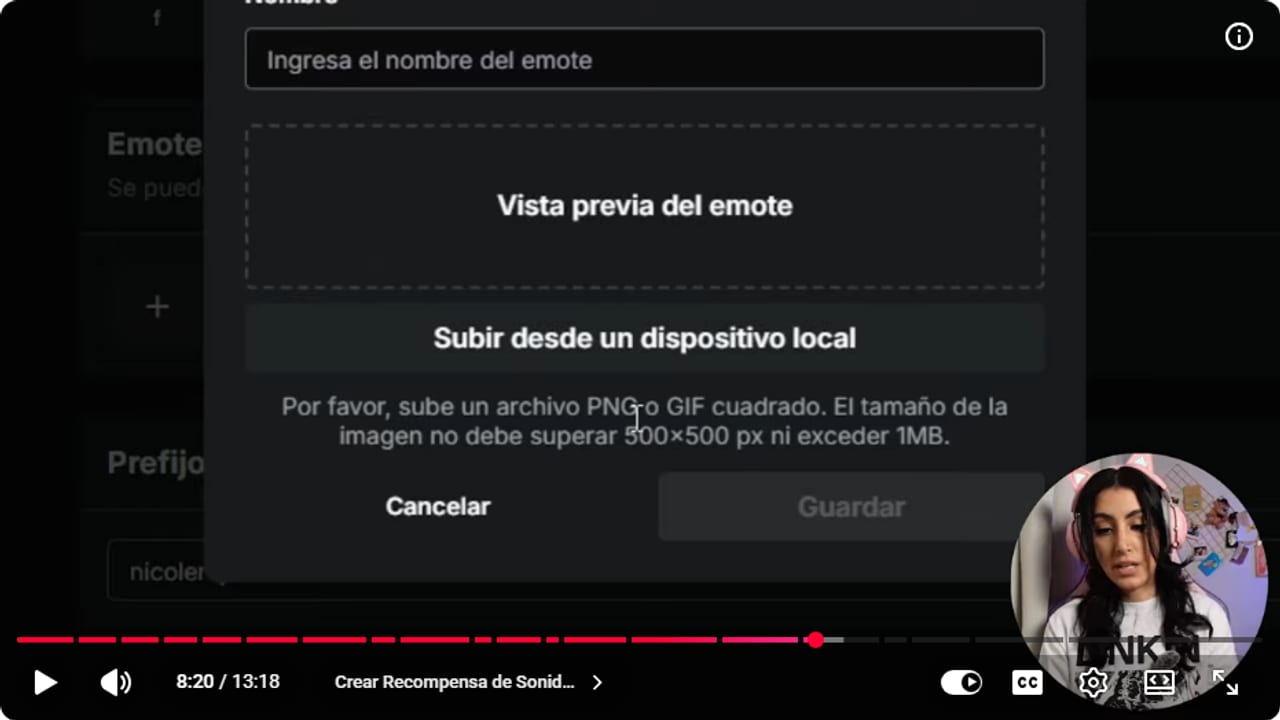
Whatever name you type at the top is exactly what your chat will have to type, capitals included. YouTube · 8:21 ↗ - 10
Optional: make an animated emote with MakeEmoji
Nicole Rojas | YouTube | 9:35 ↗Want it to move? Go to MakeEmoji, upload your square image and set the speed, size, GIF format and direction. Below that you'll find styles and animations. Click one and the GIF downloads, ready to upload to Kick like any other emote. It works on Twitch too, but there you need to be an Affiliate or use BetterTTV, which the animated Twitch emotes guide covers.
What you should see: An animated GIF lands in your downloads folder, and once it's uploaded to Kick the emote preview moves.
- 11
Build your panels in the About tab
Nicole Rojas | YouTube | 10:28 ↗Click your picture, go to Channel, open the About tab and click Edit panels. The + adds a new one. Give it a title (say, About me), an image at least 160 pixels wide (Kick scales it to 320 and takes up to 4 MB), a link if you want one, and a description. Start with the basics: About me, Socials and Schedule. If you already have Twitch panels, reuse the same images. Click Update, check it with the panel preview and leave when you're happy.
What you should see: Your channel's About tab shows your panels with their image, title and description.
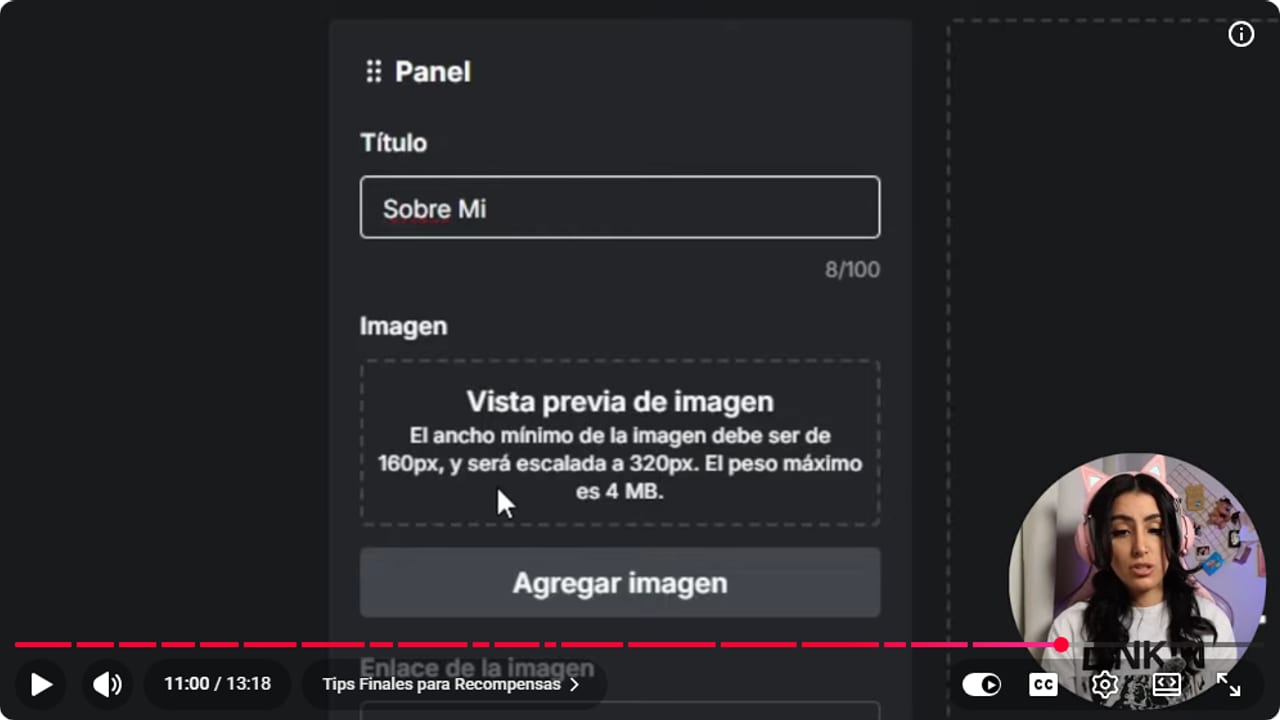
Panel images only need to be 160 pixels wide, and Kick scales them up to 320. YouTube · 11:01 ↗ - 12
Check your channel on desktop and on your phone
Nicole Rojas | YouTube | 11:46 ↗A few last tips. Keep the same colors and style across your avatar, banners and panels so the channel looks put together. Update your schedule whenever it changes (I started on Monday, Wednesday and Friday and now stream Monday and Wednesday). And open your channel on your computer and your phone, or ask a friend to look, to catch any image that gets cropped or is hard to read. And that's it, your Kick channel finally looks like a real channel.
What you should see: Your channel looks complete on desktop and mobile, with banner, avatar, bio, socials and panels and no cropped images.
If something does not work
- Your avatar comes out stretched or squished
- Kick distorts any image that isn't square. Crop your photo to a square, for example on a 500 x 500 canvas in Canva or Pixlr, and upload it again.
- Kick won't accept your banner
- Check the size and the weight. The channel banner has to be at least 1200 x 134 pixels and under 4 MB. The offline banner is 1920 x 1080, JPEG or PNG, also under 4 MB. If the file's too heavy, export it again as a JPG.
- You can't change your username
- Kick only allows it with two-factor authentication turned on, and once every 60 days. Set that up first through Kick's help center, then go back to Basic details.
- Pixlr won't let you save again
- Free Pixlr gives you 3 saves a day. Only save once the image is finished, or wrap up the design in Canva, which also exports PNG.
- Chat types the emote and nothing shows up
- The name has to match exactly what you saved, capitals and all. Kick doesn't read minds, and neither does your chat. If the review icon is still next to the emote, Kick is still checking it, so give it time before you test.
- Your social links go nowhere
- Kick builds the link from your username. If you pasted a full URL, delete it, leave just the username and save again.
Test before you go live
- Your avatar, banners and panels share the same colors and style.
- Your username and photo match the ones on your other socials.
- Your bio says what you play and when you stream, with today's schedule.
- You tested every emote by typing it in your own chat, capitals included.
- The offline banner tells people when your next stream is.
- And that's it: a customized channel without spending a cent. No excuses now.
Cómo personalizar tu canal de Kick: avatar, banner, bio, emotes y paneles
Watch the full tutorial (in Spanish) ↗Common questions
What size is the Kick banner?
The channel banner needs at least 1200 x 134 pixels and under 4 MB. I make mine at 1280 x 700, which meets that minimum. The offline banner is a separate image: 1920 x 1080 (16:9), JPEG or PNG, under 4 MB.
What sizes do Kick avatars, emotes and panels use?
Avatars are square JPEG or PNG files between 128 x 128 and 3000 x 3000 pixels, up to 4 MB. Emotes are square PNG or GIF files up to 500 x 500 pixels and 1 MB. Panel images need to be at least 160 pixels wide. Kick scales them to 320 and accepts up to 4 MB.
Do I need to be an Affiliate to have emotes on Kick?
No. Kick gives you 60 channel emote slots with no strings attached, and animated GIFs work too. On Twitch you need Affiliate status unless you use BetterTTV. Twitch, always making things harder than they need to be.
When does the offline banner show?
When you're not live and your channel has no saved broadcasts, plus for two minutes after you end a stream. That's why it's the right place for your days and times.
Which panels should I start with?
Three is plenty: About me, Socials and Schedule. You don't need 13 panels on day one. Add Discord, donations or your setup later, because people love knowing which PC and which lights you use.


