

Short answer
Before you start
- A free Canva account
- Your photo, logo or avatar
- Your social handles and stream schedule, if you have them
- A Twitch or Kick channel
Bring your setup to a 24/7 AI Streamer Coach
Ask Streamer Coach →Get personalized feedback to fix streaming issues and plan your next content.
Step by step
- 01
Write down the sizes before you design
Nicole Rojas | YouTube | 1:00 ↗When someone lands on a channel with the default avatar, no banner and no panels, they can't tell if it's a real person or a bot. Not a great look. Before designing anything, write down the sizes, because an image at the wrong size gets stretched, looks odd or won't upload at all. These are Twitch's sizes, which is what the video covers. For Twitch: profile picture 800 x 800, banner 1200 x 480 (up to 10 MB, JPG, PNG or GIF), offline screen 1920 x 1080 (up to 10 MB), panels 320 wide (Twitch's help says under 2.9 MB each today, and 320 x 300 at most, though Nicole says 1 MB in the video), emotes 112 x 112 in PNG (up to 1 MB), and starting, be right back and ending screens at 1920 x 1080.
What you should see: In Canva, Create a design and Custom size let you type each size and open a canvas with those proportions.
- 02
Pick your profile picture and open an 800 x 800 canvas
Nicole Rojas | YouTube | 2:32 ↗Your profile picture shows up on your channel, in chat and everywhere else, so use the same one as on your socials. You've got three options: your face, if you're comfortable with it (it connects best), a logo, if you're a group or a brand, or a gaming-style avatar. If you can draw, your own drawing adds a lot of personality. In Canva, click Create a design, Custom size, enter 800 x 800 and click Create new design. Upload your image, right-click it and choose Set image as background.
What you should see: Your photo fills the square 800 x 800 canvas in Canva.
- 03
Give it a background in your color and upload it
Nicole Rojas | YouTube | 3:33 ↗Want to remove the background from your photo? Canva does it on the paid plan, and there are free online tools if you're on the free one. For the new background, go to Elements and search for a color or image that fits your channel. You can also go to Background color, Add a new color, Gradient, and pick your two colors. If Canva has nothing free you like, search Background on Pixabay. Add a shadow so you pop off the background, then click Share and Download. On Twitch, upload it from the Creator Dashboard, Settings, Channel, Brand tab, under Profile Picture, with Add Profile Picture (JPEG, PNG or GIF, up to 10 MB).
What you should see: Your picture appears on your channel inside the circle, with your background color and your face fully in frame.
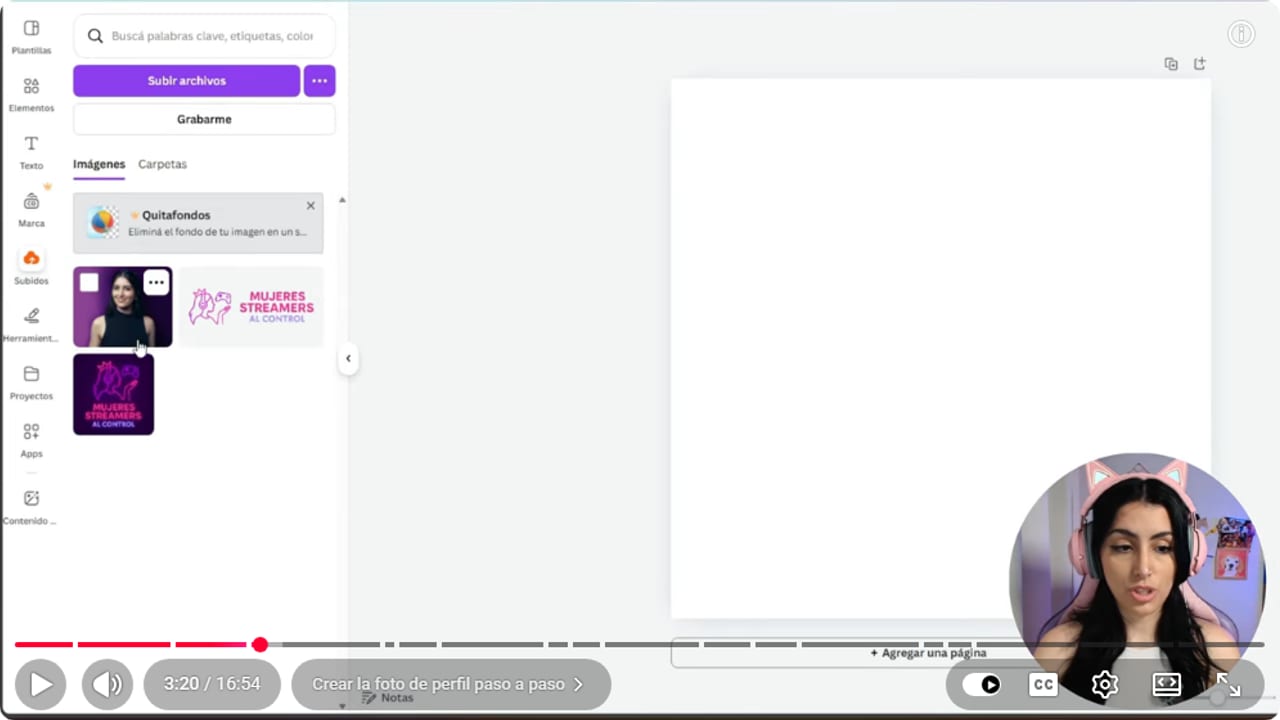
The square canvas leaves room for the circular crop applied by the platform. YouTube · 3:21 ↗ - 04
Design the banner with the info on the sides
Nicole Rojas | YouTube | 5:36 ↗The banner is your channel's first impression. It can carry your name, your schedule (optional, but really handy), your socials and your look. Heads up: Twitch lays a preview of your last stream over it, so the info belongs on the sides. Click Create a design, Custom size, 1200 x 480. Search gamer in the templates, pick one and swap in your colors, name and socials. Tip: if the bottom edge matches the accent color on your profile, it all looks more polished. Download it and upload it from the Twitch Creator Dashboard, Settings, Channel, Brand, under Profile Banner, with Update. Twitch recommends 1200 x 480.
What you should see: On your channel, the full banner shows and the preview of your last stream doesn't cover your name or socials.
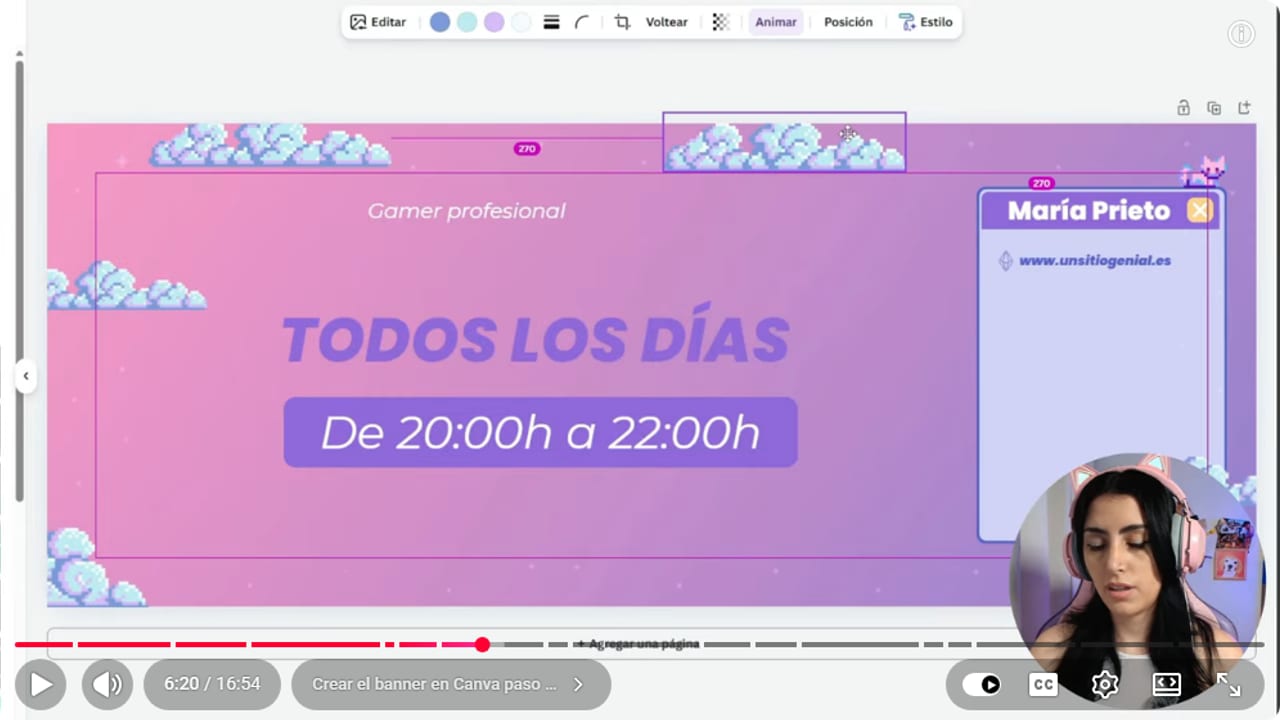
The banner carries your name, schedule and socials. Keep them on the sides, because Twitch covers the middle with a preview of your last stream. YouTube · 6:21 ↗ - 05
Make the offline screen in the same style
Nicole Rojas | YouTube | 7:39 ↗This is what people see when you're not live. Add a friendly message or a line of your own, your schedule and your socials, using the banner's colors and font. In Canva, create a 1920 x 1080 design and search offline. Templates with a little crown are Pro, but you can borrow the idea and build it yourself for free. Copy the background and lettering from your banner. In the video, Nicole downloads it as an MP4 to keep an animation, but Twitch's help says today that animated video player banners are not natively supported. Download it as a static image, PNG or JPG. Upload it in Creator Dashboard, Settings, Channel, Brand, under Video Player Banner, with Update.
What you should see: With the channel offline, the player shows your new screen with your schedule and socials.
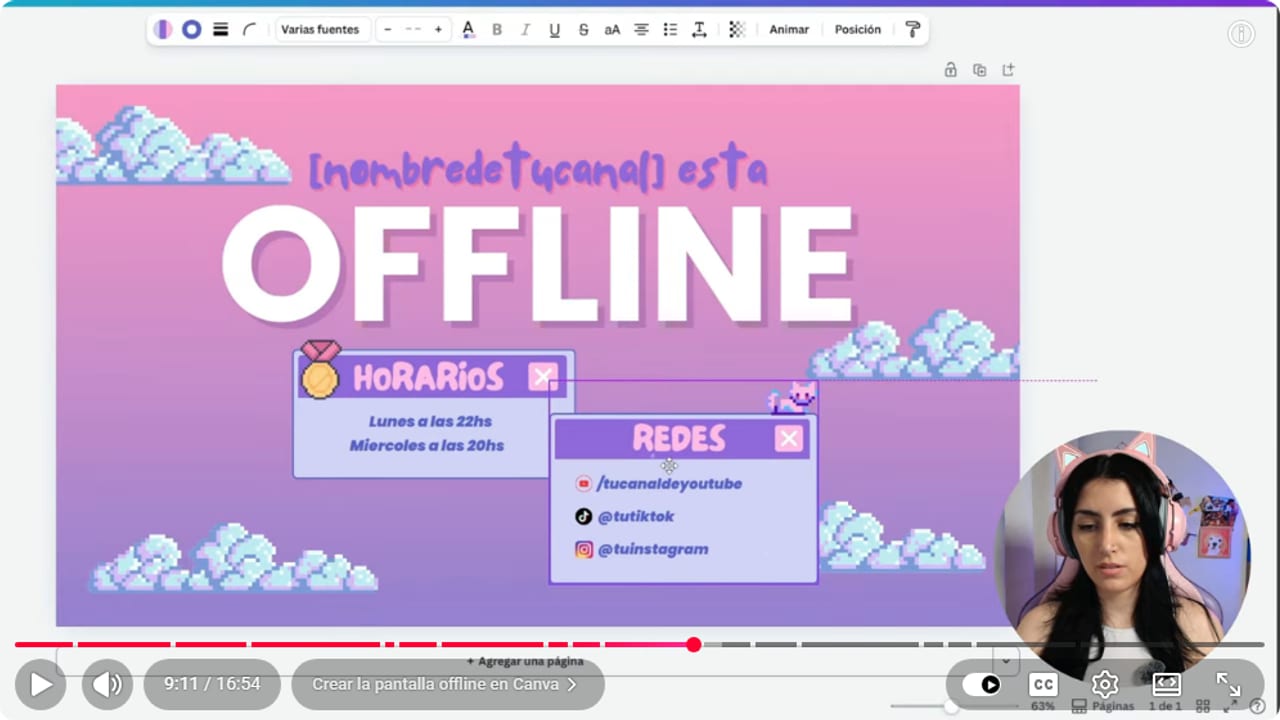
The offline screen reuses the channel system while giving the return message more space. YouTube · 9:12 ↗ - 06
Make one panel, then duplicate it
Nicole Rojas | YouTube | 10:11 ↗The must-have panels are About me, Schedule, Socials and Chat rules. Donations, setup or the games you play are optional. In Canva, create a 320 x 100 design (Canva suggests it as Twitch Panel) and pick a template that matches your banner and offline screen. Build About me in your colors and font. Then click Duplicate page and change only the text and icon on each one. Download all pages as PNG. To upload them, go to your channel, About, Edit Panels, Add Image.
What you should see: Under your stream, in About, your panels sit side by side in the same style.
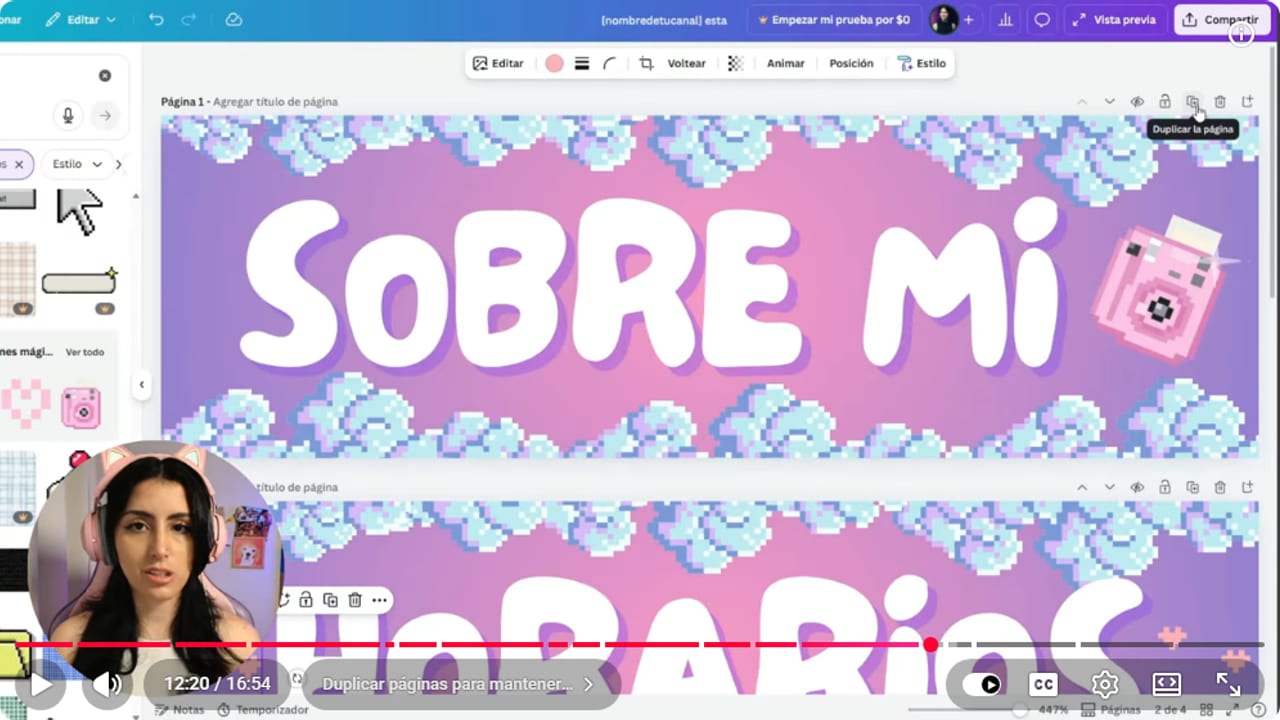
Duplicating the base page keeps rules, schedule, and About Me in one visual family. YouTube · 12:21 ↗ - 07
Create your first emotes
Nicole Rojas | YouTube | 12:44 ↗Click Create a design at 112 x 112. Canva even suggests Twitch Emote, with loads of free drawings on the side (cats included, naturally). Put one emote per page and make it fill the whole canvas, because emotes are tiny in chat and need to read instantly. Download them as PNG, with a transparent background if your plan allows it.
What you should see: Each emote fills its whole page and still reads with Canva zoomed all the way out.
- 08
Add starting, be right back and ending screens
Nicole Rojas | YouTube | 14:16 ↗These screens tell your viewers what's happening at each point of the stream. Create a 1920 x 1080 design and search start. On the starting screen, leave room for a countdown so nobody sits there wondering when you'll begin, and add your socials. Then duplicate it for be right back and for the ending screen, which carries your schedule so people know when you're back. You'll load them into OBS as overlays.
What you should see: You have three screens with the same background and font: Starting soon, Be right back and See you next time.
If something does not work
- Twitch rejects your image or stretches it
- Check the size and file weight. Per the video, the banner and offline screen take up to 10 MB. Twitch's help says today that panels must be under 2.9 MB and at most 320 x 300, and emotes take up to 1 MB. Go back to Canva, set up the design at the exact size and download it again.
- The preview of your last stream covers the banner
- In the video, Nicole shows Twitch putting a preview of your past stream over the banner, and she recommends keeping the info on the sides. Move your name, schedule and socials there. Keep Canva open while you look at your channel and adjust until everything shows.
- You want the offline screen to move
- Per Twitch's help, animated video player banners are not natively supported, so upload a static image, PNG or JPG. Kick's offline banner also takes JPG, JPEG or PNG only.
- The emote is unreadable in chat
- Emotes are tiny in chat. Stick to one idea with no text and make it fill the whole 112 x 112 canvas. If it has a colored background, try downloading it as a PNG with a transparent background.
- The template you love has a crown on it
- The crown means it's Pro. Use it as inspiration and rebuild it with free elements, or grab a background from Pixabay. What matters is that it fits the rest of your channel.
Test before you go live
- Your profile picture matches across Twitch or Kick and your socials.
- You opened your channel while signed out and the banner, picture and panels all sit where they should.
- The schedule on your banner and offline screen is one you'll actually keep.
- Your starting, be right back and ending screens are ready to load into OBS.
- And that's it: your channel looks professional from day one, and it looks like you.
Cómo diseñar tu canal de Twitch o Kick gratis con Canva
Watch the full tutorial (in Spanish) ↗Common questions
What sizes does Kick use?
Nicole's video covers Twitch only. Per Kick's current help page: an avatar of at least 128 x 128, a channel banner of at least 1280 x 700 and an offline banner of 1920 x 1080. All are up to 4 MB and take JPG, JPEG or PNG. You can build them in Canva at those sizes.
Is free Canva enough?
Yes, for nearly all of it. Templates and backgrounds marked with a crown are Pro, and so is background removal. Free online tools cover background removal, and Pro templates still work as inspiration.
What should my profile picture be?
Your face, a logo or an avatar. Your face connects best, a logo suits a group that streams together, and an avatar is ideal if you'd rather not show yourself. Use the same picture on all your socials so people recognize you.
Which panels do I really need?
About me, Schedule, Socials and Chat rules, so your community starts off healthy. Donations, setup or the games you play are extras.
Does everything have to match?
It's best when your banner, offline screen and panels share colors and fonts, because the channel looks put together. That said, if you want every piece to be different, go for it. It's a free world.


