

Short answer
Before you start
- A Kick account
- A free BotRix account (you sign up with Kick)
- OBS Studio, already streaming to Kick
- Optional: your own image and sound for the alert. BotRix has a gallery if you don't.
Bring your setup to a 24/7 AI Streamer Coach
Ask Streamer Coach →Get personalized feedback to fix streaming issues and plan your next content.
Step by step
- 01
Sign up for BotRix with your Kick account
Nicole Rojas | YouTube | 1:00 ↗Want alerts on Kick that look the part without paying a thing? BotRix works like StreamElements or Streamlabs, but it's built for Kick, and the alerts we set up here are free. BotRix also has optional paid memberships for advanced features, but you don't need them for this. Go to BotRix and sign in with Kick. A permissions screen shows up: BotRix asks to post in chat, read your user info, subscribe to events, update your channel info, take moderation actions, read channel points and read, add, edit and delete channel point rewards. As I said in the video, you're obviously giving it moderator permission. Click Accept.
What you should see: BotRix shows a notice with the steps to make it a moderator on your channel.
- 02
Make BotRix a moderator on Kick
Nicole Rojas | YouTube | 1:31 ↗Click the link in the notice. It takes you to your channel's moderators. Today Kick's help puts that screen under the Dashboard, Community, Moderators (in some versions of the dashboard it's under Roles), Add New. Copy the name Botrix, paste it into the search box and pick the account with the verified checkmark. Click Add. In a newer video of mine, Botrix no longer showed up in that search. If that happens to you, or if the dashboard won't cooperate, type /mod botrix in your channel chat and send it. Kick also documents the /mod command followed by a username. Then go back to BotRix and click Verify.
What you should see: Botrix is on your Kick moderator list. If you used the command, chat confirms it was added as a moderator.
- 03
Set your language and check Kick is linked
Nicole Rojas | YouTube | 2:32 ↗Click your profile picture, open Language and pick the one you want to work in. BotRix couldn't connect directly to Kick before, and one of the options was to connect through Twitch or Google. If yours is connected that way, open your profile, scroll down to the Kick icon and click it to link Kick directly. BotRix's sign-in screen now shows buttons for Kick, Twitch, YouTube, Trovo and Discord.
What you should see: The BotRix dashboard shows your chosen language and your profile lists Kick as a connected account.
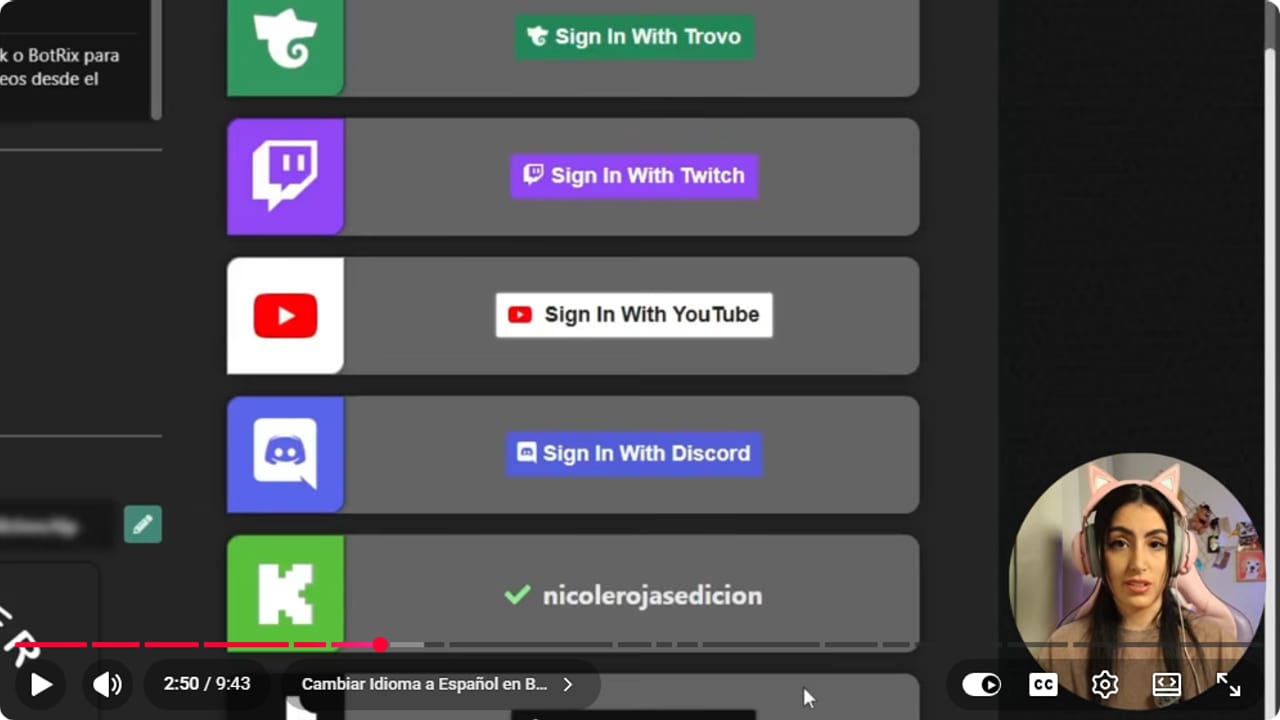
The connected account is checked before configuring events and widgets. YouTube · 2:51 ↗ - 04
Open Alerts and start with Followers
Nicole Rojas | YouTube | 3:02 ↗Go to Alerts. You'll find Subscription, Gifted sub, Followers, Host, Kicks and Tips. Each one has an Alert active switch at the top so you can turn it on or off. When you're starting out, leave them all on. We'll begin with Followers.
What you should see: The Followers settings open, with Alert active switched on in green.
- 05
Pick the style, animation, image and sound
Nicole Rojas | YouTube | 3:32 ↗Under Style, choose Legacy or Compact. Under Layout, choose where the image sits next to the text. Set the duration and an animation that suits your overlay (I use slide up). For the image, upload your own or browse the gallery. Same with the sound: upload one or pick one from the gallery, and hold it down to hear it. Keep the volume well below max, or you'll get a free jumpscare in your headphones.
What you should see: The preview shows your image and text in the layout you picked, and you hear the sound while you hold it down.
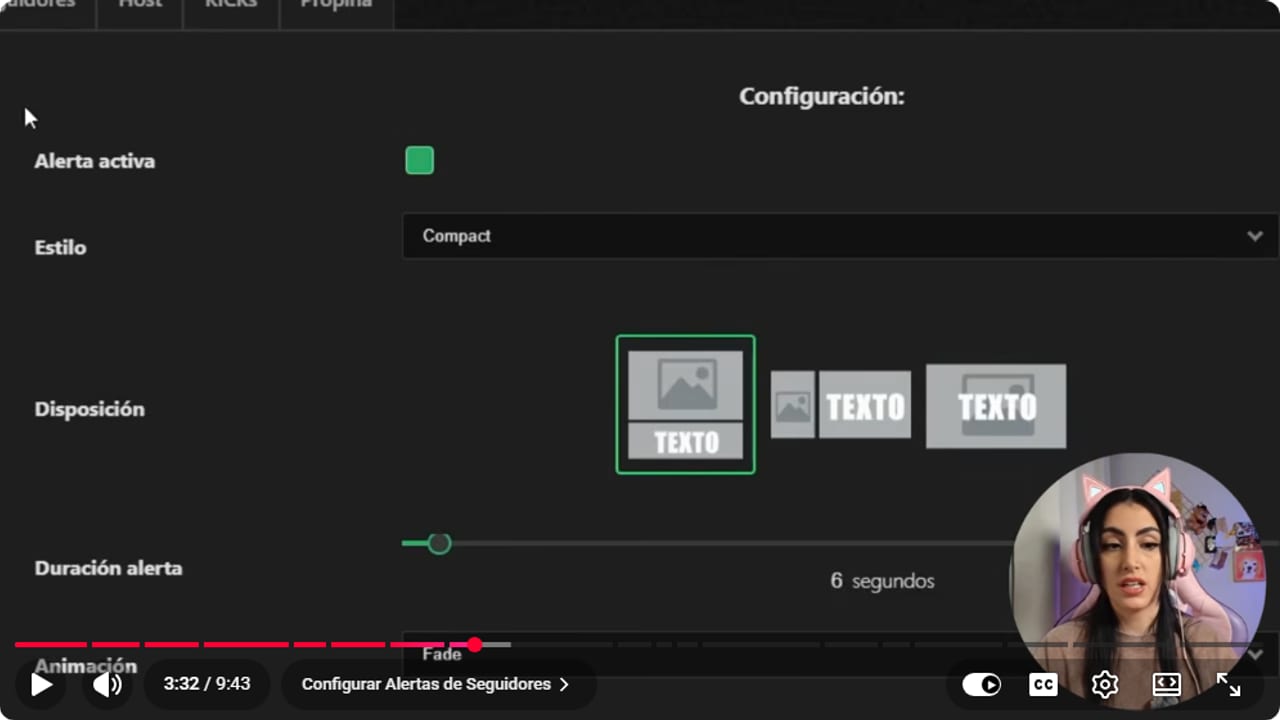
The layout and duration are checked before adding image and sound. YouTube · 3:33 ↗ 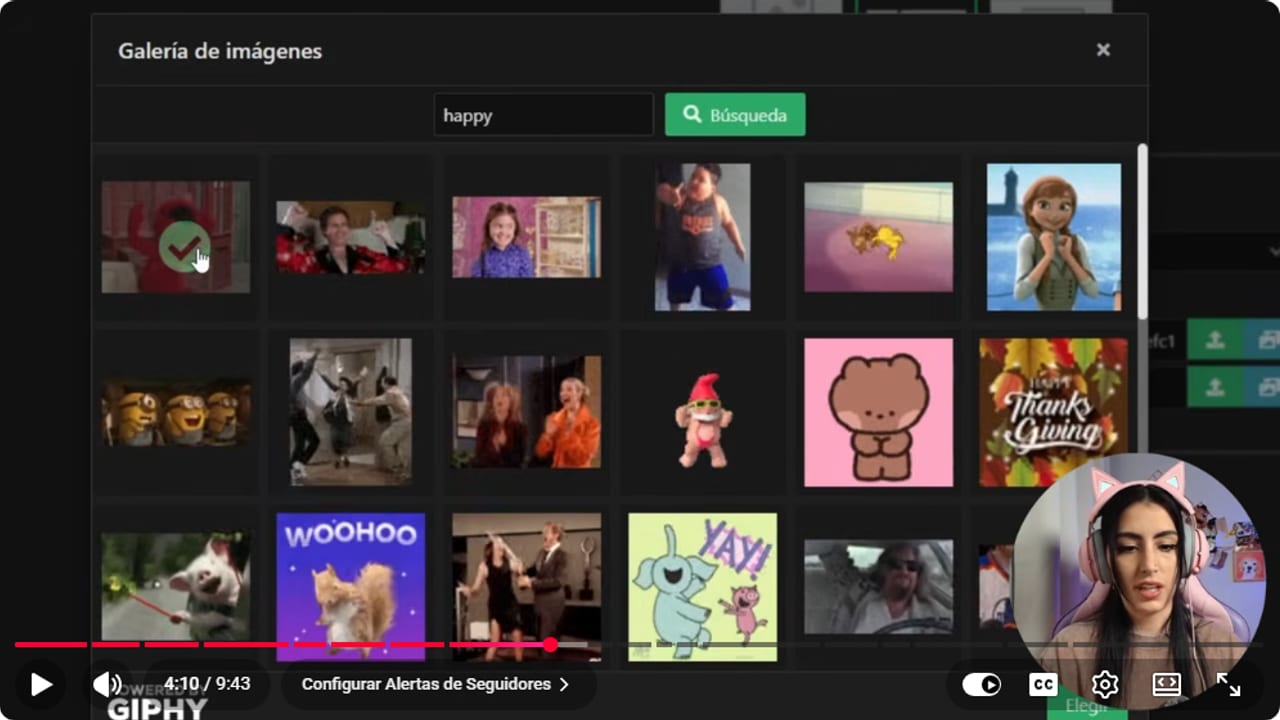
The gallery shows the files available for the selected event. YouTube · 4:11 ↗ - 06
Set the colors and text, then save
Nicole Rojas | YouTube | 4:33 ↗Choose a color for the top line and the bottom line (I went with white and green), plus the font, position and size. Go with your channel's colors. Check the message that comes with the alert, then click Save.
What you should see: A Settings saved notice appears.
- 07
Copy the widget URL
Nicole Rojas | YouTube | 5:04 ↗At the very top of BotRix you'll see Widget URL with a Copy button. Click it. That one link covers every alert you have: follows, subs, tips, all of it. So don't share it with anyone, and keep it off your screen.
What you should see: The URL is copied. Paste it somewhere private, like a notepad, and you'll see the full BotRix widget link.
- 08
Add the alerts to OBS as a Browser source
Nicole Rojas | YouTube | 5:34 ↗In OBS, pick the scene where you want alerts, like your game scene. Click +, choose Browser, name it Alerts and click OK. Paste the URL you copied and click OK again. Then, in Sources, drag Alerts to the very top so no other layer covers it.
What you should see: Alerts sits first in your Sources list, and the scene shows its empty outline, ready to move wherever you like.
- 09
Test the alerts from BotRix
Nicole Rojas | YouTube | 6:04 ↗Moment of truth. Leave OBS open, go back to Alerts in BotRix and use the test buttons at the top. Click Followers. If nothing shows up, double-click the Alerts source in OBS, scroll down to Refresh cache of current page, click it, hit OK and test again.
What you should see: A follow alert pops up in OBS, with the name and message in the colors you chose.
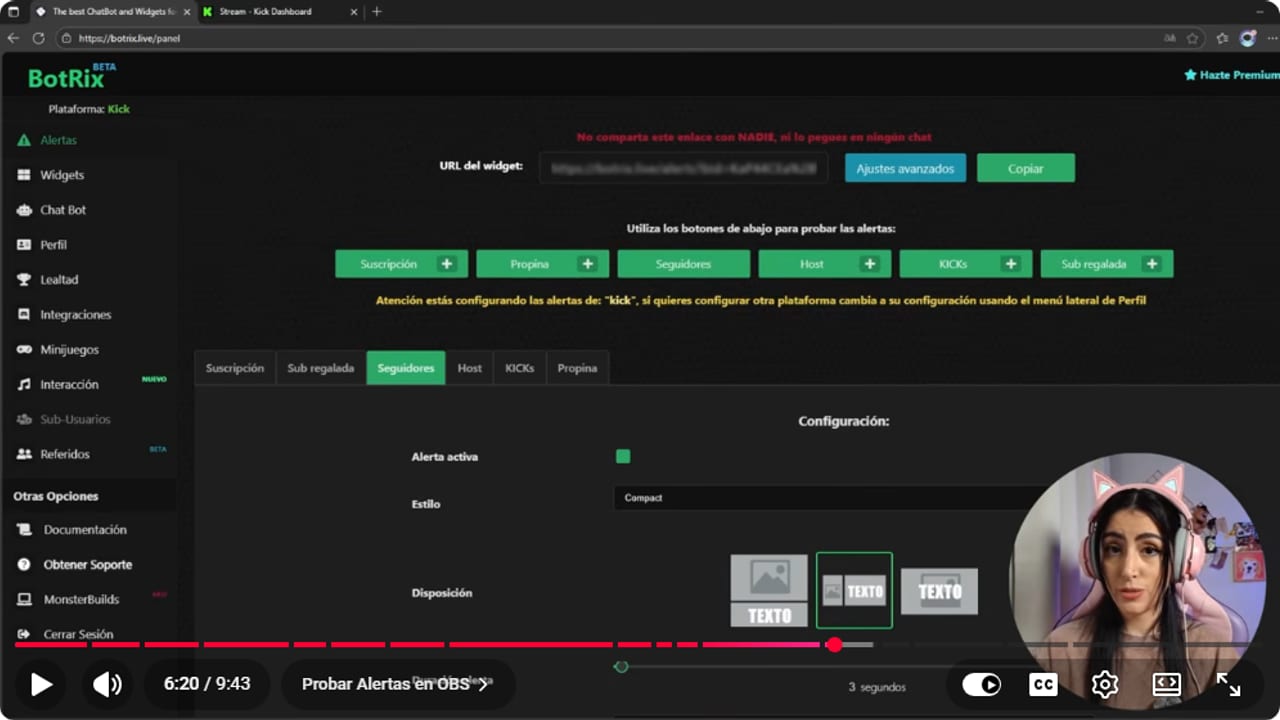
The Botrix test confirms the event before you inspect the result in OBS. YouTube · 6:21 ↗ - 10
Check the alerts BotRix already set up for you
Nicole Rojas | YouTube | 7:07 ↗The nice thing about BotRix is that the rest comes ready to go: Subscription, Gifted sub, Host, Kicks and Tips. Open each one, test it with its button and look at it in OBS. Customize it the same way as Followers if you like. If you don't want one, switch off Alert active and both the sound and the alert go away.
What you should see: Each test button plays its alert in OBS, and the ones you switched off stay quiet.
- 11
Go live and wait for your first alerts
Nicole Rojas | YouTube | 7:38 ↗In OBS, click Start Streaming. If OBS is already connected to Kick, the stream goes straight to your channel. Alerts can take a little while at first, so it helps to open with a 5 minute countdown timer. Use that time to tell your friends you're about to start and post a photo on Instagram or TikTok.
What you should see: Kick shows you as live, and when someone follows, the alert plays on your stream.
- 12
Turn on chat alerts, the bonus trick
Nicole Rojas | YouTube | 8:09 ↗If you're mid-game and miss the sound, you miss the alert. To avoid that, go to Chatbot, Extras, Chat alerts and switch it on. From then on, every follow, welcome or alert also gets written in chat.
What you should see: When someone follows, chat shows a BotRix message about that follow.
If something does not work
- The test alert doesn't show up in OBS
- Double-click the Alerts source, scroll down to Refresh cache of current page, click OK and test again from BotRix. If it still won't appear, make sure you pasted the whole URL and the source's eye icon is on.
- You hear the alert but can't see it, or the game covers it
- OBS sources work like layers, and whatever sits higher in the list is drawn on top. Drag Alerts to the very top of Sources and check its outline hasn't ended up off screen.
- BotRix isn't a moderator or verification fails
- Search for Botrix in your channel's moderator list in the Dashboard, Community, Moderators (in some versions of the dashboard it's under Roles), Add New, and pick the account with the verified checkmark, not a lookalike. If Botrix doesn't show up in the search or the dashboard won't let you, send /mod botrix in your channel chat. Then go back to BotRix and click Verify.
- You linked BotRix through Twitch or Google and Kick is missing
- BotRix couldn't connect to Kick directly before, and one of the options was to sign in through Twitch or Google. Open your profile, scroll to the Kick icon and link it from there.
- Alerts are slow to fire once you're live
- A short delay at the start is normal. I recommend opening with a 5 minute countdown timer and using that time to tell your friends you're about to start. And if you can't hear alerts over the game, turn on chat alerts.
Test before you go live
- Alerts are in every scene where you want them, always at the top of Sources.
- You tested Followers plus at least one more alert, like Subscription or Tips, and saw both in OBS.
- The alert sound sits under your voice and doesn't deafen anyone.
- The widget URL isn't in any screenshot and you haven't shared it.
- Chat alerts are on, in case one slips past you mid-game.
- And that's it: free Kick alerts that look good and actually work.
Cómo configurar alertas en Kick con Botrix, gratis
Watch the full tutorial (in Spanish) ↗Common questions
Is BotRix free?
The alerts, widget and chat alerts shown in this guide are free. BotRix works like StreamElements or Streamlabs, but it's made for Kick, which still has few tools of its own. It also offers optional paid memberships for advanced features, according to its terms, and none of that is needed here.
Do I need a separate link for each alert?
No. There's one widget URL and it handles follows, subs, tips and everything else. That's exactly why you shouldn't share it or show it on stream.
Why does BotRix need to be a moderator?
In the video I explain that the moderator role gives BotRix control over what happens in your chat. When you sign in you see the list of permissions it asks for, so you know what you're granting before you click Accept.
Can I turn some alerts off?
Yes. Open the alert you don't want and switch off Alert active, and both the sound and the image go away. Handy if so many people follow you that you're tired of hearing how well life is going.
What if I'm gaming and don't hear an alert?
Turn on chat alerts under Chatbot, Extras, Chat alerts. Every follow or sub also shows up as text in chat, so you'll catch it even with the game blasting in your headphones.


