

Short answer
Before you start
- An email, date of birth and username for Kick (or a Google or Apple account)
- OBS Studio, a free download from OBS Project
- A square profile photo, ideally the same one you use on social media
- Optional: Canva to design the banner and offline banner
Bring your setup to a 24/7 AI Streamer Coach
Ask Streamer Coach →Get personalized feedback to fix streaming issues and plan your next content.
Step by step
- 01
Create your Kick account
Nicole Rojas · YouTube · 0:31 ↗Want to stream on Kick but no idea where to start? Relax, you'll be live soon. Go to Kick, click Sign up and fill in your email, date of birth, username and password. You can also sign up with Google or Apple. Confirm, and you're in.
What you should see: You're signed in to Kick and your profile picture shows in the top right corner.
- 02
Add your avatar in Settings, Profile
Nicole Rojas · YouTube · 1:02 ↗Before you stream, let's make the channel yours. Click your profile picture, open Creator Dashboard, then Settings and Profile. There's a preview at the top showing what people will see. Click Edit avatar and upload the same photo you use on social media so people recognize you faster. It needs to be square. Click Confirm.
What you should see: The profile preview shows your new photo in the avatar circle.
- 03
Upload the banner, offline banner and bio
Nicole Rojas · YouTube · 1:33 ↗Under Channel banner, click Add and upload an image at the size the dashboard asks for, under 4 MB. Not a designer? Open Canva, type in those dimensions and you're set. Kick also has an offline banner, which shows while you're not live and for 2 minutes after a stream ends. Make it 1080, 16:9, in the same style as the main one. Then write your bio (who you are, what you do live, what you play), check your social handles are spelled right and click Save changes.
What you should see: The preview shows your banner across the top of the profile and your bio with your social links.
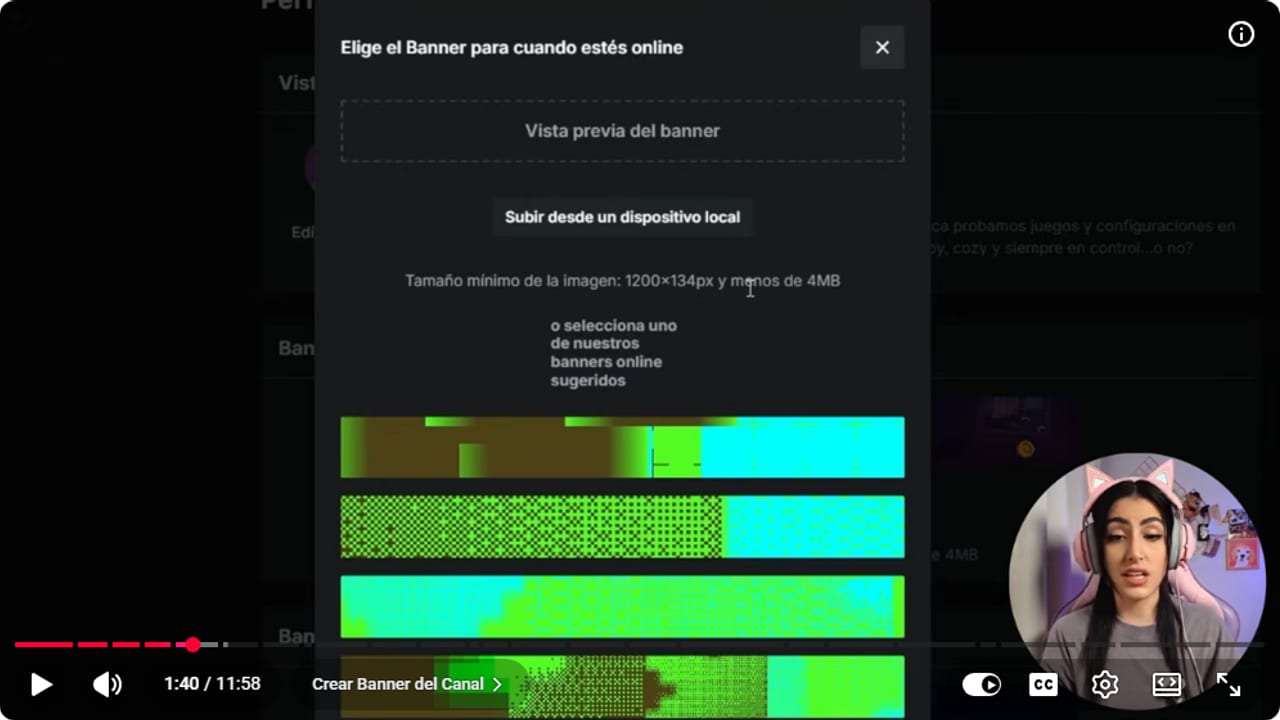
The profile editor lets you upload and crop the banner before publishing it. YouTube · 1:41 ↗ - 04
Run the OBS wizard and paste your server and key
Nicole Rojas · YouTube · 5:07 ↗Download OBS from OBS Project and install it. The first time it opens, you get the auto-configuration wizard. Choose Optimize for streaming, set your monitor's resolution and pick 60 FPS when possible. Under stream service info, choose Custom. Now, in Kick, open your dashboard, Channel, Stream URL and Key. Copy the server into OBS, then do the same with the key. That key belongs to you alone, so never share it or show it on screen.
What you should see: The OBS wizard shows the Custom service with Kick's server and your key filled in.
- 05
Run the bandwidth test and pick your microphone
Nicole Rojas · YouTube · 5:37 ↗Click Next and accept the bandwidth test. OBS sends test video to your channel to work out the best settings for your computer and connection. When it finishes, click Apply Settings. Then, in the Audio Mixer, click the three dots next to Mic, open Properties and choose the microphone you actually use under Device.
What you should see: The Mic meter in the Audio Mixer bounces when you talk.
- 06
Build your first scene with the game and camera
Nicole Rojas · YouTube · 6:08 ↗Right-click the scene and rename it. Click +, Game Capture, name it Game and choose Capture specific window. Tick Capture Audio (BETA) so the game gets its own audio track, apart from desktop audio and your mic. With the game running, pick it from the Window list. Next, click +, Video Capture Device, name it Camera, choose your webcam and drag it where you like (I keep mine on the side). If you have an overlay, add it with + and Image.
What you should see: The OBS preview shows your game in the background and your camera where you placed it.
- 07
Set your output within Kick's limits
KICK streaming settings, reviewed September 6, 2026 ↗Open Settings, Output and switch the mode to Advanced. Under Video Encoder, pick NVENC H.264 for an Nvidia card or AMD H.264 for AMD. Use CBR for rate control. Kick's current help lists a maximum of 8000 kbps, 1920x1080 and a 2 second keyframe interval. Pick a bitrate your upload handles comfortably, and if Stats shows dropped frames or stutter, lower the bitrate or resolution. Click Apply.
What you should see: Settings, Output shows your encoder, CBR, a bitrate of 8000 or less and a keyframe interval of 2.
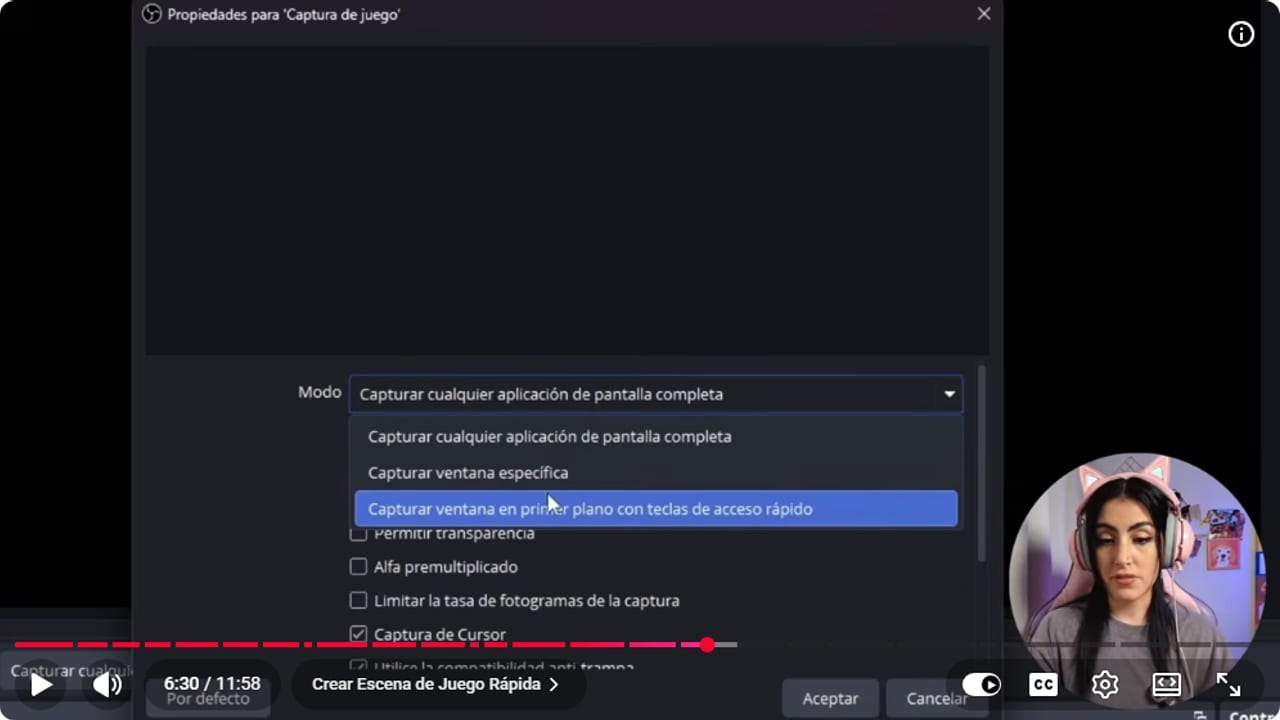
The OBS scene should be tested before its output is connected to Kick. YouTube · 6:31 ↗ - 08
Fill in your stream info and go live
Nicole Rojas · YouTube · 9:10 ↗In Kick, open Creator Dashboard, Stream. Under Stream info, click the pencil and write a title: the game, something funny, who's playing with you. Pick the game under Category, add tags, set the language, mark whether it's 18+ and click Save. Then, in OBS, click Start Streaming.
What you should see: The Stream panel shows your title and category, a viewer count, your time live and your chat running.
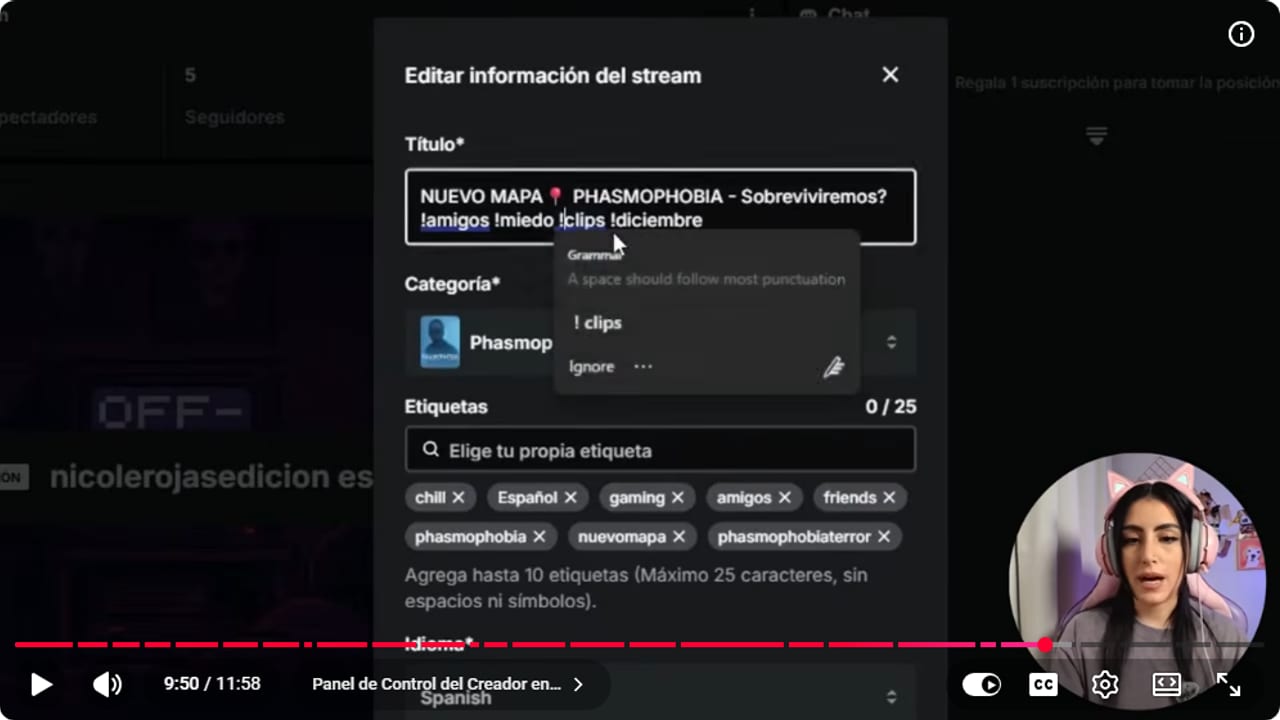
Stream information explains the content before the broadcast starts. YouTube · 9:51 ↗ - 09
Add Kick as one more option and keep Twitch
Nicole Rojas · YouTube · 10:11 ↗When I made Affiliate on Twitch I was super excited, and enabling my subs took them a long time. They told me I'd get them in 60 days (luckily it wasn't that long). I got annoyed, started streaming on Kick, and there my subs were enabled almost instantly. Twitch is crowded with creators these days, so another platform gives you extra visibility. My formula is to stream, post clips every day and put your long content or Shorts on YouTube. If the same thing happens to you, keep Twitch, because having several options is the best part. If you want to stream to Kick and other platforms at once, check the multistream guide with Aitum.
What you should see: Your Kick dashboard shows the stream as live, and you've decided which platforms you'll use before your next stream.
- 10
After 5 hours live, switch on subs
Nicole Rojas · YouTube · 2:34 ↗The million-dollar question: how do you make money on Kick? Subs come first. In your dashboard, the revenue page says payouts aren't active yet. Open Achievements, and on the path to becoming a creator you'll see the goal of streaming 5 hours in total. Once you hit it, subscriptions open up through a new revenue page. After that, Achievements lists what you need for a verified channel and for partner status.
What you should see: Achievements shows your progress toward 5 hours, and once you finish, subscriptions appear on your revenue page.
If something does not work
- OBS accepts the settings but Kick doesn't show you live
- Go back to Channel, Stream URL and Key and compare both values with OBS, character by character, with no stray spaces at either end. If the key ever showed up in a screenshot or you sent it to someone, reset it from that same panel, paste it again and restart OBS.
- The stream stutters, pixelates or drops
- Run a speed test. With more than 12 Mbps upload, 6000 kbps works well. If it still drops, lower the bitrate or scale the output down to 1280x720 in Settings, Video. Keep CBR and stay inside Kick's limits.
- Your camera shows up black in OBS
- Only one app can use a camera at a time. Close Zoom, Discord or anything else that has it open, then select it again in Video Capture Device.
- You can't hear the game, or you hear it twice
- In Game Capture, make sure Capture Audio (BETA) is ticked. If the game plays twice, turn down or mute Desktop Audio in the mixer, since the game already has its own track.
- You're live but the title or category is wrong
- Open Creator Dashboard, Stream and click the pencil next to Stream info. Fix what you need and save. Next time, fill it in before you hit Start Streaming.
Test before you go live
- Your avatar, banner, offline banner and bio all look right on your profile.
- Your stream key isn't visible in any screenshot, overlay or chat.
- The game has its own track in the mixer, separate from desktop audio.
- Output stays within Kick's limits: CBR, up to 8000 kbps, 1080p and a keyframe every 2 seconds.
- Title, category, tags and language are set before you start.
- When you end the stream, the VOD shows up on your channel and plays back fine.
- And that's it: Kick is your new option.
Cómo empezar a streamear en Kick desde cero
Watch the full tutorial (in Spanish) ↗Common questions
Where do I find my Kick stream key?
In Creator Dashboard, Channel, Stream URL and Key. Copy it straight from there and keep it to yourself. If it ever leaks in a screenshot or message, reset it in the same spot.
What bitrate should I use for Kick?
Kick's help lists up to 8000 kbps, 1920x1080 and a keyframe every 2 seconds. With more than 12 Mbps upload, 6000 kbps is a solid place to start. Test your connection and go lower if you see drops.
When can I get subscriptions on Kick?
According to Kick's help, you need 5 hours of streaming in total to enable subscriptions. You track it in Achievements, then switch subs on from the revenue page. On Kick mine were turned on almost instantly, while on Twitch they took a long time.
Does Kick save my streams?
Yes. Kick's help says the VOD is saved to your channel when you end the stream. Watch it before sharing to check the game and camera look right and your voice comes through.
Do I have to use OBS, or will Streamlabs do?
Streamlabs works too. I always use OBS and it's the one I recommend, so this guide is built around it.
Should I quit Twitch and move to Kick?
You don't have to choose. Having several options is the safer bet: stream, post clips every day and put your long videos or Shorts on YouTube. With multistreaming you can be on Kick and Twitch at the same time.


