

Short answer
Before you start
- An up-to-date OBS Studio and a test scene
- Five minutes for a local recording
- Access to Windows settings and View > Stats in OBS
Bring your setup to a 24/7 AI Streamer Coach
Ask Streamer Coach →Get personalized feedback to fix streaming issues and plan your next content.
Step by step
- 01
Protect the scene that already works
Nicole, common OBS errors ↗You're about to go live and your alerts are silent. Or worse, you're already live, the game goes black and chat says they can hear you twice. Relax, Nicole says the five problems in the first video take under a minute to fix once you know which buttons to press.
Tip from this guide, not in the video: before touching anything, duplicate your scene collection or create a scene called Test. Work in there so your live scene stays safe.
What you should see: A scene called Test shows up in your Scenes list next to your usual scenes, which haven't changed.
- 02
Record the problem before changing settings
Official OBS Quick Start Guide ↗OBS recommends running a test for a few minutes before you go live. What follows is this guide's own method, not Nicole's or OBS's: click Start Recording and reproduce the problem for a minute or two. Say something, move around in the game and switch scenes so the file leaves clues.
Then watch the file back with headphones. If the problem shows up there, it's in the OBS output too, beyond the preview.
What you should see: A new video file sits in your recordings folder with the problem visible or audible in it.
- 03
Black screen: change the capture mode
Nicole, common OBS errors ↗You can see the game fine, but OBS shows black. Double-click Game Capture and check the Mode. If it's on Capture specific window, try Capture any fullscreen application. If the game runs in exclusive fullscreen, switch it to borderless windowed in its own settings. Nicole gives that as an extra tip at 4:33.
If none of that works, add a Display Capture and pick your monitor. Careful: it shows everything on that monitor, and when you close the game your desktop is on stream. Move anything private off it. With only one monitor, keep personal stuff on your phone.
What you should see: The OBS preview shows the game moving instead of a black box.
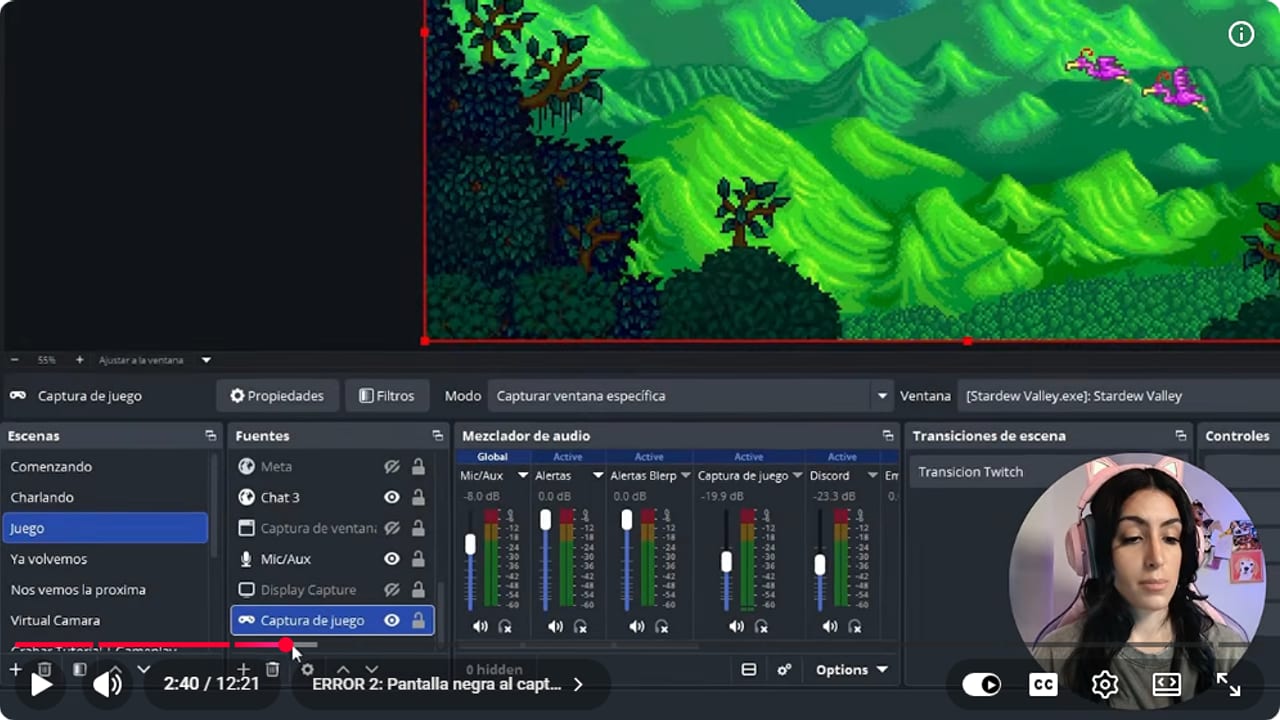
Game Capture lets you select one game window before using a broader capture method. YouTube · 2:41 ↗ - 04
Still black? Run OBS as admin and give it the right GPU
Official Game Capture troubleshooting ↗Your computer may have two GPUs fighting: the game runs on one and OBS captures the other. First, open the OBS folder, right-click the app and choose Run as administrator. If that fixes it, make it permanent: right-click, Properties, Compatibility, tick Run this program as an administrator and click OK.
If it's still black, open Windows Settings, System, Display, Graphics. Find OBS (or add it with Add an app), choose High performance, which is the dedicated GPU, and restart your computer.
What you should see: Windows Graphics settings list OBS as High performance, and after reopening it the game shows in the preview.
- 05
Silent alerts: fix it in the mixer
Nicole, common OBS errors ↗If chat can't hear your alerts, double-click your alerts browser source (StreamElements, BotRix or whatever you use) and tick Control audio via OBS. A new bar appears in the mixer. If chat hears them but you don't, open the mixer's gear, Advanced Audio Properties, and set that source to Monitor and Output.
What you should see: Your alerts get their own bar in the mixer, and it moves when a test alert plays.
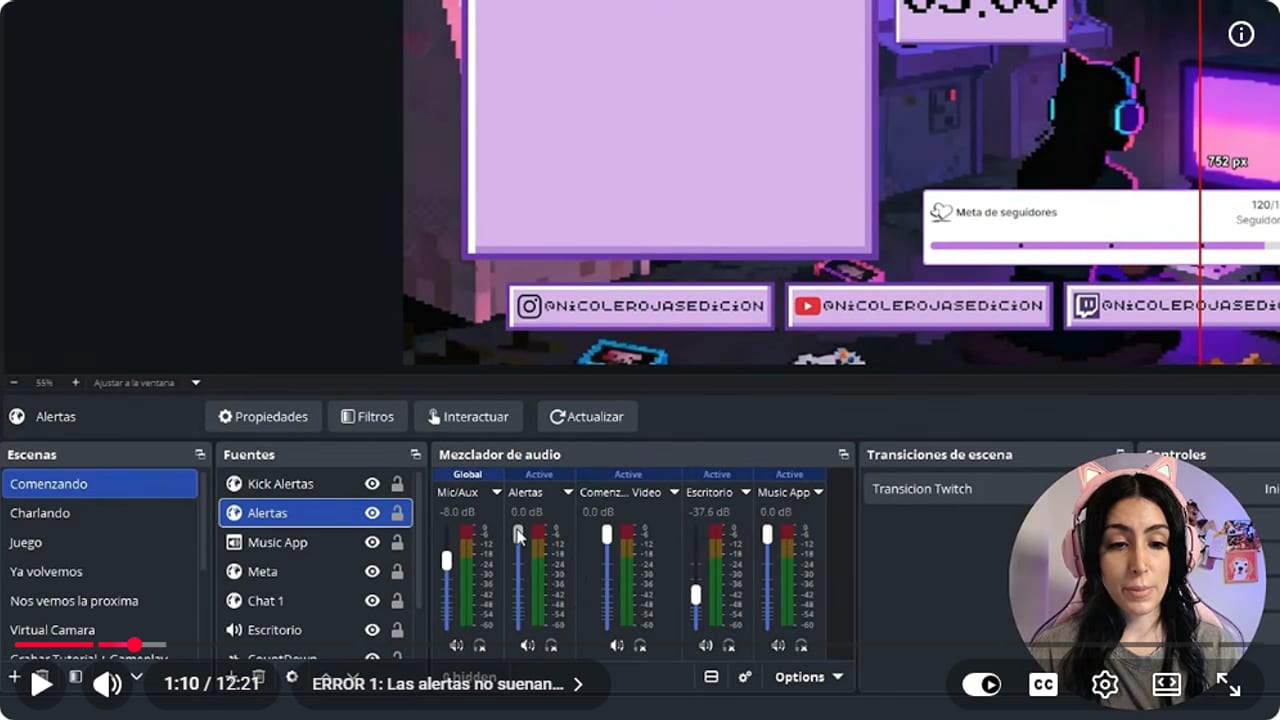
A browser source using OBS audio control appears as a separate route in the mixer. YouTube · 1:11 ↗ - 06
Chat hears you twice: check monitoring
Nicole, common OBS errors ↗If chat hears your voice twice, open the mixer's gear, Advanced Audio Properties, and check that your mic says Monitor Off. Check every source while you're there.
If it's Discord that doubles, go to Settings, Audio, and disable Desktop Audio 1 and 2, since you're already capturing it separately.
What you should see: In Advanced Audio Properties your mic shows Monitor Off and, if Discord was the echo, Desktop Audio 1 and 2 are disabled.
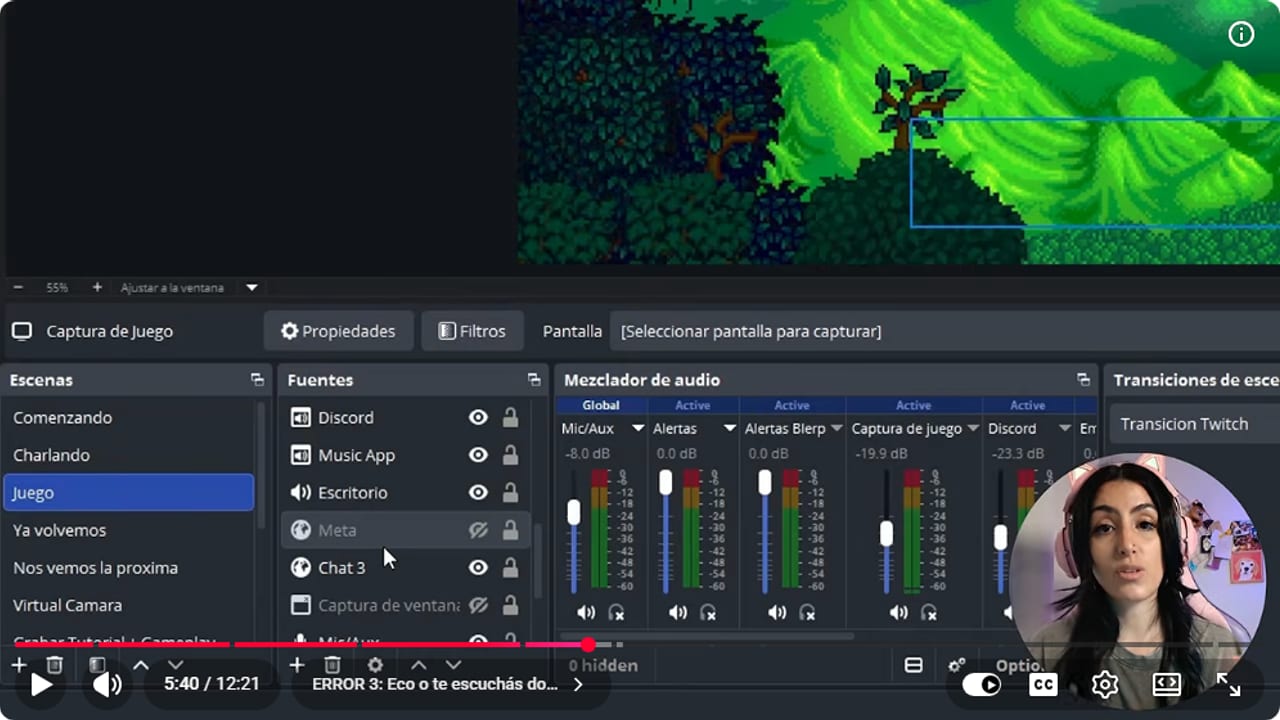
The mixer shows the routes to inspect when a voice or application plays twice. YouTube · 5:40 ↗ - 07
Bring back a source that slid out of frame
Official Game Capture troubleshooting ↗Right-click the source, then Transform, Reset Transform. If you want it to fill the canvas, follow up with Fit to screen. OBS explains that a red dot in the upper-left corner of the preview means the source's size has become stuck.
What you should see: The source sits inside the canvas again, with no red edges poking outside.
- 08
Dropped frames: open Stats and check network or CPU
Nicole, common OBS errors ↗If a dropped frames warning shows in the bottom right, viewers see a choppy, jumpy stream. Go to View, Stats, and look for the row in red.
If it's network dropped frames, run a Speedtest and check your upload. In Settings, Output, lower video bitrate to 6000, then 5000, until it holds. If CPU usage is close to 100, switch the encoder from x264 to NVENC on Nvidia, or the AMD one. And remove browser sources you don't use, like old counters or alerts.
What you should see: With a test stream running, Stats stops adding frames in the row that was red.
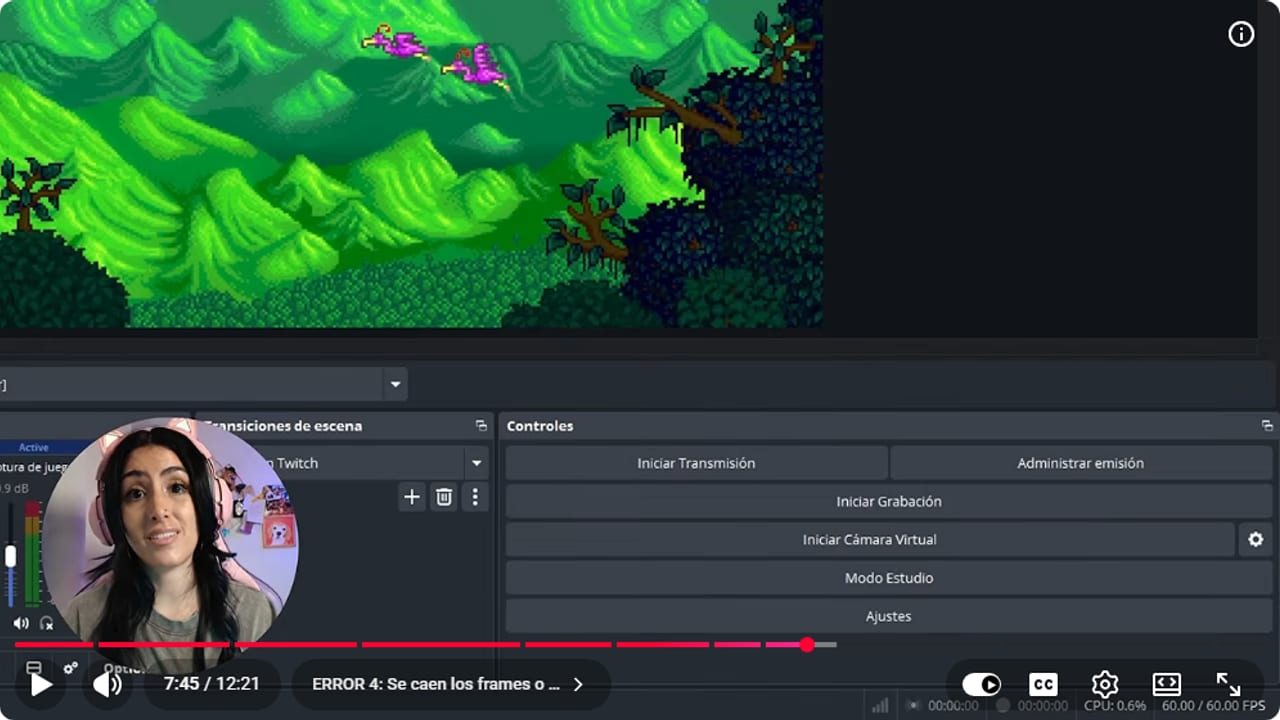
Stats separates rendering, encoding, and network problems during a test. YouTube · 7:46 ↗ - 09
Audio out of sync: set the sync offset
Nicole, OBS errors part 2 ↗Open the mixer's gear, Advanced Audio Properties, and find Sync Offset on your mic. If your voice arrives before your mouth moves, use a positive value, say 200 ms, and adjust from there. If your mouth moves first, go negative.
To measure it without going live, record yourself clapping three times and check whether the sound lands before or after your hands meet. If the delay keeps changing, it's the sample rate: set 48 kHz in Settings, Audio, and match it with 48000 Hz in your mic's properties in Windows Sound settings.
What you should see: In your test recording, each clap sounds exactly when your hands meet.
- 10
OBS doesn't detect your camera or mic
Nicole, OBS errors part 2 ↗Most often Windows is blocking OBS. Press Windows + I, go to Privacy & security, Camera, and make sure camera access is on and OBS is allowed. Do the same under Microphone.
Still missing? Fully close Discord, Zoom, Streamlabs or any video call, because a camera only works in one app at a time. Check Task Manager for anything hiding in the background. If that doesn't do it, open Device Manager with Windows + X, right-click your camera or mic, choose Update driver and restart.
What you should see: When you add a Video Capture Device, your camera appears in the device list with a live picture.
- 11
OBS freezes or closes on its own
Nicole, OBS errors part 2 ↗Nicole says this happens mostly after an update: you open OBS, it hangs, you hit stream and nothing happens, it goes black or white and closes. She says the symptom exploded in version 32. Nicole names four possible causes: the graphics driver, the load from browser sources, an incompatible plugin and a corrupt configuration. These are the fixes she shows, to try one at a time and in this order.
1. Update your graphics driver. On Nvidia, open the Nvidia app, go to Drivers and click to check for updates. If one shows up, download and install it. On AMD, open AMD Software (Adrenaline Edition), go to Driver and Software, search, download and install. Then restart your computer.
2. Turn off hardware acceleration in browser sources. Nicole says this is key if you use multichat widgets, counters or alerts, because every source with acceleration eats your GPU. In OBS go to Settings, Advanced, the Sources section, and untick Enable browser source hardware acceleration. Click OK and restart OBS when it asks. On the latest version that covers all sources. On an older version you have to untick it inside each browser source.
3. Open OBS in compatibility mode. Close OBS, go to the folder where it's installed, right-click OBS, Properties, Compatibility, and tick Run this program in compatibility mode for Windows 8. Nicole says don't be scared, it isn't the same Windows, but it often gets OBS working again. Apply and open it.
4. Factory-reset OBS without deleting anything. Close OBS completely, not just minimized to the taskbar. Press the Windows key and R, paste the text Nicole leaves in her video description and click OK. The OBS folder opens: rename it OBS Studio Backup. Don't delete it. When you open OBS it starts blank, and you repeat the optimization with Next, Next.
If it no longer closes after that, get your stuff back from the backup folder: under Basic you'll find your saved scenes and profiles. From inside OBS, go to Profile, Import, pick that folder and import the profile. Do the same with Scene Collection, Import. That way you don't rebuild every scene.
What you should see: OBS opens and stays open without closing on its own. If you reset it, your profile and scene collection come back once you import them.
- 12
Run the full test again
Official OBS Quick Start Guide ↗This guide's own method, not Nicole's or OBS's: record again with the game, your voice, an alert and a scene change. Watch it with headphones and write down the setting you changed. OBS only says a test of a few minutes is a good idea.
Tip from this guide, not in the video: if the problem is still there, save the OBS log (Help, Log Files) with the recording before resetting anything. And that's it. Now you have real material to ask for help with instead of guessing.
What you should see: The new recording looks and sounds clean, or the log file is saved next to the video.
If something does not work
- Alerts play through your speakers instead of your headphones
- Go to Settings, Audio, Advanced, Monitoring Device. Change Default to the headphones or speakers you want to hear them through.
- The stream looks pixelated even after raising bitrate
- Bitrate isn't the only thing that matters. In Settings, Video, the output should match the canvas or drop to 1280x720 with the Lanczos filter. Keep 60 FPS for fast games, and in Advanced output, move the encoder preset toward higher quality if your computer can handle it.
- The OBS virtual camera doesn't show up in Zoom, Discord or Meet
- Fully close that app, open OBS, click Start Virtual Camera and only then open Zoom, Discord or Meet. If it's still missing, run OBS as administrator. I've said it three thousand times: a camera works in one app at a time, which is the whole reason the virtual camera exists.
- Your voice is quiet or the fan sneaks in
- Check placement first: many mics are directional and go front-on or side-on depending on the brand. Then add filters by right-clicking Mic/Aux, Filters: noise suppression, an equalizer and a compressor. Touch gain only when there's no other way to get your volume up.
- You hear the game twice
- You set Monitor and Output on a source you could already hear. Only use it when you can't hear the game. If you can, switch it back to Monitor Off.
- The problem is still there after everything
- Before restarting or resetting anything, save the OBS log (Help, Log Files) together with the recording that shows the problem. This is a tip from this guide, not from the video, and it gives you something concrete to ask for help with on a forum.
Test before you go live
- You wrote down which setting you changed in each test.
- Chat confirms they hear each alert once.
- Your voice comes through one meter, with no echo.
- Your graphics drivers are up to date.
- If you use Display Capture, nothing private is on that monitor.
- If you reset OBS, the OBS Studio Backup folder is still saved, not deleted.
5 errores que rompen tu stream en OBS y cómo solucionarlos rápido
Watch the full tutorial (in Spanish) ↗Common questions
Why does OBS show a black screen when I can see the game?
There are two possible causes: the Game Capture mode, or two GPUs not seeing each other. Try another capture mode, run OBS as administrator and set it to High performance in Windows Graphics settings.
What's the rule for fixing audio routing?
If chat can't hear something, it's very likely you need to enable Control audio via OBS on that source. If chat hears it and you don't, set it to Monitor and Output. If it plays twice, turn off monitoring or the desktop audio that's doubling it.
Does lowering bitrate fix every dropped frame?
No. It only helps when your internet is the problem. If your CPU is at 100, switch encoders or remove browser sources you don't use.
Will I lose my scenes if I reset OBS?
Not if you rename the folder instead of deleting it, as in step 11. Your scenes and profiles stay in the backup copy, and you bring them back from OBS with Profile, Import and Scene Collection, Import.
How often should I check all this?
Every time you update OBS or your drivers, or whenever a recording looks off. Bookmark this guide, because sooner or later you'll need it. Hopefully later.


