

Short answer
Before you start
- OBS with a working Game Capture and camera
- Free disk space, ideally on an external drive
- A video editor (CapCut and DaVinci Resolve have free versions)
- For method 2: the free Source Record plugin and an up-to-date OBS
Bring your setup to a 24/7 AI Streamer Coach
Ask Streamer Coach →Get personalized feedback to fix streaming issues and plan your next content.
Step by step
- 01
Set up a test scene
Nicole, separate webcam and gameplay ↗Recorded an epic moment, then found your webcam covering the best part when you went to edit? Or zoomed in on your face and got a pixelated mess? You're not the only one. It happens because camera and game are stuck together in one video.
Before changing anything, create a new scene with the plus under Scenes, as Nicole does at the start of the video. Tip from this guide, not in the video: duplicate your profile too, with Profile, Duplicate. Your live scene stays untouched.
What you should see: The Scenes list shows the new, empty scene. If you duplicated the profile, it also shows in the Profile menu.
- 02
Pick the method that fits
Nicole, separate webcam and gameplay ↗Method 1 needs no plugins and works in both OBS and Streamlabs: you record everything into one wide file and split camera from game in the edit. The downside, which Nicole points out at 4:37, is you can't stream and record at the same time with that canvas. If you only record for YouTube or to practice talking on camera, method 1 is enough.
Method 2 uses Source Record, a free plugin that records each source to its own file, even while you stream. Near the end of the video (11:44) Nicole calls it her favorite.
What you should see: You know whether you'll end up with one wide file to crop or two files, one for camera and one for game.
- 03
Method 1: double the canvas width and place game and camera side by side
Nicole, separate webcam and gameplay (2026) ↗Go to Settings, Video, and double the width of the Base (Canvas) Resolution: 1920x1080 becomes 3840x1080. Set the Output (Scaled) Resolution to match and click OK. The canvas looks super stretched, and that's fine.
Make a scene for recording (mine's called Game record). Under Sources, click plus and add a Game Capture, or reuse yours with Add Existing. Double-click it, choose Capture specific window, find your game and tick Capture Audio (BETA) so the sound gets recorded. Then add your Video Capture Device, new or existing. Put the game in one half and the camera in the other. If both are 1920x1080, the edges line up exactly. If one doesn't fill its half, in her first video (1:34) Nicole right-clicks, Transform, Fit to screen. You can add your overlay here or later in the edit.
What you should see: The preview shows a canvas twice as wide, with the game filling one half and your camera the other, not overlapping.
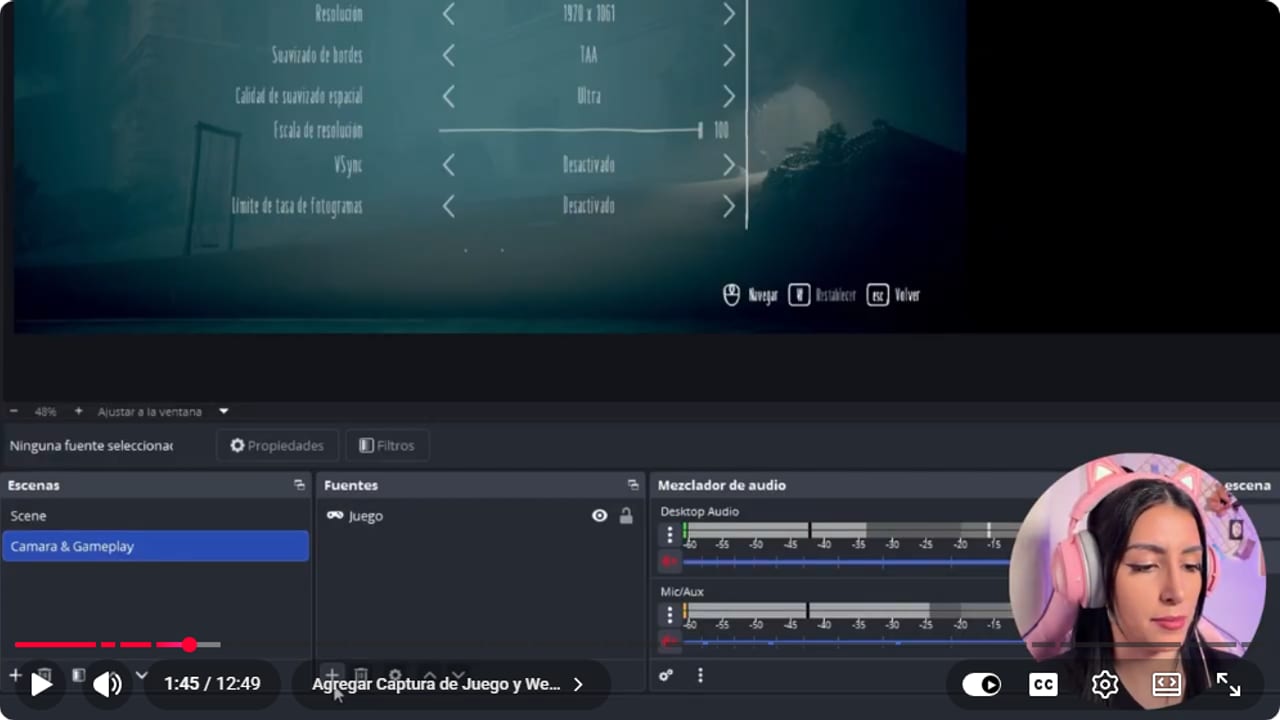
A wide canvas reserves separate areas for gameplay and camera in one recording. YouTube · 1:46 ↗ - 04
Raise recording quality under Output
Nicole, separate webcam and gameplay (2026) ↗So the recording doesn't come out blurry, go to Settings, Output, switch Output Mode to Advanced and open the Recording tab. Under Recording Path, choose where files go. An external drive is best, because gameplay files are huge. Leave Recording Format on Hybrid MP4.
For Video Encoder, go by your graphics card. NVIDIA 40 series or newer: NVENC AV1, same quality with smaller files. RTX 20 or 30: NVENC HEVC. Older NVIDIA: NVENC H.264. AMD RX 7000 or newer: AMD AV1 or AMD HEVC. Older AMD: AMD H.264. No dedicated card: x264, which runs on the CPU and is heavier, but it works.
Further down, under Rate Control: with CQP, use 18 to 20 (lower means better quality and bigger files). With constant bitrate (CBR), raise it to 15,000 to 25,000 kbps. You're not streaming, so your computer can take more. Click Apply, then OK.
What you should see: The Recording tab shows Hybrid MP4, your card's encoder and the new CQP or bitrate.
- 05
Record a test and check it zoomed in
Nicole, separate webcam and gameplay (2026) ↗For your first test, record at 30 fps at most. Click Start Recording, play and talk for a bit, then click Stop Recording. If you're not sure where it went, in her first video (3:06) Nicole opens Settings, Output, Recording, Recording Path, and clicks Browse.
Open the file in your editor and zoom in. If it looks pixelated, try a lower CQP between 15 and 20, or push the bitrate toward 25,000, until you find the best quality your computer handles without stuttering.
What you should see: A wide video shows up in your recordings folder, game on one side and your face on the other, and it stays sharp when you zoom.
- 06
Split camera and game in your editor
Nicole, separate webcam and gameplay (2026) ↗Open your editor. I use Premiere, but CapCut and DaVinci Resolve both have free versions, with some paid features. Bring the video into the timeline and it'll look wide, just like you recorded it. If it warns that the clip doesn't match the sequence, keep the sequence settings, as Nicole does in her first video (3:36).
Copy the clip with Ctrl + C and paste it on the track above, so you have the same file twice. If your editor links audio and video, unlink them first, as at that same moment of her first video (3:36). On the top layer, use Crop to keep only the camera. On the bottom one, crop down to just the game. Then switch the project to 16:9. Now you can shrink the camera, move it somewhere it won't cover anything, zoom into the game or into your face for a meme, and add an overlay, stickers or music.
What you should see: The editor preview shows the game full screen and your camera in a small box you can move without touching the game.
- 07
Method 2: install Source Record and add it to Game Capture
Nicole, separate webcam and gameplay (2026) ↗Download Source Record (it was on version 0.4.8 when the video was made) and grab the installer option, which is the easiest. Close OBS before you install it.
Heads up if you're on OBS 32: Source Record often fails, freezes or glitches there. Keep both the plugin and OBS updated. If the filter doesn't show up, Nicole shows in her first video (6:38) how to check for the latest OBS version from Help, Check for Updates. If it still misbehaves, use method 1 for now, even though it won't let you stream while you record.
Next, right-click your Game Capture, Filters, plus, Source Record. Name it gameplay. If it isn't listed, close OBS, restart your computer and open it again. Under Record mode, choose Streaming or recording so it records whether you hit Start Recording or go live. Pick a folder under Path and type gameplay in the file name. Leave the rest of the name alone, since it adds the date and time. For format, use Hybrid MP4. OBS says a hybrid file stays recoverable even if the power cuts out. Nicole adds, in her first video (7:40), that you then just need to convert it (remux), and that a regular MP4 gets corrupted and you've recorded nothing. Use the same encoder you picked for your card in method 1. You can leave the bitrate at 10,000, or raise it to 15,000 to 25,000 if your computer can handle streaming and recording at once.
What you should see: Source Record appears in the Game Capture filters with your folder, the gameplay name, Streaming or recording and Hybrid MP4.
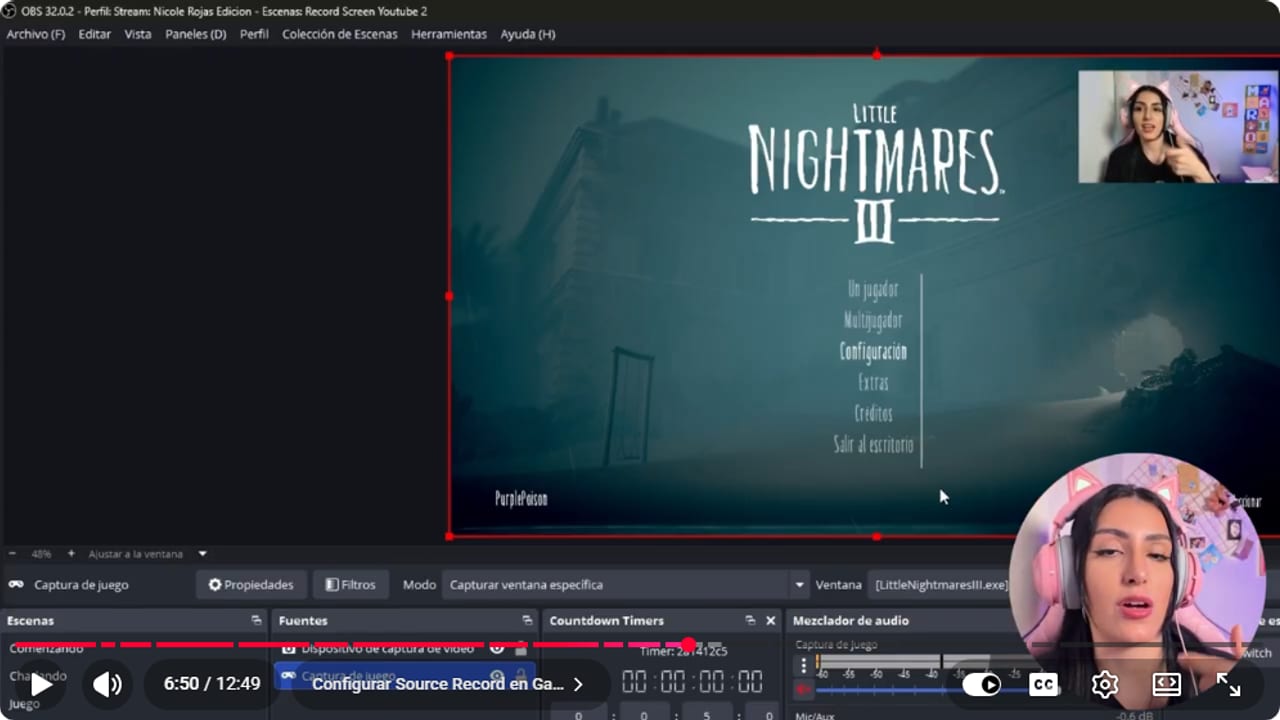
Source Record can save one source in addition to the main composition. YouTube · 6:50 ↗ - 08
Assign tracks, repeat on the camera and record
Nicole, separate webcam and gameplay (2026) ↗In the filter, Different audio sends a single audio track into that file. Which number depends on how you set up tracks in the mixer's gear, Advanced Audio Properties. In this video Nicole uses mic on track 1 and game on track 2 as the example. In her first video (8:12) she puts the game on track 6 and the mic on track 5, removing the tracks that were left over on each source. Use whichever tracks you've set up. In the game's filter, turn on Different audio, pick the game's track and set Game Capture as the source.
Repeat on the camera: right-click the Video Capture Device, Filters, Source Record, name it webcam, same mode, format and encoder, and under Different audio pick the mic's track with your mic as the source. If you'd rather keep all the audio together, leave Different audio off. Recording two sources while streaming asks a lot of your computer, so if it stutters, lower the bitrate in the filters, which is what Nicole recommends in her first video (9:13). Then click Start Recording and play for a bit, off stream, as a test.
What you should see: When you stop, two new files show up in your folder: one named gameplay with the game sound and one named webcam with your voice.
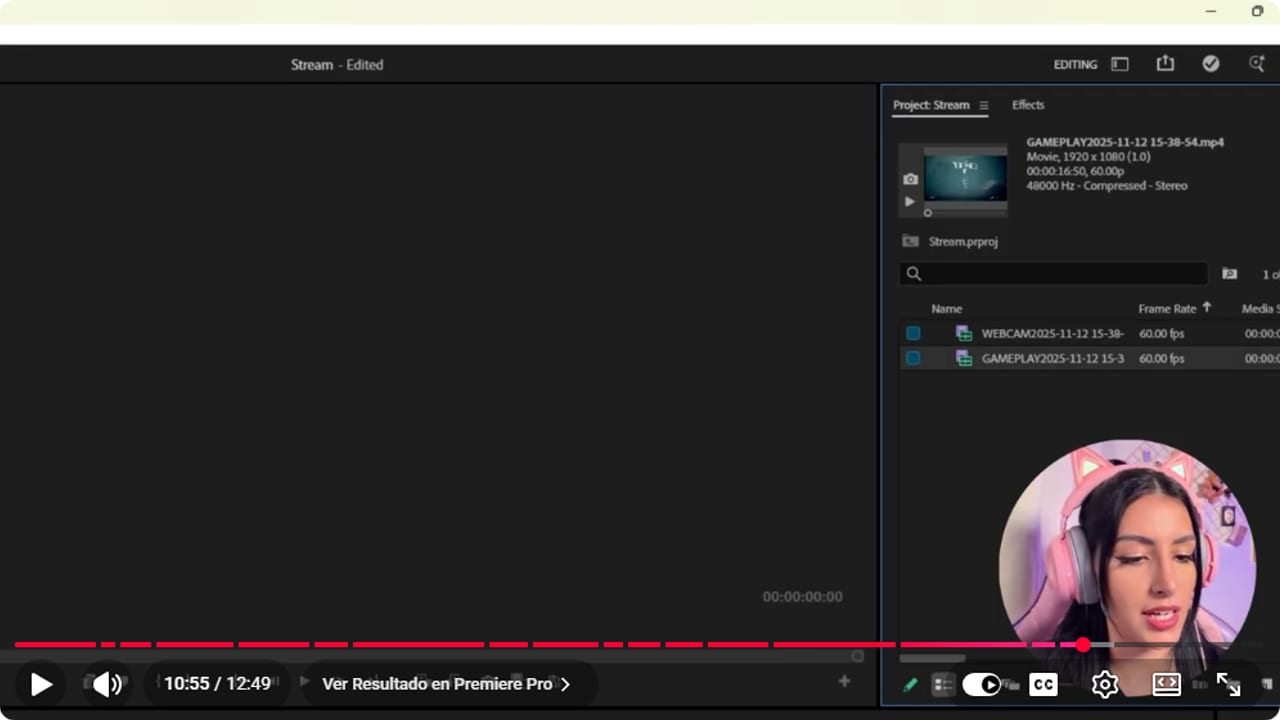
The test ends with separate files you can open and inspect before a long recording. YouTube · 10:56 ↗ - 09
Sync the two files and edit
Nicole, separate webcam and gameplay (2026) ↗Open the folder and play both files to check each one has the right audio. Then drag gameplay and webcam into your editor (I use CapCut in the video), each on its own track, with the camera on top. Nicole says the files stay in sync. Crop the camera, shrink it and put it wherever you want. If you zoomed in and something happens on one side, slide it to the other. Export and upload straight to YouTube.
And that's it, full control over the edit and good quality in both files. No more webcam covering your best clips or pixelated zooms on your face.
What you should see: Your editor timeline has the game below and your camera above, and on playback your voice matches your lips.
If something does not work
- Source Record doesn't show up in the filters
- Close OBS, restart your computer and open OBS again. If it's still missing, update OBS from Help, Check for Updates, and reinstall the plugin with OBS closed.
- Source Record freezes or glitches on OBS 32
- This happens a lot on OBS 32. Update the plugin and OBS to the latest versions and try again with a short recording. If it keeps acting up, record with method 1, the double-wide canvas that needs no plugins, though you can't stream at the same time with it.
- The gameplay file has no game sound
- Check that Game Capture has Capture Audio (BETA) ticked and, in Advanced Audio Properties, the track you chose for the game. Then make sure the game's Source Record filter has Different audio on with that same track.
- Your voice is in the gameplay file
- Your mic is still ticked on the game's track. Untick it there and leave it only on the track you use for the camera.
- The stream stutters while Source Record is running
- You're recording two files and streaming at once, and multistreaming makes it worse. Keep each Source Record filter at 10,000 or lower until everything runs smoothly.
- With method 1 the camera looks pixelated when you enlarge it
- First check the space: the camera needs its full half at 1920x1080. Then raise the quality with a lower CQP or a bitrate closer to 25,000, and record another test instead of forcing the zoom in your editor.
Test before you go live
- Your live scene and profile are exactly as they were.
- You tested at 30 fps at most before a long session.
- OBS and Source Record are both up to date.
- You noted which track each source uses, game and mic.
- You ran the test recording off stream.
- You record in a format you can recover after a power cut.
- The drive you record to has room for a long session.
Cómo grabar webcam y gameplay por separado en OBS: 2 métodos gratis
Watch the full tutorial (in Spanish) ↗Common questions
Do I need a plugin to record separately?
No. With method 1 you double the canvas width and split everything in the edit, with nothing to install. Source Record saves you that cropping and also lets you record while streaming.
Can I stream and record separately at the same time?
Yes, with Source Record set to Streaming or recording. Not with the double-wide canvas: Nicole says in the video that this method can't stream and record at the same time.
Which format should I record in?
Hybrid MP4 or MKV, not a regular MP4. According to Nicole, if the power goes out or your computer shuts down, a regular MP4 gets corrupted and you've recorded nothing. OBS says a hybrid file stays recoverable even if recording is aborted, and Nicole adds that you then just need to convert it (remux).
Which editor should I use to split the files?
Any editor that handles multiple tracks. I use Premiere, which is paid, but CapCut and DaVinci Resolve have free versions, and free is always nice.
Which encoder should I pick for recording?
It depends on your graphics card. NVIDIA 40 series or newer, NVENC AV1. RTX 20 or 30, NVENC HEVC. AMD RX 7000 or newer, AMD AV1 or HEVC, and on older cards, your brand's H.264. With no dedicated card, x264.


