

Short answer
Before you start
- Your Kick channel and an up to date OBS Studio
- A BotRix account linked to Kick. If you're new to it, the Kick alerts with BotRix guide walks you through it.
- The BotRix alerts widget already in OBS (the feed doesn't work without it)
- Optional: the BotRix chatbot already set up
Bring your setup to a 24/7 AI Streamer Coach
Ask Streamer Coach →Get personalized feedback to fix streaming issues and plan your next content.
Step by step
- 01
Sign in to BotRix with your Kick account
Nicole Rojas | YouTube | 1:45 ↗You're mid-game, a monster is chasing you, and someone follows or raids right then. You miss it, and later you've no idea who to thank. Not great. That's what the BotRix Activity Feed is for: a live list of everything happening on your channel. Go to BotRix, sign in with Kick and click Allow access. Check that Kick is the platform selected at the top, so you don't change another platform's settings by accident.
What you should see: The BotRix dashboard shows Kick as the selected platform at the top.
- 02
Make BotRix a moderator on Kick
Nicole Rojas | YouTube | 2:17 ↗On Kick, go to Creator Dashboard, Channel, Roles, Moderators, and check that Botrix is on the list. If it isn't, search for Botrix and pick the account with the verified checkmark, not a lookalike. If that doesn't work, type /mod botrix in your stream chat and accept.
What you should see: Botrix is on your Kick moderator list with the verified checkmark.
- 03
Open Widgets, then Activity Feed
Nicole Rojas | YouTube | 2:51 ↗In BotRix, go to Widgets and then Activity Feed. At the top there's a warning that the feed needs the alerts widget to work. Further down, under Options, Mode, you get two choices. Widget puts the feed on screen so your chat can see it too. Dock is a panel inside OBS that only you see while streaming. I use Dock, so that's the one we're setting up.
What you should see: You see the Activity Feed page with the widget URL, a Copy button and a preview list full of test events.
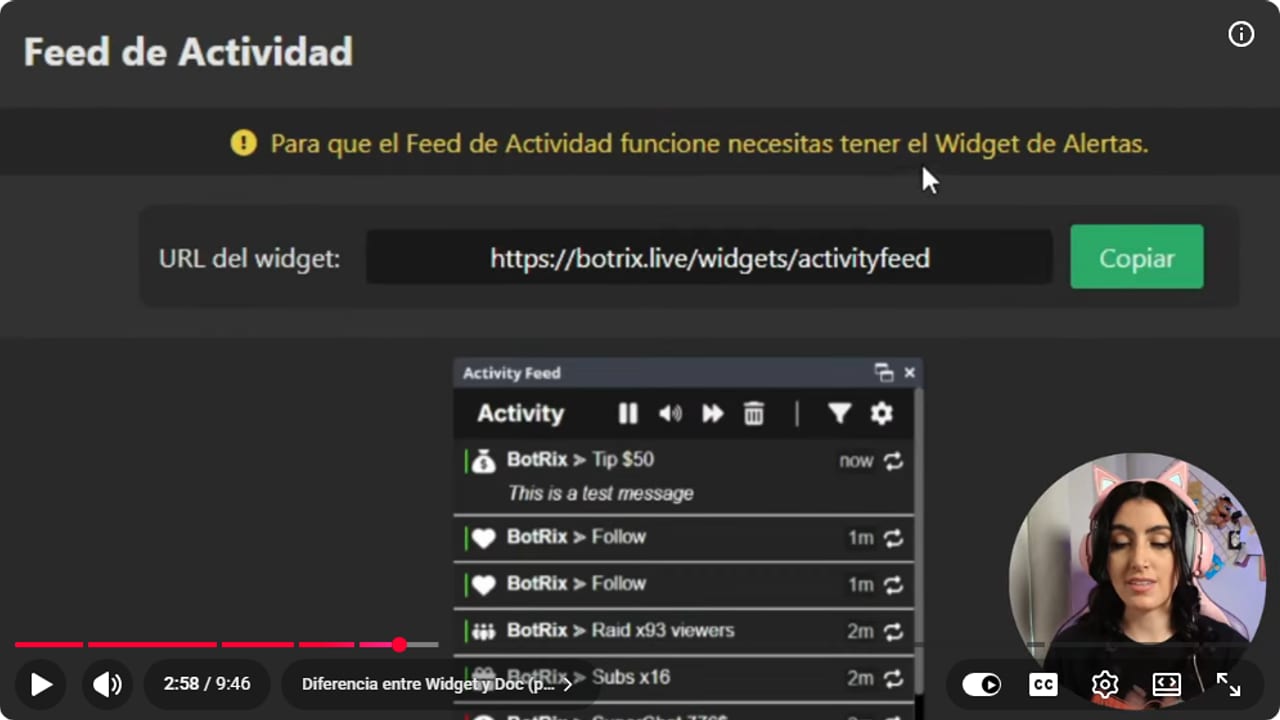
Read the yellow warning: without the alerts widget, the feed gets nothing. YouTube · 2:59 ↗ - 04
Add the alerts widget to OBS
Nicole Rojas | YouTube | 3:30 ↗If you already followed the Kick alerts with BotRix guide, skip this. If not, go to Alerts in BotRix and copy the widget URL. In OBS, in your scene, click +, choose Browser, name it Alerts and click OK. Paste the URL, click OK again and drag the Alerts source to the very top of Sources.
What you should see: The Alerts source sits first in your scene's Sources list.
- 05
Make sure the alerts fire
Nicole Rojas | YouTube | 4:04 ↗With OBS open, go to Alerts in BotRix and click the test buttons: Subscription, Follow, Host or Kicks. If nothing shows, check three things. The link in the OBS source matches the one BotRix shows. The source sits at the top, because a full-screen overlay will hide it. And double-click the source and hit Refresh cache of current page.
What you should see: The test alert shows up in the OBS preview.
- 06
Copy the Dock URL and create the dock in OBS
Nicole Rojas | YouTube | 5:05 ↗Go back to Activity Feed, pick Dock under Mode and click Copy. Treat that URL like your alerts URL and keep it off your screen. In OBS, open the Docks menu and choose Custom Browser Docks. Type a name you'll recognize (mine is Activity Feed Kick Botrix, very long, but I won't forget it), paste the URL in the next column and click Apply.
What you should see: A small window opens with the name you gave it. If it's blank, your alerts aren't connected yet.
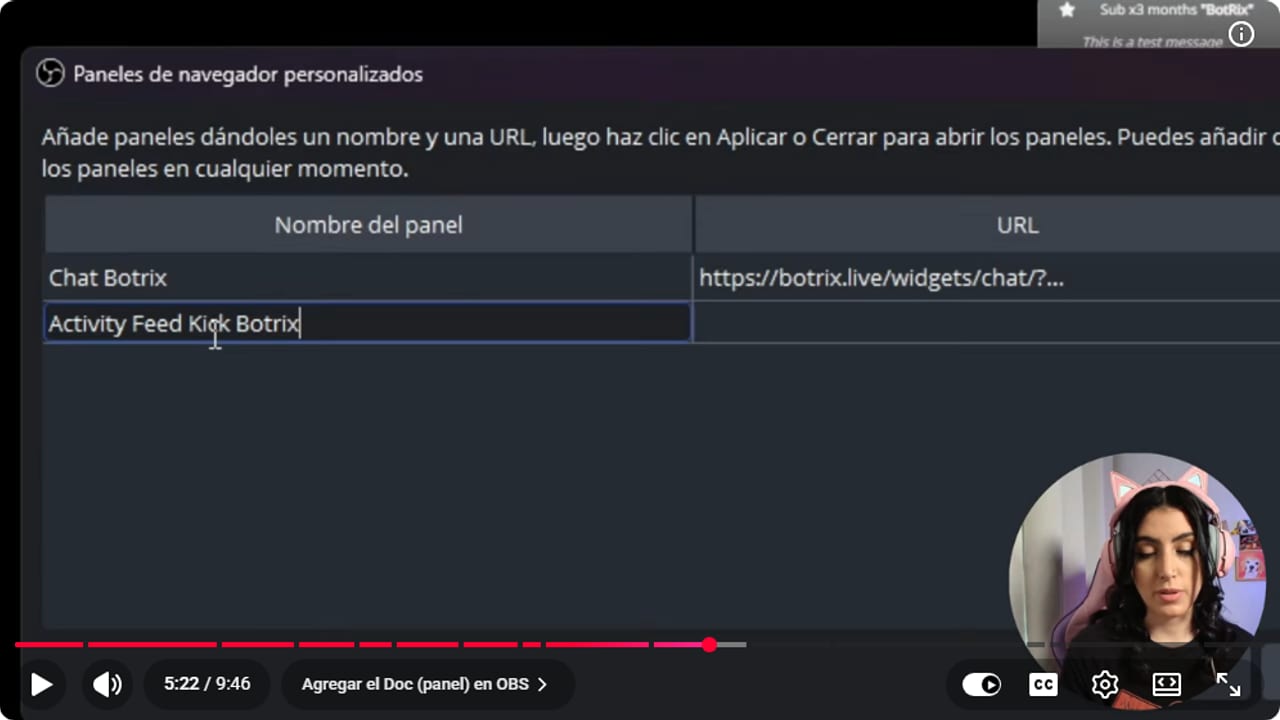
Any name goes on the left, and the Activity Feed URL in Dock mode goes on the right. YouTube · 5:23 ↗ - 07
Put the dock where you'll actually see it
Nicole Rojas | YouTube | 5:33 ↗Drag the dock to the part of OBS you'll glance at while you play, like next to the preview. If it looks cut off, stretch it from the corner until the names fit. Click Apply, then Close.
What you should see: The dock sits inside the OBS window, with pause, sound, trash, filter and settings icons above the list.
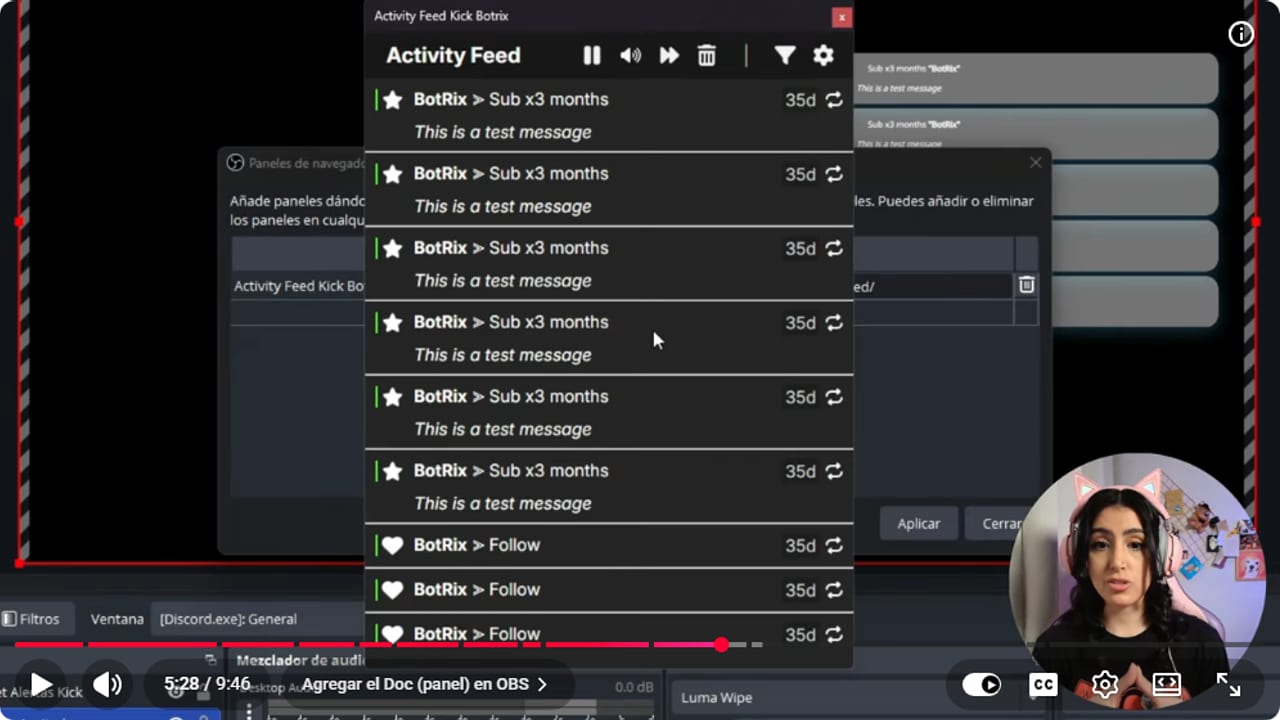
Once alerts are connected, the dock fills with events. Drag it to wherever you'll see it while you play. YouTube · 5:29 ↗ - 08
Test it with a fake follow
Nicole Rojas | YouTube | 5:40 ↗Moment of truth. Go back to Alerts in BotRix and click a test button, like Follow. If the dock stays empty, check that your alerts are connected and the URL was copied correctly. Still nothing? Close the dock, open it again and retry.
What you should see: BotRix > Follow appears at the top of the dock, marked now.
- 09
Filter the events and platforms you see
Nicole Rojas | YouTube | 6:37 ↗The funnel icon opens the filters. Under Alerts, tick what you want to see: Tips, Raid, Followers, Gifted Subs, Subscribers, KICKs and Shop. Under Platforms, leave only Kick ticked, since that's where you're streaming. You decide what makes the list.
What you should see: The filter menu shows ticks next to the alert types you chose, and only Kick ticked under Platforms.
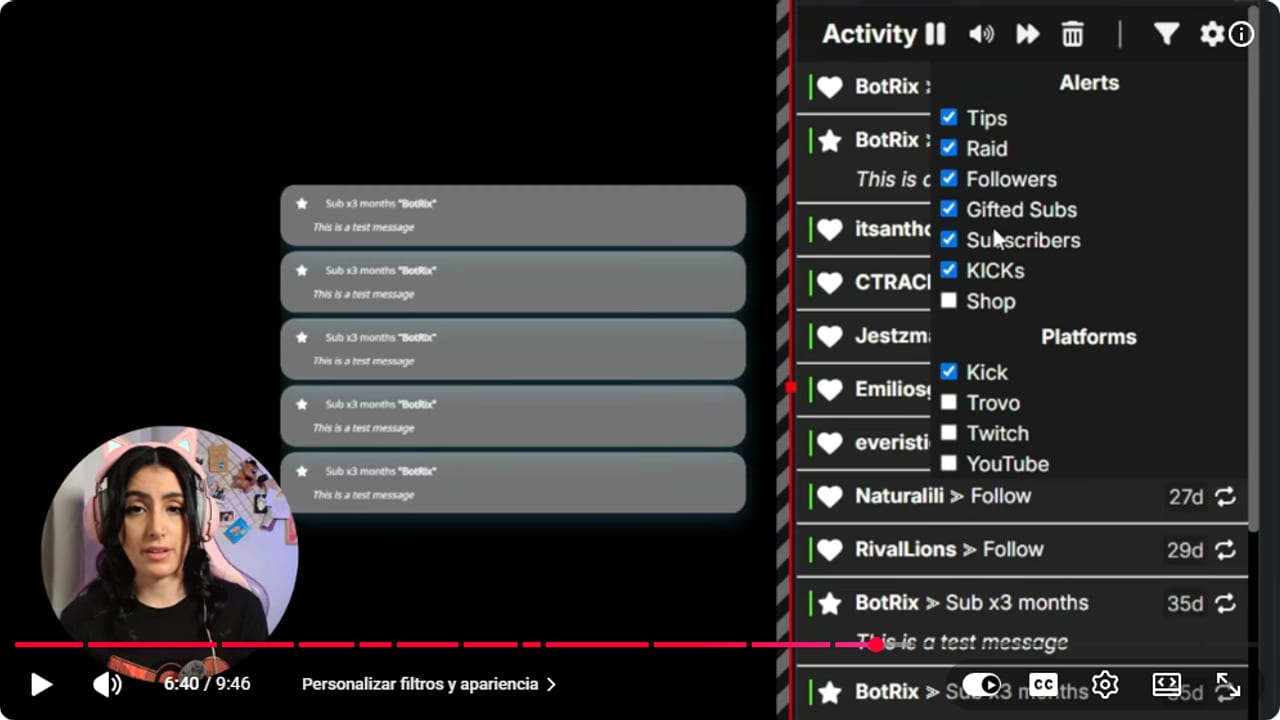
Leave only Kick ticked under Platforms so the feed shows your channel and nothing else. YouTube · 6:41 ↗ - 10
Choose where the platform icon goes
Nicole Rojas | YouTube | 6:45 ↗The gear icon opens the appearance settings. Under Platform Icons, put the icon on the left, on the right, as a color only, or not at all. That way you can tell at a glance where each event came from.
What you should see: Every event in the list shows the green Kick icon on the side you picked.
- 11
Use pause, sound, clear and replay while live
Nicole Rojas | YouTube | 7:00 ↗When a raid lands or someone gifts subs, hit pause on the dock, pause your game and thank people properly without losing a single name. The speaker mutes alert sounds, the trash can clears the list so you start fresh, and the replay icon next to each event plays that alert on screen again. Check the dock in the quiet moments and keep your on-screen alerts running alongside it. And that's it, you'll know exactly who showed up for you, every stream.
What you should see: When you click replay on an event, that alert plays again in your OBS scene.
If something does not work
- The Activity Feed dock is blank
- Usually it means the BotRix alerts widget isn't in your OBS. Add it as a Browser source, fire a test alert, then close the dock and open it again.
- Events never show up in the dock
- Make sure alerts are switched on in BotRix, Kick is the platform selected at the top, and the dock URL matches the one on the Activity Feed page. When in doubt, copy and paste it again.
- You can't find where to add the dock, or you closed it by accident
- Update OBS to the latest version. Custom Browser Docks live in the Docks menu. If you closed yours, open Docks and look at the bottom for the name you gave it. Classic OBS, hiding the one thing you need in the menu you never open.
- The dock looks cut off
- Drag it from the corner until full names and the icons at the top fit. If you docked it in a narrow strip, move it somewhere with more room.
- The test alert doesn't show in OBS
- Check the source link matches BotRix, the source is at the top of Sources, and refresh its cache by double-clicking it. If nothing works, BotRix has a Discord where you can ask or search for someone who had the same problem.
Test before you go live
- BotRix alerts fire in every scene where you want them.
- The dock sits somewhere you can check without losing track of the game.
- The filters only let through the events you want to thank people for.
- You know where the dock's pause and mute buttons are for the next raid.
- If you close the dock, you know how to get it back from the Docks menu.
- And that's it: nobody goes unthanked. Every follow is a good follow.
Cómo ver el Activity Feed en Kick con Botrix
Watch the full tutorial (in Spanish) ↗Common questions
Does the activity feed show on my stream?
Not in Dock mode. It's a panel inside OBS that only you can see. If you want your chat to see the activity too, BotRix has a Widget mode that goes into your scene as a Browser source.
Does it work when I multistream?
I couldn't find a way to get it showing several platforms at once while multistreaming. The filters list Kick, Twitch, YouTube and Trovo, but Kick on its own is where it works well. If you stream to several platforms, the BotRix multichat guide is the way to merge your chats.
Do I need BotRix alerts to use it?
Yes. The activity feed runs off the alerts widget, and BotRix says so at the top of the page. If you don't have alerts yet, set them up first with the Kick alerts with BotRix guide.
Why bother if I already have alerts?
Alerts flash for a few seconds and disappear, and in an intense moment you'll miss them. The feed keeps everything in a list, so during a break you can check it and thank each person by name. It's the easiest way to start getting to know your community.
What does the replay button do?
It plays that alert on screen again. Click it by mistake and chat will think someone followed twice, but used on purpose it's a fun way to celebrate a follower or sub goal while everyone's laughing with you.


