

Short answer
Before you start
- Your Twitch, Kick or YouTube accounts (only the ones you use)
- A free BotRix Live account
- OBS Studio
- For YouTube: a Public live stream
Bring your setup to a 24/7 AI Streamer Coach
Ask Streamer Coach →Get personalized feedback to fix streaming issues and plan your next content.
Step by step
- 01
Sign in to BotRix Live and connect Twitch
Nicole Rojas | YouTube | 1:01 ↗Keeping an eye on three chats at once is pure chaos, so let's put them in one place. Go to BotRix Live and sign in. You can use Trovo, Twitch, YouTube, Kick or Discord. Start with Twitch, the easiest one to link: it asks for authorization, so scroll down and click Authorize.
What you should see: The Platforms section appears, with each service ready to connect one at a time.
- 02
Connect Kick and make BotRix a moderator
Nicole Rojas | YouTube | 1:31 ↗Click Kick and allow access. Then go to Kick, your profile picture and the Creator Dashboard. In the video I go to Channel, Roles, Moderators and search for Botrix. Kick's help now puts it under Community, Moderators (in some versions of the dashboard it's under Roles), Add New. Careful: several accounts have similar names. Pick the one with the verified checkmark and click Add. In a newer video of mine, that account no longer showed up in the search. If that happens to you, type /mod botrix in your channel chat.
What you should see: BotRix is on your Kick moderator list with the verified checkmark.
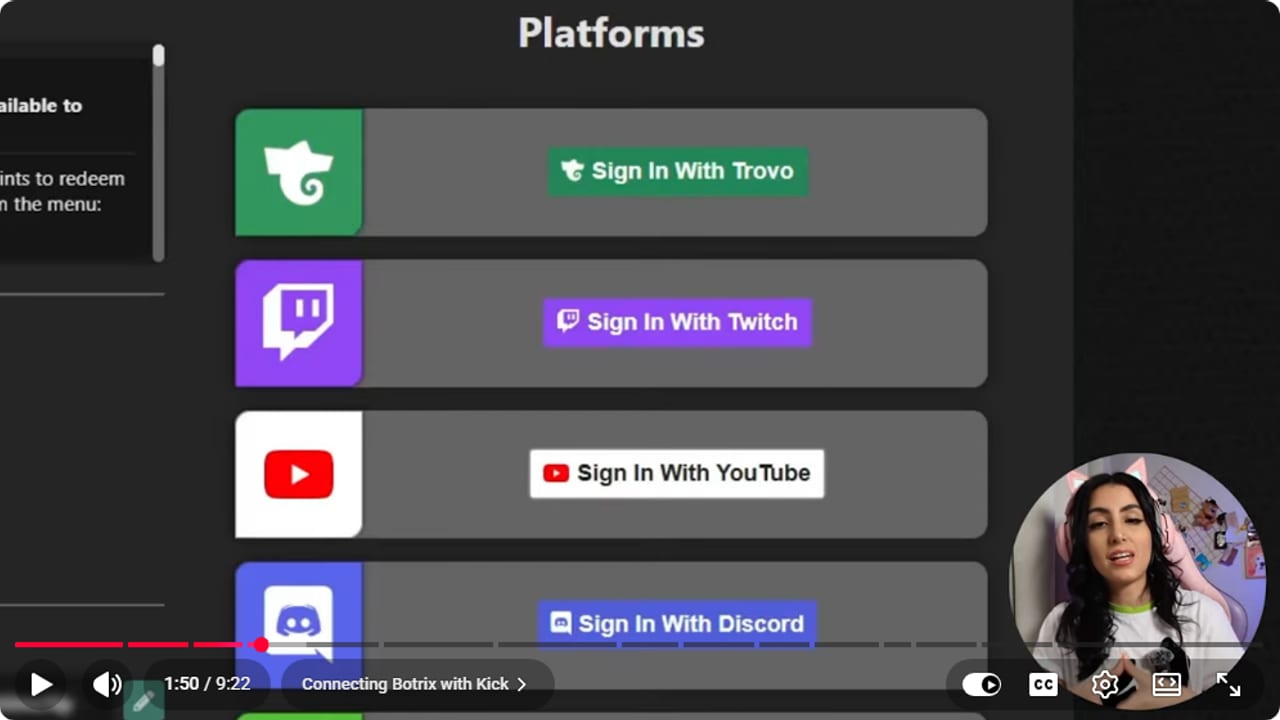
Each platform is connected separately before opening the overlay. YouTube · 1:51 ↗ - 03
Connect YouTube in BotRix
Nicole Rojas | YouTube | 2:32 ↗YouTube causes the most trouble, so take this one slowly. Click YouTube, choose your account and grant access. Guide tip, not from the video: if your Google account manages more than one channel, make sure it's the one for the channel you'll stream from.
What you should see: YouTube shows as connected in BotRix, with options to set up your profile or unlink it.
- 04
Make BotRix a moderator in YouTube Studio
Nicole Rojas | YouTube | 3:02 ↗Unlike Twitch, YouTube doesn't connect it on its own. Open YouTube Studio, Settings, Community moderation, the User management tab, and in the Managing moderators box search for BotRix. Accounts that have nothing to do with it show up too, because there's always someone trying their luck. Choose the one spelled BotRix, with a capital B and R, then click Save. YouTube's current help asks you to paste the channel URL into that box, so if searching by name doesn't work for you, use BotRix's channel link.
What you should see: YouTube Studio confirms the settings were saved and BotRix is listed as a moderator.
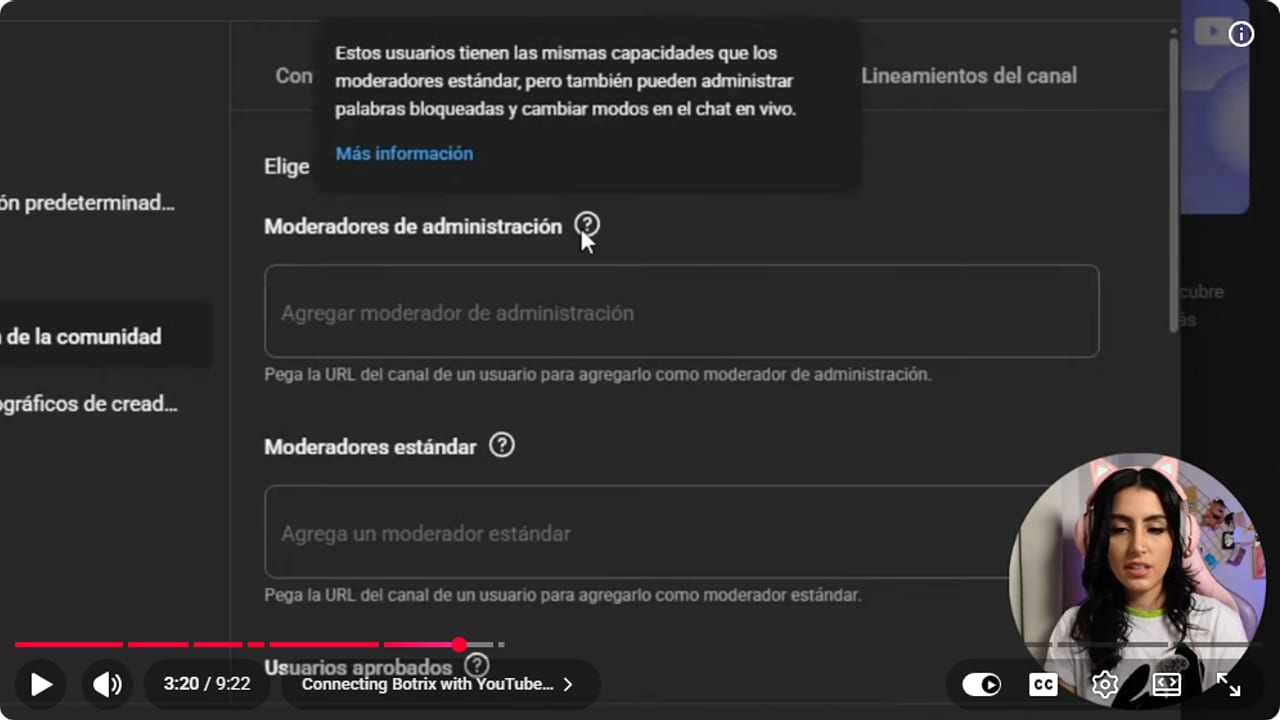
YouTube Studio lets you add the Botrix account with the role requested by the current flow. YouTube · 3:21 ↗ - 05
Build the chat overlay
Nicole Rojas | YouTube | 3:33 ↗In BotRix, go to Widgets and open Chat overlay. The screen looks blank, and that's normal. Tick only the platforms you use and turn on the transparent design so the background doesn't show. Then choose what to display: BetterTTV emotes, channel point redemptions, font size, shadows. There's an option to show platform icons: I don't recommend it, but you can pick it. When you're done, click Copy widget URL.
What you should see: The widget URL is copied and the preview shows only the platforms you ticked.
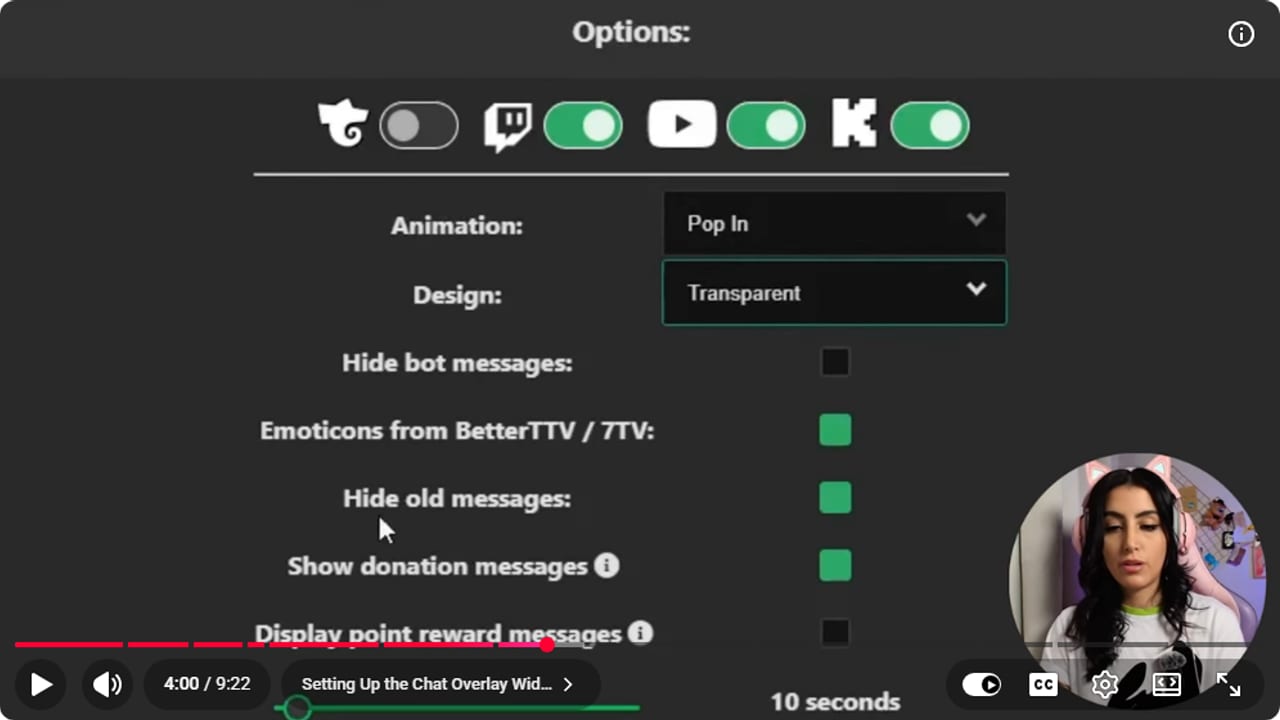
The view lets you choose platforms and reading options before bringing chat into OBS. YouTube · 4:01 ↗ - 06
Load it in OBS as a dock you read yourself
Nicole Rojas | YouTube | 4:34 ↗In OBS, go to Docks, Custom Browser Docks. Give it a name, like BotRix chat, and paste the URL. The dock stays blank until you're live. Put it wherever it's easy to read while you play.
What you should see: A new dock appears in OBS, outside your scene, and fills with messages once you go live.
- 07
Or show it on screen as a source
Nicole Rojas | YouTube | 5:35 ↗If you want viewers to see chat, add a Browser source, name it chat, paste the URL and set the width and height. It stays empty until you're live, so move it where you want it. Whatever you load as a source is what your viewers see, while the dock from the previous step is only visible to you. Guide note, not from the video: if you also stream to Twitch, stick with the dock. Twitch's Terms of Service (section 11) don't allow third-party services that combine chat from other platforms on your Twitch stream during a simulcast, and its help says personal use is fine.
What you should see: Chat appears in your scene where you placed it, without covering the game HUD.
- 08
Set your YouTube stream to Public with Live chat
Nicole Rojas | YouTube | 6:06 ↗BotRix only connects to YouTube when the stream is Public, not unlisted or private. Go to Create, Go live, Edit, and under Visibility choose Public and save. In the chat, switch Top chat to Live chat so you see every message, not a selection.
What you should see: Your stream is marked Public and the chat header says Live chat.
- 09
Give BotRix time to connect to YouTube
Nicole Rojas | YouTube | 6:36 ↗BotRix takes a long time to connect to YouTube and it's not instant. At first it can take up to an hour, and the more you use it the faster it connects. Once it has connected before, it usually takes 5 to 10 minutes. If you turned the bot off and on again, it may take up to an hour again. While you wait, go to Chatbot in BotRix and make sure the chatbot is switched on at the top. You'll know it connected when you see the message saying BotRix has connected in your chat or in OBS (it read Botrix se ha conectado in Spanish in my video).
What you should see: A message saying BotRix has connected appears in your chat or in OBS.
- 10
Go live and send a message on each platform
Nicole Rojas | YouTube | 7:38 ↗Send a test message from each chat. You test this one live, so patience above all. With YouTube, every message arrives 5 to 10 seconds late.
What you should see: Your test messages appear in the dock, and if you turned on the platform icons, each one shows its platform icon next to the username.
- 11
Optional: thank followers by platform
Nicole Rojas | YouTube | 8:09 ↗In BotRix, go to Profile, pick the platform, then Chatbot, Extras, Chat alerts. Turn it on and write a different message for each one, like Thanks for the follow on Kick. Now you can tell at a glance where each follower or subscriber came from.
What you should see: When someone follows, chat shows your thank-you with the platform name.
If something does not work
- YouTube chat doesn't show up in the multichat
- Check three things, in this order: the stream is Public, the chat is set to Live chat rather than Top chat, and the BotRix chatbot is switched on at the top of the Chatbot section.
- BotRix takes ages to connect to YouTube
- That's normal, if a little ridiculous. At first it can take up to an hour, and it connects faster each time. Once it has connected, it usually takes 5 to 10 minutes, and if you turned the bot off and on again it can take up to an hour again. Leave it running and wait for the Botrix se ha conectado message.
- YouTube messages arrive late
- YouTube adds a 5 to 10 second delay to every message. It isn't a BotRix or OBS problem, so there's nothing to change.
- Kick doesn't show up
- Check that BotRix is a moderator on your Kick channel and that you added the account with the verified checkmark, not a lookalike. If Botrix doesn't show up in the dashboard search, which is under Community, Moderators (in some versions of the dashboard it's under Roles), Add New, type /mod botrix in your channel chat.
- Chat covers the game
- Make the source shorter, show fewer lines and move it away from the HUD. If only you need to read it, remove the source from the scene and use the dock.
- You tried everything and it still doesn't work
- BotRix has an official Discord, linked from its website. Search for your problem there. Someone has very likely hit the same thing and found the answer.
Test before you go live
- BotRix is a moderator on Kick and in YouTube Studio.
- Your YouTube stream is Public with Live chat.
- The OBS dock fills with messages when you go live.
- A test message arrived from each platform you use.
- If chat is on screen, it doesn't cover the game.
- And that's it: all three chats in one dock, no more tab-hopping mid-game.
Cómo configurar el multichat de Botrix con Twitch, Kick y YouTube en OBS
Watch the full tutorial (in Spanish) ↗Common questions
Is BotRix free?
In the video the multichat is shown as free. BotRix also offers optional paid memberships for advanced features, according to its terms, so check your account to see what each option includes. Besides multichat it has alerts and a chatbot you can add later.
Do I have to stream on all three platforms?
No. Connect only the chats you'll read. If a platform isn't live, untick it in the chat overlay so the panel doesn't fill with gaps.
Does it replace each platform's chat?
In the video the multichat is for reading every message in one place. For moderating, timeouts or bans, the guide's advice is to use each platform's own moderation tools.
Can my viewers see the multichat?
Yes, if you load it as a Browser source in your scene: whatever is in the scene your viewers see, and the dock only you see. If you also stream to Twitch, keep it as a private dock. Twitch's Terms of Service (section 11) don't allow third-party services that combine chat from other platforms on your Twitch stream during a simulcast. That's a guide note, not from the video.
BotRix or Casterlabs?
They do the same job. I made this tutorial because a lot of people couldn't get Casterlabs to connect. Try both with your platforms and keep the one that works for you.


