

Short answer
Before you start
- A Windows 10 or newer PC. Casterlabs has no Mac version.
- OBS Studio on the same PC that runs Casterlabs
- Your Twitch, Kick, YouTube or TikTok accounts (just the ones you use)
- Optional: multistreaming already set up, if you want to go live on several platforms at once
Bring your setup to a 24/7 AI Streamer Coach
Ask Streamer Coach →Get personalized feedback to fix streaming issues and plan your next content.
Step by step
- 01
Download and install Casterlabs
Nicole Rojas | YouTube | 0:57 ↗If you multistream without a multichat, you're playing on nightmare mode: two or three chats at once, none of them in the same place. Casterlabs is free and pulls it all together. Go to the official Casterlabs site, download the app (it's also called Caffeinated), install it and open it. It's Windows only. On a Mac, use the BotRix multichat instead, which runs in your browser.
What you should see: Casterlabs opens with the left-hand menu: Dashboard, Chat Bot, Widgets & Alerts, Docks and Settings.
- 02
Pick your language and dark mode
Nicole Rojas | YouTube | 1:13 ↗Open Settings. Under Appearance you can switch to the dark theme (we all prefer it), and change the icon and emoji style. Further down, under Language, pick the one you want. You can also scale the whole app up or down with Zoom.
What you should see: The Casterlabs menus show in your language on a dark background.
- 03
Connect your platforms under Accounts
Nicole Rojas | YouTube | 1:25 ↗In Settings, open the Accounts tab. Streaming Services lists Twitch, Trovo, YouTube, DLive, Kick and TikTok. Click Connect on each one you use and sign in. Music services like Spotify sit underneath. Careful there: copyrighted music playing while you chat can get your VOD muted and cost you clips. Use it at your own risk, or stick to royalty-free music.
What you should see: Each connected platform shows your channel name next to it and a red Disconnect button.
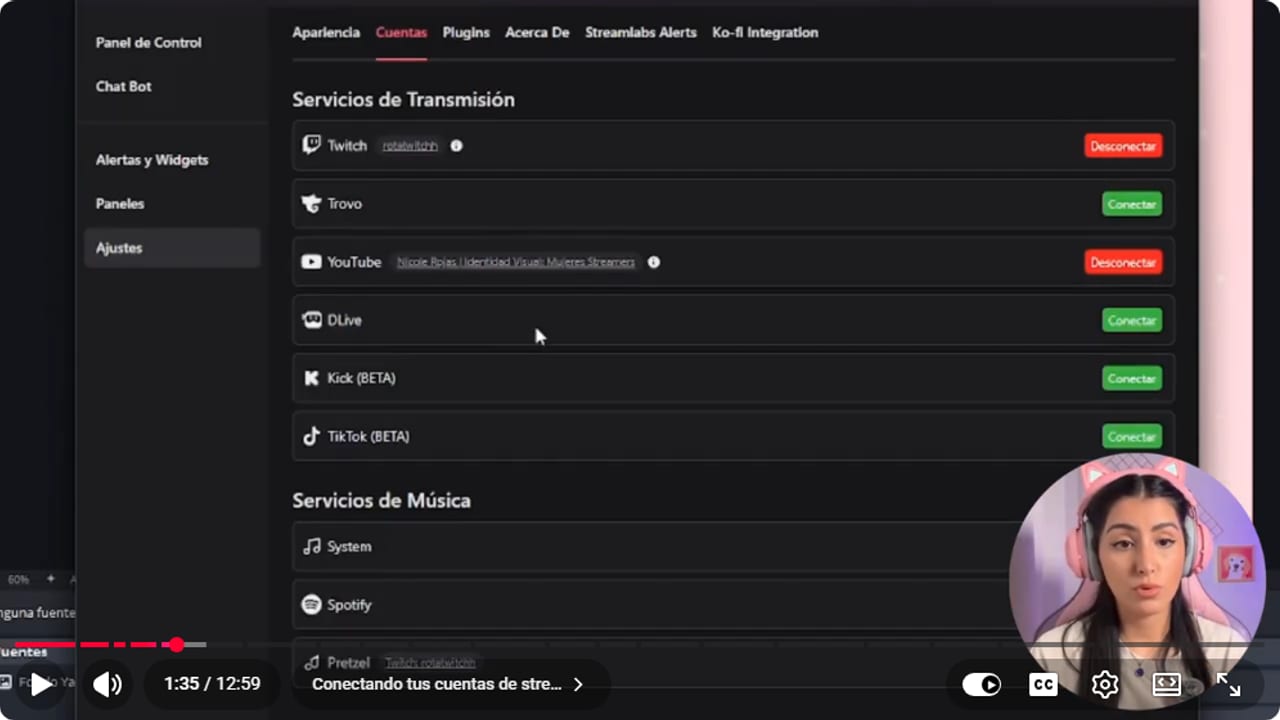
Click Connect on each platform you use. Connected ones show your channel and a red Disconnect button. YouTube · 1:36 ↗ - 04
Copy the Stream Chat link from Docks
Nicole Rojas | YouTube | 2:20 ↗Go to Docks. There are three: Viewer List, showing who's watching, Stream Chat, with messages from every platform, and Activity Feed, with your activity. Click Stream Chat. That link is for your OBS only, so don't paste it anywhere public.
What you should see: A Copied link to clipboard notice pops up in the top right.
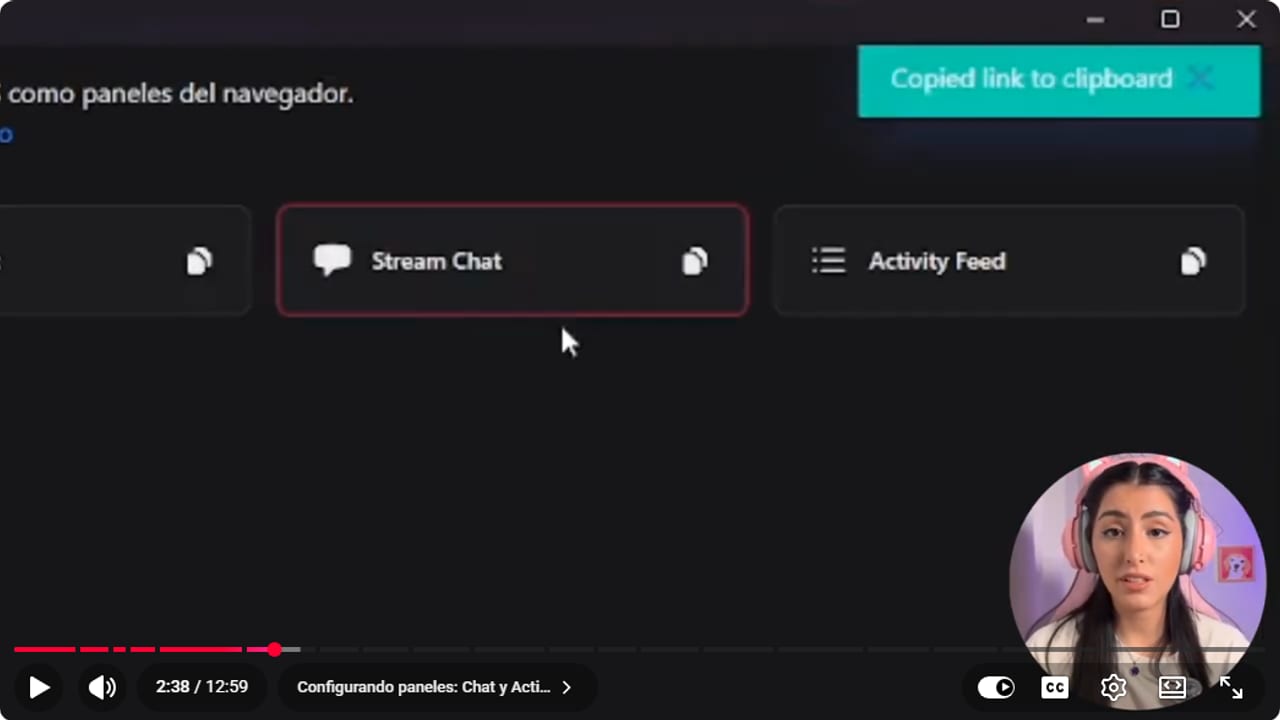
One click on Stream Chat copies the link. Activity Feed, next to it, works the same way. YouTube · 2:39 ↗ - 05
Add it to OBS as a browser dock
Nicole Rojas | YouTube | 3:03 ↗In OBS, open the Docks menu and choose Custom Browser Docks. Give it a name, like Multichat, paste the link into URL and click Apply. You can drag the new window wherever it's easy to read while you play.
What you should see: A new dock appears in OBS, outside your scene, showing messages from your connected platforms.
- 06
Reply to one platform or all of them from the dock
Nicole Rojas | YouTube | 3:30 ↗At the bottom of the dock there's a picker with your platforms plus an all option. Pick Twitch, type Hi everyone, and it only goes to Twitch. Pick all and it goes everywhere at once. No more opening 30 tabs to answer each person.
What you should see: Your message appears in the chat of the platform you picked, and in the Casterlabs dock too.
- 07
Add the Activity Feed as a second dock
Nicole Rojas | YouTube | 4:02 ↗Back in Casterlabs, go to Docks and click Activity Feed to copy it. In OBS, do the same thing again: Docks, Custom Browser Docks, name it Activity, paste the link and apply. Subs, follows, bits and donations from every platform you're streaming on will show up there.
What you should see: OBS shows a second dock, Activity. It's empty while you're offline and fills with each follow or sub once you're live.
- 08
Turn on the new message sound
Nicole Rojas | YouTube | 4:41 ↗Click the gear icon in the chat dock. You can turn on a sound for new messages, read messages aloud, and set text size, timestamps, badges and each user's platform. If you're a smaller channel, switch the sound on. You won't miss anyone, and new people are more likely to join the conversation when you answer quickly.
What you should see: When a test message arrives, you hear the ping and see it in the dock in the format you chose.
- 09
Create a Chat widget to show on stream
Nicole Rojas | YouTube | 5:30 ↗The dock is just for you. If you want viewers to see chat too, go to Widgets & Alerts, click +, and under Interaction choose Chat. Name it whatever you like. Under Message Style, set the margin and where user badges go (before or after the name, or hidden). Show User Platform Icon puts the platform logo next to each name. I leave it off: multichat on Twitch is a gray area and plenty of streamers recommend not showing it. Leave Make Messages Disappear off too while you're starting out, so older messages give context to people who just arrived.
What you should see: Your Chat widget appears under Widgets & Alerts, and Message Style shows Show User Platform Icon switched off.
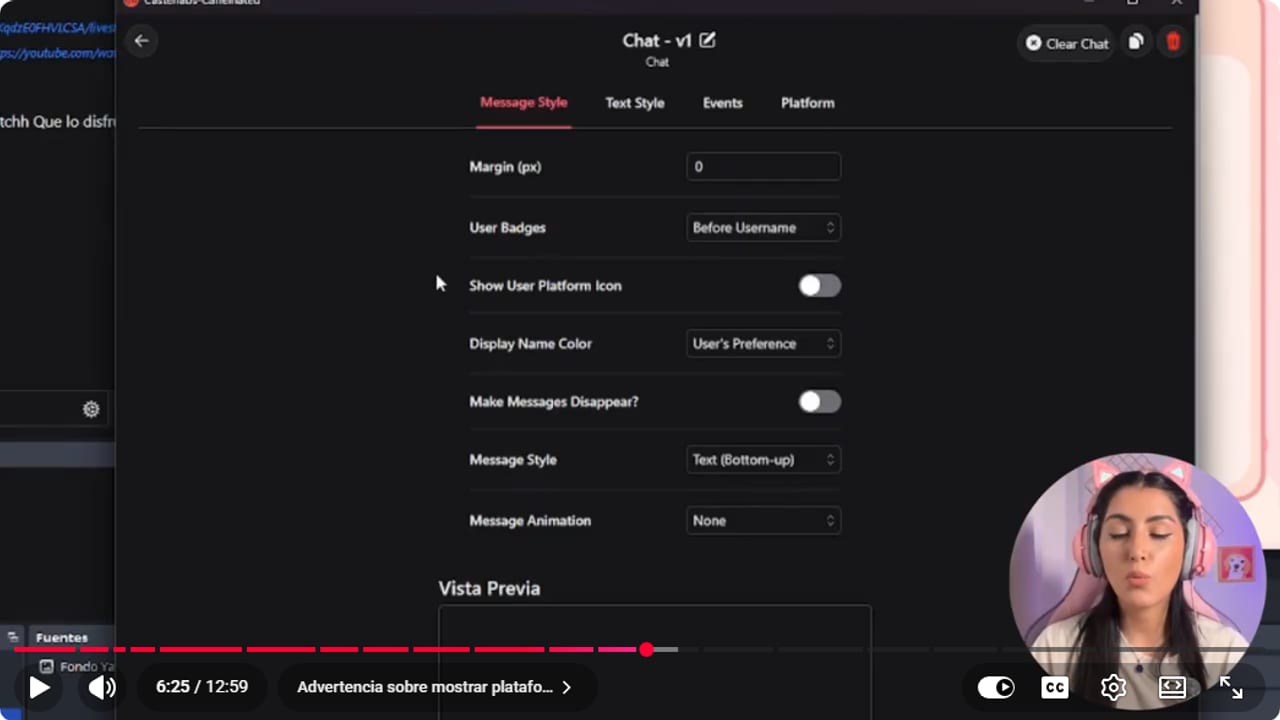
Show User Platform Icon stays off, because multichat is a gray area on Twitch. YouTube · 6:26 ↗ - 10
Pick the font, colors and events
Nicole Rojas | YouTube | 7:17 ↗Under Text Style, choose the font, size, weight, color and alignment. If chat sits on a transparent background and is hard to read, nudge Text Shadow up. Under Events, choose what shows: messages, channel point redemptions, donations, follows, subs and raids. Platform lets you build a separate chat per platform, but the whole point is having one, so keep them combined.
What you should see: The widget's preview shows text in the font and color you picked.
- 11
Add the chat to OBS as a Browser source
Nicole Rojas | YouTube | 8:48 ↗In Widgets & Alerts, click the three dots on your widget and Copy Link. In OBS, click + under Sources, choose Browser, name it Multichat, paste the link into URL and click OK. If the text comes out white on a light background (or black on a dark game), go back to Text Style, change the color, and it updates live. To resize it, don't crop with Alt, because that slices messages in half. Double-click the source and change Width and Height instead (it starts at 800 x 600).
What you should see: Chat shows in your scene in the color you chose, with whole messages and nothing cut off at the edges.
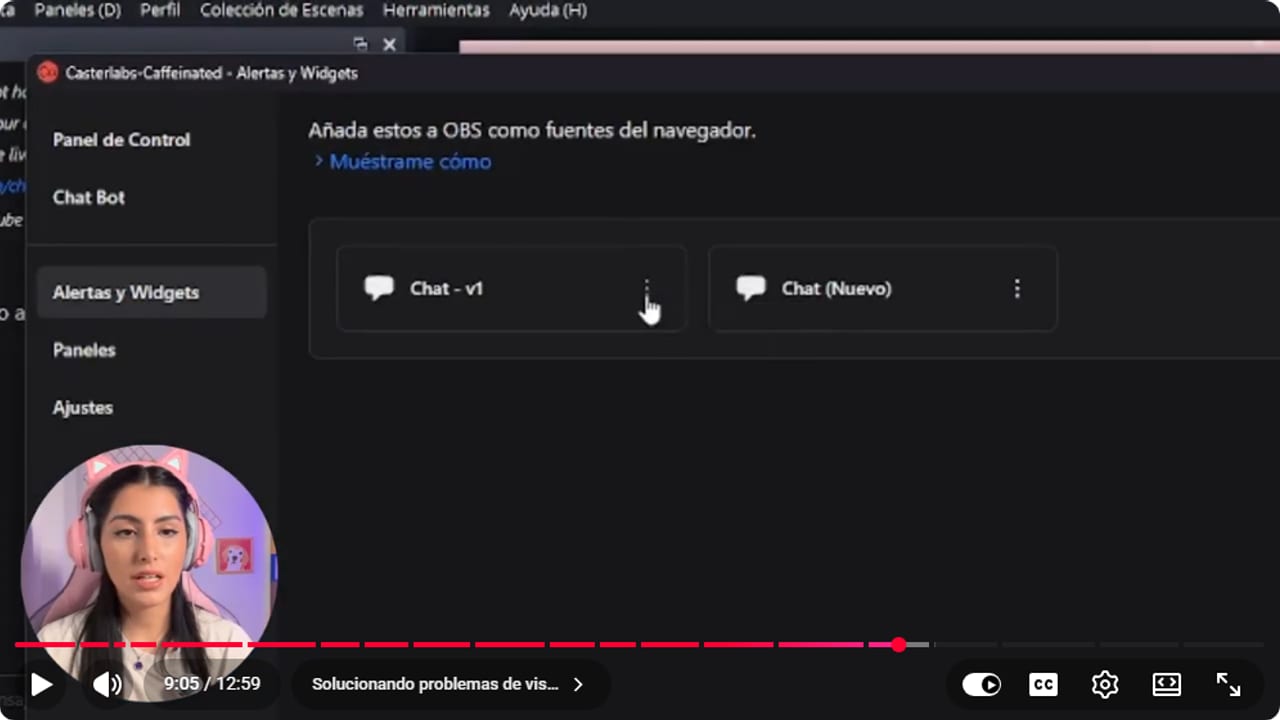
The three dots on your widget hold Copy Link, the URL you paste into the OBS Browser source. YouTube · 9:06 ↗ - 12
Hide the bots from chat
Nicole Rojas | YouTube | 10:10 ↗If Nightbot or BotRix posts every two minutes, your chat looks like an office inbox on a Monday morning. Go to Chat Bot, Settings, and under the option to hide accounts from chat, click + and type the bot's name, for example Nightbot. Now viewers read what real people are saying. And that's it: every chat in one place, free and looking good.
What you should see: The bot's name appears in the hidden accounts list and its messages stop showing in the chat widget.
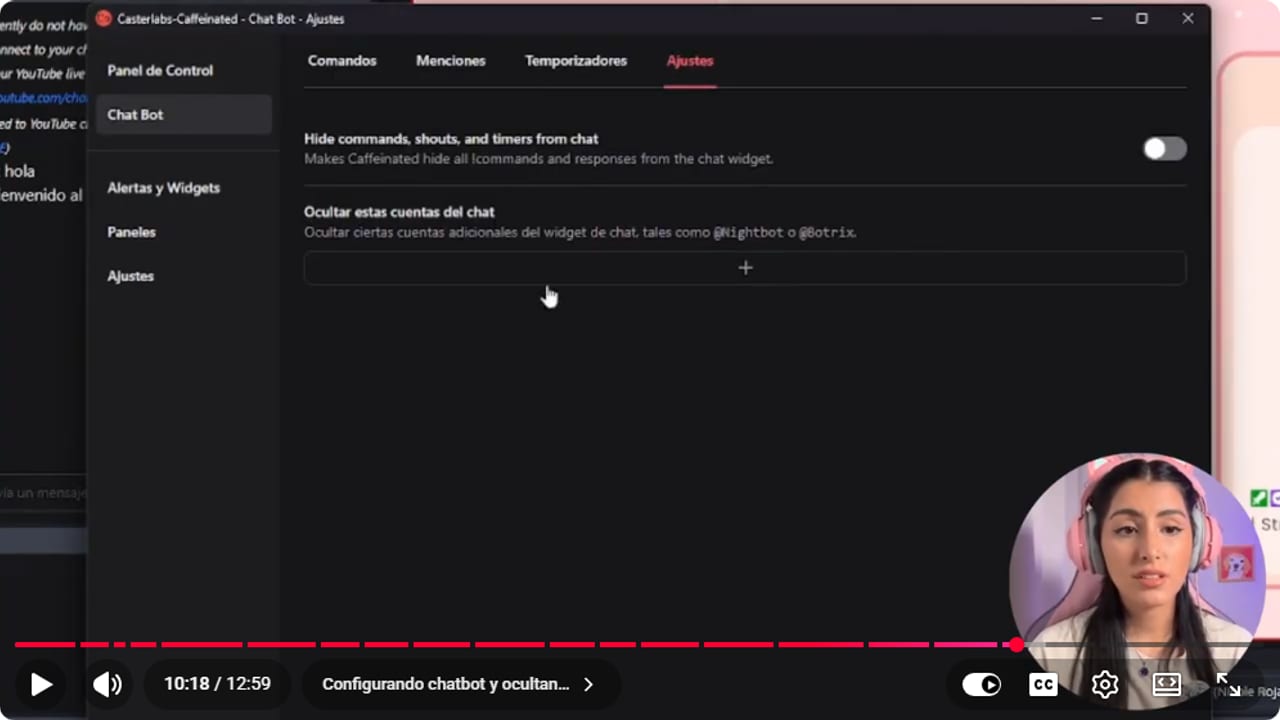
Click + and add Nightbot, BotRix or whatever bot you use, so your on-screen chat stays clean. YouTube · 10:18 ↗
If something does not work
- The chat dock in OBS is blank or won't load
- Casterlabs docks only work while the app is running on the same PC as OBS. Open Casterlabs and reload the dock. On a two-PC setup, install it on the streaming PC, not the gaming one.
- You can't read the on-screen chat
- It's almost always the color. Go back to Text Style, pick a color that stands out against your game or overlay, and raise Text Shadow on a transparent background. OBS updates right away.
- Messages are cut off halfway
- You probably cropped the source with Alt. Right-click it, choose Transform, Reset Transform, then set the size with Width and Height in the source properties.
- TikTok takes ages to connect or messages go missing
- Casterlabs' own docs say TikTok can take up to 10 minutes to connect, and some messages never reach third-party apps. If nothing comes through at all, check your live isn't marked 18+, because Casterlabs can't connect to those streams.
- The first YouTube messages don't show up
- Casterlabs only checks whether your YouTube stream has started every 5 minutes, because of YouTube's API limits. It's not something you did. Go live a few minutes before you start talking to chat, with a countdown for example.
Test before you go live
- Casterlabs is open before OBS starts, on the same PC.
- You sent a test message from every platform and it reached the OBS dock.
- The on-screen chat is easy to read over your game and overlay.
- The bots you use are on the hidden accounts list.
- If you stream on Twitch, you've decided whether multichat stays in your private dock.
- And that's it: one chat for every platform, zero extra tabs.
Cómo unificar todos tus chats en OBS con Casterlabs
Watch the full tutorial (in Spanish) ↗Common questions
Casterlabs or BotRix for multichat?
If you're on Windows and want TikTok in the mix, Casterlabs is an app on your PC that connects each platform by signing in. If you're on a Mac or don't want to install anything, the BotRix multichat runs in the browser, but you have to make it a moderator on Kick and in YouTube Studio. I made the BotRix tutorial because a lot of people couldn't get Casterlabs to connect, so if one won't work for you, try the other.
Is Casterlabs free?
Yes. The app, the docks and the chat widget in this guide are all free, and this isn't sponsored. Their site says it's free forever, with no ads in your chat.
Can I show multichat on screen if I stream on Twitch?
Reading it in a private dock is fine. Showing it on stream is a gray area, because Twitch's rules about activity from other platforms have changed more than once. If Twitch is one of your platforms, the low-stress option is keeping it in your dock, and if you do show it, turn the platform icon off.
Can I use Spotify with Casterlabs?
Casterlabs connects to Spotify, but copyrighted music can get your VOD muted and cost you clips. If you want background music, use royalty-free tracks.
Does the chat widget replace each platform's own chat?
Not completely. You can read and reply from Casterlabs, but for moderating, banning or timeouts, stick with each platform's own chat.


