

Short answer
Before you start
- Your Twitch username
- A Windows PC with a single monitor
- Transparent Twitch Chat Overlay, which is free
- A game that runs in windowed or borderless windowed mode
Bring your setup to a 24/7 AI Streamer Coach
Ask Streamer Coach →Get personalized feedback to fix streaming issues and plan your next content.
Step by step
- 01
Download the latest release from GitHub
Nicole Rojas · YouTube · 0:31 ↗You stream on one monitor and you're sick of reading chat on your phone. Rough, and the battery drains in no time. Let's put chat on top of the game instead. Go to the Transparent Twitch Chat Overlay page on GitHub and find Latest release. You'll see the installer (the setup .exe) and a portable version. Download either one.
What you should see: The installer or the portable file shows up in your Downloads folder.
- 02
Install it or open the portable version
Transparent Twitch Chat Overlay GitHub README, current installation (the installer and portable parts are also in the video, 1:01) ↗The installer gave me trouble and wouldn't download. If that happens to you, grab the portable version, which does exactly the same thing: open it from its own folder and you're set. If you go with the installer, accept the terms, click Next and tick the desktop shortcut so it's handy when you start streaming. According to the project README, the installer adds the dependencies it needs, like WebView2, and the first time you open it Windows may show a Windows protected your PC (SmartScreen) message. Click More info and then Run anyway, which you only have to do once. Always download it from the project's official GitHub page.
What you should see: The Transparent Twitch Chat window opens, and if you installed it, its icon sits on your desktop.
- 03
Type your username in Settings
Nicole Rojas · YouTube · 1:31 ↗Click the three dots and open Settings. You don't need to connect your Twitch account. Typing your username is enough. It only asks you to connect Twitch if you want to see channel point redemptions (Community Point Redemptions).
What you should see: The window connects to your channel and stops being empty.
- 04
Check that messages arrive live
Nicole Rojas · YouTube · 2:03 ↗Send a message in your Twitch chat, or ask someone to type something. I tested it by sending a Pikachu to a friend who was live. Everything that happens in your chat (messages, emotes, bot alerts) should pop up in the window right away.
What you should see: Your test message appears in the overlay window a few seconds after you send it.
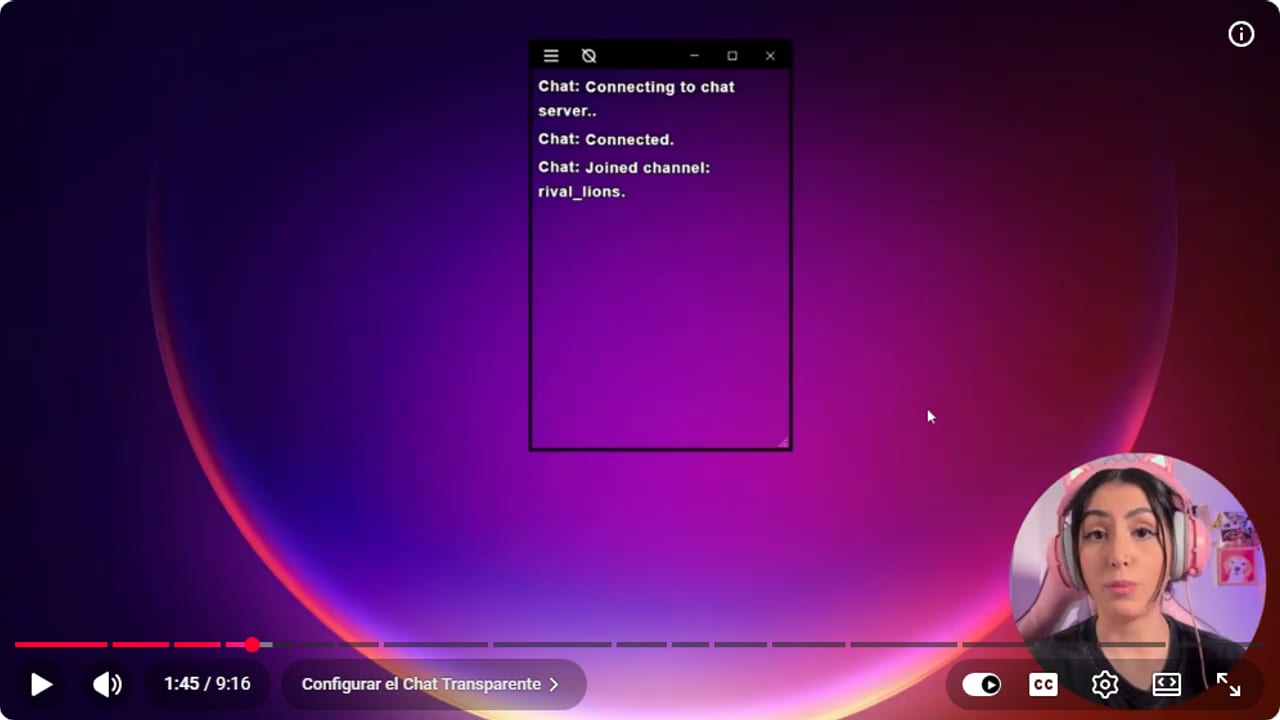
Connected and Joined confirms that the overlay entered the channel before messages are tested. YouTube · 1:46 ↗ 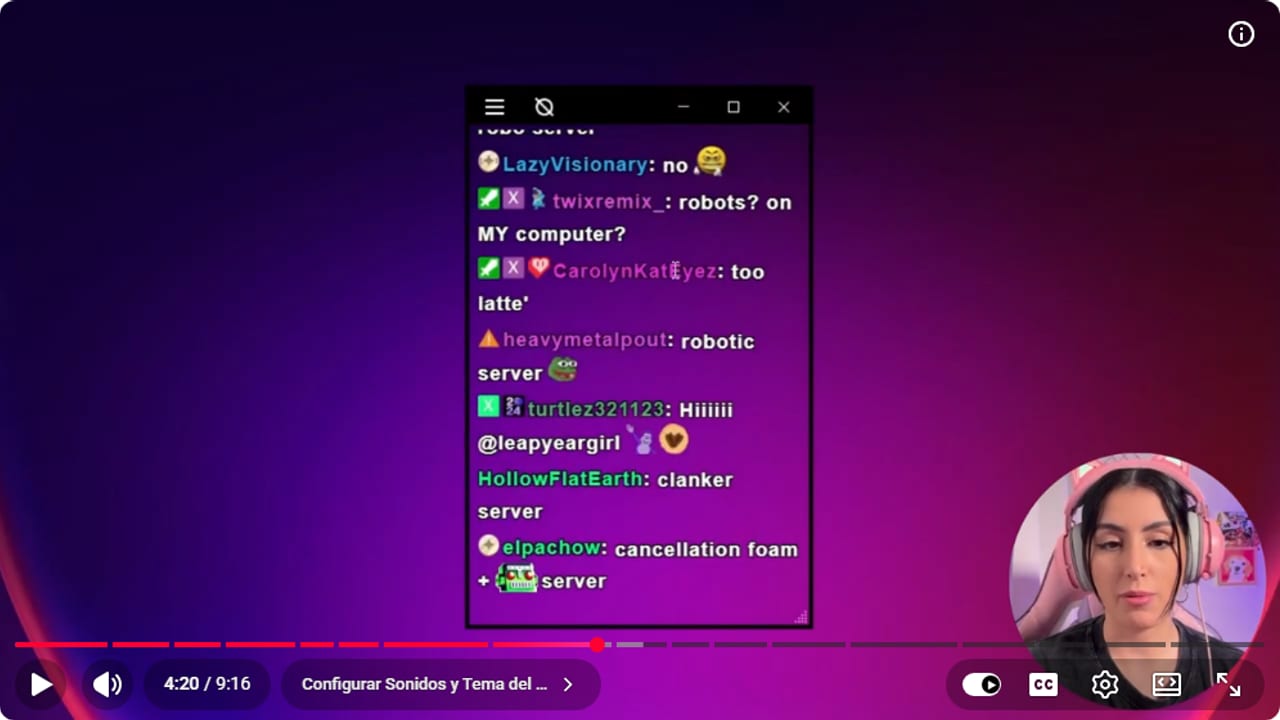
The desktop test checks chat size, opacity, and position. YouTube · 4:21 ↗ - 05
Set how long messages stay and how they look
Nicole Rojas · YouTube · 2:34 ↗In Settings, turn on Fade out all chat lines and set something like 120. Messages clear themselves instead of piling up over your game. Chat sound lets you pick a sound for every message, but I leave it off, since you can already see them. For the chat theme, choose one that's easy to read (I use the light one, white text with a black outline). Click Save.
What you should see: Old messages fade out of the window on their own and new ones read clearly.
- 06
Set up user and bot filters
Nicole Rojas · YouTube · 3:04 ↗Open chat filter settings. Under Usernames you can highlight certain people in a color, like VIPs or subscribers, so you can tell at a glance who's talking. Under Block names there's Block bot messages, which hides messages from bots. While you're starting out, keep it off so you still see alerts and follows without checking your phone. If you want to block words and you already run Nightbot, let Nightbot handle that.
What you should see: The people you highlighted show in their color, and your bots' alerts still come through if you left blocking off.
- 07
Run the game in windowed mode
Nicole Rojas · YouTube · 4:35 ↗Open the game and drag the chat window on top. If chat disappears in full screen, open the game's options and set the display mode to Windowed, or Borderless windowed if the game has it. In theory the game still fills the screen and the chat stays on top, though Nicole warns it may or may not work depending on the game.
What you should see: The chat window stays visible on top of the game while you play.
- 08
Put chat where it doesn't block anything
Nicole Rojas · YouTube · 5:36 ↗Move the window around and try a few spots. What matters is that it's comfortable for you and doesn't cover anything in the game, so you're not dragging it around every two seconds. It depends on the game. In Phasmophobia, for example, you spend half the time staring at the floor looking for stuff, so the bottom isn't ideal.
What you should see: You can read chat mid-match without it covering the map, on-screen text or anything else you need.
- 09
Hide the borders so you can play in peace
Nicole Rojas · YouTube · 6:06 ↗Once it's in place, click the app's border button and the window loses its frame. Now you click on the game and the chat doesn't move or steal your mouse. To edit it again, press F9. If F9 does nothing in-game, press the Windows key, find the app's icon in the system tray, right-click it and choose Toggle borders.
What you should see: Chat floats over the game with no frame, and your clicks go to the game.
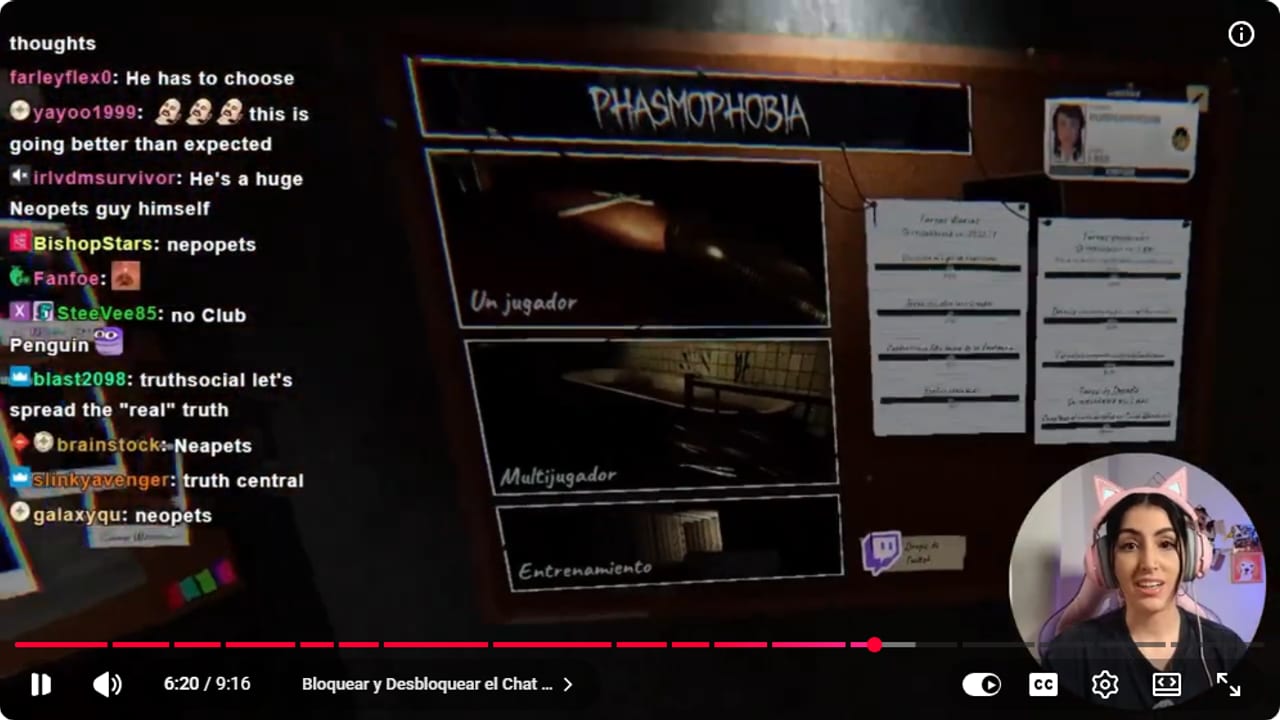
The final result keeps chat readable over the game without a full window around it. YouTube · 6:20 ↗ - 10
Want viewers to see it? Use Display Capture
Nicole Rojas · YouTube · 7:06 ↗This chat is only for you. Your viewers see whatever chat you have in your OBS overlay. To show them this one, add a Display Capture to your OBS scene instead of the game capture and pick the monitor the game is on. Careful: that shows your whole screen, including any window or notification that pops up. Close anything you don't want on stream before you go live.
What you should see: The OBS preview shows your game with the transparent chat on top.
If something does not work
- The installer won't download or open
- Happened to me too. Download the portable version from the same Latest release, which works exactly the same, and open it from its own folder. If Windows asks for WebView2 when it opens, the project's release notes say that can happen and that you need to install it.
- The window opens but no messages show up
- Check that your username is spelled right in Settings and that you clicked Save. Send a test message in your chat. You don't need to connect Twitch unless you want channel point redemptions.
- Chat vanishes when the game is full screen
- Full screen mode draws over the window. Switch the game to Windowed or Borderless windowed in its video options. Some games work either way and some don't, so test yours.
- You press F9 mid-game and nothing happens
- Plenty of games grab F9 for themselves. Press the Windows key, find the app's icon in the system tray, right-click and choose Toggle borders. The frame comes back and you can move it.
- The window fills up with bot messages
- Bots, as usual. Turn on Block bot messages in chat filter settings. If you still want follow alerts, leave it off and add only the bots that bug you under Block names.
Test before you go live
- You open the app from your desktop before going live, with your username already saved.
- In a real match, chat doesn't cover anything you need to see.
- You know how to bring the borders back if you need to move the window mid-stream.
- If you don't want to show this chat, your OBS scene has no Display Capture in it.
- And that's it: chat in view, phone in your pocket and a battery that lasts the whole stream.
Cómo ver el chat de Twitch sobre tu juego con un solo monitor
Watch the full tutorial (in Spanish) ↗Common questions
Is Transparent Twitch Chat Overlay free?
Yes, completely. You download it from its GitHub page, and it works alongside OBS or whatever software you stream with.
Do I have to connect my Twitch account?
No. Your username in Settings is all it needs. It only asks you to connect Twitch if you want channel point redemptions to show in the window.
Can my viewers see this chat?
No, it's meant for you to read. To show it, you'd use Display Capture in OBS, which streams your entire monitor. Make sure nothing private is open before you do that.
Does it work with the game in full screen?
The app is designed for games in windowed or borderless windowed mode. In full screen the chat sometimes ends up behind the game. If you can't see it, change the game's display mode.
Can I see follows and alerts in this window?
Yes. Leave Block bot messages off and you'll see alerts, like when someone follows you. Nicole also says you can add a StreamElements bot under Block names so follows and subs show up in this window, though she doesn't have a tutorial for that yet. Early on you might not have tons of people chatting (fingers crossed you do), so it helps to have everything in one place.


