

Short answer
Before you start
- OBS Studio with your scene already set up (Aitum only works with OBS, not Streamlabs)
- Your Twitch, YouTube or TikTok accounts, plus each one's stream key
- A free Restream account or the Aitum Multistream plugin
- A speed test result so you know how much upload you have
Bring your setup to a 24/7 AI Streamer Coach
Ask Streamer Coach →Get personalized feedback to fix streaming issues and plan your next content.
Step by step
- 01
Pick your method: Restream or Aitum
Nicole, the two multistream methods ↗Want to stream to Twitch, YouTube and TikTok without your computer melting? Spoiler: most tools that promise multistreaming are a mess or cost a fortune. You have two routes. With a relay like Restream, OBS sends one signal and Restream passes it along. It's lighter on your CPU and connection, but some features sit behind a paywall, it can drop, and the bitrate is tied to Twitch's, so YouTube loses quality. With the Aitum Multistream plugin, you create one output per platform with its own bitrate, and your YouTube VOD looks much better, but it uses more CPU and bandwidth.
What you should see: You know which method you'll use: Restream for ease, Aitum for quality and control.
- 02
Check Twitch's simulcasting rules
Official Twitch Simulcasting Guidelines ↗Before you plan the stream, open Twitch's official guide. Twitch allows simulcasting unless your agreement requires exclusivity. The Twitch experience can't be worse than on other platforms, and you can't use Twitch to send viewers to a concurrent stream elsewhere. A combined chat works fine as a private dashboard. If you plan to show messages from other platforms on screen, read the guide again first.
What you should see: Twitch's guide shows you the simulcast conditions, and nothing in your Twitch layout points viewers somewhere else.
- 03
Restream: create your account and copy your key
Nicole, account and stream key setup ↗If you went with Restream, create an account, go to Home and choose the option to stream over RTMP from OBS. Follow the walkthrough it shows you and copy your stream key. That key is basically your ID as a streamer: anyone who has it can stream on your channel. Don't share it and don't show it on screen.
What you should see: Restream shows your stream key next to the instructions for connecting OBS.
- 04
Restream: add your channels
Nicole, adding channels and checking limits ↗On the side you'll find Add channels, with every platform on offer: YouTube, Twitch, Kick and more. Connect each account. The free plan lets you stream to two platforms, and you'll have to pay to add more. To start, Twitch and YouTube are plenty, and you get the VOD straight on YouTube as a bonus.
What you should see: Your Restream dashboard lists your two connected channels, each with its platform logo.
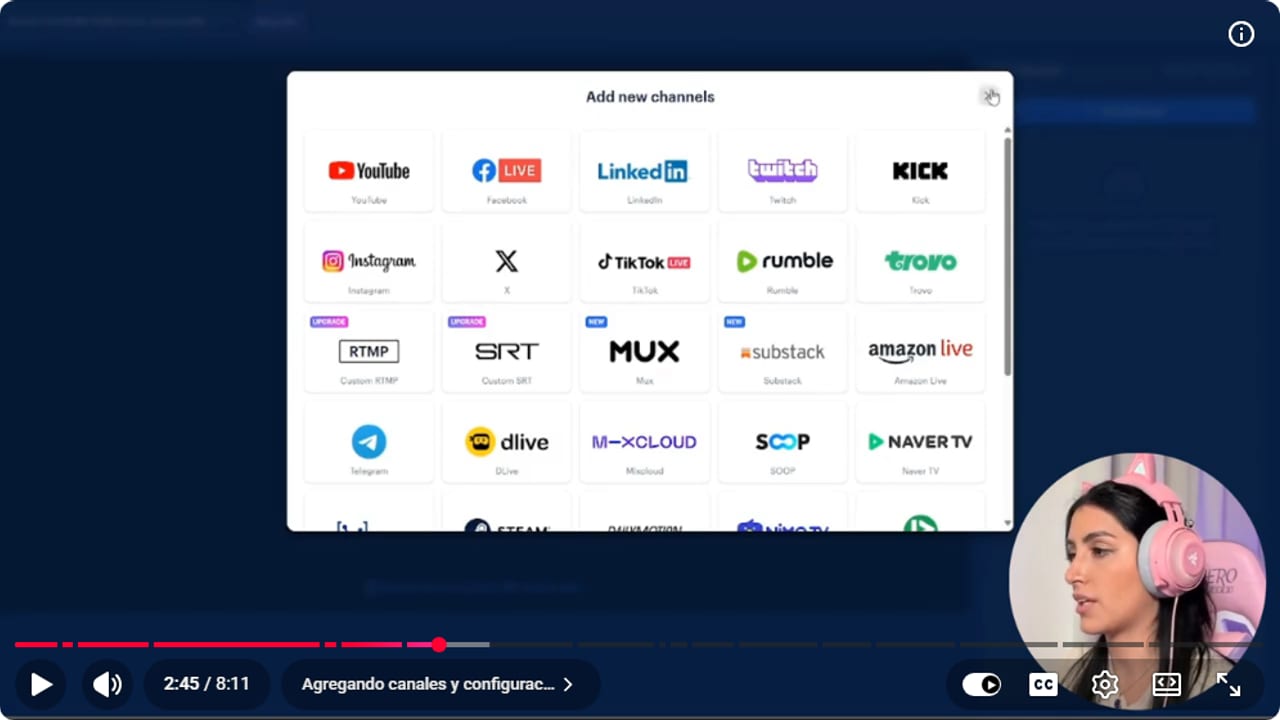
Restream collects available destinations before OBS sends one output. YouTube · 2:46 ↗ - 05
Restream: check titles, schedule YouTube and connect OBS
Nicole, preparing titles and the YouTube broadcast ↗Restream often changes your titles, so check them on every channel. When you connect YouTube, Nicole asks you to link it to a stream that's already scheduled and to start at the time you set in YouTube, within 3 minutes. She says that if you start later, Restream lags, goes haywire and stops working, so be ready. That's the rule she gives. Today Restream's support article (dated July 8, 2026) says YouTube lets you start a scheduled event at any time, with no restrictions on starting early or late. Then in OBS, open Settings, Stream, pick Restream.io as the service and connect your account. Set your OBS output to Twitch's recommended settings, since with a relay every platform gets that same bitrate.
What you should see: OBS Settings, Stream shows Restream.io as the service with your account connected, and each channel in Restream shows the title you wrote.
- 06
Aitum: add one output per platform and pick the encoder
Nicole, installing Aitum, adding outputs and picking the encoder ↗If you went with Aitum, download it, install it and reopen OBS. Go to Docks, Aitum Multistream, and put the dock somewhere handy. In its settings, open Main canvas, click Add output, choose the server (YouTube, for example) and paste that platform's stream key. Then, under Advanced settings, decide on the encoder. With Main encoder, every output shares one and YouTube gets Twitch's bitrate. With one per platform, you can send Twitch at 6000 and YouTube at 10000, but it's like streaming twice: in that example your connection has to handle 16000. Test your upload before you decide.
What you should see: The Aitum Multistream dock lists one output per platform, each with its server and its own start button.
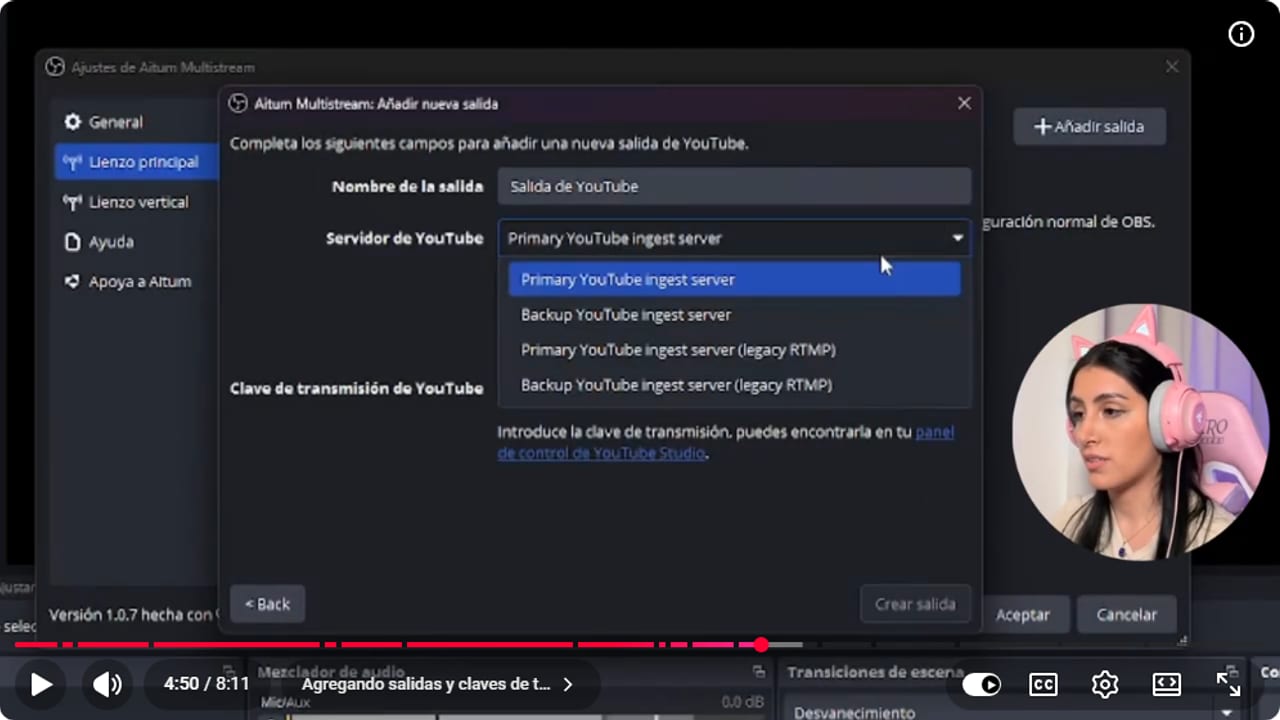
Aitum lets you choose a server and output for each destination inside OBS. YouTube · 4:51 ↗ - 07
Start the streams and watch Stats
Nicole, starting outputs and reading Stats ↗When everything's set, start each stream by clicking the green circles in the Aitum dock. Open View, Stats, and keep it handy for the whole stream. Watch Frames missed due to network: if that number climbs, lower the bitrate or leave it at a steady value for now.
What you should see: Each output's circle changes color when it starts, and Stats shows network dropped frames close to zero.
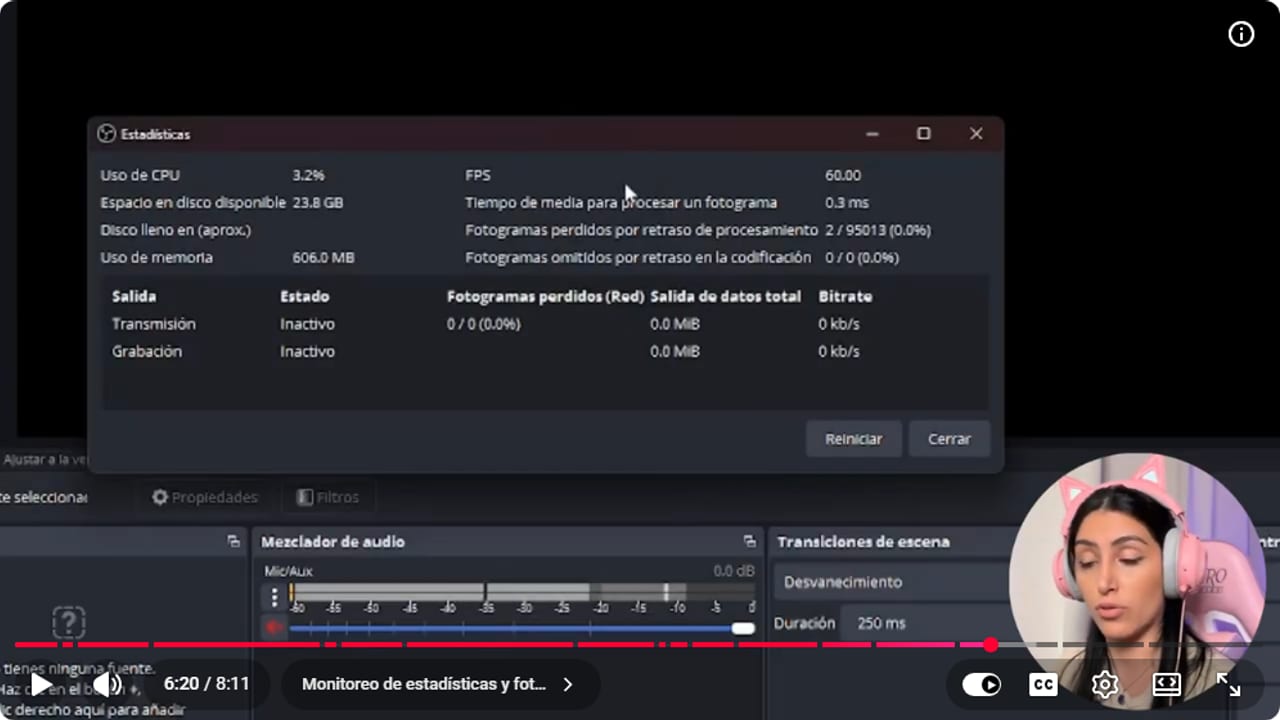
Stats shows CPU, FPS, and dropped frames while multiple outputs are running. YouTube · 6:21 ↗ - 08
Decide on TikTok and keep what works for you
Nicole, choosing the right setup ↗If you want to go live on TikTok or Reels, Aitum has a vertical canvas. Set it up under Settings, Vertical canvas, and give it an output. Just remember that every platform you add eats more of your computer and connection, and that's when stutters and weird bitrates show up. I don't really recommend streaming live to TikTok, since it's more of a short video platform, but if it works for you, go for it. Bottom line: want ease, use Restream. Want quality, control and free, use Aitum.
What you should see: Your multistream runs on the platforms you picked, and Stats stays steady with every output switched on.
If something does not work
- Restream lags or won't start with YouTube
- Nicole recommends starting at the time you scheduled the stream in YouTube, within 3 minutes, because she says Restream lags and stops working if you start later. Today Restream's support says YouTube lets you start a scheduled event at any time, with no restrictions. If it happens to you anyway, start as close as you can to the time you set and check that the YouTube stream is linked in Restream.
- Your stream goes out with a different title
- Restream often changes titles when you connect channels. Check them in Restream and in each platform's dashboard before you start. Looking at OBS alone isn't enough.
- Your stream looks worse on YouTube than on Twitch
- With Restream, or with Main encoder in Aitum, everything goes out at Twitch's bitrate. For a sharper YouTube stream, use Aitum with one encoder per platform, as long as your connection can handle both bitrates added together.
- Stats shows lots of frames missed due to network
- You're sending more than your upload can carry. Add up the bitrates of every output and compare with your speed test. Lower one output's bitrate, switch back to Main encoder or drop a platform.
- A platform dropped on Restream and started over from zero
- Restream has no disconnection protection, so if the connection cuts, the stream starts again from scratch. Aitum doesn't depend on a relay, but it uses more CPU and internet, so check whether your computer and upload can take it.
Test before you go live
- You picked one method, Restream or Aitum, based on your computer and connection.
- Your stream keys are pasted only into Restream or Aitum and never visible on screen.
- If you use Restream with YouTube and linked a scheduled stream, you know the time it's scheduled for and start close to it (Nicole recommends within 3 minutes).
- Your bitrates add up to comfortably less than the upload your speed test gave you.
- Nothing on your Twitch stream sends viewers to another live stream.
- And that's it: you're live in several places at once. You don't need the best computer in the world or a perfect first day.
Cómo hacer multistream gratis en Twitch, YouTube y TikTok desde OBS
Watch the full tutorial (in Spanish) ↗Common questions
Which should I use, Restream or Aitum?
If you want it easy and your computer or connection has little headroom, go with Restream: one signal and done. If you want better quality and more control for free, go with Aitum, as long as your setup can handle several outputs.
Is multistreaming really free?
Aitum is free. Restream is free for two platforms and paid beyond that. Nicole thinks Streamlabs has its own paid multistreaming, and Aitum doesn't work with Streamlabs.
Can I stream on Twitch and YouTube at the same time?
Yes, as long as you follow Twitch's simulcasting rules and your agreement doesn't require exclusivity. Your Twitch stream has to look as good as everywhere else, and you can't use Twitch to send people to the other stream. Read the official guide before you start.
What bitrate should I use on each platform?
Nicole says Twitch sits between 6000 and 8000. Today Twitch's broadcasting guidelines recommend 6000 for 1080p60 (4500 for 720p60) and don't list a maximum. YouTube can go higher, such as 10000 or 15000. With one encoder per platform, your connection has to carry the total of all of them. Run a speed test and leave some room.
Does Aitum give me access to TikTok Live?
No. Aitum uses the stream key each platform gives you. If TikTok doesn't give your account a way to stream from OBS, installing the plugin won't change that. Check what your TikTok account offers first.


