

Short answer
Before you start
- A free Canva account. Elements with a crown are paid, so we'll stick to the free ones.
- OBS with your remote podcast scenes already set up: both of you, just you and just your guest
- Your logo as a PNG with a transparent background, or your initials if you don't have one yet
- Optional: your brand colors, or Coolors to put a palette together quickly
Bring your setup to a 24/7 AI Streamer Coach
Ask Streamer Coach →Get personalized feedback to fix streaming issues and plan your next content.
Step by step
- 01
Open a 1920 x 1080 design and find a reference
Nicole Rojas | YouTube | 0:55 ↗Your tech setup is spotless, but your podcast still looks like it was shot in the living room. Overlays fix that. In Canva, click Create, Custom size, enter 1920 wide by 1080 high, the same size you use in OBS, and click Create design. Search for interview under Design to get ideas. Look for templates with room for two cameras, a minimal style so the focus stays on the people, and a vertical or diagonal line so it feels like you're in the same space.
What you should see: A blank 1920 x 1080 px canvas opens, with interview templates on the left.
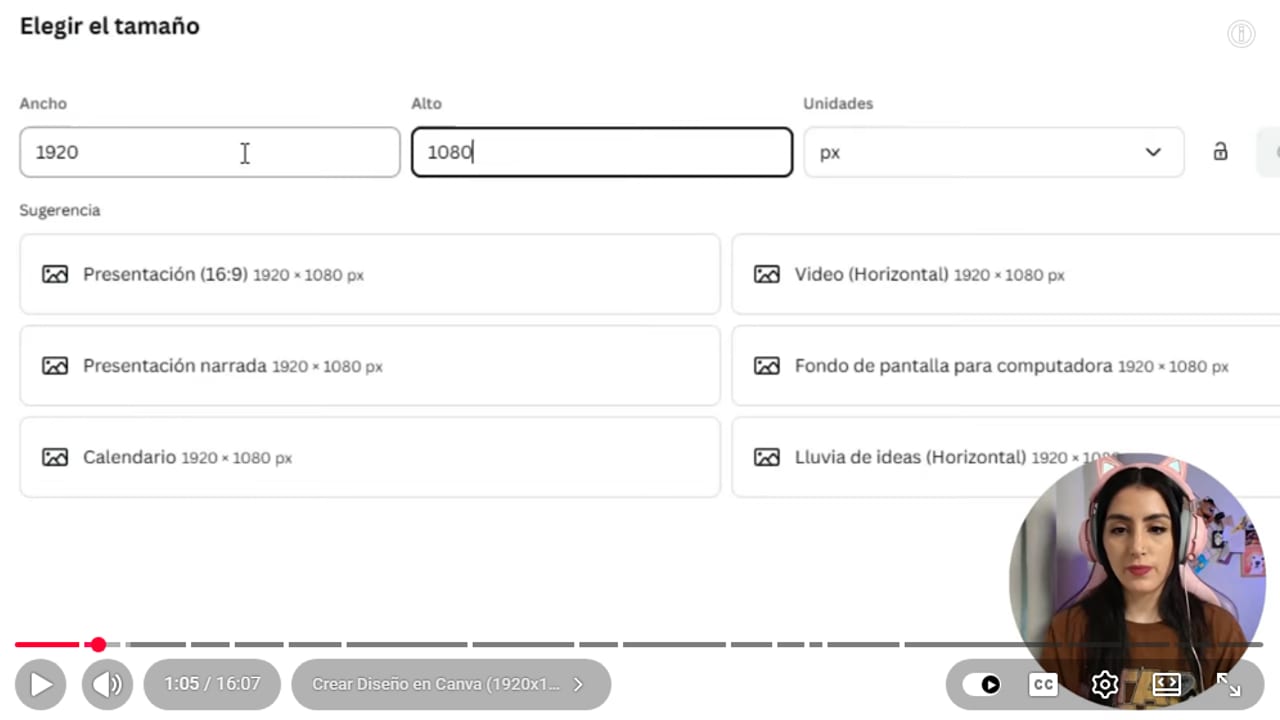
1920 by 1080, the same size as your OBS canvas, so the overlay fits exactly. YouTube · 1:06 ↗ - 02
Set a green background and pick your palette
Nicole Rojas | YouTube | 2:25 ↗Paint the background green. OBS removes that green later and your cameras show through. If you have brand colors, use them. If not, go to Coolors, hit Generate until a palette clicks and save it. Stick to three colors at most, with one light shade for dark text and one dark shade for white text. While you design, you can switch the background to black so it's easier to see, then go back to green at the end.
What you should see: You have three colors picked and the canvas background is green (or black while you work).
- 03
Add the center line and your logo
Nicole Rojas | YouTube | 3:08 ↗Add a vertical line down the middle in your main color, a little thick, to split the two cameras. Then upload your logo under Uploads and put it in a corner. It needs to be a PNG with a transparent background, because removing backgrounds inside Canva is a Canva Pro feature. No logo? Type your initials or drop in a microphone icon.
What you should see: The line splits the canvas in half and your logo sits in a corner with no box behind it.
- 04
Build the lower third with your name
Nicole Rojas | YouTube | 4:07 ↗Under Elements, search lower thirds and pick one that fits your style. Place it at the bottom, duplicate it so the bar runs long, group it and recolor it from your palette. Then go to Text, pick a heading combo you like, ungroup it and type your name and your role, like editor or streamer. If none of them work for you, Roboto, Montserrat Bold and Bebas Neue pair well. What matters is that it's readable: black text on a light bar, or white on a strong color.
What you should see: A bar along the bottom shows your name in large type with your role underneath, readable at a glance.
- 05
Add your socials under the name
Nicole Rojas | YouTube | 5:50 ↗Go to Elements and make a rectangle in the third color of your palette, with the same corner style as the rest of the design. Put the platform icon inside, say Instagram logo, plus your handle. Lower the opacity a bit so it doesn't fight with your name. Group it, duplicate it for each platform, and center the row or push it to one side. Keep it to three or four, or your overlay starts looking like a flyer.
What you should see: Under the lower third there's a row of three or four matching blocks, each with an icon and your handle.
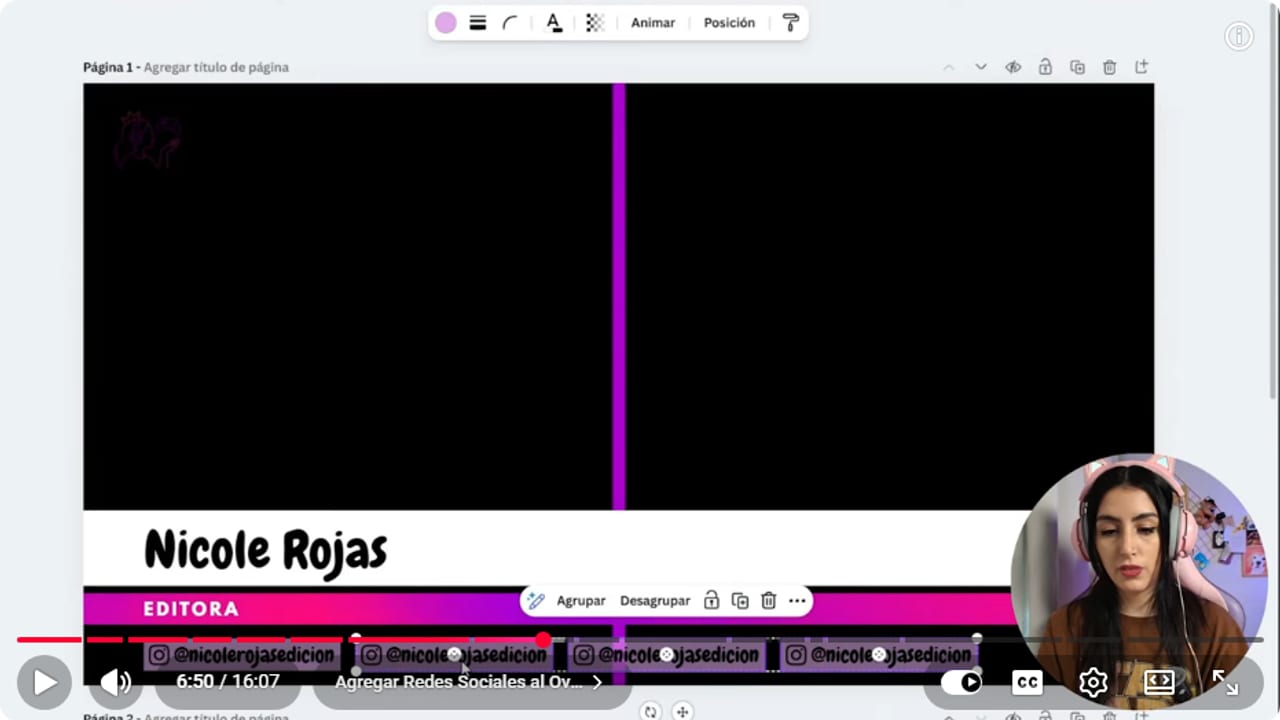
Social blocks sit grouped under the name. Three or four is plenty. YouTube · 6:51 ↗ - 06
Turn the camera areas green and finish the two-person page
Nicole Rojas | YouTube | 7:05 ↗Paint both camera areas green again. Nothing can sit on them, no images and no text. Select your lower third with the socials, duplicate it and move the copy to the other side for your guest, with the name Guest and their role. At the top of the page, where it says Add page title, type overlay both. Canva uses that name when you download, so you won't be guessing which file is which in OBS.
What you should see: Page 1 is named overlay both and shows two green areas, each with its own lower third.
- 07
Duplicate the page for your solo overlay
Nicole Rojas | YouTube | 7:48 ↗Duplicate the page. On the copy, delete the center line and stretch your bar so your camera fills the screen. If that's too much green for your taste, add a border: under Elements pick a square, stretch it to the full canvas, remove the fill, and set the stroke weight and color to match your style, or use a gradient. Send it to the back under Position. If it covers your socials, move them to the top. Name the page overlay solo host.
What you should see: Page 2 shows one large green area with a colored border around it and your name at the bottom.
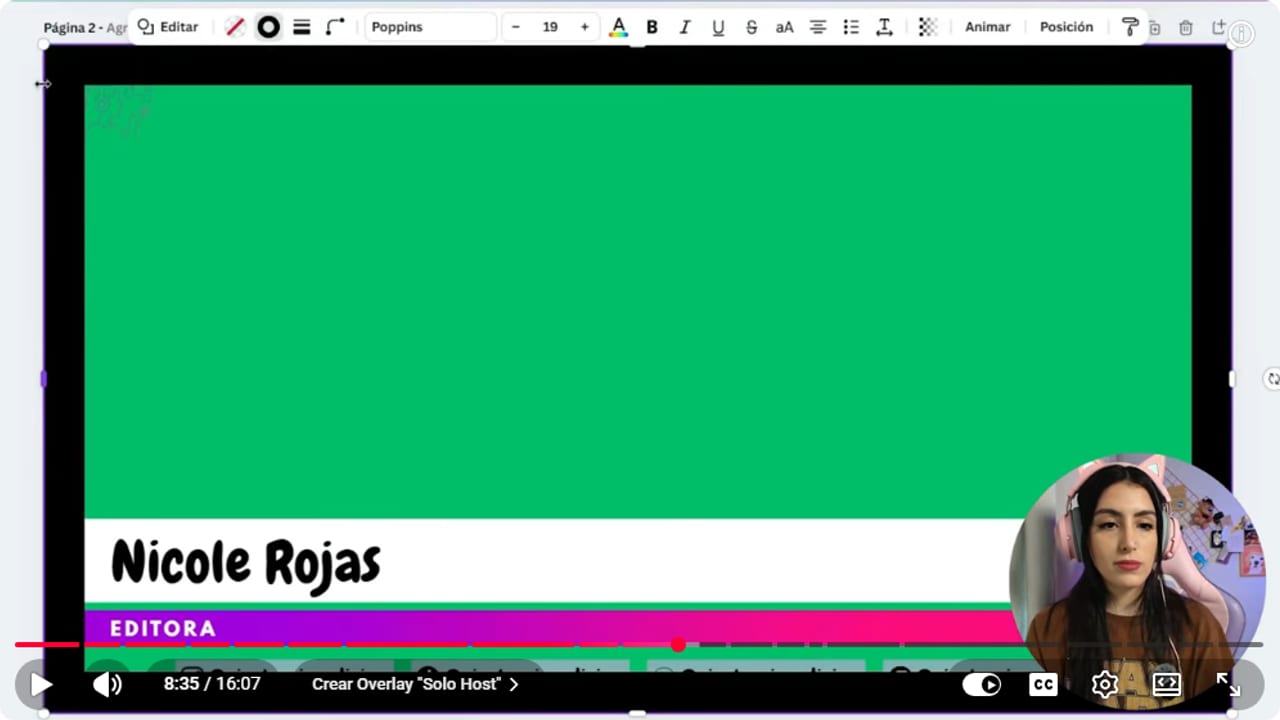
On your solo overlay, an unfilled border trims the green area without covering you. YouTube · 8:36 ↗ - 08
Make the guest-only overlay
Nicole Rojas | YouTube | 9:15 ↗Duplicate the page again. Swap in your guest's name and socials. You can change the border color if you like, but keep everything else in place: logo, name and socials. That way, switching scenes feels like one connected show. Name the page overlay solo guest. If you have a new guest every week, you edit the name in Canva and download it again.
What you should see: You have three named pages: overlay both, overlay solo host and overlay solo guest.
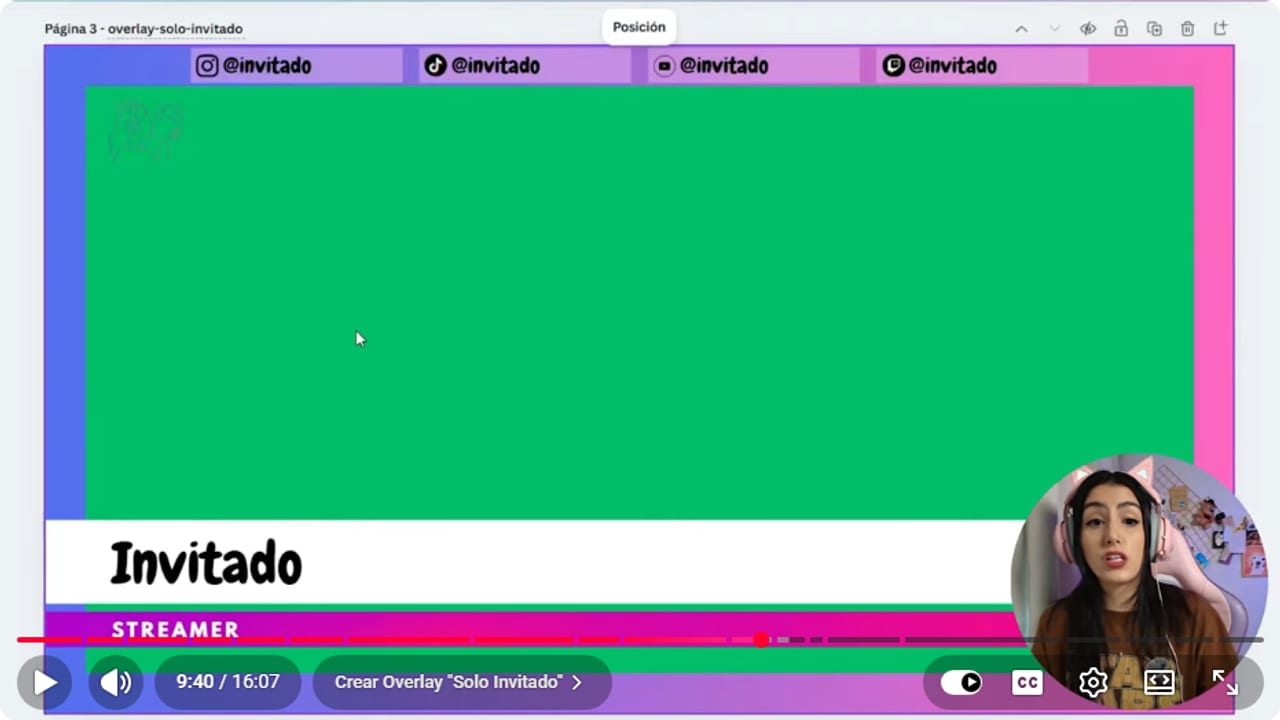
The name and socials change, but everything stays in the same spot as yours. YouTube · 9:41 ↗ - 09
Download all three pages as PNG
Nicole Rojas | YouTube | 10:12 ↗Go to Share, Download, and set File type to PNG, since these overlays have no animation. Under Select pages keep all three and click Download. Canva gives you a ZIP. Extract it into a folder you won't move, because OBS loads the image from that path.
What you should see: Your folder has three 1920 x 1080 PNGs named after each page.
- 10
Add the overlay in OBS and key out the green
Nicole Rojas | YouTube | 11:02 ↗In OBS, open the scene with both of you. The scenes and the call capture come from the remote podcast in OBS guide. Under Sources click +, choose Image, name it overlay both and browse to the PNG. Then right-click the source, Filters, + and Chroma Key. If a thin green edge is left, set Key Color Type to Custom Color and adjust the color and similarity. The key color has to be the opposite of your design: if your brand is green, use a strong orange or blue instead.
What you should see: Your cameras now show where the green was, with the frame, names and socials on top.
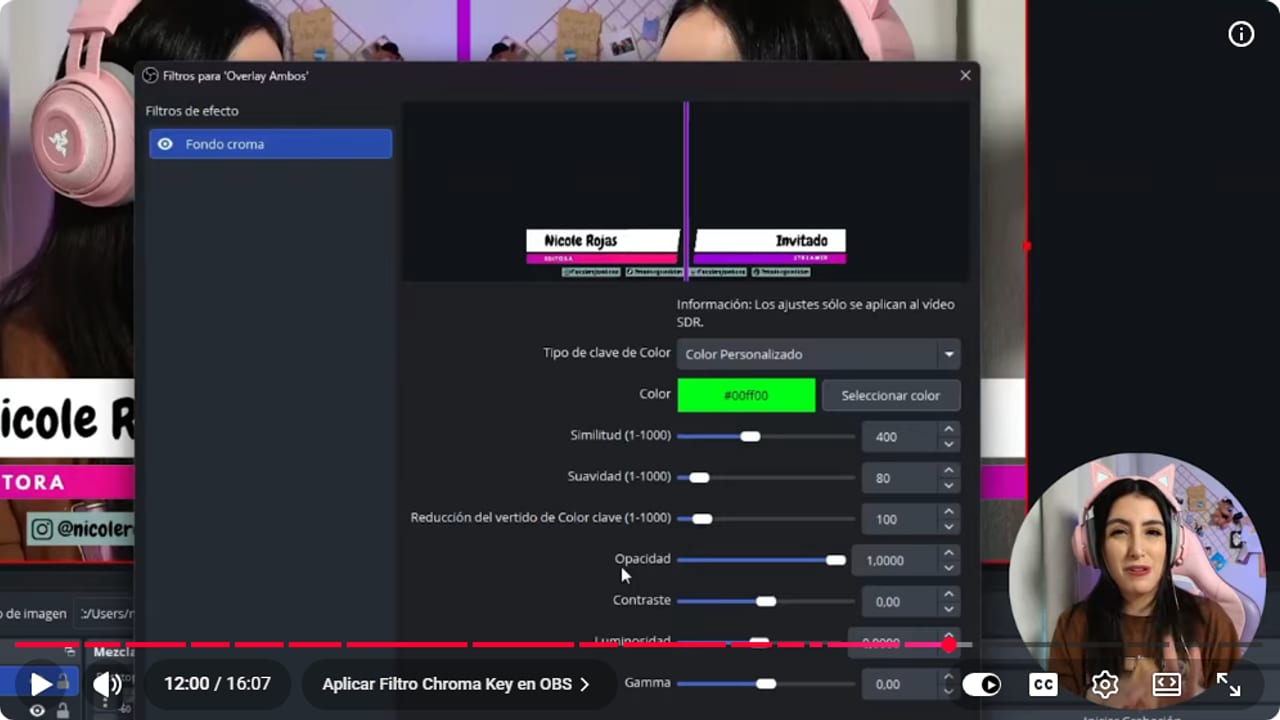
If a green edge remains, switch to Custom Color and nudge Similarity up slowly. YouTube · 12:01 ↗ - 11
Put the overlay on top and frame the cameras
Nicole Rojas | YouTube | 12:14 ↗In the Sources list, the overlay has to sit above the cameras or you won't see it. Then resize your camera and your guest's so each one fills its area and you're both framed properly. Keep the video call open while you adjust, so you're lining up real cameras and not a black box.
What you should see: In the preview, each face sits inside its half, with no empty edges and nothing hidden behind a lower third.
- 12
Repeat for the solo scenes and test the switches
Nicole Rojas | YouTube | 12:32 ↗Go to your solo scene, add overlay solo host as an Image and give it the same Chroma Key filter. Do exactly the same in the guest scene with their PNG. Then click through the scenes to make sure everything stays in the same spot. And that's it, your podcast has overlays that look the part, made in under half an hour without paying for Canva Pro.
What you should see: When you switch between the three scenes, the logo, name and socials don't jump around.
If something does not work
- A thin green edge shows around the camera areas
- In the Chroma Key filter, switch Key Color Type to Custom Color and pick the exact green you used in Canva. Then raise Similarity a little at a time until the edge disappears without eating into your design.
- Your text or border turned see-through
- The key is removing a color your design also uses. Go back to Canva and paint the camera areas a color that clashes with your style, like strong orange or blue if your brand is green, then pick that color under Custom Color in OBS.
- Your logo shows up with a white box behind it
- The file doesn't have a transparent background. Upload a transparent PNG of your logo, since Canva's background remover is part of Canva Pro. Until then, your initials in a nice font do the job.
- You added the overlay but can't see it
- It's below the cameras in the Sources list. Drag it to the very top. If it's still missing, check the source's eye icon is on and the PNG is still in the folder you extracted it to.
- The template you liked has a crown on it
- The crown means it's paid. Use it as a reference and rebuild something similar with free elements: a line, a rectangle and a good font do most of the work.
Test before you go live
- The three PNGs live in a folder you won't move or delete.
- The key color doesn't appear anywhere in your design.
- Today's guest name is spelled right.
- Your socials are readable in the small OBS preview.
- If there's music, it sits under the voices and the credit is in your description.
- Your podcast no longer looks like it was shot in the living room.
Cómo hacer overlays para podcast en Canva gratis
Watch the full tutorial (in Spanish) ↗Common questions
Do I need Canva Pro?
No. The whole kit works on free Canva, and the green background stands in for transparency because the OBS filter removes it. The one thing Pro would help with is removing your logo's background, so upload it already transparent.
How is this different from a gaming overlay?
A gaming overlay frames a game and a webcam. This kit is three matching pieces, one per podcast scene, with a lower third for each person. If you want the gaming kind, the OBS overlays guide covers it.
How do I add copyright-free music to the podcast?
I use NCS, which is free as long as you copy the artist credit into your description. If you're live, download the tracks first so you're not running another browser next to Discord and the stream, and keep the music under the voices. If you're only recording, skip the music and add it in the edit.
Can I use that music on Twitch and YouTube?
It depends on each track's license. Some can't be used in paid content, or only in educational content, so read the terms first. On YouTube there's also the Audio Library in YouTube Studio, with music you can download and use in your videos.
Do I have to redo the overlay for every guest?
If you want their name on screen, yes: change the name and socials in Canva and download again. Otherwise, leave it as Guest and call it done.
Can I reuse these overlays when I edit the podcast?
Yes. In editors like Descript you drop them above the cameras and apply the same chroma key effect you used in OBS. That way the edited video matches the live one.


