

Short answer
Before you start
- OBS Studio, free from obsproject.com
- Discord, Zoom or Google Meet for the call
- An ordinary computer, since OBS is lightweight
- A microphone (your headset mic works) and a webcam or your phone as a camera
- Optional: the free Move plugin for smooth transitions (the current version needs OBS 31.1 or newer)
- A guest who knows the conversation is being recorded
Bring your setup to a 24/7 AI Streamer Coach
Ask Streamer Coach →Get personalized feedback to fix streaming issues and plan your next content.
Step by step
- 01
Create an OBS profile for the podcast
Nicole, podcast profile ↗You want interviews like Luzu or Olga, but your guest lives in another city. Not a problem, and you don't need a NASA computer either. Go to Profile, New, and call it Podcast. In the wizard, choose to optimize for recording and apply. Then create a scene and rename it Guest cam. It will hold only your guest's camera, so you can reuse it in other scenes.
What you should see: The Podcast profile shows at the top of OBS, and Guest cam appears in Scenes, still empty.
- 02
Start the call and capture it
Nicole, capturing the guest ↗Start the video call. If your guest isn't around yet, test with a call of your own. In Discord, click your guest's video, make it full screen and hide the member list. In Guest cam, click + and add Window Capture, name it Discord guest and pick the Discord window. If it's black, turn off Discord's Streamer Mode: Nicole says that mode stops you seeing Discord while you stream, which leaves a black screen. Then hold Alt and crop away everything except your guest's camera.
What you should see: The preview shows only your guest's camera, in a source named Discord guest, with no Discord buttons.
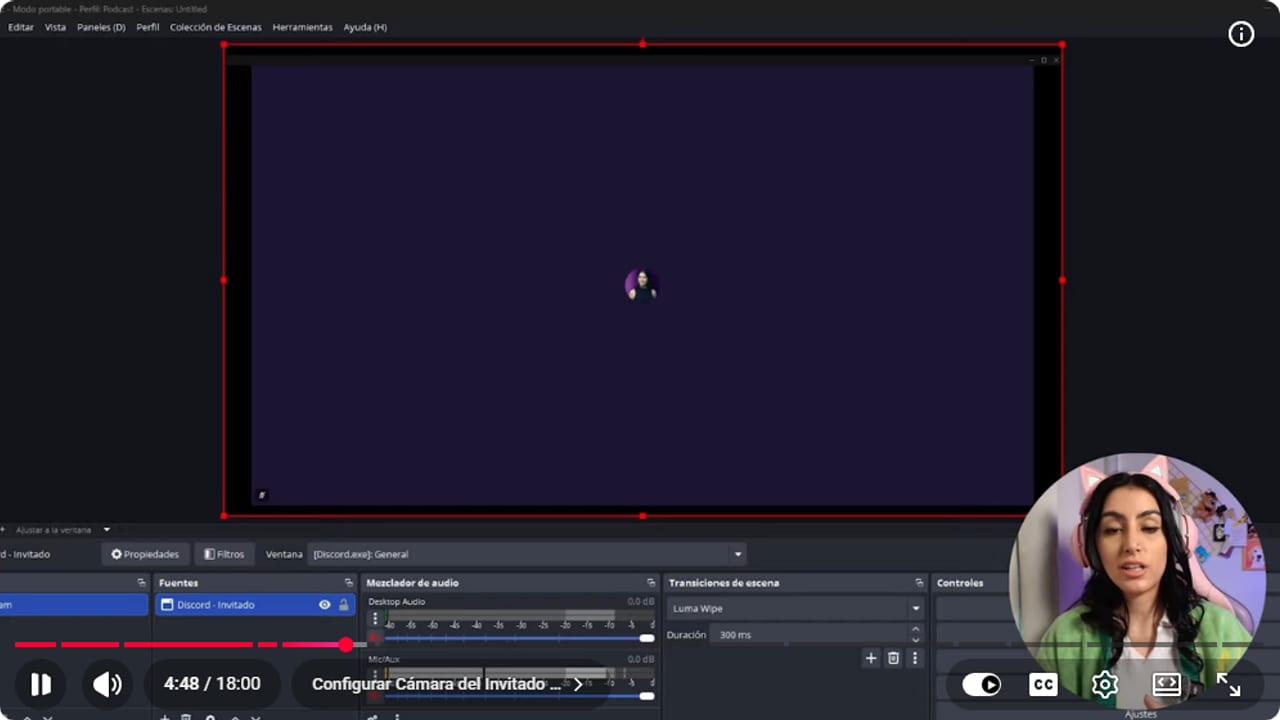
Window Capture brings the Discord call into a source named Discord - Guest. YouTube · 4:48 ↗ - 03
Add your camera and build the Both scene
Nicole, scenes as sources ↗Create another scene, My cam, with a Video Capture Device set to your camera. No webcam? Use your phone with VDO.Ninja, or a proper camera over HDMI. Now the fun part: create a Both scene, click +, choose Scene and add Guest cam and My cam. To put them side by side, hold Shift while you resize each one from the corner, then position them.
What you should see: The Both scene shows your camera and your guest's on one screen, each listed as a scene in the sources.
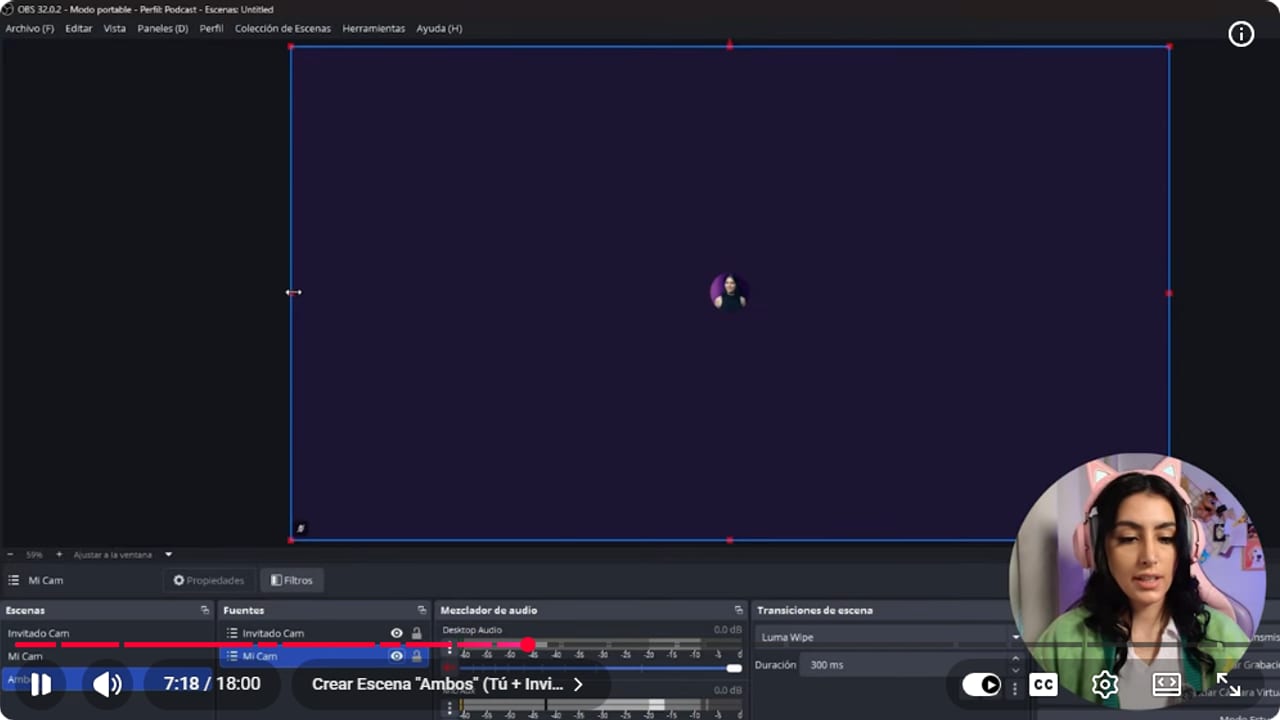
The Both scene reuses two camera scenes, with unfinished sizing at this point in the tutorial. YouTube · 7:18 ↗ - 04
Create the Guest only and Me only shots
Nicole, single shots ↗Create a Guest only scene and add both scenes, Guest cam and My cam, with your guest's on top. Move needs both present to animate smoothly, so hide yours with the eye icon or park it off screen. For Me only, right-click that scene, choose Duplicate, and flip the order so your camera is on top. You'll end up with five scenes, and during the interview you'll use the last three.
What you should see: Clicking Guest only shows just your guest, and Me only shows just you.
- 05
Check your mic and the call audio
Nicole, podcast audio ↗Go to Settings, Audio, and under Mic/Auxiliary Audio pick your microphone by name. Talk normally, like you would in a chat. The meter should sit in the yellow zone, between -15 and -10. If it's too hot, pull the fader down. Tip from this guide, not from the video: wear headphones so your guest's voice doesn't loop back through your mic.
What you should see: In the mixer, the Mic/Aux meter moves when you talk and sits in the yellow zone.
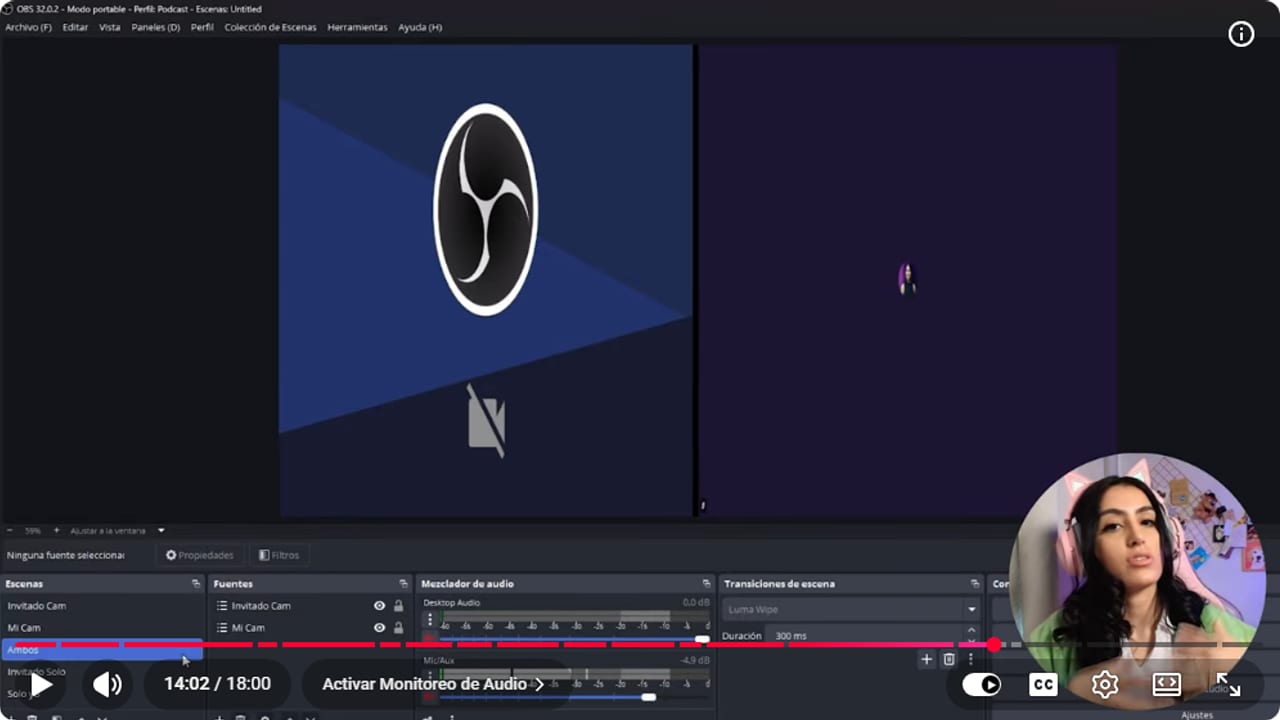
The mixer keeps call audio on Desktop Audio and the local microphone on Mic/Aux as separate controls. YouTube · 14:03 ↗ - 06
Add mic filters in this order
Nicole, microphone filters ↗Click the three dots on your mic, then Filters, and add them in order. Noise Suppression. 3-Band Equalizer (high 0, mid 2.5 and low 1 as a starting point). Expander with a low threshold, so whispers come through but your keyboard doesn't. Compressor at ratio 3, threshold -30, attack 2 and release 10, which lifts whispers and tames loud laughs. Limiter at -10, so a scream doesn't distort. While you tweak, set Monitor and Output in Advanced Audio Properties so you can hear yourself. Around 13:48 Nicole points out that your guest's audio will come out through a separate audio source (her sentence is cut off in the video). This guide adds that in OBS that is normally Desktop Audio, so the mixer gives you one control for you and one for the call.
What you should see: The filter list shows all five in that order, and a loud laugh no longer pushes the meter into the red. According to this guide, not the video, Desktop Audio in the mixer moves when your guest talks.
- 07
Install Move for smooth transitions
Nicole, Move transition ↗Download the Move plugin from the OBS resources page and pick the version with an installer, which sets everything up for you. The current version of Move requires OBS 31.1 or newer, so update OBS first if yours is older. Install it with OBS closed. Under Scene Transitions, click +, choose Move and call it Podcast transition. Play with the curve and easing, check the preview, and set the duration between 500 and 1000 milliseconds.
What you should see: Switching from Both to Guest only slides the cameras into place instead of hard-cutting.
- 08
Give each shot a hotkey
Nicole, scene hotkeys ↗In Settings, Hotkeys, scroll to your scenes and assign 1 to Both, 2 to Guest only and 3 to Me only. Double-check they're those three scenes, not Guest cam or My cam. Apply and click OK. Recording this way means you barely need to edit afterwards, because you're cutting it live.
What you should see: Pressing 1, 2 or 3 switches OBS to that shot with your transition.
- 09
Improve the picture for free
Nicole, improving the picture ↗Your phone camera is probably better than your webcam, and you already own it, so connect it with VDO.Ninja. For light, a window, a cheap panel or ring light, or light bounced off a white wall will do. Put the camera straight in front of you, just above eye level, so you're never looking up or down at it.
What you should see: In Me only, your face is well lit and the camera sits at eye level.
- 10
Prepare the interview
Nicole, interview preparation ↗The best setup won't save a conversation with no structure. Skip the classic so, tell us who you are: research your guest and introduce them yourself. Pick one clear topic and ask what your audience actually wants to know, while respecting your guest's privacy. Look through their socials, videos and projects beforehand so your questions are sharper. And that's it, you're ready to record a remote podcast that looks the part.
What you should see: You have a written intro for your guest and a list of questions on one topic.
If something does not work
- The Discord capture is black
- Nicole explains that Discord's Streamer Mode stops you seeing the window while you stream, which is why the capture is black. Turn it off in Discord's settings and your guest's video shows up. Mind what that mode does: Discord's help describes it as hiding personal info (usernames, emails, invite links) and muting notifications, so with it off those details show on screen again.
- The Move transition cuts instead of sliding
- Move needs both scenes present in every shot. In Guest only and Me only, don't delete the other camera: hide it with the eye icon or keep it off screen.
- You press 2 and get a bare camera with no layout
- The hotkey is on Guest cam or My cam. In Settings, Hotkeys, move it to Guest only or Me only.
- Your keyboard is audible every time you type
- Keep the Expander threshold low, like Nicole does: a small threshold lets whispers through but not the keyboard. If you can still hear typing, adjust it a little at a time while you listen with monitoring on.
- Your guest sounds doubled or echoey
- Their voice is coming out of your speakers and back into your mic. Tip from this guide, not from the video: put on headphones and the echo goes away.
Test before you go live
- You have a plan in case your guest's connection drops.
- You closed notifications and any windows that shouldn't show up on camera.
- Your computer is plugged in and the heavy programs you don't need are closed.
- Your voice and your guest's each come through once.
- You recorded a few test minutes and the file looks and sounds good.
- You told your guest when you start and how long the conversation runs.
Cómo hacer un podcast remoto en OBS con invitados a distancia
Watch the full tutorial (in Spanish) ↗Common questions
Does a remote podcast in OBS cost anything?
No. OBS, Discord and the Move plugin are free, and your phone can be your camera through VDO.Ninja. The one thing worth adding if you can is a decent microphone, though a headset mic is fine to start.
Does this work with Zoom or Google Meet as well as Discord?
Nicole says it works the same with Google Meet or Zoom, but in the video she only demonstrates Discord. The idea carries over: guest full screen, Window Capture and a crop with Alt. Discord-specific steps, like hiding the member list or turning off Streamer Mode, depend on your app, so check what yours shows.
Can I record each guest separately?
Yes, with the Source Record plugin, the same one used to record gameplay and webcam separately. It gives you one file per camera for more control in the edit.
Do I have to use Move?
No, OBS switches scenes fine with its standard transitions. Move makes the cameras slide instead of cut, which gives your podcast a more polished feel.
Where do I get layout ideas?
Watch podcast channels you like, such as Luzu, Olga or Gelatina, and notice what they do with their shots, banners and name tags. Take the ideas you like and make them your own.


