TWITCHSOUND ALERTS
How to show emotes on screen and an emote combo counter with Sound Alerts
Set up a free emote wall, an emote combo counter and emote explosions on Twitch with Sound Alerts, all running from a single Browser source in OBS.


Short answer
Before you start
- A Twitch account
- A free Sound Alerts account (you sign up with Twitch)
- OBS Studio, Streamlabs or any streaming app that takes a Browser source
- Optional: BetterTTV, 7TV or FrankerFaceZ emotes on your channel. Sound Alerts shows those too.
Bring your setup to a 24/7 AI Streamer Coach
Ask Streamer Coach →Get personalized feedback to fix streaming issues and plan your next content.
Step by step
- 01
Connect Sound Alerts to your Twitch
Nicole Rojas | YouTube | 1:48 ↗Seen those streams where emotes go flying across the screen, or a fighting-game style counter pops up when chat spams the same emote? We're building that, for free. Go to the Sound Alerts site, click Dashboard, connect your Twitch account and authorize it.
What you should see: The Sound Alerts Dashboard opens, with a left menu that includes Home, Library, My Alerts and Scenes.
- 02
Create a new scene under Scenes
Nicole Rojas | YouTube | 2:05 ↗Open Scenes from the menu. There are ready-made overlays and a fully custom option, but we're using widgets. Click Add New Scene. Treat it like an OBS scene: everything you put here comes out together through one link.
What you should see: The Scene Editor opens with an empty canvas and an Add Widget button on the left.
- 03
Add the Emote Wall across the full screen
Nicole Rojas | YouTube | 2:35 ↗Click Add Widget, find Emote Wall and click Use Widget. A box appears showing where the animation will play. It can cover part of the screen or all of it. I set mine to 1920 by 1080 so the emotes get the whole space.
What you should see: Emote Wall shows up in the Widgets list and its box covers the whole canvas.
- 04
Pick the animation and turn on Spam Filter
Nicole Rojas | YouTube | 3:00 ↗On the right, under Emote Wall Settings, choose an animation: Slide, Balloon Pop, Float Up, Waterfall or Random. I went with Waterfall. Then set how many emotes show, how long they last and how big they are (I left size at 50). Tick Spam Filter and give it a 3 to 5 second limit, so when chat gets wild the emotes don't bury your whole screen.
What you should see: Emote Wall Settings shows Waterfall as the animation, with the Spam Filter box ticked.
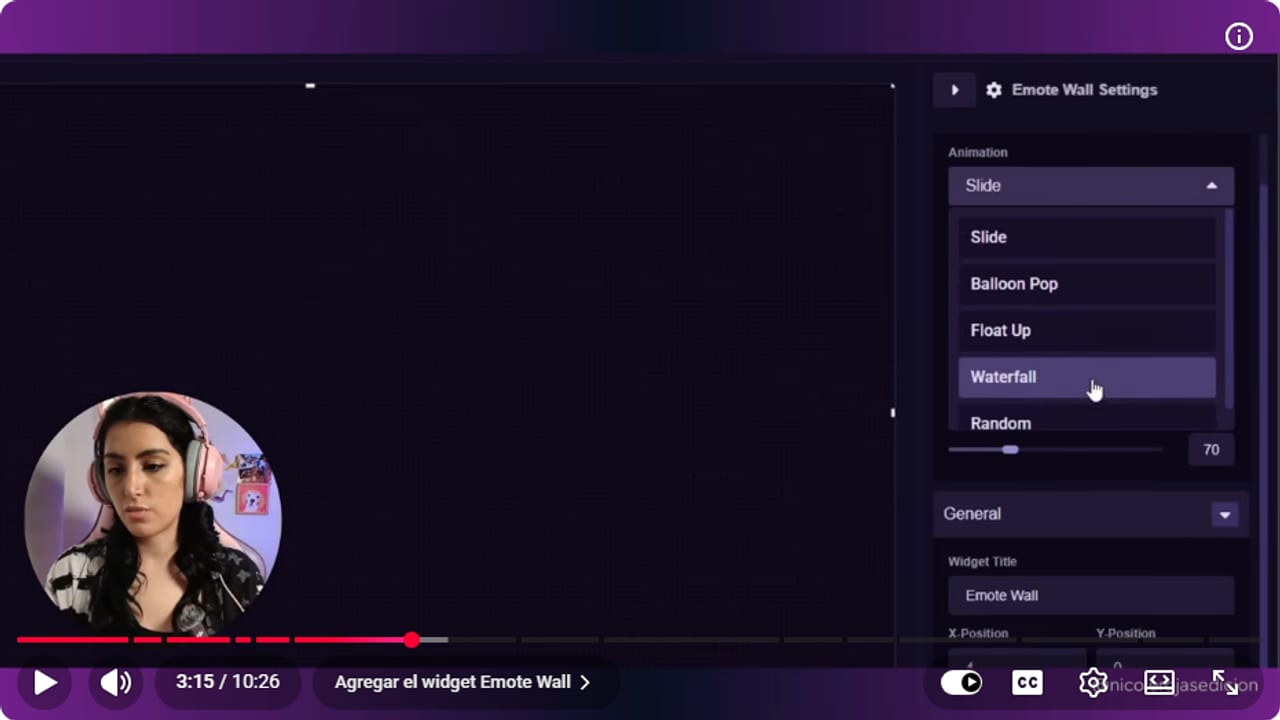
Waterfall makes emotes pour down the screen. Random picks a different animation each time. YouTube · 3:16 ↗ - 05
Test it with Emulate Chat Message
Nicole Rojas | YouTube | 3:42 ↗Below the canvas, click Emulate Chat Message to watch emotes fall as if your chat sent them. If your chat is small, around 5 to 10 people, drop the emote limit to 10. The screen looks full that way, instead of one lonely emote drifting down like the end of a sad movie. With a busier chat, raise it.
What you should see: Test emotes fall across the canvas using the animation you chose.
- 06
Add the Emote Combo somewhere it won't cover anything
Nicole Rojas | YouTube | 4:35 ↗Click Add Widget again, scroll to Emote Combo and add it. Its box marks where the counter goes. Look at where your overlay puts your camera, chat and alerts, and move the box to a free corner.
What you should see: The Emote Combo box sits in an empty part of the scene, clear of your camera and chat.
- 07
Set when the combo starts and when it resets
Nicole Rojas | YouTube | 5:12 ↗Emote Combo Settings has three numbers. Combo Initial Threshold is how many matching emotes it takes to start the counter. With a small chat, use 2. Combo Incremental Threshold is how many more it takes to reach each of its three animation stages (I kept 2). Combo Reset Timer is how many seconds it waits for someone to keep the combo going before it drops it (I used 5). You can lower the opacity too.
What you should see: Emote Combo Settings reads 2, 2 and 5 for Initial Threshold, Incremental Threshold and Reset Timer.
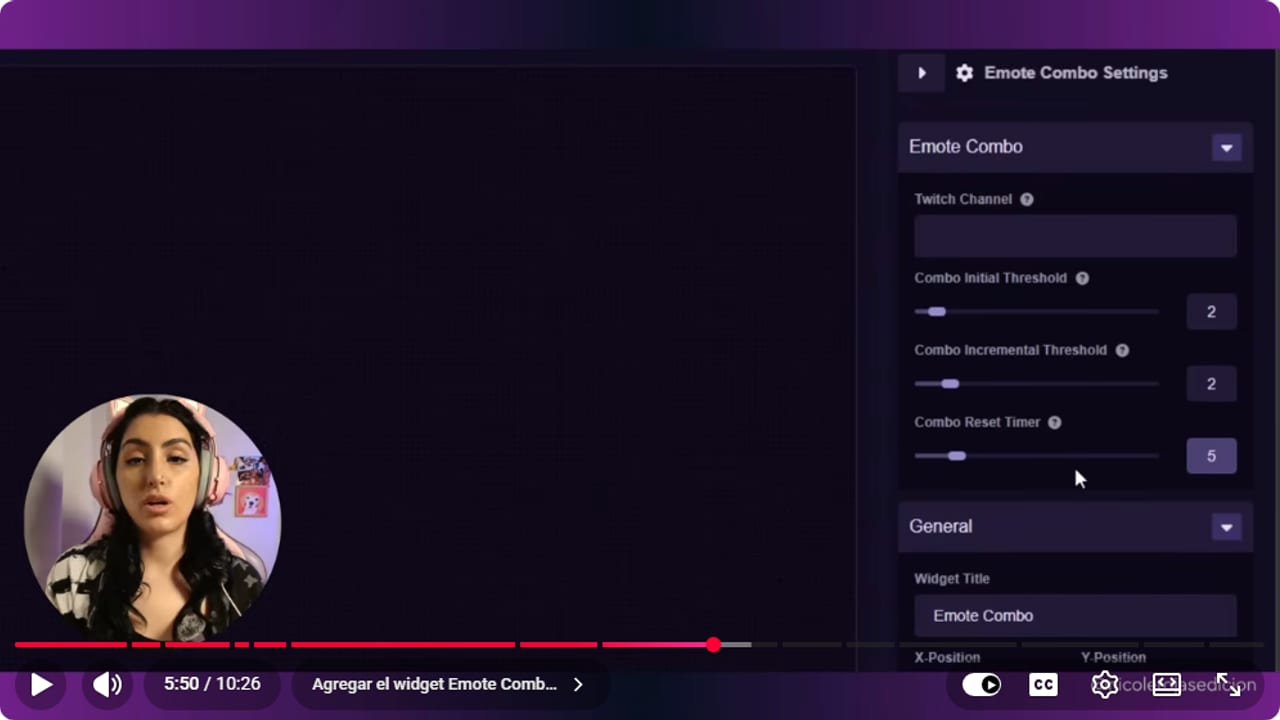
With a small chat, 2 on the first threshold is enough to get the counter going. YouTube · 5:51 ↗ - 08
Test the counter in your own chat
Nicole Rojas | YouTube | 6:07 ↗Go to your Twitch chat and send the same emote a few times, a heart works. That tells you the counter starts and sits where you put it.
What you should see: The counter appears in the Scene Editor with your emote and how many times it was repeated.
- 09
Add Emote Celebration and choose what triggers it
Nicole Rojas | YouTube | 6:20 ↗Add the Emote Celebration widget and mark its area: the full screen, or part of it so it doesn't get in the way of chat. On the right, under Alert Type Triggers, tick the events that set off the burst, such as subscriptions or channel points. If one is greyed out, you haven't created that alert in Sound Alerts yet. Click Manage Alerts, create it (a tier 1 subscription, for example) and come back to tick it.
What you should see: The events you picked are ticked under Alert Type Triggers, with no missing-alert warning.
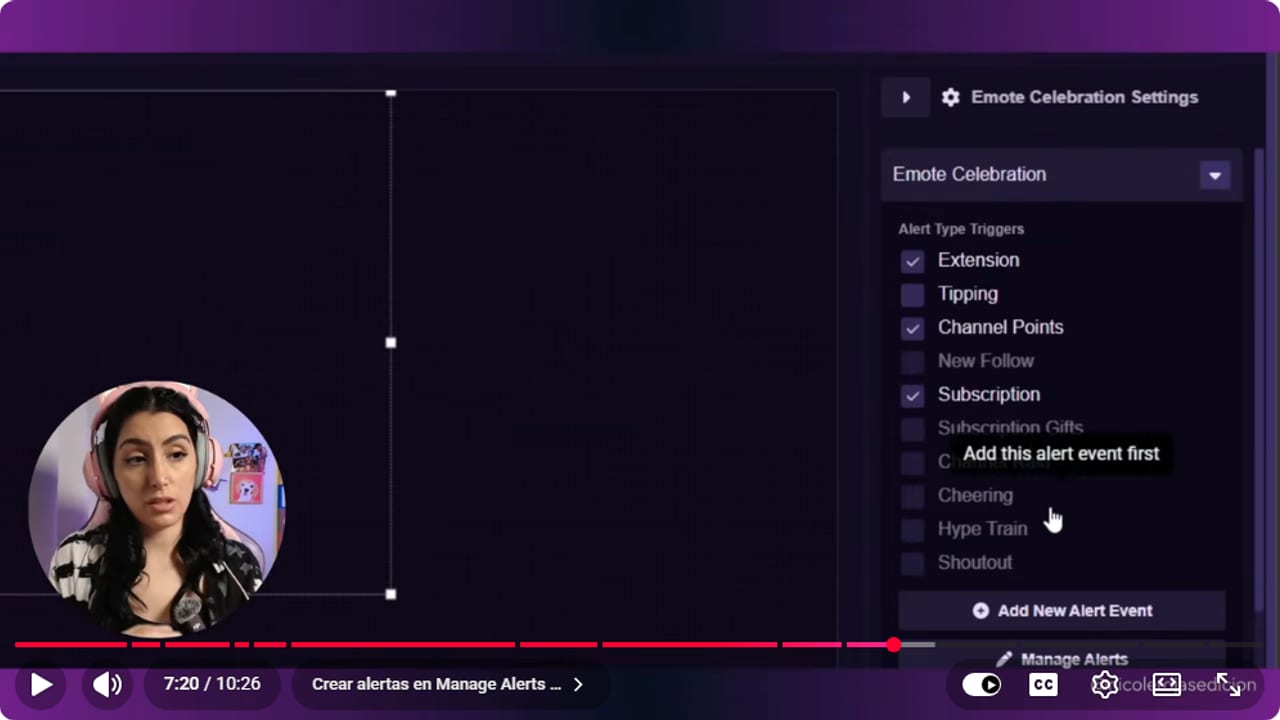
Greyed-out events don't have an alert yet. Create it under Manage Alerts and you can tick it. YouTube · 7:21 ↗ - 10
Choose the animation and which emotes burst
Nicole Rojas | YouTube | 7:32 ↗Further down, pick the animation type: fireworks, emotes sliding in from one side, bursting, floating or falling like a waterfall. Set the duration to 4 or 5 seconds, the emote size (I used 50) and the amount. Under Select Emotes, tick where they come from: follower, subscriber and bits emotes, plus your channel's BTTV, FFZ and 7TV emotes.
What you should see: Select Emotes shows ticks next to the emote sets you want in the celebration.
- 11
Save the scene and copy the Source URL
Nicole Rojas | YouTube | 8:10 ↗Click Save at the top right. In Scene Settings, give the scene a name and save. Then click Copy Source URL. That one link carries all three widgets, because they live in the same scene.
What you should see: Sound Alerts shows a Success message and the scene link is on your clipboard.
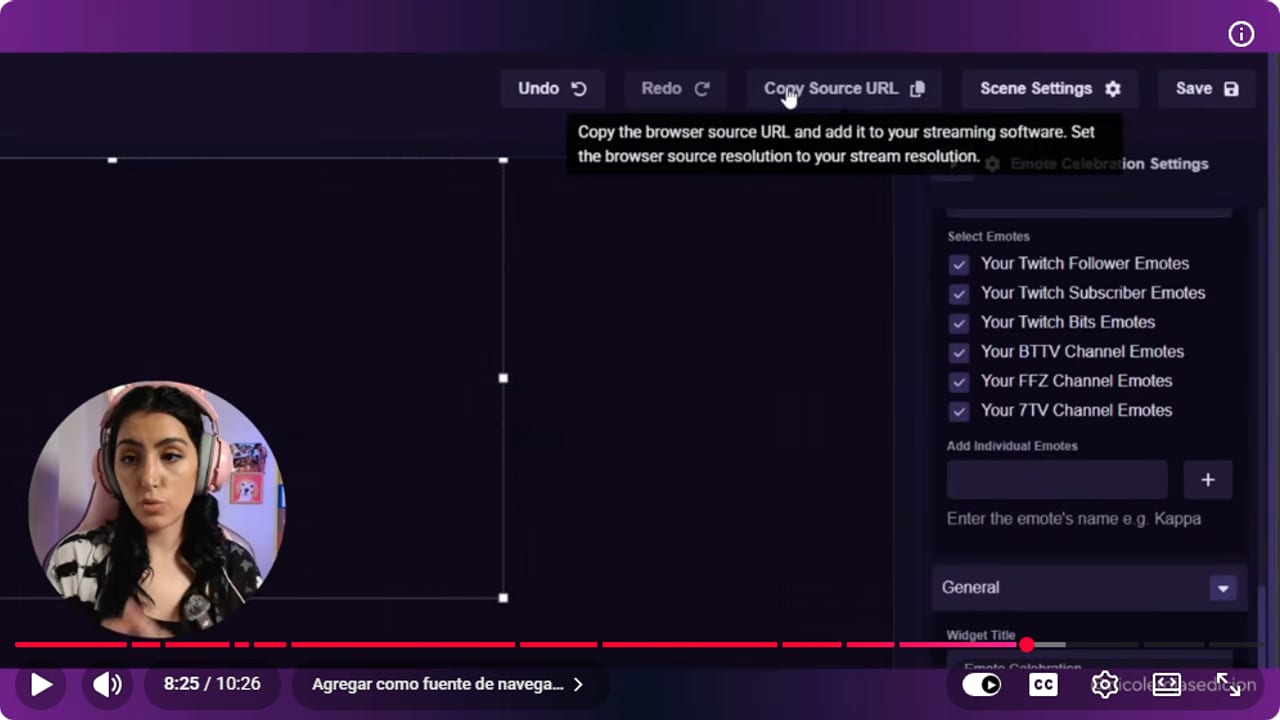
Save first, then click Copy Source URL. That link carries all three widgets. YouTube · 8:26 ↗ - 12
Paste it into OBS as a Browser source
Nicole Rojas | YouTube | 8:32 ↗In OBS, click +, choose Browser, name it Emotes Sound Alerts and click OK. Paste the link into URL, set Width to 1920 and Height to 1080, and tick Control audio via OBS. Click OK and drag the source to the top of Sources, or the emotes end up hidden behind your overlay. If you also use Mix It Up, don't overwrite its link. They're two separate sources. And that's it: floating emotes, a combo counter and event bursts, all free and all from one URL.
What you should see: Emotes Sound Alerts sits first in Sources and its outline covers the whole scene.
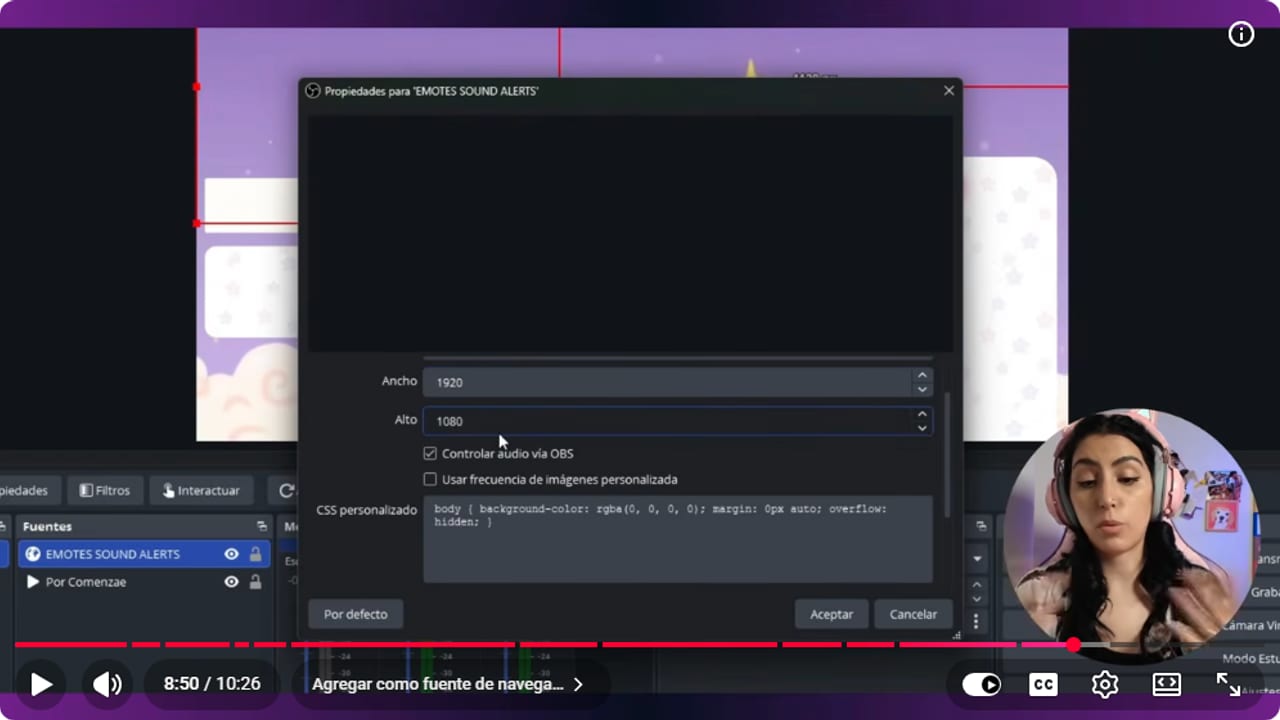
Look at the Sources list below: Emotes Sound Alerts is first, above the overlay. YouTube · 8:51 ↗
If something does not work
- The emotes don't show in OBS
- Drag the Sound Alerts source to the top of Sources. Whatever sits higher gets drawn on top, so if your overlay outranks it, the emotes vanish behind it. Also check Width and Height are 1920 by 1080, matching the Sound Alerts scene.
- An event is greyed out in Emote Celebration
- Sound Alerts only lets you pick events that already have an alert. Click Manage Alerts, create the missing one (subscription, gift, raid, cheering, hype train or shoutout) and go back to the widget to tick it.
- Chat spams and the screen fills with emotes
- Tick Spam Filter on the Emote Wall and set a 3 to 5 second limit. If that's still too much, lower the number of emotes. A nice problem to have, but still a problem.
- The combo counter never starts
- Drop Combo Initial Threshold to 2 so two matching emotes are enough. If your chat takes a moment to join in, raise Combo Reset Timer so it waits longer before dropping the combo.
- You pasted the link and your Mix It Up GIFs disappeared
- That happens when the Sound Alerts URL goes into the Mix It Up source. Each tool needs its own Browser source. Paste the Mix It Up overlay endpoint back into its source and make a new one for Sound Alerts.
Test before you go live
- The Sound Alerts source is at the top of every scene where you want emotes.
- You sent emotes from your own chat and watched them fall in OBS.
- The counter sits in a free corner, away from your camera.
- Every Emote Celebration event has an alert set up under Manage Alerts.
- If you use Mix It Up, its GIFs still play from their own source.
- And that's it: your chat now shows up on screen too.
Cómo mostrar emotes en pantalla y hacer un combo counter con Sound Alerts
Watch the full tutorial (in Spanish) ↗Common questions
Is Sound Alerts free?
Yes, the three widgets in this guide are free in the Scene Editor. Sound Alerts has a paid Premium plan with more alert buttons and text-to-speech voices, but you don't need it for the emote wall or the counter.
How is this different from Mix It Up?
Mix It Up shows GIFs and sounds when someone redeems channel points. Sound Alerts shows emotes on its own whenever people use them in chat. They work well together, and Sound Alerts doesn't need any app running on your PC.
Does it work with BetterTTV or 7TV emotes?
Yes. It handles native Twitch emotes plus BetterTTV, 7TV and FrankerFaceZ, so every emote your channel has. If you don't have your own emotes yet, see the guide on animated Twitch emotes without Affiliate.
Do I need a separate URL for each widget?
No. All three widgets live in the same Sound Alerts scene, so one URL shows them all. That's one Browser source in OBS instead of three.
Can I do this with StreamElements instead?
Yes. StreamElements has its own emote wall called Kappagen: create a new overlay, add Kappagen and set it up. It can handle emote celebrations too, so try both and keep whichever you like better.


