

Short answer
Before you start
- Your Twitch account
- A photo of yourself, or artwork you have the artist's permission to use
- A browser: Edge, Chrome, Firefox or Opera
- If you're not an Affiliate yet: the free BetterTTV extension
Bring your setup to a 24/7 AI Streamer Coach
Ask Streamer Coach →Get personalized feedback to fix streaming issues and plan your next content.
Step by step
- 01
Pick an image that still reads when tiny
Nicole Rojas | YouTube | 0:30 ↗Yes, you, the streamer putting in a thousand hours and with zero time to learn Photoshop. This one's for you, and it all happens in your browser. Start with the image: your face waving, looking disgusted or scared, a jump scare, or that moment of yours that went viral. It shows up tiny in chat (Twitch uses 28, 56 and 112 pixel versions), so skip anything with text. For ideas, browse what's popular on Twitch Emotes. And if you know someone who draws and is just starting out, a collab looks even better.
What you should see: You've got a photo or drawing on your computer with one gesture and no text.
- 02
Crop it square
Nicole Rojas | YouTube | 2:02 ↗Emotes are square. On Windows, open the image in Photos, click Edit, and switch the crop from freeform to square. Frame it so your face sits in the middle with a bit of space around it. Save it as a copy so you keep the original.
What you should see: A new copy of the image appears, cropped square with your face centered.
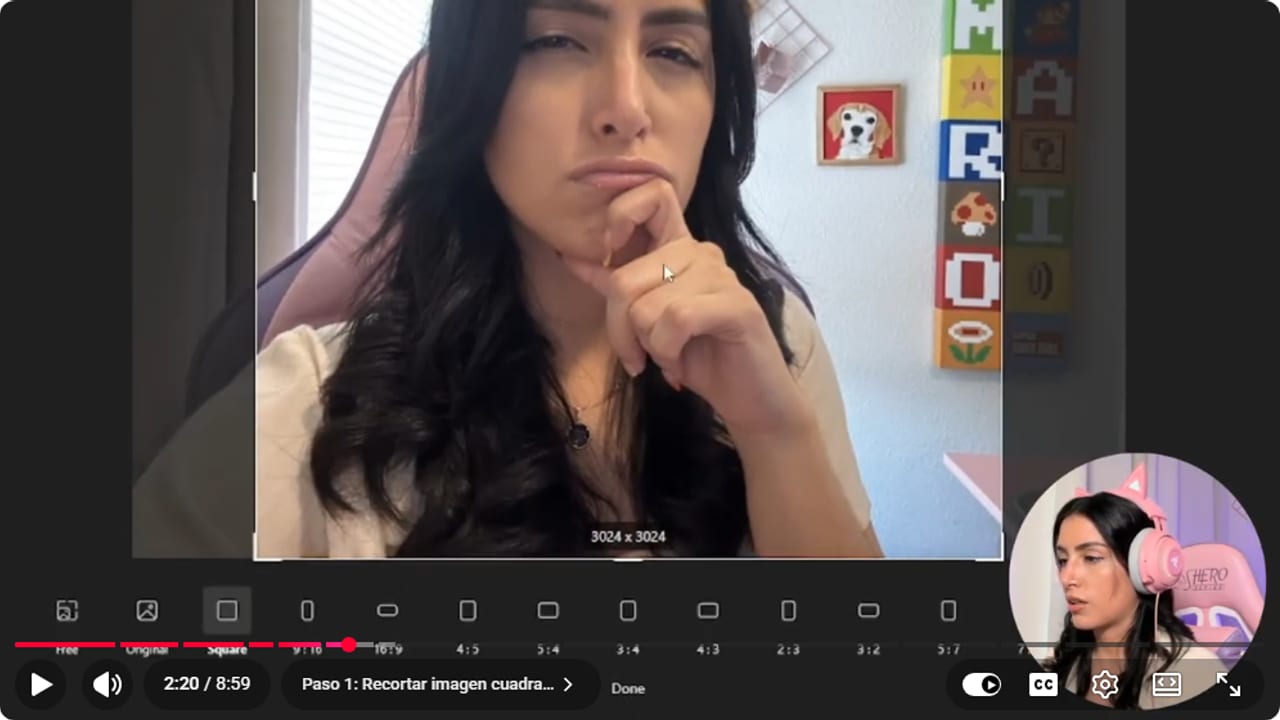
Nicole crops the image to a square before removing its background. YouTube · 2:21 ↗ - 03
Remove the background with remove.bg
Nicole Rojas | YouTube | 2:32 ↗Canva and Photoshop can remove backgrounds too, but they charge you to download the transparent version. Go to remove.bg and upload your square copy. The background disappears on its own. If you spot leftover edges, clean them up with Erase and Restore. Then click Download. The preview size is fine, since the emote ends up tiny anyway.
What you should see: You download a PNG with only your face left, on a transparent background.
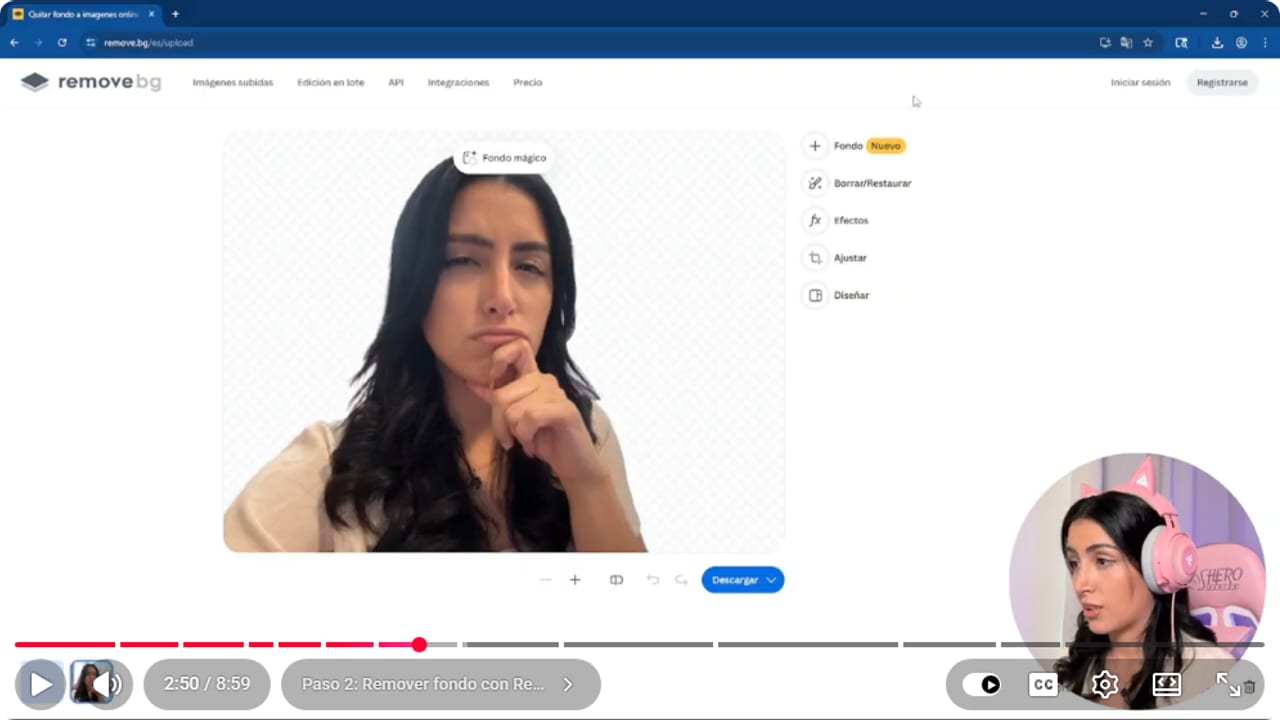
The source workflow removes the background before the small emote export. YouTube · 2:50 ↗ - 04
Resize it to 112 x 112 as a PNG
Nicole Rojas | YouTube | 3:03 ↗Open a free image resizing site (or Canva) and upload the PNG. Choose a custom size of 112 by 112, which is the minimum Twitch accepts for a square PNG (up to 4096 and 1 MB at most, with a transparent background), with no special effects, saved as PNG. Click resize and check the little square preview, because that's how small it'll look in chat. If it still reads, download it.
What you should see: The download shows a 112 x 112 pixel PNG where your gesture is recognizable without zooming in.
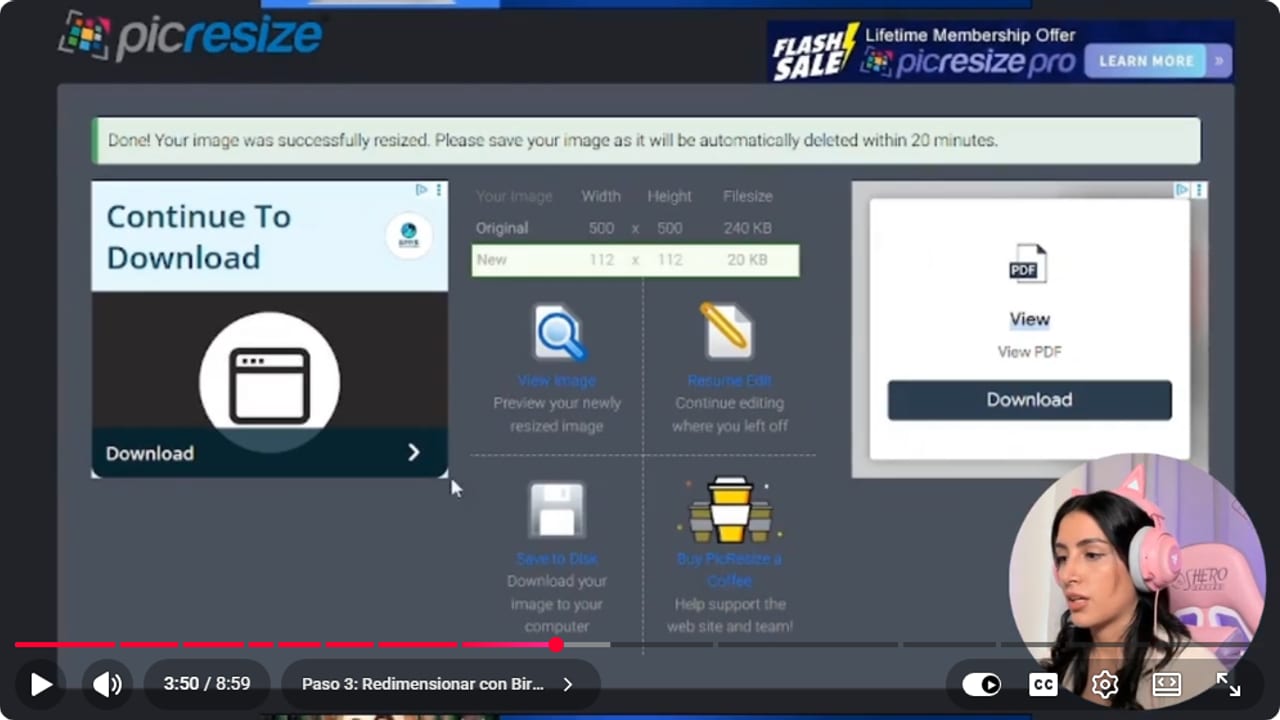
The download confirms the small size that needs inspection before publishing. YouTube · 3:51 ↗ - 05
Upload it: through Twitch if you're an Affiliate, BetterTTV if not
Nicole Rojas | YouTube | 4:05 ↗If you're an Affiliate, go to Creator Dashboard, Viewer Rewards, Emotes, and click to upload a new standard emote. Twitch shows you how it'll look in chat. Then choose whether it's for Tier 1, 2 or 3, or a reward people redeem with channel points. If you're not an Affiliate yet, add BetterTTV to your browser, sign in with Twitch and click Upload emote. Give it a code, pick the image and confirm it follows the emote rules. Mine was my own face, so the only person it could offend was me. Approval can be instant or take a few days.
What you should see: Your emote shows up in your Twitch collection, or in BetterTTV with its code and approval status.
- 06
Animate it in MakeEmoji
Nicole Rojas | YouTube | 6:06 ↗Now the fun bit. In MakeEmoji, upload your image and you'll see the effects people use most in chat. Pick one, tweak the color and speed until the gesture reads clearly, and leave the size at 112 pixels. When you like it, click it and the GIF downloads. If you're taking it to Twitch, check the GIF limits in the last step.
What you should see: The preview shows your face moving with the effect and speed you chose, and the GIF lands in your downloads.
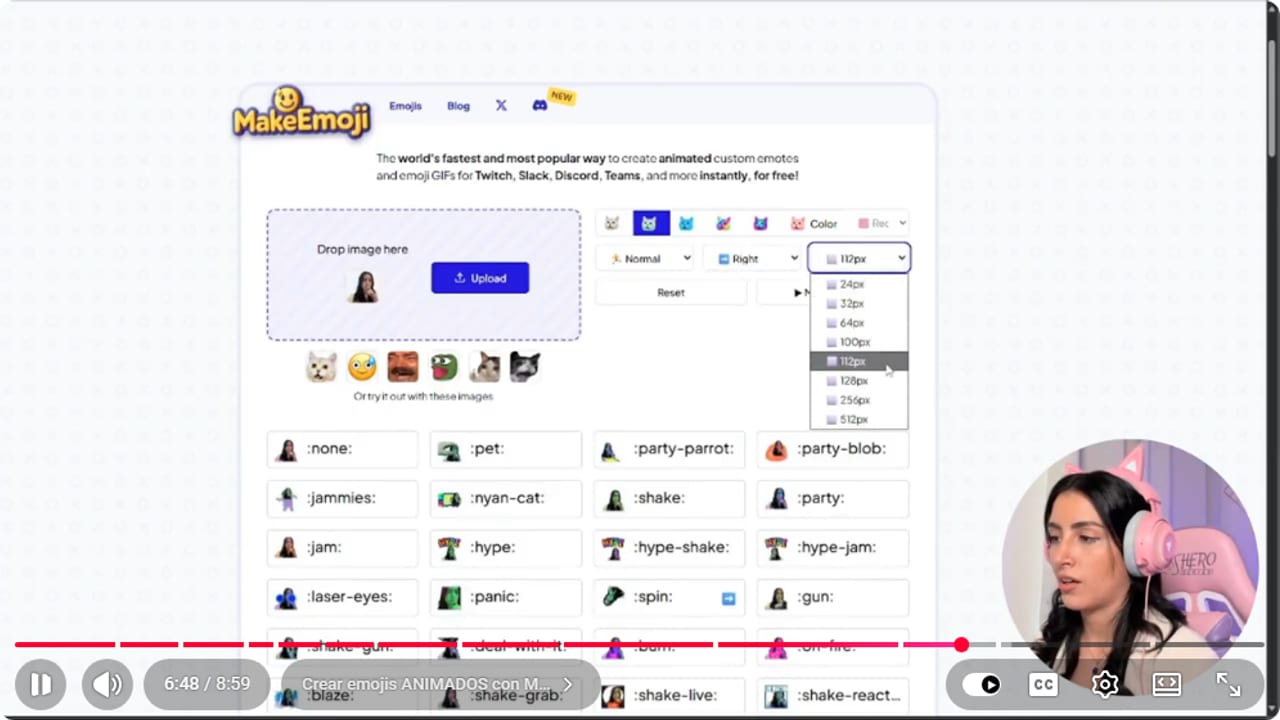
Nicole previews an effect and adjusts its speed before downloading the GIF. YouTube · 6:48 ↗ - 07
Upload the animated emote
Nicole Rojas | YouTube | 7:39 ↗Not an Affiliate? Upload it to BetterTTV just like the static one. If you are, go to Emotes, upload a new one and choose Animated. You can upload your GIF, or take your standard emote and apply one of Twitch's built-in animations. Per Twitch's help page, the GIF has to be square (112 to 4096 pixels) and up to 1 MB. If you upload the three sizes by hand, each one can be up to 512 KB. It also needs 60 frames or fewer and must not flash more than 3 times a second. Twitch may review it before it goes live, unless you meet the instant upload requirements. Twitch only gives you a limited number of emote slots. In the video, Nicole says BetterTTV gives you unlimited slots. Today betterttv.com shows that Pro goes up to 500 channel emotes, so the free plan has its own cap. Check yours in your BetterTTV dashboard.
What you should see: Your animated emote appears in your emote list, moving in the preview.
If something does not work
- Nobody can tell what the emote is in chat
- It probably has text or too much detail. I once made one with a sign full of words that only my friends and I could read. Use a simple gesture and check it in the 112 x 112 preview.
- Bits of background are left around your face
- Go back to remove.bg and use Erase to clean the edges, or Restore if it erased too much. Then download again.
- You've used up all your Twitch emote slots
- Twitch limits your slots. Upload the new ones to BetterTTV, which gives you more slots, though the free plan has its own cap (Pro goes up to 500 channel emotes, per betterttv.com). Check the limit in your BetterTTV dashboard.
- Your BetterTTV emote still isn't showing
- Approval can be instant or take a few days. Check the status in your BetterTTV dashboard and make sure the extension is installed and linked to your Twitch.
Test before you go live
- Your emote reads in chat without enlarging it.
- There are no white edges or leftover background.
- Your BetterTTV code is short and easy to type.
- The animation reads clearly and isn't too fast.
- The GIF is under 1 MB, has 60 frames or fewer and doesn't flash.
- Your community knows they need BetterTTV to see your emotes.
- You tested the emote in your own chat. And that's it, go use it.
Cómo hacer emotes animados para Twitch sin ser afiliado
Watch the full tutorial (in Spanish) ↗Common questions
Can I have Twitch emotes without being an Affiliate?
Yes, through BetterTTV. It's a free browser extension you link to your Twitch, and you upload static or animated emotes there. People need the extension to see them in chat, so tell your community how to install it.
Why 112 x 112 pixels?
Twitch accepts a square PNG of at least 112 x 112 (up to 4096) and builds the 28 and 56 versions. It looks really small, so check the preview before uploading to make sure your gesture still reads.
Do I need Photoshop?
No. It's all free in your browser: crop in the Windows Photos editor, remove the background with remove.bg, resize on a free site and animate in MakeEmoji.
What kind of image makes a good emote?
One clear gesture: a wave, a disgusted face, a scared face, a jump scare or a moment of yours that went viral. For ideas, browse what's popular on Twitch Emotes and make your own version.
Can I ask someone to draw my emotes?
Yes, and it looks even better. Find someone who draws and is just starting out too, and team up. Your viewers get reactions that belong to your channel, and you start building your visual identity.
Continue with one of these guides


TWITCHSOUND ALERTS
