

Short answer
Before you start
- OBS Studio with your game scene set up
- A microphone that already works in OBS
- An image that represents you: your logo, a photo with your face covered, or a drawing (a PNG with no background works best)
- A Nightbot account for Twitch or YouTube, or BotRix if you stream on Kick
- Optional: veadotube mini, free, to animate your PNGtuber
Bring your setup to a 24/7 AI Streamer Coach
Ask Streamer Coach →Get personalized feedback to fix streaming issues and plan your next content.
Step by step
- 01
Remove the camera and put your voice first
Nicole Rojas | YouTube | 1:20 ↗Want to stream but the camera makes you cringe? You're not the only one, and you don't need it. With no face on screen, your voice is about 90% of the stream. Your personality and your jokes all come through the audio. Go to your game scene in OBS and, if you'd added your camera, remove it from Sources. If you never added one, there's nothing to do.
What you should see: Your camera no longer shows in the OBS preview, and there's no webcam listed under Sources.
- 02
Capture the game with its audio
Nicole Rojas | YouTube | 1:33 ↗Under Sources, click + and pick Game Capture. Set Mode to Capture specific window and choose your game under Window. Tick Capture Audio (BETA) so the game's sound comes in through that same source. Click OK.
What you should see: The game shows in the preview, and the mixer has a bar named after the capture that moves with the game's sound.
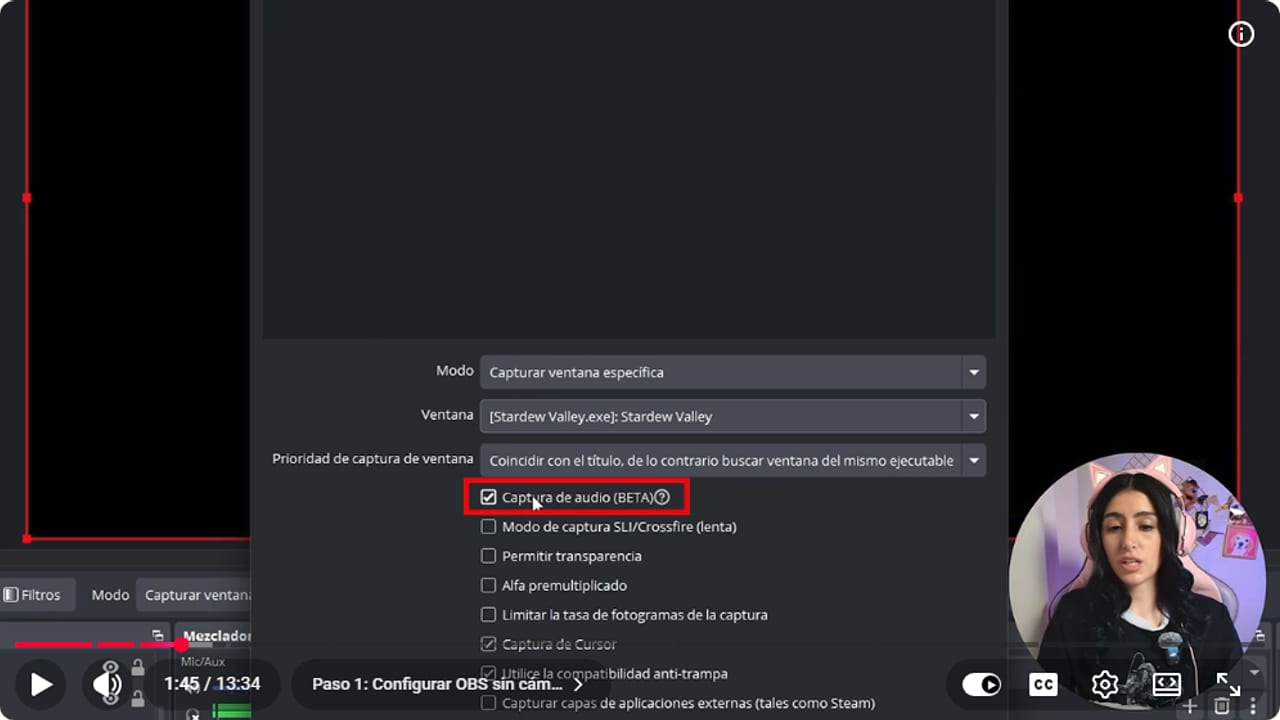
Make sure Capture Audio (BETA) is ticked so the game's sound comes in through this same source. YouTube · 1:46 ↗ - 03
Pick your mic in Settings, Audio
Nicole Rojas | YouTube | 1:55 ↗Open Settings, Audio. Under Mic/Auxiliary Audio, choose your main mic by name, the one on your headset or whichever you use. I keep Desktop Audio disabled because I split my audio per app. If you want that too, the guide on separating audio in OBS walks through it. Click OK.
What you should see: When you talk, the Mic/Aux bar in the mixer moves, and it stays still when you stop.
- 04
Add three basic filters to your mic
Nicole Rojas | YouTube | 2:20 ↗Right-click Mic/Aux and open Filters. Use + to add Noise Suppression (RNNoise or Speex, depending on how much CPU you can spare). Then add a Compressor so your mic doesn't blow out when you yell. I set mine to a 4:1 ratio with the threshold at -18 dB. Last, add a Noise Gate with the close threshold at -40 dB and the open threshold at -32 dB. The gate cuts your audio while you're quiet, so nobody hears your fan.
What you should see: The filter list for Mic/Aux shows Noise Suppression, Compressor and Noise Gate, and the mic bar stays flat while you're silent.
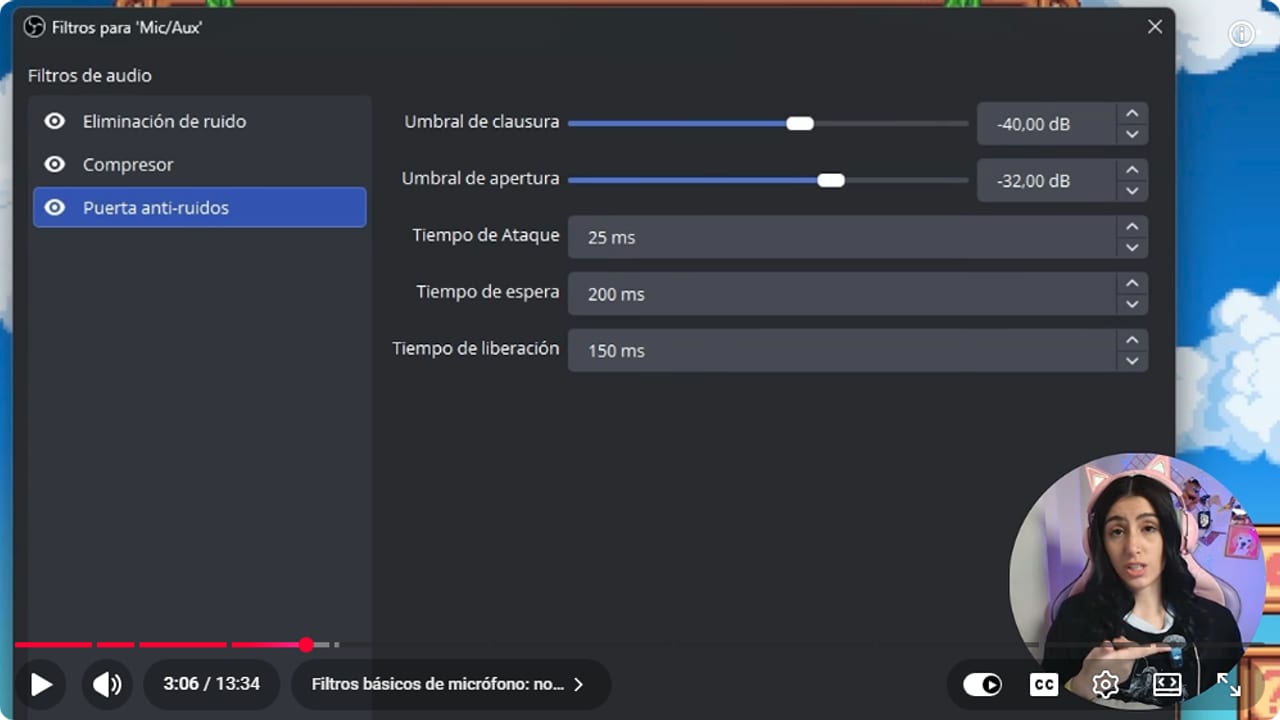
All three filters in order. The gate at -40 and -32 dB cuts your audio while you're quiet. YouTube · 3:07 ↗ - 05
Choose an image that stands for you
Nicole Rojas | YouTube | 3:26 ↗Now for your digital face. From easiest to hardest: your logo, which takes 5 minutes in Canva. A photo of you with your face covered by an emoji or sticker, made in Canva, Photoshop or any editor. A simple drawing in Krita, Procreate or Photoshop. Or a custom avatar from an artist, once you have a bit more budget. You can find artists on X, in the community, or by asking your chat, because someone in there might draw and you never knew. The artist gets paid for her work, which is how it should be.
What you should see: You have an image file, ideally a PNG with no background, saved in a folder you won't move.
- 06
Add the image as a source in OBS
Nicole Rojas | YouTube | 4:34 ↗Under Sources, click +, pick Image, name it something like PNG, and click Browse next to Image File to find your file. Place it wherever you like in the scene, say in a corner, as if it were you sitting at the computer. Add a border or a frame if you want.
What you should see: Your image shows in the preview where you put it, on top of the game.
- 07
Make a Nightbot command your chat can play with
Nicole Rojas | YouTube | 7:20 ↗Without a face, people can't see your reactions, so chat activity is what grabs attention. Commands keep it going all the time. You build them in BotRix on Kick, or in Nightbot on Twitch and YouTube. In Nightbot, go to Commands and create a new one. Set Name to !waifu (or anything you like) and paste this as the Response: $(user) sos $(eval Math.floor(Math.random()*101))% waifu. $(user) fills in whoever used it, and the eval part rolls a random number from 0 to 100. Click Create. My example's in Spanish, so swap the words for your own.
What you should see: When you type !waifu in your chat, the bot replies with your name and a different percentage each time.
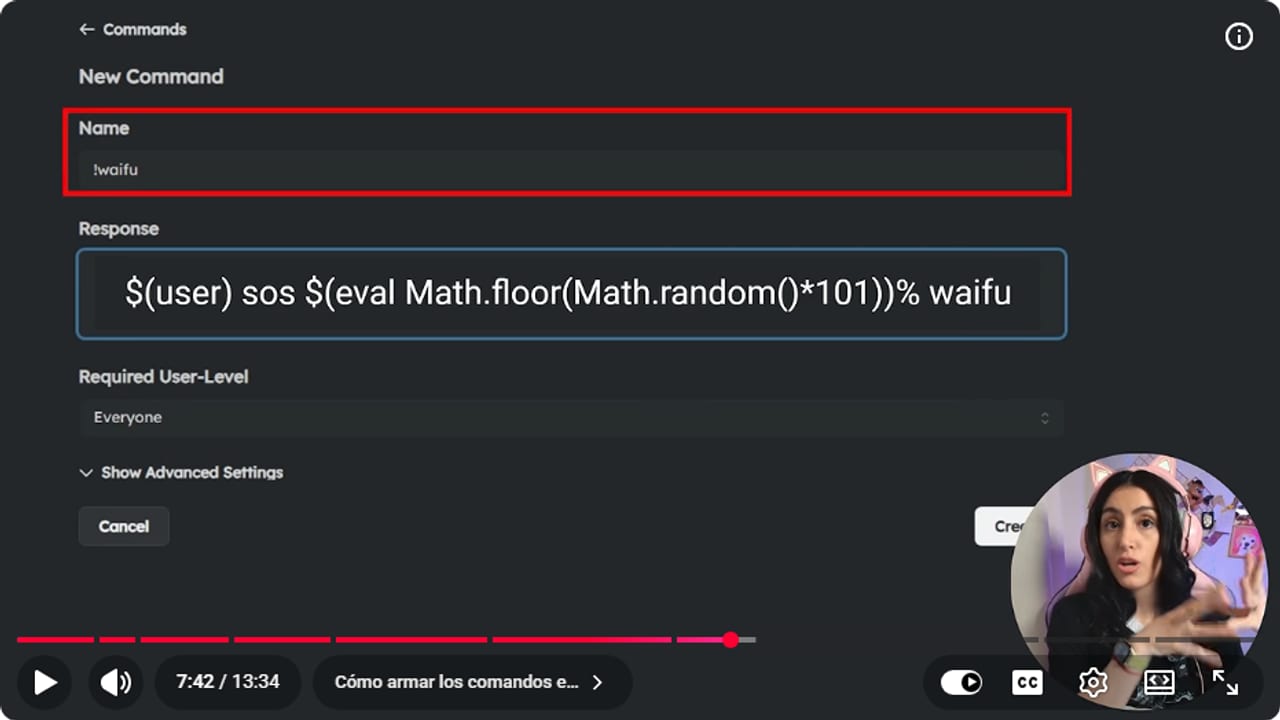
Copy the response exactly: $(user) adds the viewer's name and eval rolls a number from 0 to 100. YouTube · 7:43 ↗ - 08
Build random-result commands that fit your vibe
Nicole Rojas | YouTube | 7:50 ↗If you want phrases instead of numbers, put a list inside eval. My !backrooms command has a list of monsters with a short description, and everyone gets a random one, like the mold that chases you nonstop or the Smiler. What matters is that commands match your vibe or the game you're playing. For ideas, browse the commands StreamElements already offers and adapt them to your personality. Another fun one: custom shoutouts for the people who show up often.
What you should see: Every time someone uses the command, chat shows a different line from your list.
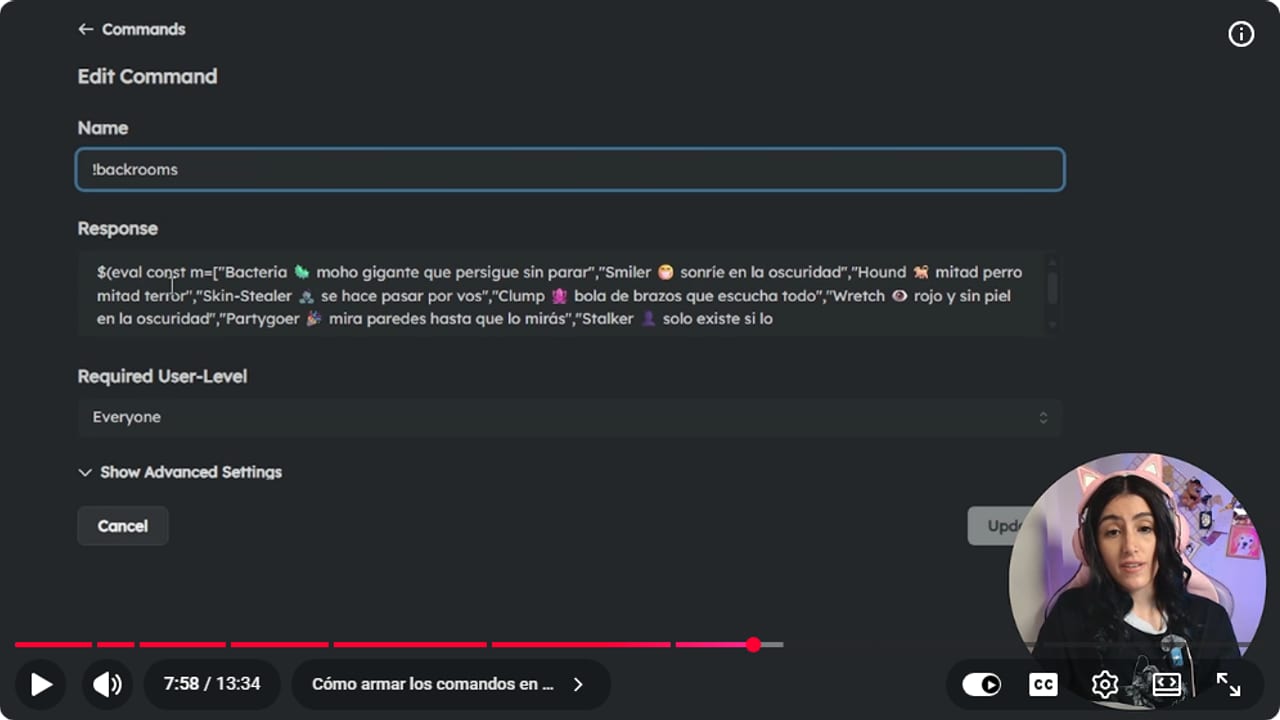
Each monster in the list is a possible result. Build yours around your game or your channel's vibe. YouTube · 7:59 ↗ - 09
Talk more than you would on camera
Nicole Rojas | YouTube | 9:28 ↗Live, chat hands you topics: people suggest things, run commands, and timers pop up. If you go quiet, the stream feels empty. Narrate what's happening in the game, what you think is coming, or something it reminds you of. If you record for YouTube instead of streaming, you'll need to narrate even more because there's no chat, and you'll edit a little more, with captions or cuts in CapCut. If your style is calm and quiet, plenty of people enjoy that too. Don't force it.
What you should see: A 5 minute test recording has no long silences with nothing on screen to fill them.
- 10
Get to know the animated PNGtuber
Nicole Rojas | YouTube | 11:22 ↗The advanced version is a 2D avatar that reacts when you talk, get angry or laugh. The most popular tool is veadotube mini, with Krita for the drawings. You load your character in different poses, the app listens to your mic, and it swaps the image based on what you say. Then you bring it into OBS by capturing the app's window while it's open. A streamer from the community built hers exactly like this. I'm telling you about it instead of showing you, because I'm clearly not at that level yet.
What you should see: You have at least two drawings of your character ready: one with the mouth closed and one talking.
- 11
Install veadotube mini and bring it into OBS
veadotube mini | official site ↗Download veadotube mini from its official site. It's a free download, and you can leave a tip if you want. Open it, pick your microphone, and load your character images: one for when you're quiet and one for when you're talking. Leave the app open, then add a Window Capture in OBS pointed at veadotube mini. And that's it, your digital face moves its mouth and your chat never shuts up. No excuses left to start.
What you should see: In the OBS preview, your character switches to the talking image when you speak and back to the quiet one when you stop.
If something does not work
- You can see the game but can't hear it
- Open the Game Capture properties and check it's set to Capture specific window, with your game selected and Capture Audio (BETA) ticked. If it's still silent, make sure that bar isn't muted in the mixer.
- Your fan (or the dryer) comes through in the quiet parts
- Add a Noise Gate to your mic with the close threshold at -40 dB and open at -32 dB. If noise still sneaks in, raise the close threshold a little and test talking softly so it doesn't clip your words. My clothes dryer kept getting in, and it doesn't even have its own fanbase yet.
- The Nightbot command replies with the raw text or an error
- Copy the exact syntax, with $(user) and $(eval ...) and every bracket closed. Nightbot gives eval code under a second to run, so keep your lists short and simple.
- The stream feels empty
- With no camera, every silence feels twice as long. Narrate the game, tell chat what you're thinking, and leave commands running so people can play even while you're focused.
- The image looks flat on top of the game
- Use a PNG with no background and give it a border or frame, as if it were you in your spot at the computer. If it's a photo, cover your face with an emoji or sticker that suits your channel.
Test before you go live
- No scene shows your camera by accident, including Starting Soon and Just Chatting.
- You recorded 30 seconds of talking and it's clear with no background noise.
- Your image or PNGtuber is in every scene where you want to appear.
- You tried every command in your own chat before going live.
- You have two or three topics ready for when the game slows down.
- Your digital self is ready for its debut. So are you.
Cómo Streamear sin Mostrar tu Cara | Logo, Comandos y PNG Tuber GRATIS 2026
Watch the full tutorial (in Spanish) ↗Common questions
What is a PNGtuber?
A streamer who shows an image instead of a camera: a logo, a drawing or an avatar. In the animated version, the image changes when you talk, so your character seems to follow your voice.
How much does a PNGtuber cost?
The basics are free: a logo from Canva or a drawing from Krita, added to OBS as an Image source. veadotube mini is also a free download, with an optional tip. The paid part is a custom avatar drawn by an artist.
Which bot should I use for commands?
BotRix if you stream on Kick, Nightbot if you're on Twitch or YouTube. Both let you build commands that use the viewer's name and random results.
Does this work for faceless YouTube videos too?
Yes, but you'll narrate more because there's no chat feeding you topics. Plan a bit of what you'll say and add captions or cuts when you edit.
Do I need an expensive microphone?
No. What matters is that people can understand you, and noise suppression, a compressor and a noise gate make a regular mic sound a lot better. With no camera, your lovely voice is the star of the show.


