

Short answer
Before you start
- OBS Studio with your scene ready: game, camera and mic
- Your Twitch account connected in OBS, or your stream key handy
- Your bitrate already set in Settings, Output
- Headphones to listen to the test recording
- Five unhurried minutes before your stream
Bring your setup to a 24/7 AI Streamer Coach
Ask Streamer Coach →Get personalized feedback to fix streaming issues and plan your next content.
Step by step
- 01
Connect your account in Settings, Stream
Nicole Rojas | YouTube | 11:43 ↗You want to test everything before your first stream, but how do you test a live stream without going live? Spoiler: OBS has a mode for exactly that. Open Settings, Stream. Set Service to Twitch and connect your account.
If the account isn't connected, the options in the next step won't show up. If you paste your stream key instead, treat it like a password and keep it off your screen.
What you should see: Settings, Stream shows Twitch as the service, the server on Auto, and a Disconnect Account button below it.
- 02
Turn on bandwidth test mode
Nicole Rojas | YouTube | 11:58 ↗On that same page, scroll down to the advanced options. Tick Enable Bandwidth Test Mode, then click Apply and OK.
This mode does what the name says. OBS streams to Twitch, but your channel never goes on air. Nobody's watching, so you can test in peace.
What you should see: The Enable Bandwidth Test Mode box is ticked, right under the Twitch chat add-ons dropdown.
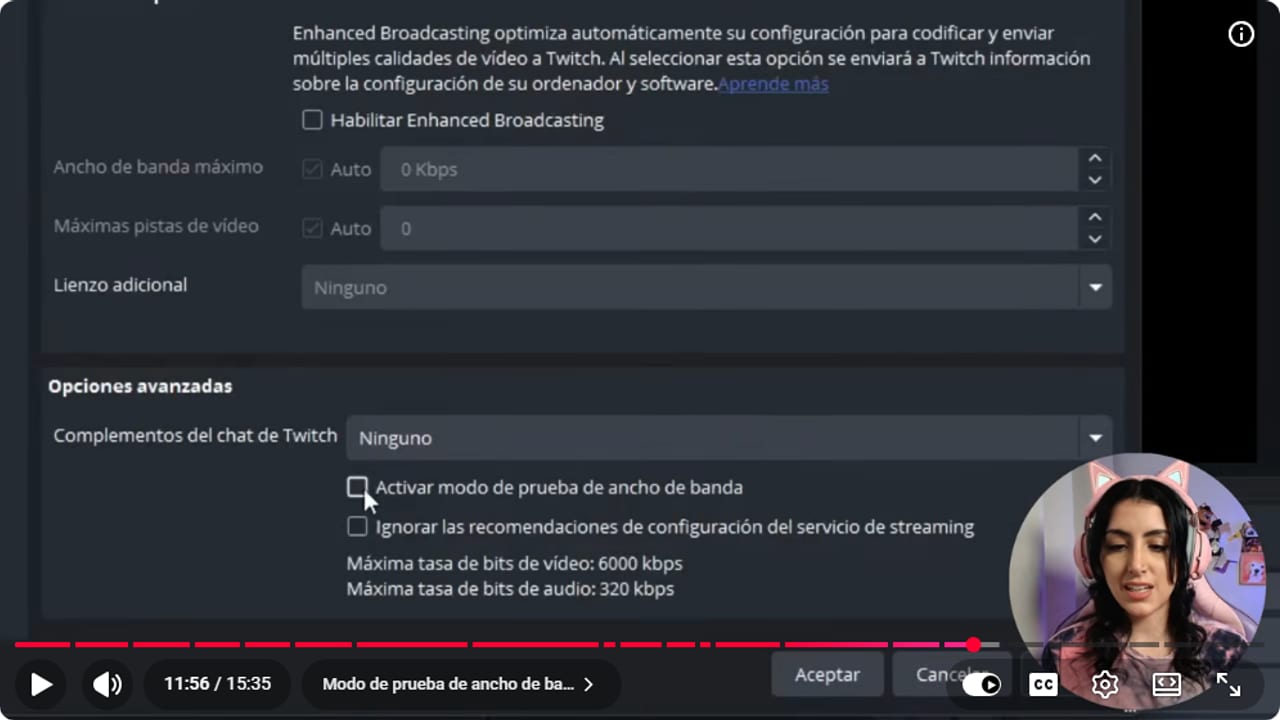
The box sits at the very bottom, under the advanced options. Just below it, OBS reminds you of Twitch's 6000 kbps video cap. YouTube · 11:56 ↗ - 03
Start streaming and accept the warning
Nicole Rojas | YouTube | 12:10 ↗Click Start Streaming as if you were going live for real. OBS pops up a box asking whether to start a bandwidth test and explains that this mode lets you test the network without your channel being live. Click Yes.
Before you move on, open the game or whatever you plan to stream, so the test puts the same load on your computer as a real stream.
What you should see: The Controls button switches to Stop Streaming, and your Twitch channel still shows as offline in the browser.
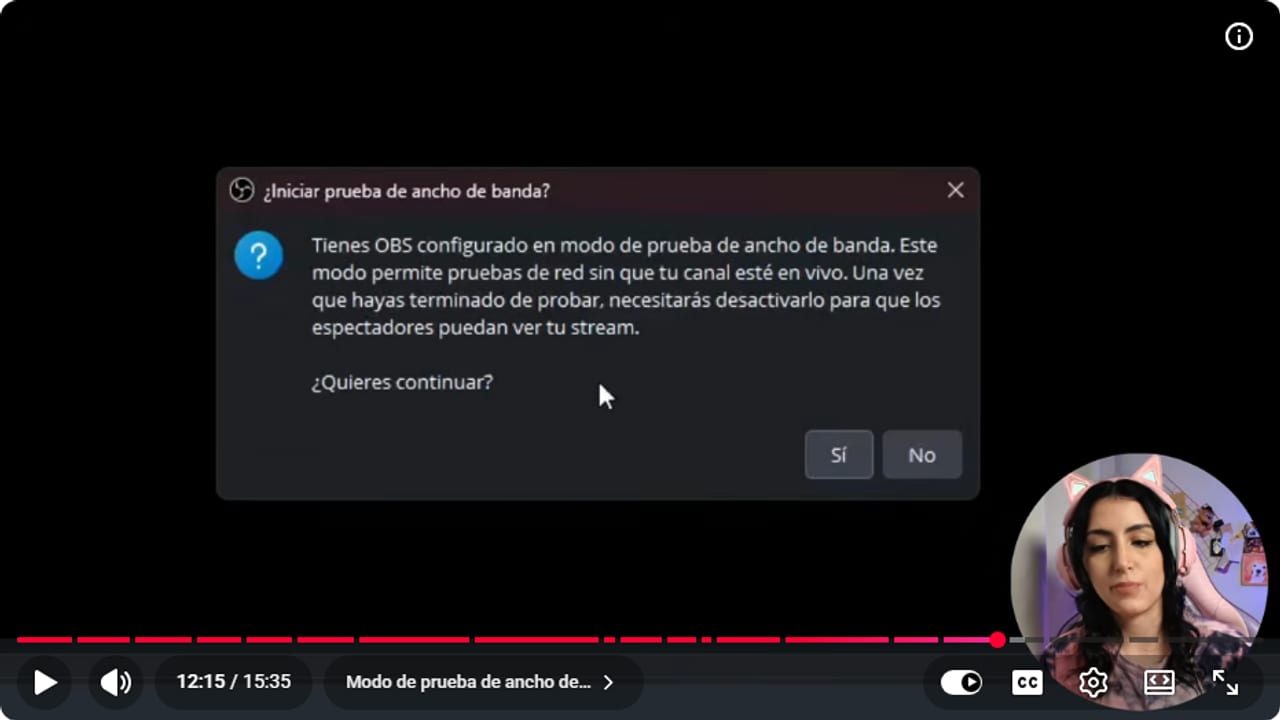
Read the last line of the warning: when you're done, you have to switch the mode off or nobody will see you. YouTube · 12:16 ↗ - 04
Open Stats and play for a minute or two
Nicole Rojas | YouTube | 12:20 ↗With the test running, go to the Docks menu at the top (called View in some versions) and pick Stats. Keep it open off to the side.
Then play something you actually want to stream for a minute or two. Testing with an idle desktop tells you nothing, because your computer is barely working.
What you should see: The Stats window opens, and the Status column for Streaming says LIVE even though your channel is still offline.
- 05
Read the CPU, the dropped frames and the bitrate
Nicole Rojas | YouTube | 12:30 ↗Stats shows a lot, but for this test you're watching three things. CPU usage: if it goes over 80%, something needs adjusting. Frames missed due to rendering lag: this should stay at 0. Bitrate: it should hold steady, close to the number you set in Settings, Output.
Keep an eye on the network dropped frames too. If any of these numbers climbs, don't go live yet. The guide on the best OBS settings for your PC tells you what to change depending on which one fails.
What you should see: After a couple of minutes, CPU usage stays under 80%, the dropped frame counts are still at 0, and Bitrate sits near your number, such as 6000 kb/s.
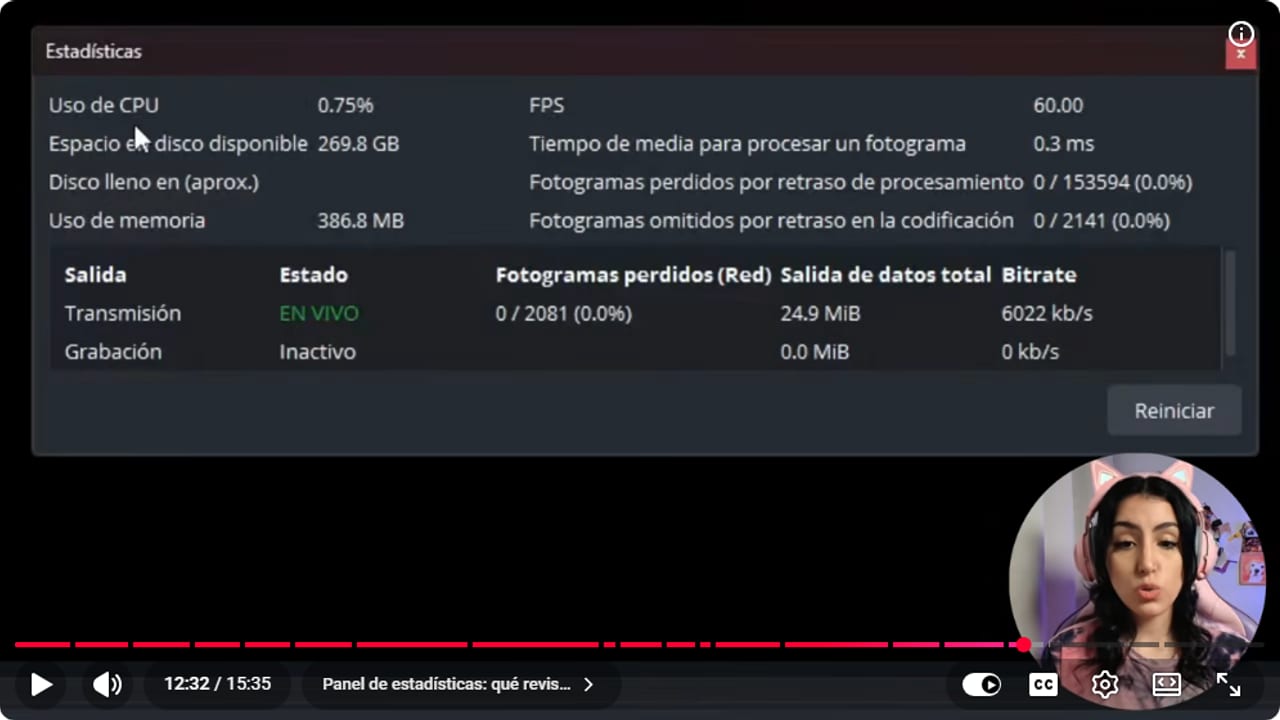
This is a healthy test: low CPU, zero dropped frames and bitrate right around 6000. The LIVE label is nothing to worry about. YouTube · 12:33 ↗ - 06
Check how Twitch receives the signal in Inspector
Twitch Developers | Video Broadcast ↗While the test is still running, go to inspector.twitch.tv and sign in with your Twitch account. Twitch's docs say the bandwidth test works through a ?bandwidthtest=true parameter at the end of your stream key, which disables live viewing, and that Twitch Inspector is where you check the health of that signal.
If you stream with the Custom service instead of Twitch, you can run the same test by adding ?bandwidthtest=true to the end of your key. Delete it when you're done. Your key is still private, so don't paste it in chat or leave it in a screenshot.
What you should see: Twitch Inspector lists your test session, and opening it shows how the signal arrived during those minutes.
- 07
Stop the test and switch the mode off
Nicole Rojas | YouTube | 12:43 ↗When you're done, close Stats and click Stop Streaming. Then go to Settings, Stream, untick Enable Bandwidth Test Mode and click OK.
Don't skip this one. Leave it on and your next stream has an audience of exactly one: you, staring at OBS.
What you should see: In Settings, Stream, the Enable Bandwidth Test Mode box is empty again.
- 08
Check the meters in the Audio Mixer
Official OBS Audio Mixer guide ↗Nobody could hear the test, so you check the audio inside OBS. Down in the Audio Mixer, every source has its own bar. Talk the way you do on stream, with the game playing.
The official OBS guide puts speech in the top of the yellow zone, just reaching the start of the red. Game audio sits lower, and music and alerts stay in the green. If a bar doesn't move when you talk, that mic isn't reaching OBS.
What you should see: When you talk, the mic bar reaches the top of the yellow zone, and the game bar stays below it.
- 09
Record a one-minute test and play it back
Official OBS recording guide ↗Click Start Recording under Controls, talk and play for a minute, then click Stop Recording. The file lands in the folder set under Settings, Output, Recording Path. OBS recommends MKV, because a crash won't wreck the whole file.
Play it back with headphones and listen the way your chat will. Can people understand you? Does the game drown you out? Does the picture look smooth?
What you should see: A new file shows up in your Recording Path folder, and when you play it your voice comes through clearly over the game.
- 10
Run the final check and go live
Nicole Rojas | YouTube | 13:11 ↗Before you hit Start Streaming for real, do your go/no-go check. Run Speedtest so you know how much bitrate your internet can handle, and close anything you don't need, like Chrome, Discord or Spotify. Once you're live, watch your own stream on your phone to make sure everything comes through and your mic isn't muted.
And that's it. If something breaks, relax. First streams are almost never perfect. You started, and from here it only gets better.
What you should see: On your phone you see your stream live, the picture is smooth, and your voice comes through over the game.
If something does not work
- You can't find the Enable Bandwidth Test Mode box
- Check that Settings, Stream has Twitch as the service and your account connected, because the option doesn't show up without that. The box sits at the very bottom under the advanced options, so scroll all the way down.
- CPU usage goes over 80% during the test
- Close what you're not using, like Chrome, Discord or Spotify, and test again. If it's still high, drop the output resolution to 1280x720 in Settings, Video, or switch to a hardware encoder. The guide on the best OBS settings for your PC covers each encoder.
- Frames missed due to rendering lag won't stay at 0
- Your computer can't render everything in time. Lower the game's graphics or set the output to 720p. Don't feel bad about 720p. It looks fine, and plenty of people watch streams on their phones.
- The bitrate jumps up and down instead of holding steady
- That's your internet upload. Run Speedtest, plug in a cable if you can and lower the bitrate in Settings, Output. Then raise it bit by bit and test again until you find the number your connection can handle.
- Stats says LIVE even though you're in test mode
- That's normal. In test mode OBS shows LIVE because it's sending the signal, but Twitch doesn't publish it. Open your channel in a browser and you'll see it's still offline.
- You went live, talked for half an hour and nobody was watching
- Bandwidth test mode was still ticked. Stop streaming, untick it in Settings, Stream and start again. Twitch usually finds a way to complicate things, but this one was on us.
Test before you go live
- You ran Speedtest and your bitrate sits below your upload speed.
- You ran the test with the game you'll stream, not an idle desktop.
- Bandwidth test mode is off before you go live.
- You listened to the test recording with headphones.
- Chrome, Discord and Spotify are closed unless the stream needs them.
- Your stream key isn't visible in any scene or screenshot.
- You exported your scene collection as a backup.
Configuración de OBS desde cero para streaming con calidad profesional
Watch the full tutorial (in Spanish) ↗Common questions
Can anyone see my stream during the test?
No. The OBS warning says it outright: the mode tests your network without your channel being live. Twitch's docs say the same thing, since the test parameter disables live viewing.
How long should the test run?
A minute or two is enough, as long as you're playing something you'll actually stream. Give heavy games a bit longer, because the load climbs once the action starts.
Does this work if I stream on Kick or YouTube?
The bandwidth test mode in this guide is Twitch's. The local test recording and the Audio Mixer meters don't depend on the platform, so those steps work the same for Kick or YouTube.
If I already ran the bandwidth test, why record too?
The bandwidth test checks your internet and your computer, but nobody hears it. The recording lets you hear what your chat will hear. Fair warning: your recorded voice always sounds weird, and that isn't OBS's fault.
What do I do if Stats shows problems?
Look at which number is climbing. Each row points to a different part of your computer or your connection. The guide on choosing the best OBS settings for your PC walks through what to change for each one.
How do I keep this setup if I reinstall OBS?
Once everything works, go to Scene Collection, Export, and save it to a folder or an external drive. If you reinstall or move to another computer, import it and everything is already set up.


