

Short answer
Before you start
- A phone with a camera and some battery (ideally charging)
- A decent internet connection on the phone and computer
- OBS installed
- Optional: a lamp or ring light
Bring your setup to a 24/7 AI Streamer Coach
Ask Streamer Coach →Get personalized feedback to fix streaming issues and plan your next content.
Step by step
- 01
Open VDO.Ninja on your phone and pick the rear camera
Watch this step on YouTube · 0:31 ↗Want to stream, but your webcam looks like it came off a 2005 Nokia? Don't worry: your phone can replace it for free. Open vdo.ninja in your phone's browser. Nothing to install, no account, no sign-up.
Tap Add your camera to OBS. You'll see the options: front, rear or dual camera. Pick the rear one, it has better quality.
What you should see: Your phone shows the rear camera's picture inside VDO.Ninja, with the effect options below it.
- 02
Set a password if you like, start and copy the view link
Watch this step on YouTube · 1:01 ↗You can add effects if you like: a blurred background, a mask, or the Snapchat-style dog ears everybody loves. You can also set a password. Then tap Start.
The view link appears at the top. Copy it and send it to yourself, on WhatsApp for example, so you can open it on your computer.
An extra that isn't in the video: that link shows your camera, so never show it on screen or share it.
What you should see: The view link, starting with vdo.ninja, is waiting in your WhatsApp chat on the computer.
- 03
Paste the link into an OBS Browser Source
Watch this step on YouTube · 1:35 ↗In OBS, go to Sources, plus, Browser, and name it Phone cam. Paste the link you sent yourself on WhatsApp into URL. Nicole adds &bitrate=2500 at the end for decent quality while you stream. Per VDO.Ninja's documentation, that value is already what it targets by default (about 2500 kbps), so it only changes anything if you pick another number: lower for a weak connection, higher for a strong one.
Set Width to 1920 and Height to 1080. Tick Control audio via OBS and click OK.
What you should see: The Browser Source properties show your link in URL at 1920 wide and 1080 high, and after clicking OK your picture appears on the canvas.
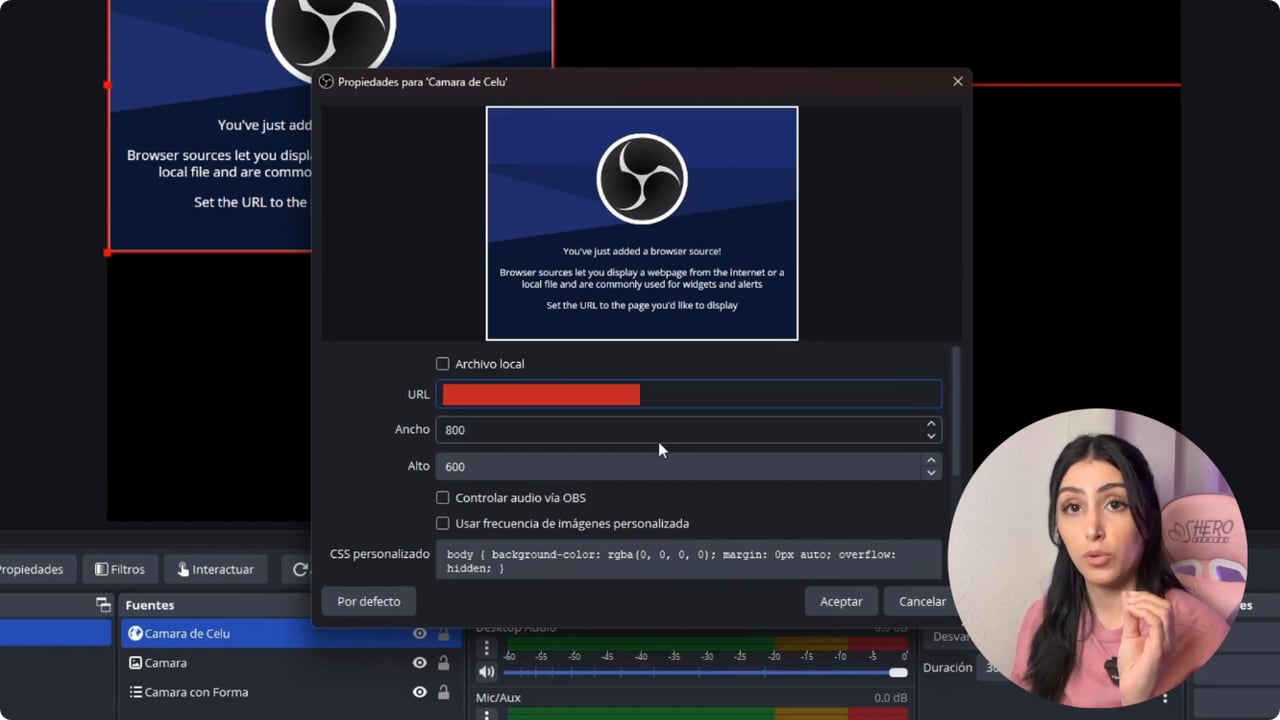
OBS shows the Browser Source URL field and dimensions. This frame does not show a pasted VDO.Ninja link. YouTube · 1:38 ↗ - 04
Set up some basic lighting
Watch this step on YouTube · 2:05 ↗First turn off every light, so you can see what light you actually need. Then use a lamp or ring light at 45 degrees to your face so you don't get harsh shadows.
I point one light at the wall so it bounces back and lights me evenly, with no weird shadows on either side of my face. And I use an LED ring to add a touch of light to the background.
What you should see: In the OBS preview both sides of your face are lit, with no hard shadows over your eyes.
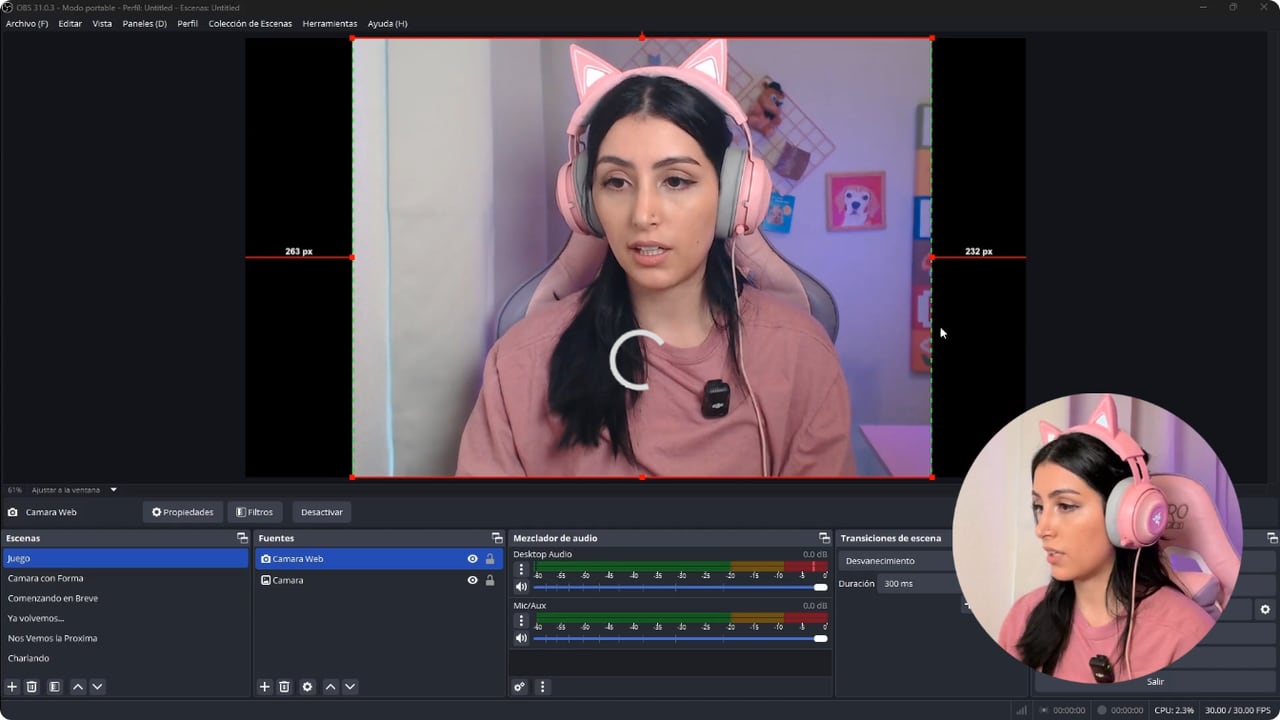
The preview lets you check light, position, and the space around the camera. YouTube · 3:00 ↗ - 05
Crop the picture and tune sharpness and color
Watch this step on YouTube · 2:35 ↗Hold Alt and drag the edges to crop it. A smaller camera on screen looks better. Then right-click the source, Filters, and under Effect Filters add Sharpen. Go easy, too much looks a bit strange.
For brightness, contrast and saturation, Nicole opens the camera's Properties and goes to Configure Video. More saturation and you look freshly tanned. Less, and you're in a silent film or a Tim Burton movie. White balance can tone down a part of your face that's too bright. If your camera in OBS is a Browser Source like the one in this guide and you don't see those options, OBS's Color Correction filter has brightness, contrast and saturation. With an Nvidia card you can also download its filters, like background blur, but every extra filter gives your computer more work.
What you should see: The source's filter list shows Sharpen, and the preview looks sharper and better colored than before.
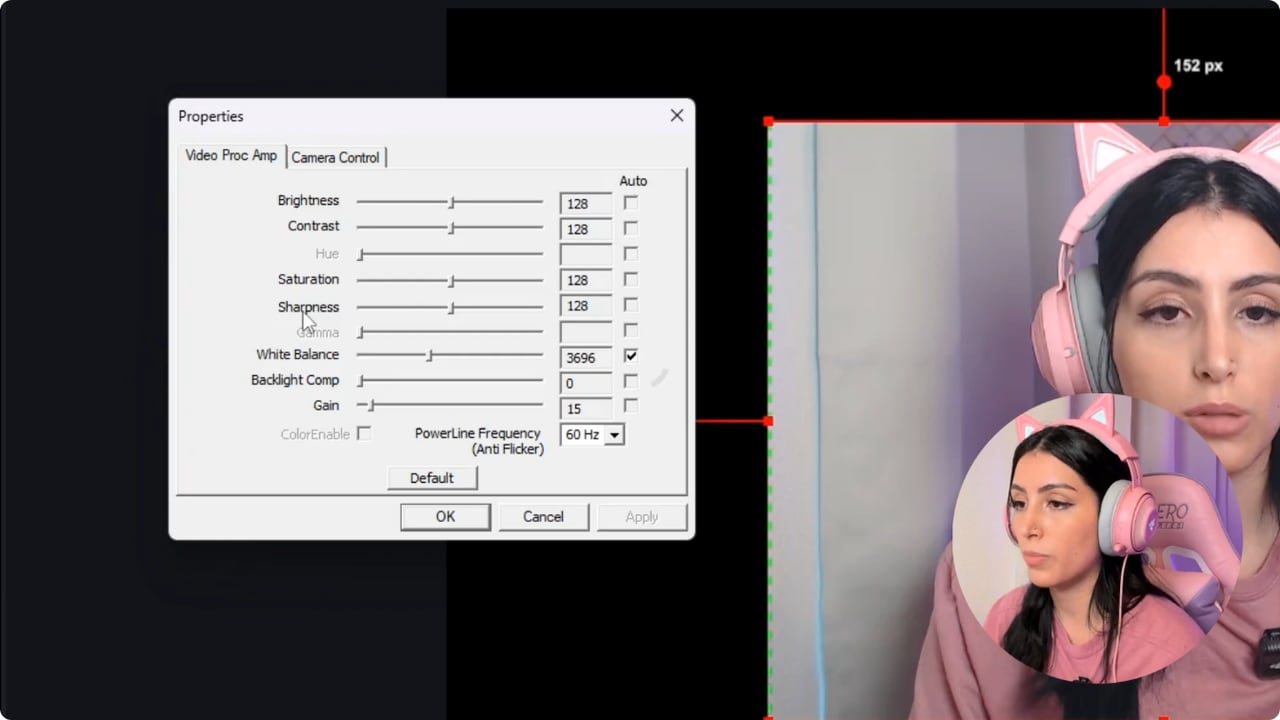
The tutorial shows image controls that should be moved in small steps and compared with the earlier view. YouTube · 4:00 ↗ - 06
Watch the connection, battery and heat
Watch this step on YouTube · 5:08 ↗The good: it's free, phones shoot great video these days and it's portable. Travelling? Take your phone and keep streaming.
The bad: if your internet isn't great, the picture stutters. You can't use the phone to read chat, because it's your camera. And depending on the model, it can get very hot and drain fast.
An extra that isn't in the video: keep it charging, close other apps and run a long test before going live. And that's it: phone, OBS, a couple of lights, and you're ready to start in style.
What you should see: After several minutes of testing, the phone's picture in OBS is still smooth and the phone shows it's charging.
If something does not work
- The Browser Source is empty or black
- Check that VDO.Ninja is still open on the phone with the camera started. Copy the view link again and make sure it's complete, with no spaces.
- The picture stutters or drops
- It's the connection. Get both the phone and computer on a steadier connection, and if it keeps happening, lower the bitrate number in the link. Test for a few minutes before deciding.
- You look tilted on camera
- Happened to me, and it turned out I was the one tilted. Straighten the phone or use a stand, and if needed rotate the source with right-click, Transform.
- Your face has harsh shadows or one side is blown out
- Move back from the light a little or bounce it off a wall. If one side of your face is still too bright, lower brightness or white balance in the camera's Properties, or brightness in Color Correction.
- The phone gets hot or runs out of battery
- Keep it plugged in for the whole stream and close other apps. Some models run hotter than others, so do a long test before a stream that matters.
Test before you go live
- Your view link isn't visible in any scene or in chat.
- If you set a password in VDO.Ninja, you have it saved.
- The phone's picture doesn't freeze during a several-minute test.
- The camera doesn't cover alerts or game info.
- The phone is charging and isn't too hot to touch.
- Chat is open on your computer, not on the phone.
Cómo usar tu celular como cámara en OBS, gratis
Watch the full tutorial (in Spanish) ↗Common questions
Do I need to install an app to use VDO.Ninja?
No. It runs in your phone's browser with no account or sign-up. In OBS you just add a Browser Source with the link.
Which phone camera should I use?
The rear one, since it's almost always better than the front. The catch is you can't see yourself while streaming, so frame the shot using the OBS preview.
What does &bitrate=2500 do?
It's a VDO.Ninja parameter that sets video quality in kbps. Nicole adds it to the link, but VDO.Ninja's documentation says it already targets about 2500 kbps by default, so you only need it if you want another number. If your internet can't keep up and the picture stutters, try a lower one.
Can I read chat on the same phone?
No, because it's busy being your camera. On a single monitor, add a chat dock in OBS or use another device.


