
Short answer
Before you start
- A browser or the Twitch app (you don't even need an account to watch)
- An email address or mobile number to verify your account
- The minimum age where you live, which is never under 13
- If you'll stream: a streaming program or app such as OBS, and the nerve to talk to a chat that might be empty at first
Bring your setup to a 24/7 AI Streamer Coach
Ask Streamer Coach →Get personalized feedback to fix streaming issues and plan your next content.
Step by step
- 01
Get what Twitch is (and that watching is free)
Twitch Safety Center: Guide for Parents and Educators ↗Someone said "I saw it on Twitch" and you nodded like you knew what that meant. Happens to the best of us. Twitch is a live streaming service built for people 13 and up. You'll find streamers playing games, making art, cooking, hosting talk shows and a lot more. And here's a comforting fact: most people on Twitch don't stream at all. They come to watch and to talk with streamers and each other in chat. You can use it on the web, on your phone and on some game consoles. It's free, and you don't even need a registered account to watch.
What you should see: You open twitch.tv without logging in and can play a live stream.
- 02
Create an account to chat, follow and stream
Twitch Help: Create an Account with Twitch ↗Watching without an account is fine, but to chat, to follow your favorite streamers and get alerts when they go live, or to broadcast from your own channel, you'll need one. Go to twitch.tv or the Twitch app and select Sign Up. You can use your email address or phone number, or sign up with Google, Apple or Amazon. Either way, you pick a username between 4 and 25 characters and enter your date of birth, which Twitch uses to check you meet the age requirements (the full rule is in the age FAQ below). Then Twitch sends a 6-digit code by SMS or email, and you have 5 minutes to enter it. One verified contact is enough, but Twitch recommends verifying both so you have more ways to recover the account.
What you should see: You're logged in and can follow channels.
- 03
Use categories and tags to find streams (and get found)
Twitch Help: Adding Tags to a Stream ↗Every stream on Twitch shows its title, its game or category and its tags next to the thumbnail. As a viewer, that tells you what you're walking into. As a streamer, tags help other people discover you, and Twitch suggests changing them every time you go live, just like your title. Your category adds some tags on its own, so you don't need to repeat the game's name, and the language tag is applied automatically too. On top of that you can add up to 10 custom tags, each up to 25 characters with no spaces. One thing that matters if you stream in Spanish or any other language: tags aren't translated, so cat and gato are separate directories.
What you should see: Under any stream you can see its category and tags, and opening a tag shows you other streams that use it.
- 04
Know what a subscription is
Twitch Help: How to Subscribe ↗A subscription is a monthly recurring payment, and it only exists on monetized channels. You pick Tier 1, Tier 2 or Tier 3 and pay with a credit or debit card, a Twitch gift card, PayPal, Amazon Pay or a local option, depending on your region. In return you get the channel's emotes to use across Twitch, a subscriber badge and, if the streamer turns it on, ad-free viewing on their channel. Each streamer chooses the perks. If you have Prime, it includes a channel subscription you can use on any monetized channel at no extra cost. The price depends on where you live, and Twitch tries to charge you in your local currency.
What you should see: Clicking Subscribe on a monetized channel opens a window with Tier 1, Tier 2 and Tier 3, plus Prime if you have it.
- 05
Meet Bits, the applause you pay for
Twitch Help: Guide to Cheering with Bits ↗Bits are a virtual good you buy on Twitch to support streamers. When you use them in chat, that's a Cheer: a chat message with Bits that shows up with animations called Cheermotes, which get flashier the more Bits you send. You can send them one by one, all at once or anything in between. To Cheer you need Bits in your inventory and the channel needs Bits turned on, and each channel can set a minimum. Typed an extra zero? Cheers of 1,000 Bits or more give you a 5-second countdown to click Cancel. What the streamer actually gets per Bit is in our guide to how much Twitch Bits are worth.
What you should see: In the chat of a channel with Bits turned on you see the Bits icon, and clicking it shows amounts with their Cheermotes.
- 06
Get Affiliate and Partner at a glance
Twitch Help: Achievements ↗Affiliate and Partner are Twitch's two programs for streamers, and your Creator Dashboard tracks your progress with Achievements. The Path to Affiliate has four: reach 25 followers, stream for 4 hours, stream on 4 different days, and reach an average of 3 viewers on 4 different days. All four have to happen within the same 30-day period. Partner asks for a lot more: 6 streams on 6 unique days averaging 75 viewers in the last 30 days, and the same again in the 30 days before that. Completing the achievements only makes you eligible to join or apply, it doesn't make you an Affiliate by itself. Chatbots like Nightbot don't count as viewers either. The full walkthroughs are in our Affiliate and Partner requirements guides.
What you should see: In the Achievements section of your Creator Dashboard you see your Path to Affiliate progress, with a checkmark on each achievement completed in the last 30 days.
- 07
Save your VODs before they disappear
Twitch Help: On-Demand Content on Twitch ↗A VOD is the recording of a stream you've already done. For it to be saved, you need Store Past Broadcasts turned on in your Stream Settings before you go live, and that setting only exists on the web, not in the app. If it was off, there's no VOD, and Twitch Support can't recover it. How long it lasts depends on your account: 60 days for Partners and Prime or Turbo users, 14 days for Affiliates, and 7 days for everyone else. To keep one, download it from the Video Producer or export it to YouTube by connecting your accounts. Spoiler: once the window closes, no amount of begging brings it back.
What you should see: After your stream, the broadcast shows up in the Video Producer in your Creator Dashboard.
- 08
Understand how you get paid on Twitch
Twitch Help: About Monetization on Twitch ↗Receiving support and getting paid are two different things. According to Twitch's help center, a streamer can access most monetization tools, such as subs, Bits, emotes, badges and Channel Points, once they accept the Monetized Streamer Agreement and complete setup in the Creator Dashboard, under Monetization > Setup. Those tools are available to streamers globally, and if you can't access setup in your region, Twitch asks you to contact Twitch Support. What doesn't change: a streamer who isn't an Affiliate or Partner can't receive payouts, even after reaching the payout threshold. They can only use that balance for eligible purchases on Twitch, through Spendable Balance. To actually get paid, the road still goes through Affiliate or Partner.
What you should see: In the Creator Dashboard, under Monetization, you find the setup where the agreement is accepted, if it's available in your region.
- 09
Set up your first stream's title, category and tags
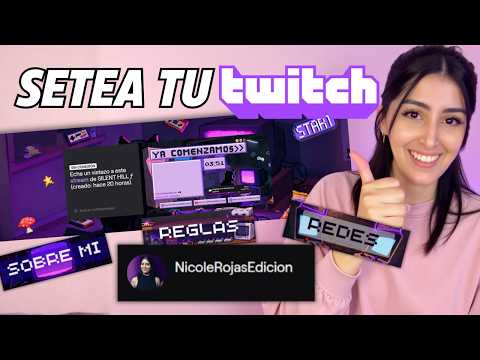
Nicole Rojas | YouTube | 12:46 ↗When it's your turn on the other side, start here. In the video, Nicole opens the Creator Dashboard, goes to Stream Manager and, under Quick Actions at the bottom, clicks Edit Stream Info. There she fills in the stream title, the go-live notification her followers get, the category with the game she's playing, and tags, such as one saying she's a new streamer who streams in Spanish. She also sets the stream language and the content classification, because the game she picked, Silent Hill, has mature content. And that's it, you now know how Twitch works from both sides of the screen. To set up the rest of your channel, carry on with the guide to starting on Twitch from scratch. The video is in Spanish.
What you should see: In Stream Manager, your stream info shows your new title, category and tags.
If something does not work
- Your verification code never arrives
- Go back and check the email or phone number is right, with your country code if you used a phone. Look in your spam folder and give it 5 minutes, because delivery can lag. If you used a phone, make sure it can receive SMS.
- The username you want is taken
- You'll need to pick another one. Twitch doesn't release inactive usernames, so waiting won't help. Try a short variation that's easy to remember and that you can use on your socials too.
- Your stream ended and there's no VOD
- Check on the web that Store Past Broadcasts is on in your Stream Settings. If it was off when you went live, that VOD doesn't exist and Support can't recover it. Turn it on now and your next stream will be saved.
- Someone types that they donated $100 and no alert showed up
- It's an old trick: the /me command makes text italic so it looks like a notification. If you use a donation service, the real message comes from that service's bot. Ignore it, and if they keep at it, time them out or ban them and report them to Twitch.
- You try to Cheer and it won't go through
- Make sure you have Bits in your inventory and the channel has Bits turned on. Channels can set a minimum number of Bits per Cheer, so if you get an error, raise the amount.
Test before you go live
- You've watched a stream without logging in.
- Your account has both email and phone verified.
- You follow a few channels in your category to see how they use titles and tags.
- You turned on past broadcast storage from the web.
- You know what's left on your Path to Affiliate, without obsessing over the number.
- Your first stream's title, category and tags are ready to go. And that's it.
Mega tutorial: configurá tu cuenta de Twitch desde cero
Related video from Nicole (in Spanish) ↗Common questions
Is Twitch free to watch?
Yes. Twitch is free to use, and you can watch whether or not you have a registered account. You only pay for extras, like a channel subscription, Bits or Turbo.
How much does a Twitch subscription cost?
It depends on where you live, because Twitch adjusts prices to local cost of living. As of 9 October 2026, a Tier 1 sub on the web costs 60 MXN in Mexico, 4.99 EUR in Spain, 1.99 USD in Argentina and Colombia, 3,570 CLP in Chile, 8.99 PEN in Peru, 5.99 USD in the United States, 7.99 CAD in Canada and 4.99 GBP in the UK. Buying in the mobile app can cost more.
How old do you have to be to use Twitch?
Twitch's Terms of Service say at least 13, 16 in Australia, or your country's minimum age if it's higher. If you're between that age and the age of majority where you live, you can only use Twitch with a parent or legal guardian supervising who agrees to the terms.
What's the difference between YouTube and Twitch for saving your streams?
According to each platform's help pages: Twitch saves your past broadcasts only if you turned that setting on before going live, and deletes them after 60 days for Partners, 14 for Affiliates and 7 for everyone else. YouTube can automatically archive a live stream if it runs under 12 hours, and its help page doesn't mention an automatic deletion window. If you want your Twitch VOD on YouTube, Twitch lets you export it once you connect the accounts.
Is Twitch owned by Amazon?
Yes. On 25 August 2014, Amazon announced it had reached an agreement to acquire Twitch Interactive, the company behind Twitch.
Does Twitch show inappropriate content?
Some streams cover topics that aren't for everyone, and Twitch requires streamers to mark them with Content Classification Labels, such as mature-rated games, violence or gambling. Viewers usually see a warning before those streams start. For users under 18, several of those label types are hidden by default.
How much money do Twitch streamers make?
There's no single number. To get paid you need Affiliate or Partner status, and Twitch pays out once you've accrued at least $50 with most payout methods or $100 with wire transfer. A streamer who isn't an Affiliate or Partner can only use their balance for eligible purchases on Twitch. For the actual splits, see our guide to how much Twitch and Kick pay.
Can I get Bits and subs without being an Affiliate?
Since 13 May 2026, Twitch has been opening Bits, subs, emotes, badges and Channel Points to eligible streamers worldwide. Eligible means accepting the Monetized Streamer Agreement and finishing onboarding in the Creator Dashboard. If it isn't available in your region, Twitch asks you to contact Twitch Support. But to get paid you still need Affiliate or Partner status, and payouts start at $50 with most methods or $100 with wire transfer.

