

Short answer
Before you start
- A Twitch Affiliate or Partner account
- Approved monetization onboarding, with your details and bank info added
- A country with monetized ads (check your dashboard: if you see Ads under Monetization, you're in)
- A chatbot like Nightbot or BotRix if you want to warn chat (optional)
Bring your setup to a 24/7 AI Streamer Coach
Ask Streamer Coach →Get personalized feedback to fix streaming issues and plan your next content.
Step by step
- 01
Check that you can set up ads
Nicole, Ads Manager requirements ↗Before touching anything, let's check your account is ready. You need three things: Affiliate or Partner status, approved monetization onboarding, and Twitch ad monetization enabled in your country. Nicole says that in May 2026 Twitch opened it up to LATAM countries. Open the Creator Dashboard, go to Monetization and look for Ads. If it isn't there, one of those three is missing.
What you should see: Monetization shows an Ads section with your account's Ads Manager.
- 02
Understand the 3-minute rule
Official Twitch Ads Manager help ↗Pre-rolls are the ads someone gets the second they land on your channel. For a person who doesn't know you yet, sitting through a break before seeing you is the perfect excuse to leave. Twitch's official help page currently says three minutes of mid-roll ads in every 60 minutes turns off pre-rolls for that hour. It also says three or more minutes per hour gives Affiliates and Partners a 55% net ad revenue share. That's a split, not a promise of what you'll earn.
What you should see: The official Ads Manager help page shows the three-minutes-per-hour rule next to the 55% share.
- 03
Set 3 minutes of ads per hour
Nicole, minutes per hour and pre-rolls ↗In Monetization, Ads, leave automatic ad scheduling on and move the minutes-per-hour control to 3. Watch two indicators change at once. Pre-rolls for new viewers switches to Fully disabled, and the net ad revenue percentage jumps from 30 to 55. Drop below 3 and it goes back to 30.
What you should see: The dashboard shows pre-rolls for new viewers as Fully disabled and the revenue percentage at 55.
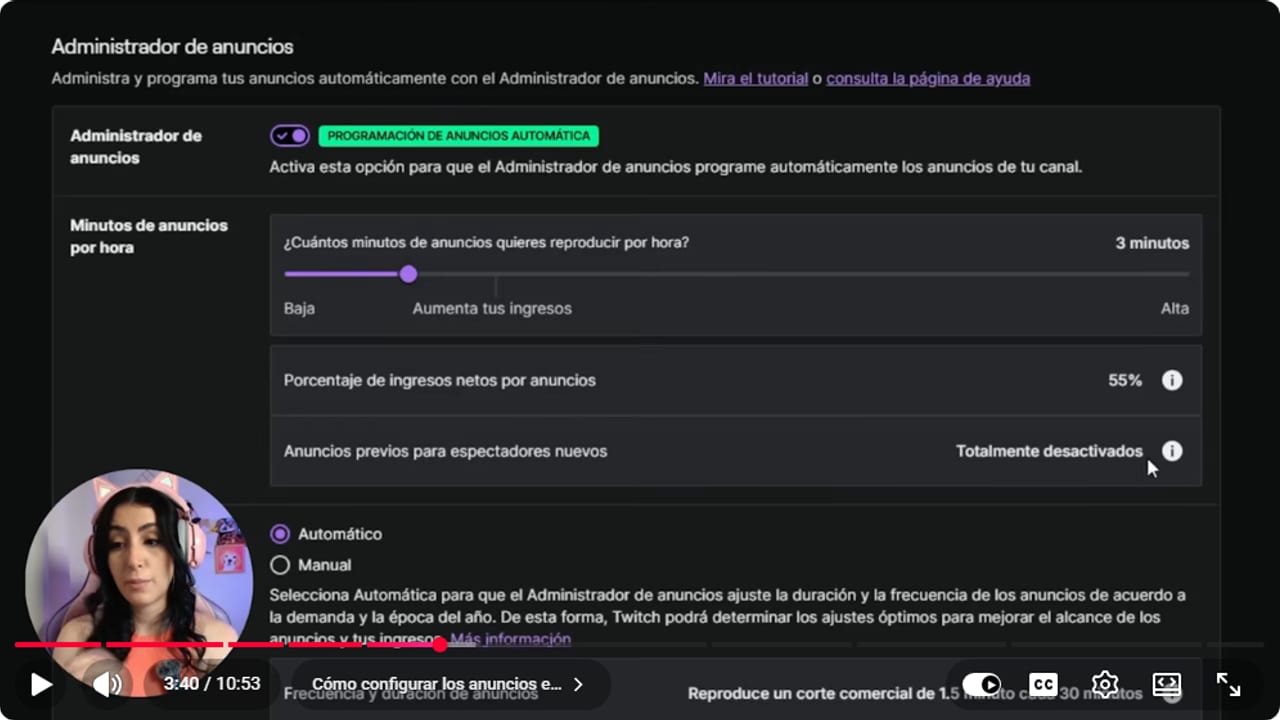
The tutorial shows duration and frequency in Ads Manager. Confirm current values in your own dashboard. YouTube · 3:40 ↗ - 04
Leave frequency on automatic
Nicole, automatic scheduling and frequency ↗Further down, under frequency and duration, choose Automatic. In Nicole's example the dashboard shows a 1.5-minute break every 30 minutes, which adds up to the 3 per hour. According to Twitch's help, on Automatic Twitch adjusts ad length and frequency based on ad demand and time of year, so your dashboard may show other values. The manual control only appears if you choose more than 3 minutes per hour, and automatic is fine to start.
What you should see: Under frequency and duration, Automatic is selected and the dashboard shows how long the break is and how often it runs (in the video, 1.5 minutes every 30).
- 05
Choose when the first ad runs
Nicole, first-ad delay ↗Click Advanced Settings and find First Ad Delay. If you open with a Starting Soon screen and a countdown, set it to 1 minute so the break lands while people are still arriving. If you go straight into the stream, set it to 30 minutes. Lots of people join the moment their phone pings with your live notification, and you don't want to greet them with an ad.
What you should see: First Ad Delay shows the value you picked, either 1 or 30 minutes.
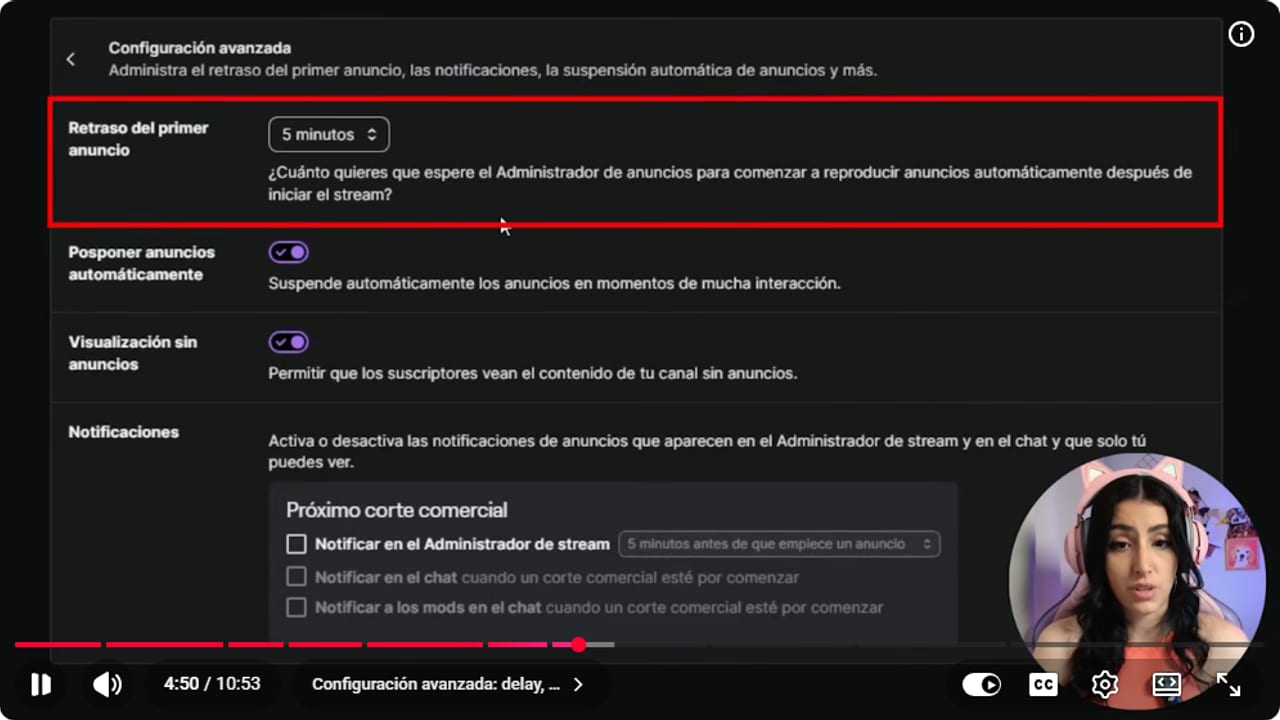
The first-ad delay appears beside the scheduling controls. YouTube · 4:50 ↗ - 06
Turn on auto-snooze and ad-free viewing for subs
Nicole, auto-snooze and subscriber viewing ↗Still in Advanced Settings, turn on Auto-Snooze Ads. Twitch spots high-engagement moments, like a fight or you screaming or laughing your head off, and holds the ad. Then turn on ad-free viewing for subscribers. People who pay to support you get no ads, which is a nice way to thank them.
What you should see: Advanced Settings shows Auto-Snooze Ads and ad-free viewing for subscribers switched on.
- 07
Set up the warnings and the main switch
Nicole, stream and moderator notifications ↗Under Notifications, turn on the Stream Manager warning 5 minutes before each break. It gives you time to wrap up a thought, pause the game if it's offline, or announce a bathroom run. Also turn on the chat notice for when a break is about to start. Notifying mods is up to how much you trust them. Then go back with the arrow, scroll to General, and under pre-rolls turn on the option that disables pre-rolls when you run ads. That's the main switch. Leave the other two options as they come.
What you should see: Five minutes before a break, a banner with the ad countdown appears at the top of Stream Manager.
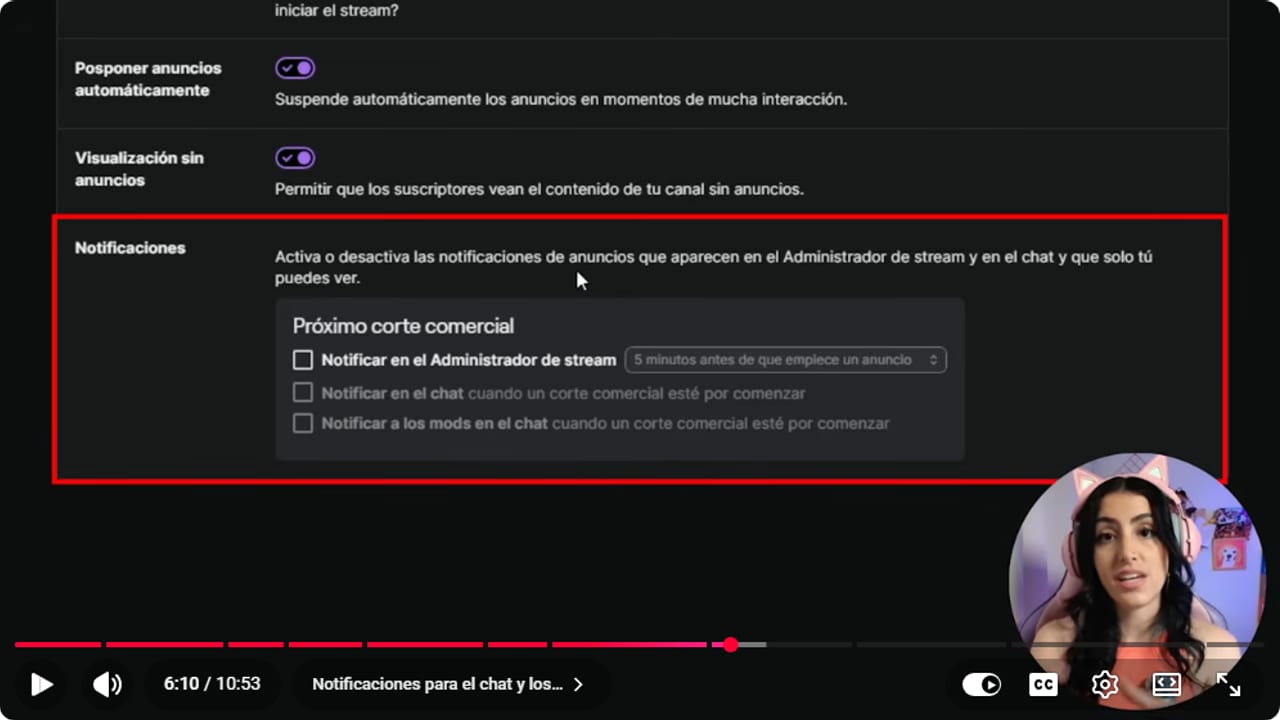
Notifications can warn the streamer, moderators, or chat before a break when the setting is available. YouTube · 6:11 ↗ - 08
Test it live and check the numbers
Official Twitch Ads Manager help ↗Run a stream, note when the first warning appears, and check that the break lands where you expected. Then look at Earnings Analytics. Twitch's help page says that data can take up to 48 hours to show up. Ads pay per thousand impressions, and in Latin America that rate is low, so a small channel won't see money raining from the sky. What you do get from day one is new viewers who don't leave because of an ad.
What you should see: Earnings Analytics lists your test session once Twitch finishes processing it.
- 09
Help your chat not hate the ads
Nicole, tricks so chat doesn't hate the ads ↗I hate them too, so here are three tricks. One: remind chat they can use their Prime subscription, which comes with Amazon Prime. They support you and, because you turned on ad-free viewing for subs, they skip your ads. Two: Twitch Turbo removes ads on every channel, though almost nobody uses it. Three: with Nightbot, BotRix or whatever chatbot you use, set up a notice like ads start in 90 seconds, so people can grab a drink. And that's it, ads set up without scaring anyone off.
What you should see: Before each break, your bot posts the notice in chat with the seconds remaining.
If something does not work
- Ads doesn't appear under Monetization
- One of the three is missing: Affiliate or Partner status, approved monetization onboarding, or ad monetization in your country. Careful, submitting onboarding isn't the same as getting it approved, and Twitch has its hiccups there. Check the status in your dashboard and, if everything looks right and Ads still isn't there, open a case with Support.
- An ad cuts in at the worst moment
- Make sure Auto-Snooze Ads is on and the 5-minute warning is enabled. When the warning shows, wrap up or pause the game if it's offline. With the first ad delay set properly, your opening hello stays safe.
- The dashboard shows 30% instead of 55%
- You have fewer than 3 minutes per hour scheduled. Move the control to 3, save, and check that the percentage switches to 55 and pre-rolls show as Fully disabled.
- Your dashboard doesn't look like the tutorial
- Twitch renames and moves things often, so use your own dashboard and the official help page as the reference. If an old guide tells you to enroll in the Ads Incentive Program, skip it, because current help says those extra steps are no longer needed.
Test before you go live
- You joined your stream from another account and no ad greeted you.
- The first break lands after your hello, not in the middle of an explanation.
- Your mods know what to do when they see the break warning.
- Your chatbot has the warning message ready.
- You checked the official ads help page on the day you set this up.
Cómo configurar los ads en Twitch para no perder viewers
Watch the full tutorial (in Spanish) ↗Common questions
Do three minutes per hour remove pre-rolls?
Yes. Twitch's current help page says three minutes of mid-roll ads in every 60 minutes turns off pre-rolls for that hour. Pre-rolls themselves don't count toward those three minutes.
How much will I earn from Twitch ads?
There's no figure that fits every channel. Ads pay per thousand impressions, and in Latin America that rate is much lower than in the US. Check Earnings Analytics after each stream and do your own math.
Do Twitch ads pay in Latin America?
Nicole says in her video that in May 2026 Twitch opened ad monetization to Latin American countries, and she links the details in the description. Twitch's ads help page doesn't include a country list, so confirm it in your dashboard: if you see Ads under Creator Dashboard, Monetization, you can set them up.
Does the Ads Incentive Program still exist?
Twitch's current help page says its extra steps are no longer needed. Affiliates and Partners get the published share straight through Ads Manager, with nothing separate to join.
Do my subscribers see ads?
Not if you turn on ad-free viewing for subscribers. That's why suggesting a Prime sub helps both sides. They stop seeing breaks and you gain a sub, which is a pretty good deal.


