TWITCHMIX IT UP
How to show images and sounds with channel points using Mix It Up
Let viewers redeem Twitch channel points for GIFs and sounds on stream with the free Mix It Up bot, and make your emotes play a sound when chat uses them.


Short answer
Before you start
- A Windows 10 or 11 PC. Mix It Up has no Mac version.
- A Twitch channel with channel points turned on
- OBS Studio or Streamlabs Desktop
- A GIF or image and a short sound, saved in a folder you won't move
Bring your setup to a 24/7 AI Streamer Coach
Ask Streamer Coach →Get personalized feedback to fix streaming issues and plan your next content.
Step by step
- 01
Download and install Mix It Up
Nicole Rojas | YouTube | 1:32 ↗You know those streams where someone redeems points and a puppy with heart eyes suddenly pops up on screen? That's what you're building. Mix It Up is a free, open source bot made by a community of streamers. Go to the Mix It Up site, click Download and grab the installer. Run it, let it finish and open the app. When it asks, pick New profile.
What you should see: The Mix It Up New User Wizard opens, with buttons to connect your accounts.
- 02
Connect your Twitch account
Nicole Rojas | YouTube | 2:02 ↗Click Next. In the Twitch box, click Log in with Twitch under Streamer and authorize it. The Bot column is optional. Already running Nightbot or the StreamElements bot? Keep them. Mix It Up works alongside them and only handles the channel point interactions. Then click Continue.
What you should see: The wizard shows your Twitch channel as a connected account.
- 03
Create an overlay endpoint and copy its link
Nicole Rojas | YouTube | 2:40 ↗The overlay endpoint is the bridge between Mix It Up and your stream. It's a link you'll paste into OBS. Open Settings (the gear) and go to Overlays. Type a name you'll recognize in the Name field, like Channel point images, and click Add. Then click that endpoint's copy button.
What you should see: Your new endpoint shows up under Overlay Endpoints, below Default, with open, copy and edit buttons.
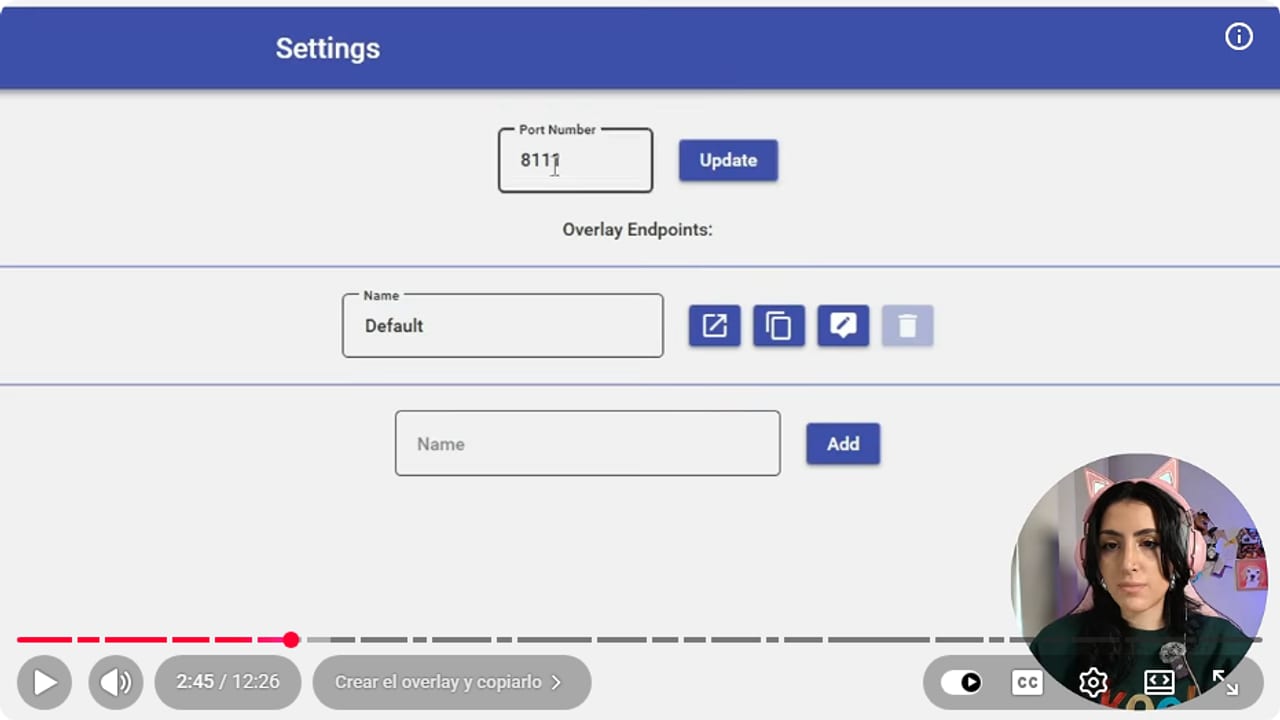
Type your endpoint's name in Name, click Add, then use the copy button on that row. YouTube · 2:46 ↗ - 04
Add it to OBS as a Browser source
Nicole Rojas | YouTube | 2:52 ↗In OBS, pick the scene you stream from, like your chatting or gaming scene. Click +, choose Browser, name it Mix It Up images and click OK. Paste the link into URL and enter your screen size in Width and Height (mine is 1920 by 1080). Click OK, then drag the source to the top of Sources so your overlay doesn't cover it. Repeat this in every scene where you want redemptions to show.
What you should see: Mix It Up images sits first in Sources, and its outline fills the whole scene.
- 05
Get a GIF and a sound, and keep them in one folder
Nicole Rojas | YouTube | 3:35 ↗For GIFs, go to Giphy and use the Stickers tab. Stickers come with the background already removed, so they sit better on your stream. For sounds, try MyInstants: search, click one and it downloads. Save everything in a folder just for Mix It Up. Once the files are linked, don't move or delete that folder, because Mix It Up always looks for them at that path.
What you should see: Your folder holds the sticker and the sound. The GIF plays with no background and the sound plays when you open it.
- 06
Create the channel point reward in Mix It Up
Nicole Rojas | YouTube | 4:50 ↗Open the three-line menu in Mix It Up and go to Twitch Channel Points. At the bottom, choose to add a new channel point reward and give it a name that fits your GIF. Mine is No puede ser enamorado (roughly "no way, I'm in love"), for the heart-eyed puppy. Click OK on the message saying it was created.
What you should see: Your reward appears in the Twitch Channel Points list with test, edit and delete buttons.
- 07
Add an Overlay action with your GIF
Nicole Rojas | YouTube | 5:40 ↗Click edit on your reward. Pick the Overlay (Images & Videos) action and click +. Leave Action on Image, or switch to Video for a clip. In Image File Path, click Browse and choose your GIF. In Overlay Endpoints, pick the one you made. Then set the size (I used 200 by 200, and 1920 by 1080 fills the screen), the position (Simple is fine to start), a 3 second duration and the animation: Zoom In on the way in, Fade Out on the way out.
What you should see: The Overlay action shows your GIF's path in Image File Path, your endpoint and 200 in Width and Height.
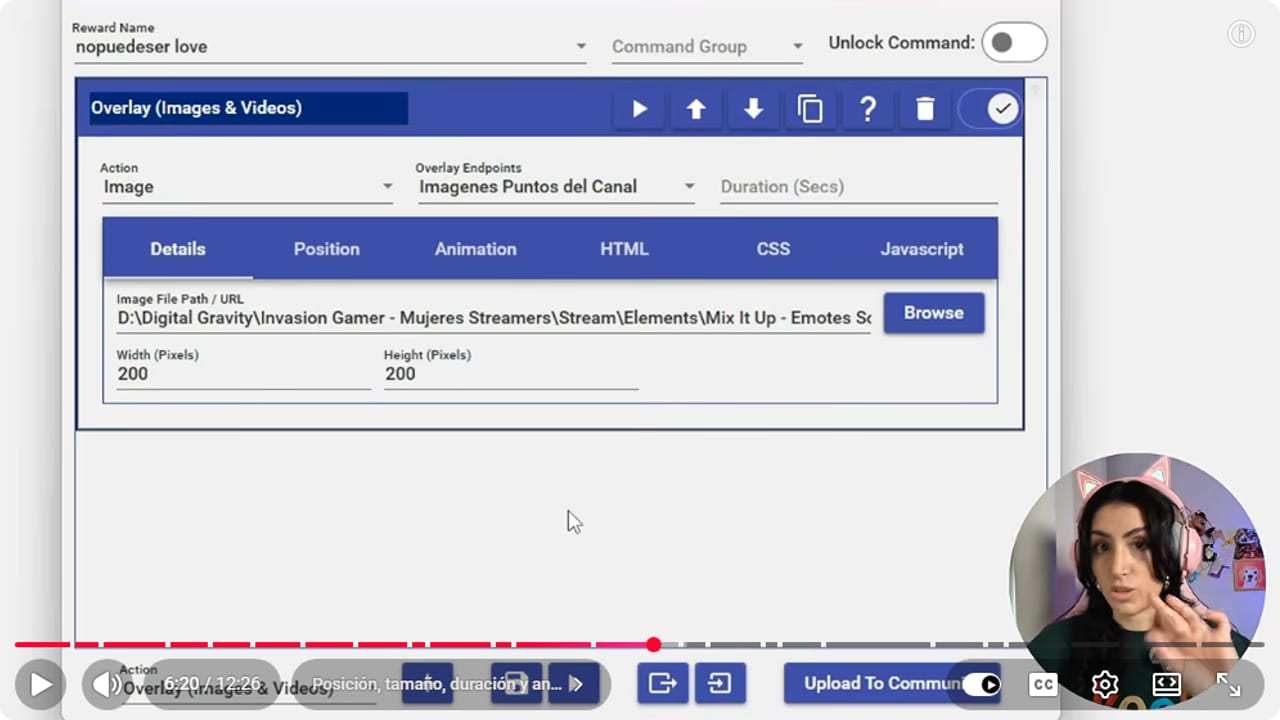
Check that Overlay Endpoints shows the endpoint you pasted into OBS, or the GIF won't appear. YouTube · 6:21 ↗ - 08
Add the sound and a chat message
Nicole Rojas | YouTube | 6:37 ↗Use + to add a Sound action. In Sound File Path, click Browse and pick your sound. Hit play to hear it, and lower the volume if it's too loud. Optionally, add a Chat Message action and write something like $username fell in love. $username becomes the name of whoever redeemed it. Turn on Send as Streamer to post it as you, or leave it off so Mix It Up posts it. Click Save.
What you should see: Under the Overlay action you see Play Sound and Chat Message, each filled in with your sound and your text.
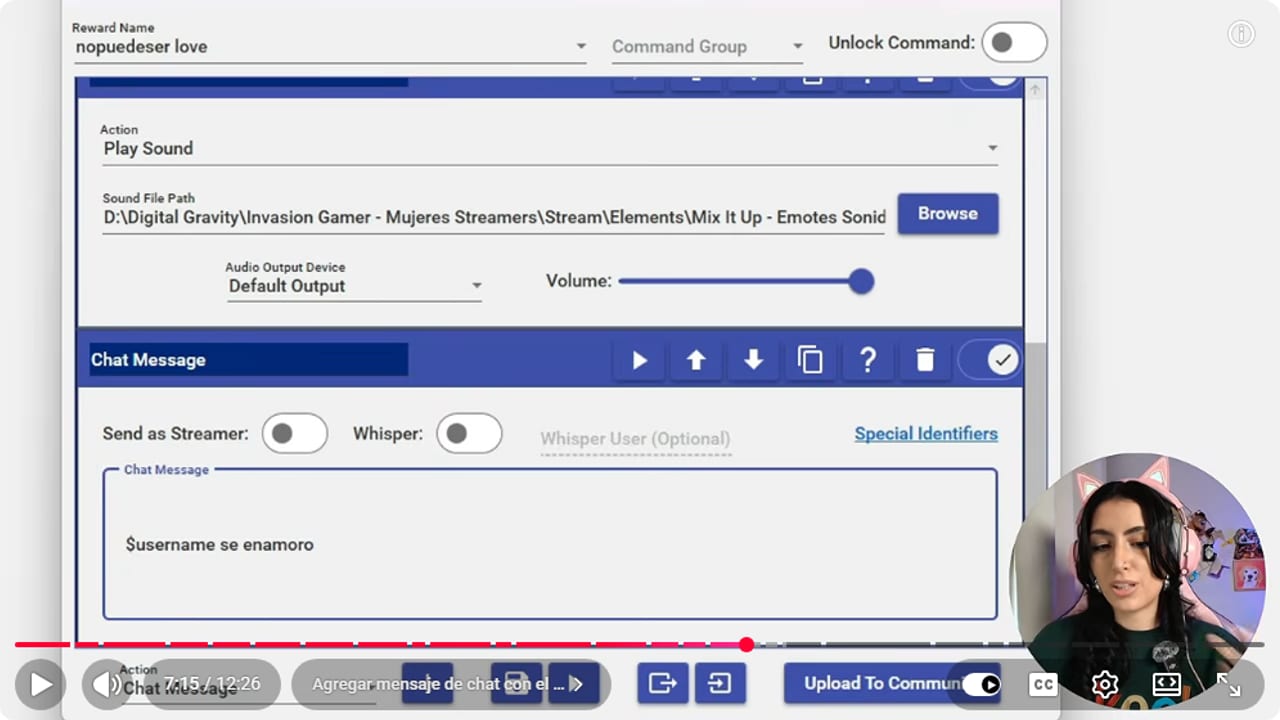
$username fills in whoever redeemed it. With Send as Streamer off, Mix It Up posts the message. YouTube · 7:16 ↗ - 09
Test the reward with OBS open
Nicole Rojas | YouTube | 7:32 ↗With OBS open, click your reward's play button in Mix It Up. It asks for a user and an argument. Enter your username and run it. If the GIF lands somewhere odd, the sound drags on or the image is too small, edit the action and fix it. Mind the order, too: Mix It Up has to be running before you open OBS.
What you should see: Your GIF plays its animation in the OBS preview and you hear the sound.
- 10
Finish the reward in your Twitch dashboard
Nicole Rojas | YouTube | 8:08 ↗On Twitch, open the Creator Dashboard, then Viewer Rewards, then Channel Points and Power-ups, and manage your rewards. Your new one sits at the top with a cost of 1 point. At that price, chat will redeem it in their sleep. Click Edit, rename it (I went with Gif en pantalla, GIF on screen) and set an affordable cost between 200 and 500. The icon needs PNGs at 28, 56 and 112 pixels. Turn on Skip reward requests queue, set a 1 or 2 minute cooldown, save and check it's enabled. Every other reward setting is in the Twitch channel points guide.
What you should see: In your Twitch rewards list, the Mix It Up reward shows its new cost with the enabled toggle on.
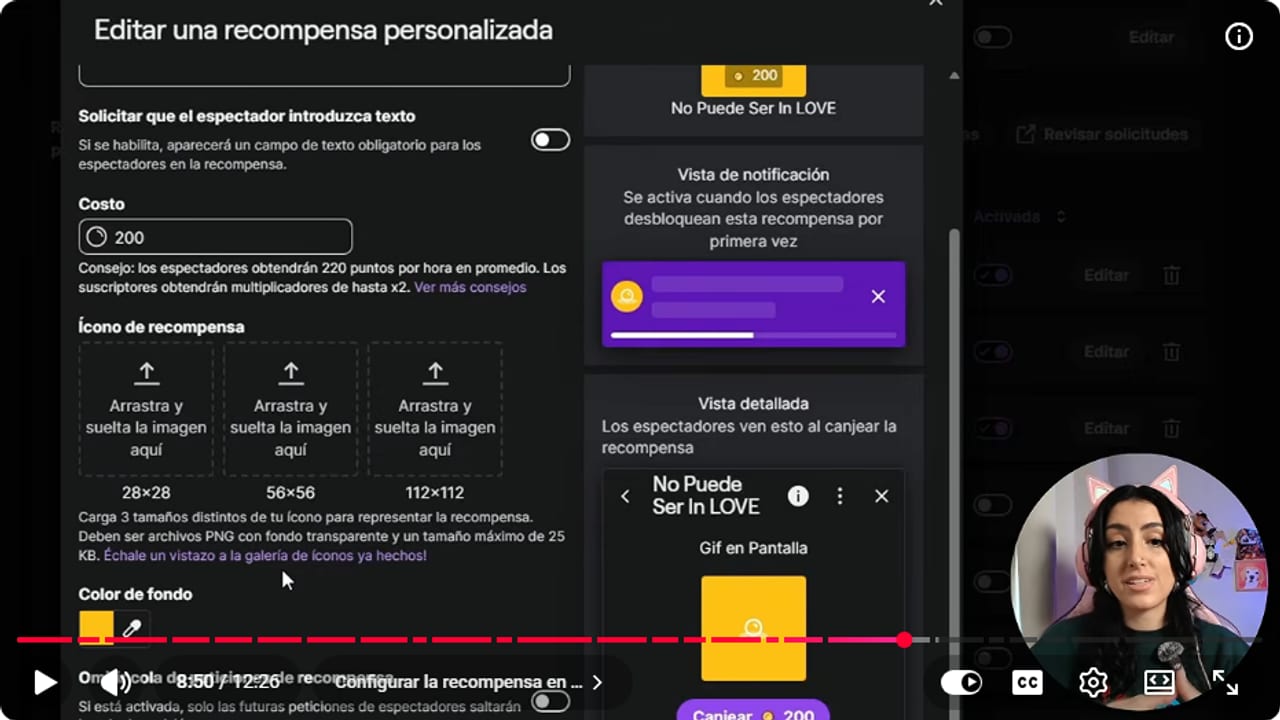
This is where you replace the 1 point cost it gets from Mix It Up and upload the icon in all three sizes. YouTube · 8:51 ↗ - 11
Make an emote play a sound when someone types it
Nicole Rojas | YouTube | 9:50 ↗This trick costs no points. Someone types the emote and a sound plays on stream. In Mix It Up, open the three-line menu, go to Commands, then Custom Commands, and click New Command. Give it a name. In Chat Trigger, type the emote's name exactly as it appears under Creator Dashboard, Viewer Rewards, Emotes (I used Miedo). Turn off Auto-Include "!" because this is an emote name, not a command. Add a Sound action, pick the sound, set the volume to 50 and save.
What you should see: When you type the emote in your chat, the sound plays in OBS.
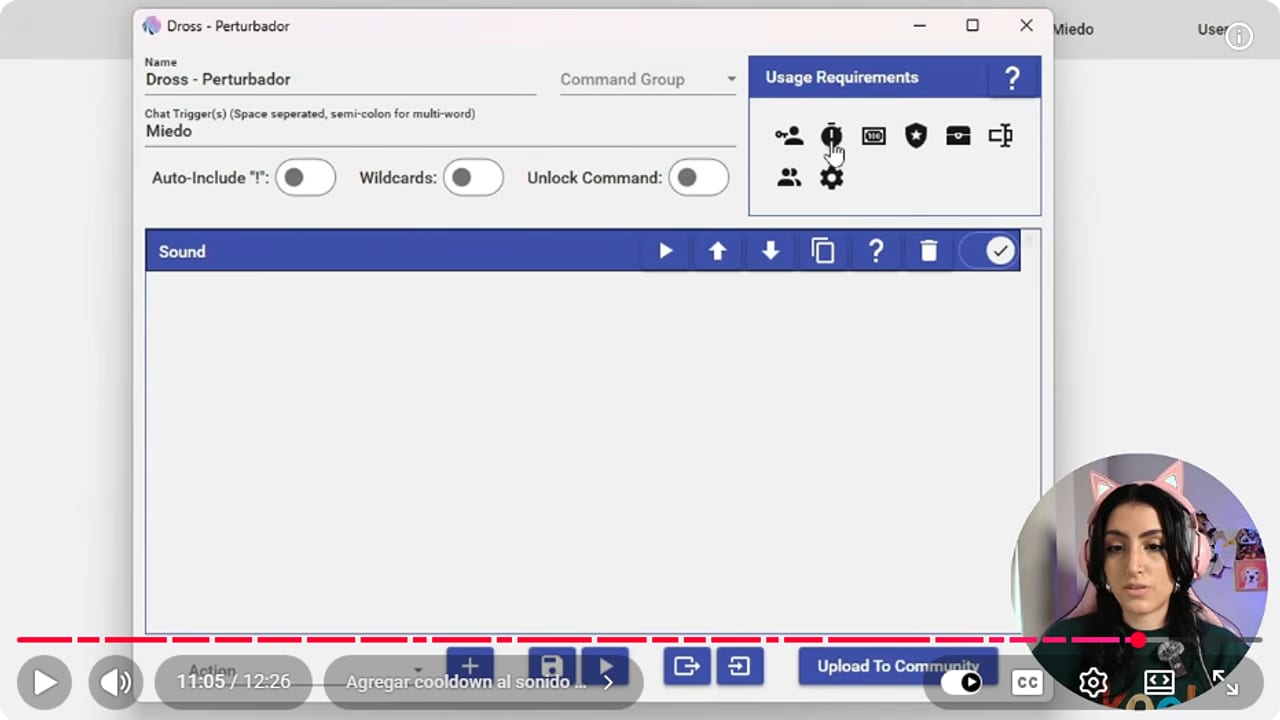
The trigger is the emote name with no exclamation mark. The stopwatch above is where the cooldown goes. YouTube · 11:06 ↗ - 12
Put a cooldown on the emote sound
Nicole Rojas | YouTube | 10:55 ↗Once chat gets excited, that sound will play nonstop. To rein it in, edit the command and click the stopwatch under Usage Requirements. Choose a per-person or group cooldown, say 60 seconds per person, and save. If people still overdo it, make it longer. And that's it: chat trades points for GIFs and sounds, and your emotes make noise.
What you should see: The cooldown you set appears under the stopwatch in Usage Requirements.
If something does not work
- You test the reward and the GIF never shows in OBS
- Close OBS, open Mix It Up first and then OBS. If Mix It Up starts last, the source gets nothing. Also check the Overlay action points at your endpoint and the source sits at the top of Sources.
- Mix It Up can't find the image or the sound
- This happens when the file moved or got deleted after you linked it. Put it back in its original folder, or edit the action and pick it again with Browse. That's why a dedicated folder saves you trouble.
- Chat redeems the reward over and over
- Raise the cost or lengthen the cooldown in your Twitch dashboard. You can also cap redemptions per stream and per viewer. Chat loves you, but the puppy doesn't need 40 encores.
- People type the emote and nothing plays
- Chat Trigger needs the emote name exactly as it's written in your Creator Dashboard. Make sure Auto-Include "!" is off, or Mix It Up will wait for !Miedo instead of Miedo.
- The GIF sound goes on forever or drowns out your voice
- Trim the sound before you load it, or pick a shorter one on MyInstants. Then lower the volume in the Sound action and test with the play button until it sits under your voice.
Test before you go live
- Mix It Up opens before OBS and stays open the whole stream.
- The Mix It Up source is in every scene where you want redemptions, at the top.
- The GIF lands somewhere that doesn't cover your camera or chat.
- The sound plays under your voice, not over it.
- The reward's cost and cooldown keep the screen from turning into a GIF storm.
- Your files are still in the folder you linked them from.
- And that's it: channel points people can see and hear.
Cómo mostrar imágenes y sonidos con puntos de canal usando Mix It Up
Watch the full tutorial (in Spanish) ↗Common questions
Is Mix It Up free?
Yes. It's an open source bot built by a community of streamers, not a company planning to charge you later. The rewards, overlays and commands in this guide cost nothing.
Does Mix It Up work on Mac?
No. Mix It Up runs on Windows 10 and 11 and has no Mac version. If you're on a Mac, check the official site now and then in case that changes.
Does Mix It Up replace Nightbot or StreamElements?
No, they get along fine. Keep your moderation bot as it is and use Mix It Up only for channel point GIFs and sounds. They don't step on each other.
Does Mix It Up need to stay open while I stream?
Yes, and it has to be open before you launch OBS. Close it and redemptions show nothing on screen. If you'd rather use something that doesn't need an app running, look at showing emotes on screen with Sound Alerts.
Can I show videos instead of GIFs?
Yes. In the Overlay action, switch Image to Video and pick the file. Mix It Up can also play YouTube videos, switch scenes or fire bit effects, so your lovestruck puppy doesn't have to work alone.


