TWITCHMIX IT UP
How to build a Twitch attendance system with Mix It Up
Build a Twitch attendance system with a 1 point channel reward and free Mix It Up: a !top10 ranking, personal point checks and a leaderboard in OBS.


Short answer
Before you start
- Twitch Affiliate or Partner status, since channel points only exist there
- Mix It Up installed and connected to your Twitch. It's free and runs on Windows 10 and 11 only.
- OBS Studio, if you want the ranking on screen
- Optional: a PNG reward icon in 28, 56 and 112 pixel sizes
Bring your setup to a 24/7 AI Streamer Coach
Ask Streamer Coach →Get personalized feedback to fix streaming issues and plan your next content.
Step by step
- 01
Create the Confirm your attendance reward on Twitch
Nicole Rojas | YouTube | 1:28 ↗Some people show up to every single stream, can't donate or sub because not everyone can, and nobody ever notices. Not great. Let's give them a leaderboard. In your Twitch Creator Dashboard, go to Viewer Rewards, Power-ups and Channel Points, and open the manage page. Scroll down and click Add New Custom Reward. Name it Confirm your attendance and set the cost to 1 point, so even someone on their first visit can redeem it. It's a point of honor.
What you should see: The reward form shows the name Confirm your attendance and a cost of 1.
- 02
Turn on Skip queue and set 1 redemption per user per stream
Nicole Rojas | YouTube | 2:12 ↗If you want an icon, upload it as a PNG in three sizes: 28, 56 and 112 pixels. Turn on Skip Reward Requests Queue. Then turn on Cooldown and Limits, leave Redemption Cooldown and Limit Redemptions Per Stream empty, and set Limit Redemptions Per User Per Stream to 1. Don't mix up the boxes: I set the per-stream limit and only one person in the whole chat could redeem it. My horror. Click Save.
What you should see: Your custom rewards list shows Confirm your attendance with a cost of 1 and its enabled switch on.
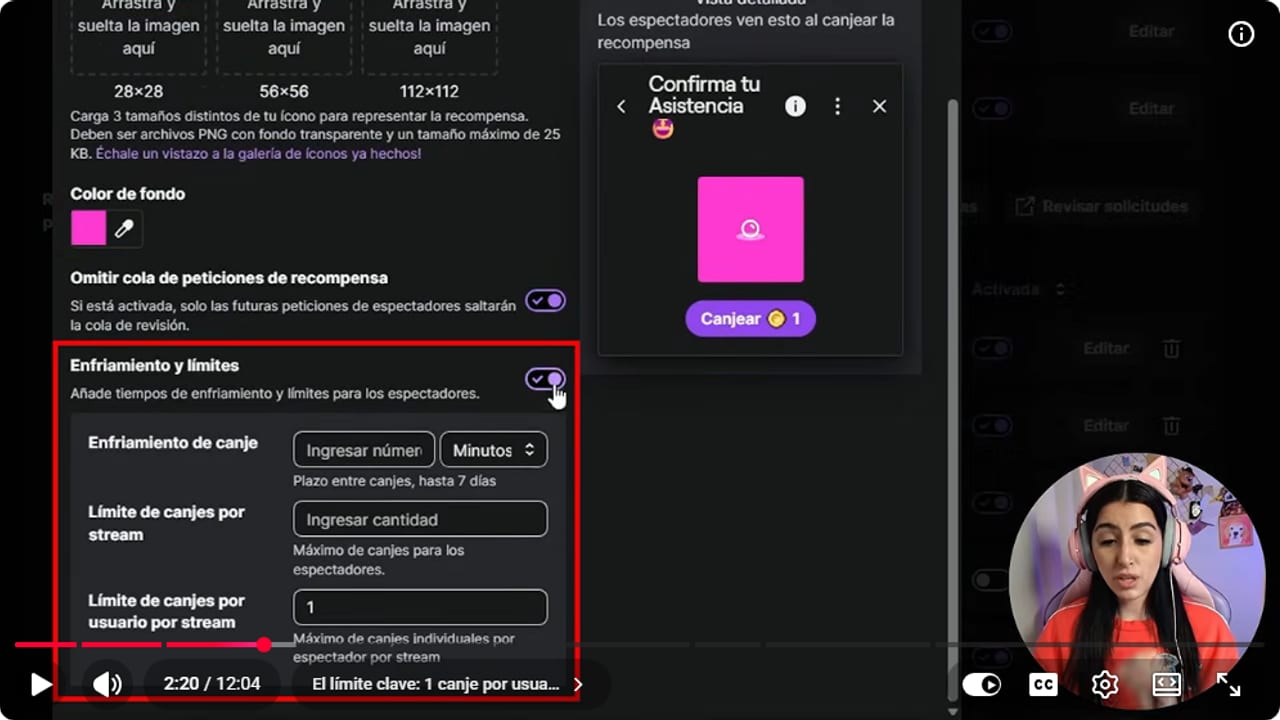
The 1 goes in the per user per stream limit. Leave the per stream box above it empty. YouTube · 2:21 ↗ - 03
Create the Attendance currency in Mix It Up
Nicole Rojas | YouTube | 3:06 ↗You need Mix It Up installed and connected to your Twitch. If it isn't yet, start with the guide on showing images and sounds with channel points in Mix It Up, which walks through the install. In Mix It Up, open the three-line menu and go to Currency/Rank/Inventory. Click Add Currency/Rank, name it Attendance (I named mine Asistencia), leave Is Primary on and Is Rank System off, and set every rate and bonus to 0. That way redeeming the point is the only way to earn it. Save. When it offers to create commands for you, click No.
What you should see: Currency/Rank/Inventory lists your new currency, with its special identifiers like $userasistencia and $top10asistencia next to it.
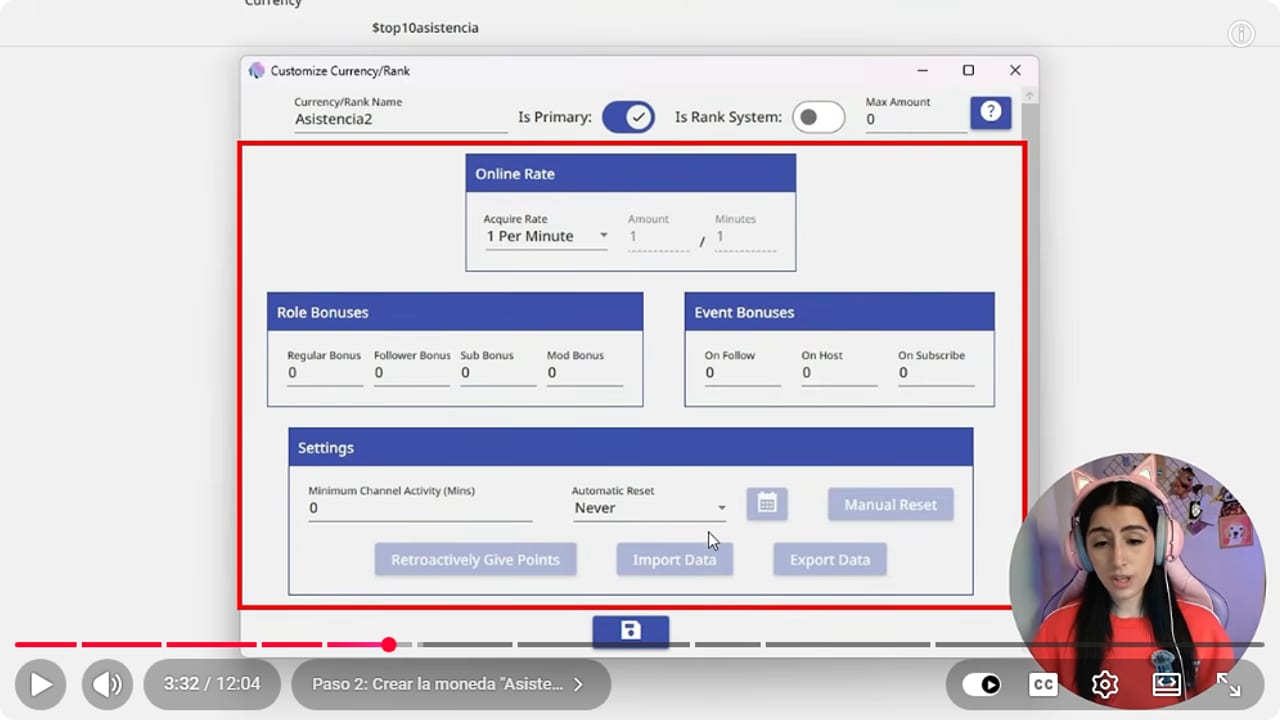
Make sure the bonuses stay at 0, so the reward is the only way to earn attendance. YouTube · 3:33 ↗ - 04
Link the Twitch reward to the currency
Nicole Rojas | YouTube | 3:58 ↗In the Mix It Up menu, go to Twitch Channel Points and click Add Command to Existing Reward, since you already made the reward on Twitch (you can create it from Mix It Up too, but Twitch gives you more control). Pick Confirm your attendance. Under Action choose Consumables (Currency/Rank/etc) and click +. Set Consumables to your currency, Action to Add to user and Amount to 1. Save.
What you should see: Confirm your attendance now shows up in Mix It Up's Twitch Channel Points list.
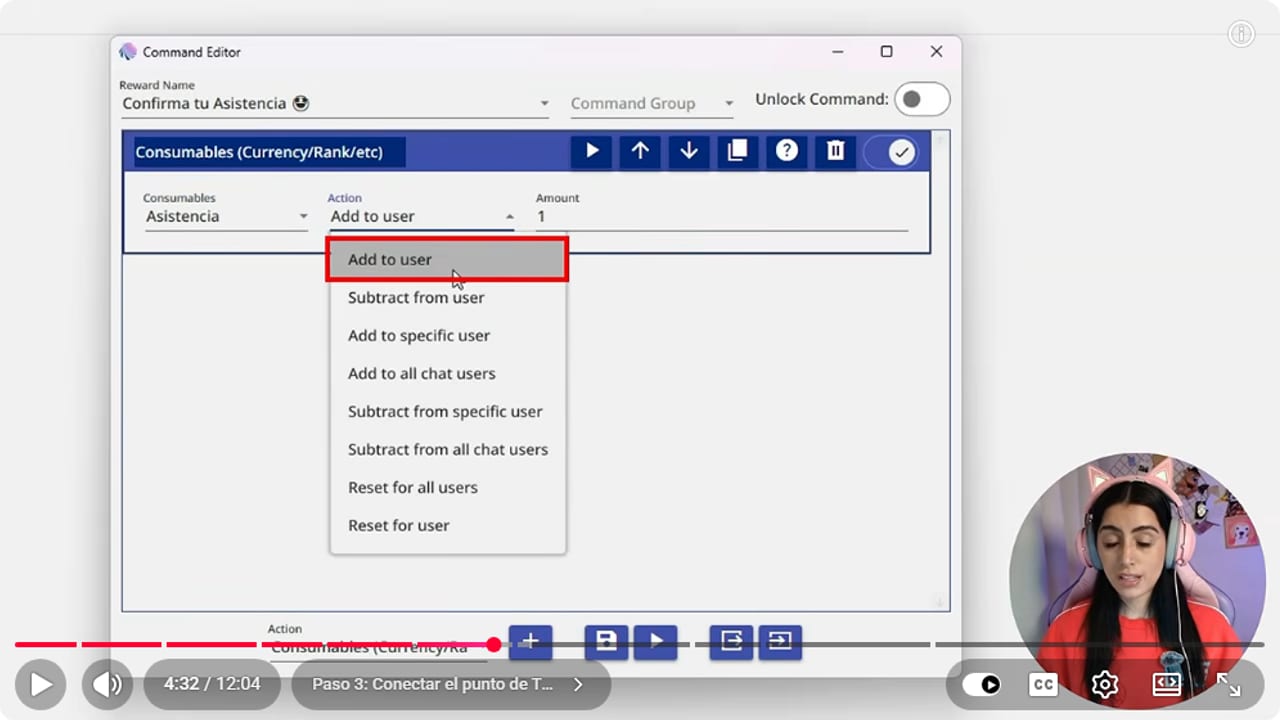
Choose Add to user and enter 1, so each redemption adds one point to whoever redeemed it. YouTube · 4:33 ↗ - 05
Create a !top10 command for the leaderboard
Nicole Rojas | YouTube | 4:56 ↗At this point the ranking works behind the scenes, but chat can't see it. Go to Commands and click New Command. Name it Top 10 Attendance and type top10 as the Chat Trigger. In Usage Requirements set a 30 second cooldown and the User role, so anyone in chat can use it. Add a Chat Message action with Top Attendance: $top10asistencia. That identifier comes from the Currency/Rank/Inventory list, so if you named your currency something else, copy yours from there. Save.
What you should see: Your commands list shows Top 10 Attendance with the top10 trigger, User permission and a 30 second cooldown.
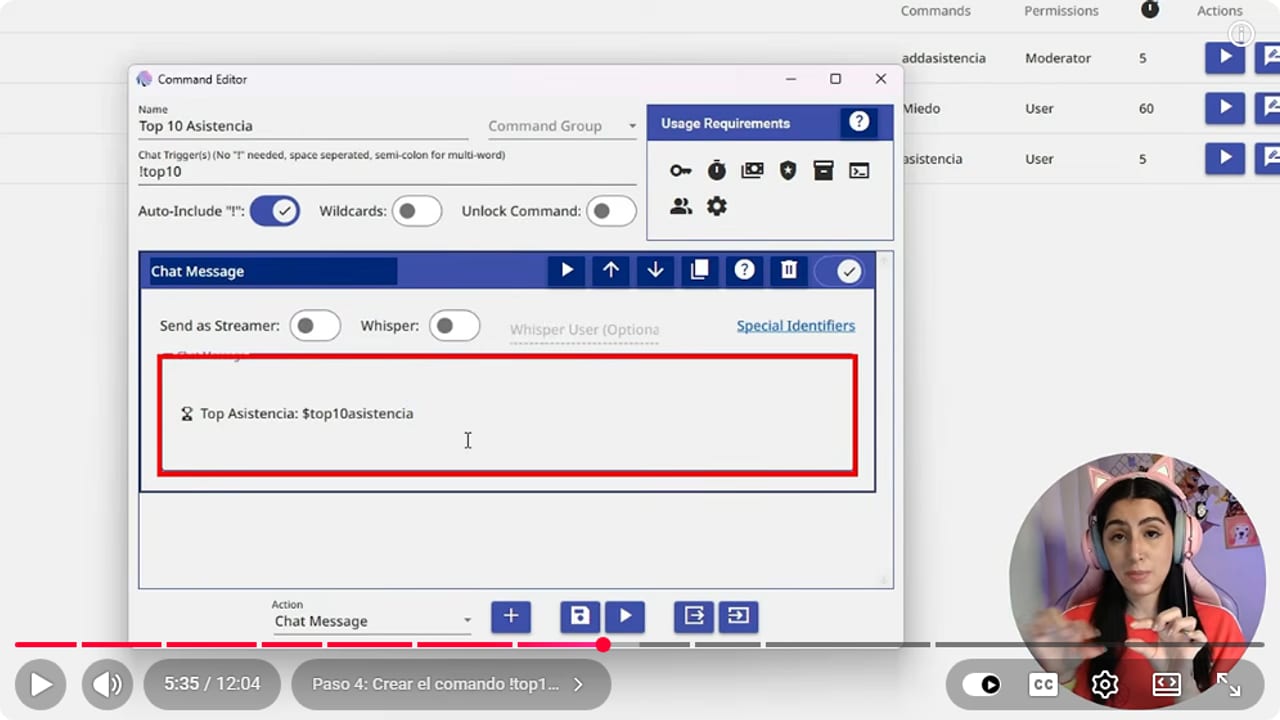
Copy the identifier exactly: $top10 followed by your currency name, no spaces. YouTube · 5:36 ↗ - 06
Add !miasistencia so everyone can check their own points
Nicole Rojas | YouTube | 5:49 ↗Here's the bonus. Click New Command again, name it My Attendance and set the Chat Trigger to miasistencia (or any word your chat will remember). Use a 30 second cooldown and the User role. Add a Chat Message like @$username you have $userasistencia attendance points. Mix It Up swaps $username for whoever typed it and $userasistencia for their points. Save.
What you should see: Two new commands sit in your list, top10 and miasistencia, both set to User.
- 07
If the reward already existed, add old redemptions by hand
Nicole Rojas | YouTube | 7:07 ↗This happened to me: I had the reward running before I set up Mix It Up, and those points don't count themselves. On Twitch, in your rewards list, click Review Requests and pick Confirm your attendance. You'll see everyone who redeemed it. Then in Mix It Up, go to Users, find each person, pick your currency under Currency/Rank and type how many times they redeemed. If the list is huge, use a rough number or tell chat the ranking starts today. I had 23, so I did it by hand.
What you should see: Each user's editor shows your attendance currency under Currency/Rank with the amount you entered.
- 08
Build an attendance leaderboard overlay
Nicole Rojas | YouTube | 8:42 ↗To show the ranking on screen, open the menu, go to Overlay Widgets and click Add Overlay Widget. Pick Leaderboard. Give it a name like Attendance ranking, very school roll call. Change the username color to match your channel. Set Type to Consumable and, next to it, your attendance currency. Use Total To Show for how many people appear, and set Refresh Time to 86400, since it can't refresh constantly. Save.
What you should see: Overlay Widgets lists your ranking widget with its buttons and enabled switch.
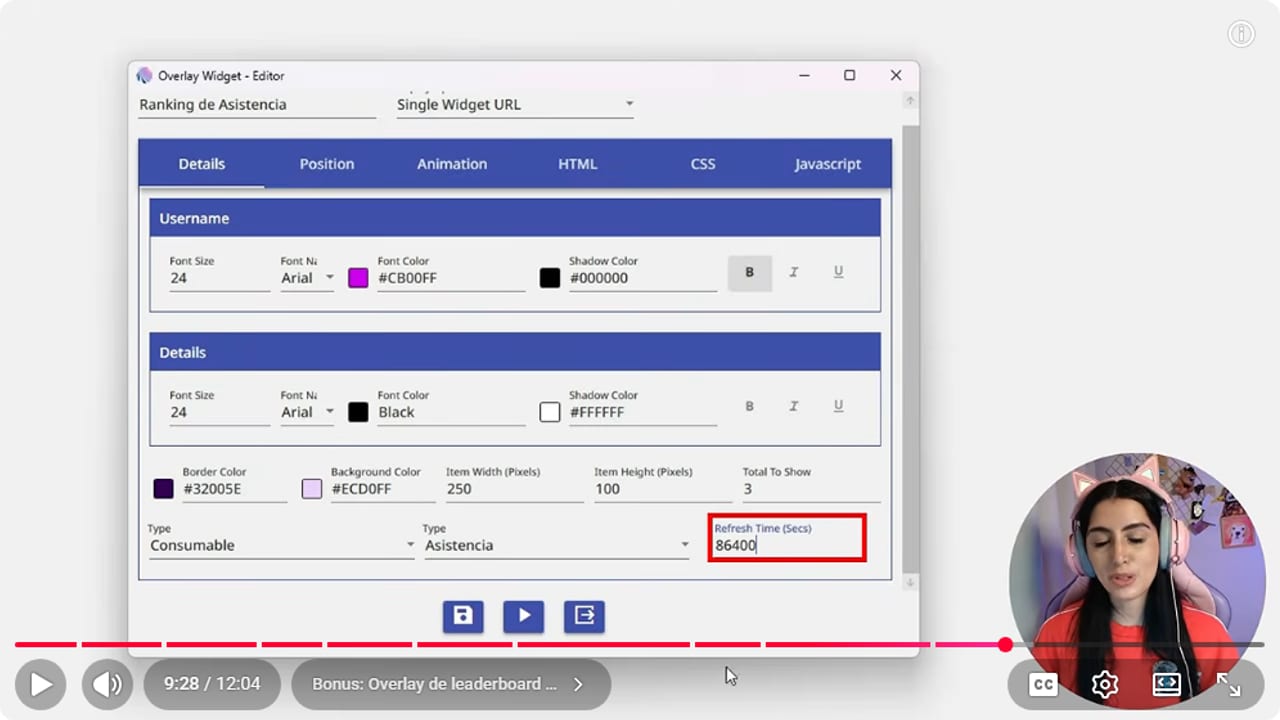
Set Type to Consumable plus your currency, and put 86400 in Refresh Time. YouTube · 9:29 ↗ - 09
Paste it into OBS and switch it on
Nicole Rojas | YouTube | 9:32 ↗Click the gear in Mix It Up, open Overlays and use the copy button on your overlay endpoint (I reuse the one from my channel point images). In OBS, click +, choose Browser, name it Attendance ranking and paste the link. It looks empty at first, so go back to Overlay Widgets and flip the widget's switch on. Place it wherever you like, say in a corner. Keep it switched on from there, because otherwise it disappears for no clear reason.
What you should see: The OBS preview shows the leaderboard table with names and their attendance points.
- 10
Test the commands and fix the ones that stay quiet
Nicole Rojas | YouTube | 10:36 ↗Type !top10 in your chat. If Mix It Up doesn't answer, go to Chat in its menu and make sure chat isn't blocked. Don't ask me why, it just happens. If you still get nothing, close Mix It Up completely so it isn't hiding in the taskbar, close OBS too, then open Mix It Up first. Type in chat again. And that's it: your community has a ranking of the people who always show up, whether they donate or not.
What you should see: When you type !top10, Mix It Up replies in chat with Top Attendance and the list of names with their points.
If something does not work
- Only one person could redeem attendance during the whole stream
- You filled in Limit Redemptions Per Stream instead of Limit Redemptions Per User Per Stream. Edit the reward on Twitch, clear the per-stream limit and put 1 in the per-user one. I did exactly this, so you're in good company.
- People type !top10 and Mix It Up doesn't answer
- Open Chat in Mix It Up and make sure chat isn't blocked. If it's still silent, close Mix It Up completely and close OBS as well, then open Mix It Up first and try again. Apps that hook into OBS behave better when they start with OBS closed.
- People redeem the point but their attendance doesn't go up
- In Mix It Up's Twitch Channel Points, check the reward has the Consumables action with your currency, Add to user and Amount 1. Also keep Mix It Up open while you're live, because redemptions made while it's closed aren't counted.
- The ranking in OBS is empty or keeps vanishing
- Go back to Overlay Widgets and switch the widget on, since nothing shows while it's off. Also check Type is Consumable with your attendance currency, and that the Browser source uses your overlay endpoint link.
- Everyone's points show zero
- If the reward existed before Mix It Up, those redemptions were never loaded. Add them by hand from Users, or announce that the ranking starts today. The ranking also lives on the PC where you built it, so another computer will show all zeros.
Test before you go live
- Mix It Up opens before OBS and is connected to your Twitch.
- The reward is limited to 1 redemption per user per stream, not per stream.
- You made a test redemption and your own user gained a point.
- !top10 and !miasistencia both reply in chat.
- The ranking widget is switched on and doesn't cover your camera or chat.
- And that's it: your regulars finally get their spot on the podium.
Cómo Crear un Sistema de Asistencias en Twitch con Puntos del Canal y Mixitup | 2026
Watch the full tutorial (in Spanish) ↗Common questions
Do I need to be a Twitch Affiliate to set this up?
Yes. The system runs on a channel points reward, and channel points are only available to Affiliate and Partner channels. If you're not there yet, start with the guide on becoming a Twitch Affiliate.
Why does the reward cost only 1 point?
So anyone can redeem it, even someone visiting your channel for the first time. It doesn't measure how much people spend, it measures how often they show up. The 1 per user per stream limit does the rest.
Can I use Streamer.bot instead of Mix It Up?
You can build something similar in Streamer.bot, but this guide uses Mix It Up because currencies, commands and leaderboards come built in. If Streamer.bot already runs your commands, check the guide on setting up Streamer.bot with OBS.
Does Mix It Up need to stay open while I stream?
Yes. Mix It Up runs on your PC, so when it's closed it doesn't count redemptions or answer commands. Open it before OBS and leave it running the whole stream.
How is this different from a regular channel points reward?
A regular reward gets redeemed and forgotten. With Mix It Up, every redemption is saved to a permanent ranking your chat can check with a command. For everything else about rewards, like costs, cooldowns and ideas, see the Twitch channel points guide.


