TWITCHTIPS
How to accept Twitch donations with StreamElements or Ko-fi
Take Twitch tips with StreamElements or Ko-fi with no platform fee, get the alert into OBS, and follow the steps to hide your address on PayPal invoices.


Short answer
Before you start
- Your Twitch account
- A free PayPal Business account, or PayPal or Stripe for Ko-fi
- A free StreamElements or Ko-fi account, depending on the route you pick
- OBS Studio if you want alerts on screen
Bring your setup to a 24/7 AI Streamer Coach
Ask Streamer Coach →Get personalized feedback to fix streaming issues and plan your next content.
Step by step
- 01
Know where the money goes and pick a route
Nicole Rojas · YouTube · 0:00 ↗Want tips but scared a viewer will see your personal details? Fair. Let's fix that first. Donations and tips go straight to your PayPal or payment processor. Twitch never touches that money, and you don't need Affiliate. Subs and Bits come from Twitch, and Twitch keeps a percentage. In the video Nicole says Twitch requires Affiliate at minimum to receive them. Today Twitch's help center says you can switch them on with monetization onboarding, and that getting paid does need Affiliate or Partner status. You'll see two routes here: StreamElements, the full setup with alerts, and Ko-fi, the simpler one for when you're just starting.
What you should see: PayPal and either StreamElements or Ko-fi are open in your browser, ready to sign in.
- 02
Switch PayPal to Business and hide your details
Nicole Rojas · YouTube · 1:32 ↗With a personal PayPal, the person who tips you can often see your real name and your email, and Nicole says even your address. That's doxxing, and it's a real risk, especially for women who stream. Go to PayPal, Sign up, and choose Business. Use an email linked to your Twitch rather than your everyday PayPal email. For business type, pick sole proprietor and individual, and use your channel name as the business name. Enter a real address you can legitimately use, because you'll hide it afterwards. Once the account exists, go to Sales, Invoices, and the settings gear. Hide your address, phone and email from recipients, then save. PayPal explains that business details show on invoices and estimates, so the real proof is the test tip in the last step.
What you should see: The invoice preview at the top of the settings shows your channel name, with no address, phone or email.
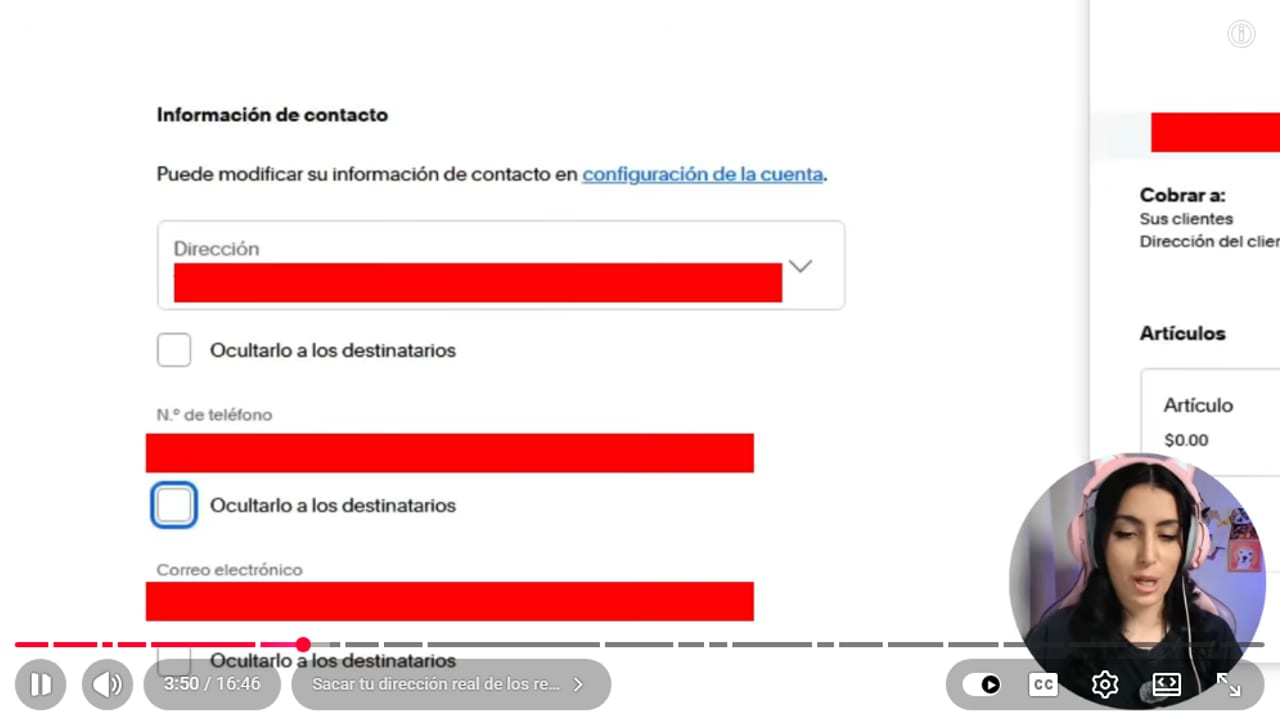
The privacy review helps keep personal details out of a donation flow. YouTube · 3:50 ↗ - 03
Connect StreamElements to Twitch and PayPal
Nicole Rojas · YouTube · 4:34 ↗Open StreamElements, click Login and connect it with Twitch (YouTube and Kick work too). Authorize it. Then go to Revenue, Tipping settings, and click Connect next to PayPal. You're sent to PayPal, where you sign in and click Allow. PayPal then emails and texts you to confirm it's really you linking the account.
What you should see: Tipping settings shows PayPal as connected, along with your tip link, the one you'll share.
- 04
Set the rules and design of your tip page
Nicole Rojas · YouTube · 5:36 ↗In Tipping settings, choose your currency. US dollars is what most people expect. Set a 1 dollar minimum to stop spam and a maximum to avoid chargebacks, when someone disputes a donation later. Turn on the security option that requires donors to have a real login, which filters out suspicious anonymous tips, and add your preset amounts. Under Design you can change the page name, the thank-you message, the images and the top donor leaderboard. Under Tip moderation you can swap bad words for symbols, turn on anti-spam, or approve each tip by hand before it shows on stream.
What you should see: Your tip link opens on your phone with your currency, preset amounts and chosen design.
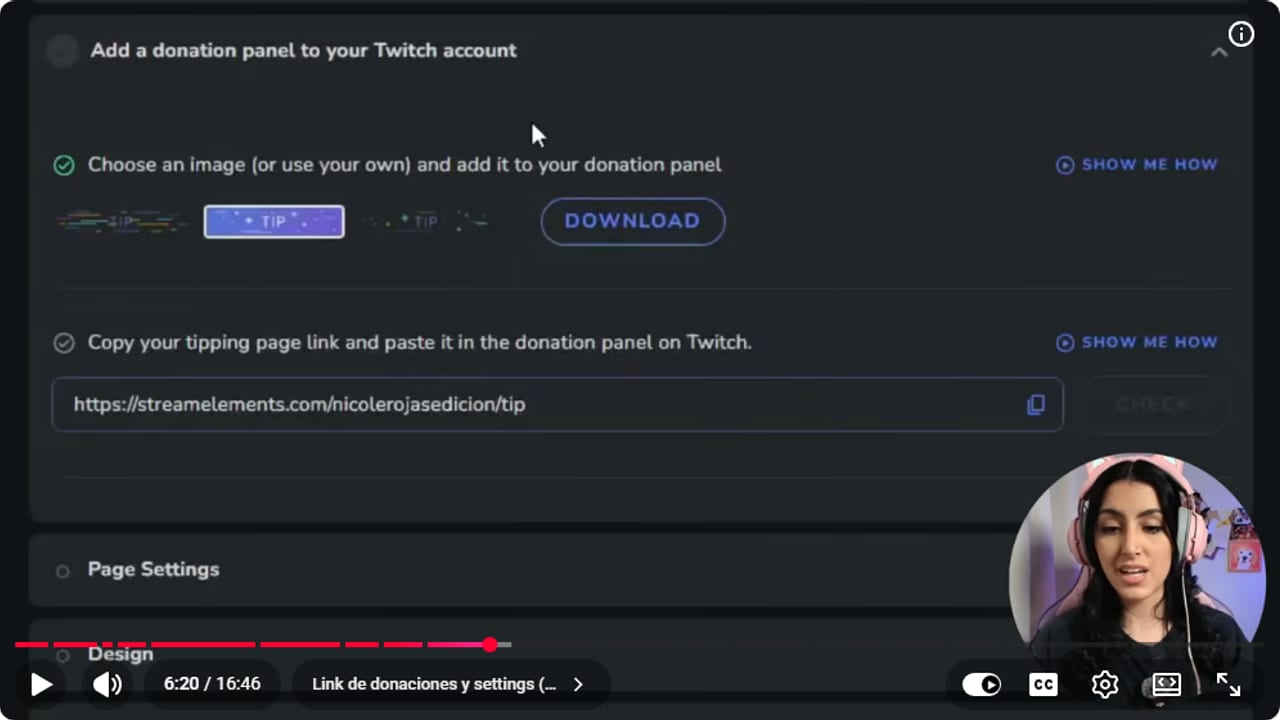
StreamElements keeps the tipping page and Twitch panel settings in one place. YouTube · 6:21 ↗ - 05
Build the tip alert and add it to OBS
Nicole Rojas · YouTube · 8:08 ↗In StreamElements, go to Stream tools, Overlays, New overlay. Keep the resolution and click Start. Click +, then Alerts, AlertBox. Remove the subscriber, follower and cheer alerts so only the tip alert is left. Its settings cover the image or video, sound, message and position. Save it with a name you'll recognize, like donation alerts, and click the link icon to copy the URL. In OBS, add a Browser source, call it donation alerts, paste the URL and set 1920 by 1080, the overlay size. To test it, click Emulate in StreamElements and pick Tip.
What you should see: The test alert pops up over your OBS scene where you placed it, image and sound included.
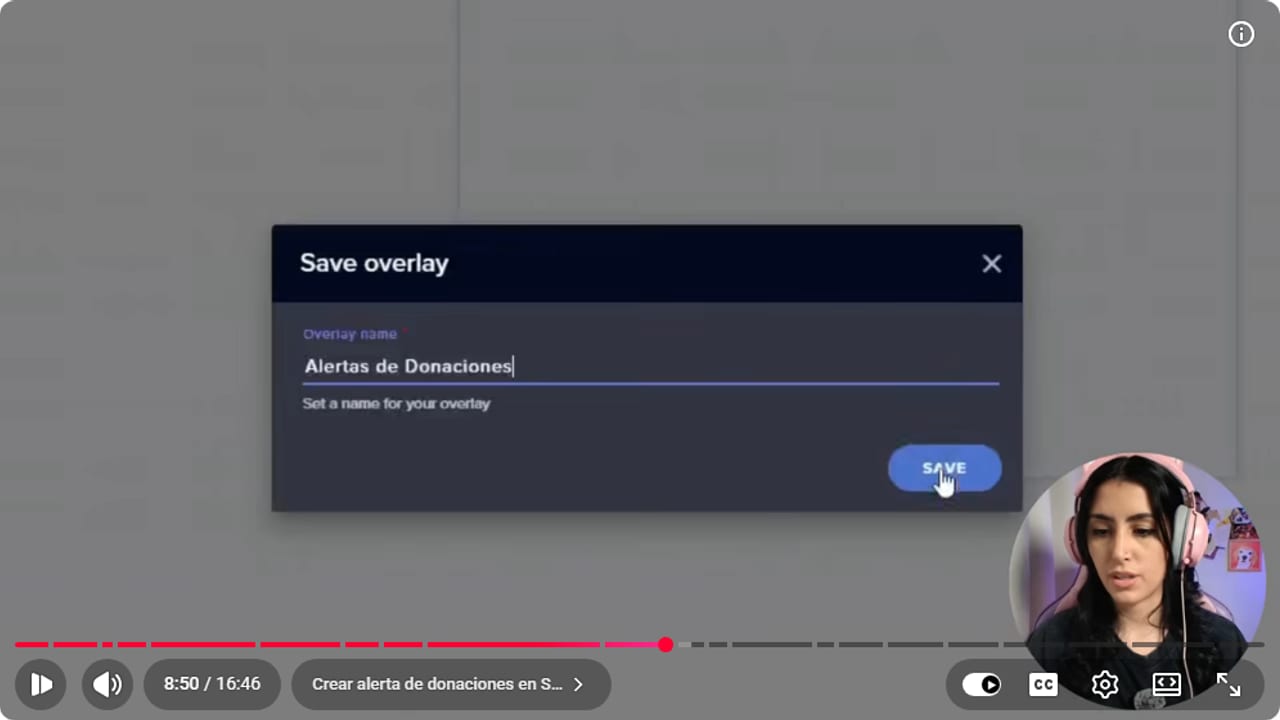
The alert overlay gets a recognizable name before it is connected to OBS. YouTube · 8:51 ↗ - 06
Add a donation panel to your Twitch channel
Nicole Rojas · YouTube · 9:38 ↗On your Twitch channel, scroll to About, click Edit panels and then the + to add a text or image panel. Title it Donations, upload the image you downloaded from StreamElements or your own, and paste your Tipping settings link as the image link. If you want the link in the text too, write it as [Tips](your link). No space between the bracket and the parenthesis. Click Submit.
What you should see: The Donations panel shows under About, and clicking its image or text opens your tip page.
- 07
Or go with Ko-fi, the short route
Nicole Rojas · YouTube · 10:38 ↗Ko-fi sits between you and the person tipping you, and the payment goes straight to your PayPal or Stripe. In the video Nicole says Ko-fi charges 0% commission. As of October 9, 2026, Ko-fi's help center says Ko-fi Free charges 0% on one-time tips and 5% on everything else, and that PayPal or Stripe charge their own fees on top. Click Sign Up, create your account, then choose Creator and Tips. Pick your page link name and use the same profile picture as on Twitch so nobody gets confused. Add your interests and a bio, enter the code Ko-fi emails you and connect PayPal or Stripe in the pop-up. Then go to Settings, Payment. Ko-fi says new accounts start with Get all of Ko-fi switched on, which charges 5% on one-time tips too in exchange for extra features. In the video Nicole calls it Contribution and switches it off to avoid that fee. The same area holds your minimum amount, an automatic thank-you message and monthly support, which does carry 5%. Mind your privacy: Ko-fi says a personal PayPal account typically shows your legal name and email, so use PayPal Business with Ko-fi too.
What you should see: Under Settings, Payment, Get all of Ko-fi shows as switched off, next to the minimum and thank-you message you saved.
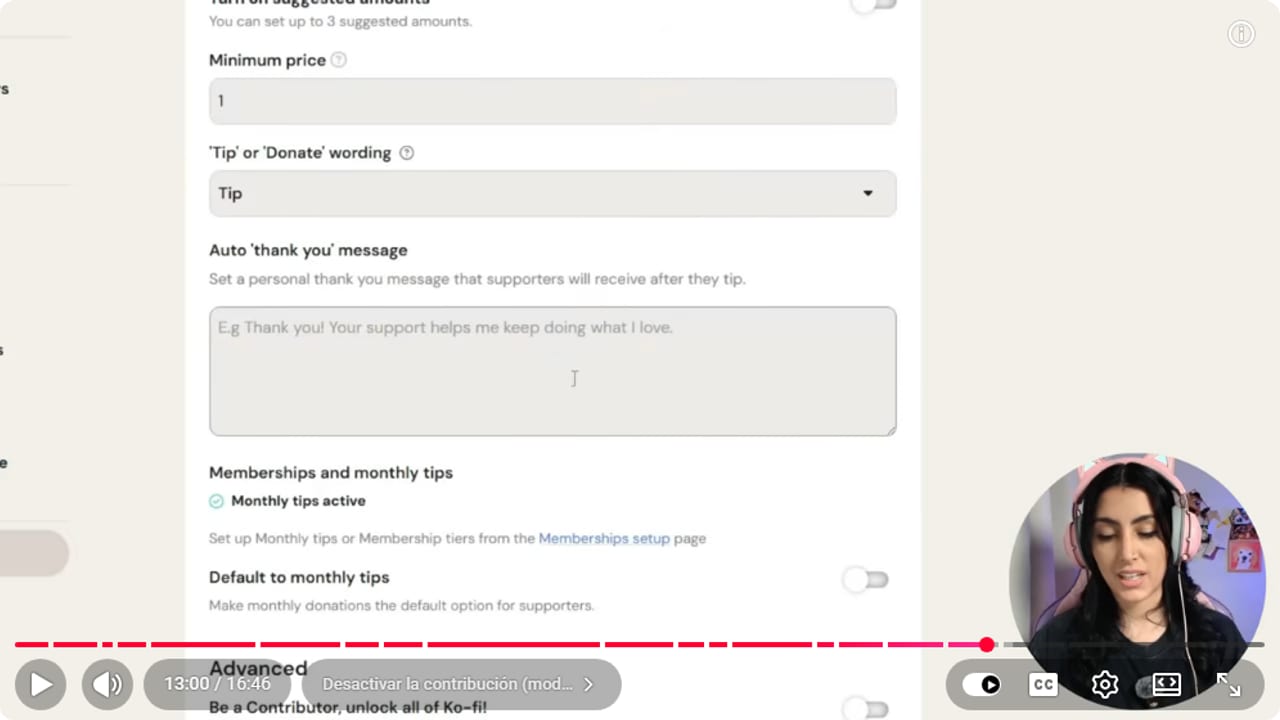
Ko-fi lets you set amounts, text, and membership options from its dashboard. YouTube · 13:01 ↗ - 08
Add Ko-fi alerts to OBS
Nicole Rojas · YouTube · 13:11 ↗In Ko-fi, go to Settings, Stream alerts. If you like, connect the Ko-fi chatbot so it announces each tip in your chat. Choose the alert overlay, animated or plain, and copy its link. In OBS, add a Browser source, name it Ko-fi alerts so you don't mix it up with the StreamElements one, and paste the link. Move it somewhere that doesn't cover your chat and send a test alert. If you can't hear it, double-click the source, tick Control audio via OBS and click OK.
What you should see: Ko-fi alerts shows up in the OBS Audio Mixer and its meter jumps when the test alert plays.
- 09
Do one last privacy check
Nicole Rojas · YouTube · 16:14 ↗Before you share the link, go back to the PayPal Business invoice settings and make sure your address, real name, email and phone are hidden. That part is in the video. Extra from this guide, which Nicole doesn't say: ask someone you trust to send a tiny test tip and check the receipt they get, and look at Business settings in PayPal too, where you can see the information shown to recipients. And that's it: tips with alerts, and safer ones.
What you should see: The test receipt shows your channel name and none of your personal details.
If something does not work
- Someone tipped and nothing showed up
- Check whether PayPal is holding the payment for verification. StreamElements says to contact PayPal about that payment. Once it clears, replay the alert by hand.
- The alert doesn't show in OBS
- Check that the Browser source URL is the overlay you saved, that the source is visible in the right scene and set to 1920 by 1080. Then test it again with Emulate in StreamElements.
- The Ko-fi alert shows but makes no sound
- Double-click the source, tick Control audio via OBS and click OK. The alert now appears in the Audio Mixer, where you can turn it up or down. If you record gameplay and camera separately, you can also send it to its own track.
- The receipt shows your real name or address
- Stop sharing the link right now. In PayPal Business, go to Sales, Invoices, settings, and hide your address, phone and email. Then check Business settings in PayPal and send a test tip to confirm what a donor really sees. It's a real risk, so don't leave this for later.
- The link in your Twitch panel text doesn't work
- It's almost always a space between the bracket and the parenthesis. Write it with no gap, [Tips](your link), save it and click it from your channel to test.
- Tiny tips keep arriving with spam messages
- Raise the minimum in Tipping settings and turn on anti-spam under Tip moderation. If it keeps happening, switch on manual approval so no tip reaches your screen until you accept it.
Test before you go live
- PayPal Business invoices hide your address, phone and email.
- Your tip link loads properly on a phone.
- Minimum, maximum and message filters are switched on.
- Alerts play at a volume that doesn't drown out your voice.
- Your Twitch panel points to your current link.
- You sent a test tip and the receipt doesn't show your address.
Cómo recibir donaciones en tu stream gratis y seguro con StreamElements y Ko-fi
Watch the full tutorial (in Spanish) ↗Common questions
Do I need Twitch Affiliate to receive donations?
No. Donations go straight to your PayPal or payment processor, so you can turn them on from day one. Twitch now also lets you switch on subs and Bits with monetization onboarding, but getting paid for them needs Affiliate or Partner status.
Does StreamElements take a cut of donations?
StreamElements says it doesn't add a processing fee, but PayPal and other processors charge their own. Check your processor's current terms before you quote any amounts.
Does Ko-fi charge a fee?
It depends on the plan. As of October 9, 2026, Ko-fi's help center says Ko-fi Free charges 0% on one-time tips and 5% on everything else, and Standard mode charges 5% on one-time tips too. New accounts start with Standard on, and you switch it off under Settings, Payment. Your processor charges on top: Ko-fi says it's typically around 3% plus 30 cents and varies by account type, location and currency. In the video Nicole talks about 0% and PayPal at 2.9% plus 30 cents, and those figures no longer match the official pages. In the US, PayPal's fees page lists 2.89% plus 0.49 USD for donations, 2.99% plus 0.49 for card payments and 3.49% plus 0.49 for PayPal Checkout. Check the rate for your country.
Does Ko-fi hide my real name?
Ko-fi shows your page, but the payment goes through your PayPal or Stripe, and those processors share some information. According to Ko-fi's help center, a personal PayPal account typically shows your legal name and email, and with PayPal Business you can choose the name and email that appear. In the video Nicole says Ko-fi stays private even with a personal PayPal, but the official help doesn't back that up. Use PayPal Business with Ko-fi too and send a test tip.
What address should I use for PayPal Business?
Enter a real address you can use and receive mail at, then hide it from invoices. Don't use someone else's address without checking PayPal's rules first. The video shows PayPal doesn't accept PO boxes, so if you have no other option, choose your residential address.
StreamElements or Ko-fi?
StreamElements gives you far more alerts and customization, and you'll need Twitch, StreamElements and PayPal Business. Ko-fi is simpler, needs only your email plus PayPal or Stripe, and suits you if you're just starting and want zero headaches.


